
Table of Contents
Archer NX205(EU)_V1_Installation and User Guide
About This Guide
This guide provides a brief introduction to 5G AX1500 Wireless Dual Band Gigabit Router and regulatory information.
Note: Features available in this range extender may vary by model and software version. Router availability may also vary by region or ISP. All images, steps, and descriptions in this guide are only examples and may not reflect your actual router experience.
Conventions
In this guide the following conventions are used:
|
Convention |
Description |
|
Underline |
Underlined words or phrases are hyperlinks. You can click to redirect to a website or a specific section. |
|
Bold |
Contents to be emphasized and texts on the web page are in bold, including the menus, items, buttons and so on. |
|
> |
The menu structures to show the path to load the corresponding page. For example, Settings > System Tools > Firmware Upgrade means the Firmware Upgrade page is under the System Tools menu that is located in the Settings tab. |
|
Note: |
Ignoring this type of note might result in a malfunction or damage to the device. |
|
Tips: |
Indicates important information that helps you make better use of your device. |
More Info
The latest software, management app and utility can be found at Download Center at https://www.tp-link.com/support/download/.
The Quick Installation Guide can be found where you find this guide or inside the package of the router.
Specifications can be found on the product page at https://www.tp-link.com.
TP-Link Community is provided for you to discuss our products and share knowledge at https://community.tp-link.com.
Our Technical Support contact information can be found at the Contact Technical Support page at https://www.tp-link.com/support/.
Disclaimer
*Maximum wireless signal rates are the physical rates derived from IEEE Standard 802.11 specifications. Actual wireless data throughput and wireless coverage are not guaranteed and will vary as a result of 1) environmental factors, including building materials, physical objects, and obstacles, 2) network conditions, including local interference, volume and density of traffic, product location, network complexity, and network overhead, and 3) client limitations, including rated performance, location, connection, quality, and client condition.
*Use of Wi-Fi 6 (802.11ax), and features including OFDMA, MU-MIMO, 1024-QAM, and HT160 require clients to also support the corresponding features.
*Saving clients’ battery power requires clients to also support the 802.11ax Wi-Fi standard. Actual power reduction may vary as a result of network conditions, client limitations, and environmental factors.
*Use of WPA3 requires clients to also support the corresponding feature.
*This router may not support all the mandatory features as ratified in Draft 3.0 of IEEE 802.11ax specification.
*Further software upgrades for feature availability may be required.
1. Get to Know About Your Modem Router
1.1 Product Overview
TP-Link’s Router is a combined wired/wireless network connection device with integrated WAN router, reducing hassle of configuration and saving space.
With Ethernet ports and antennas, the router provides wired and wireless access for multiple computers and mobile devices.
With various features and functions, the modem router is the perfect hub of your home or business network.
Moreover, it is simple and convenient to set up and use the TP-Link router due to its intuitive Tether app and powerful web interface.
1.2 Appearance
1.2.1 Front Panel
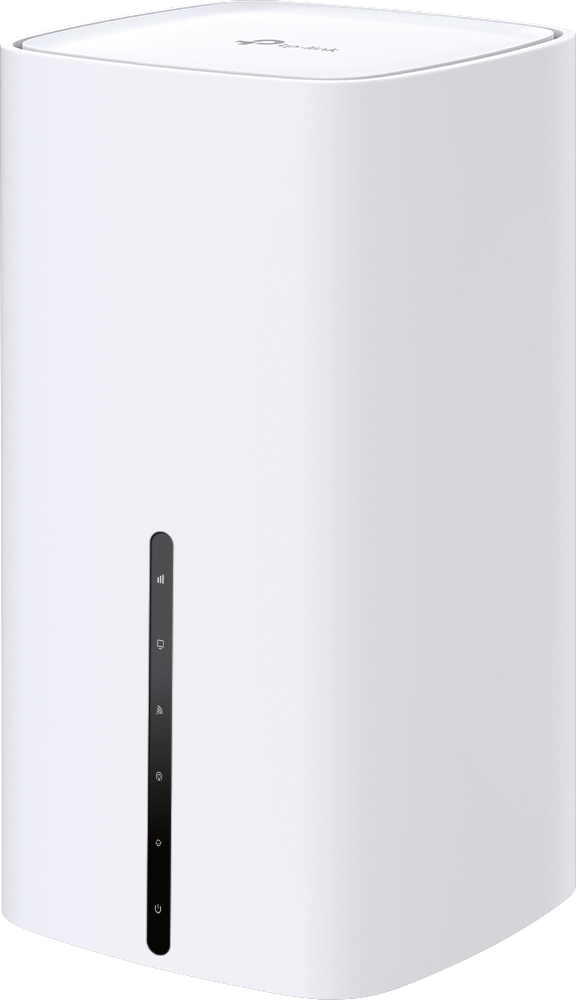
The router’s LEDs (view from top to bottom) are located on the front. You can check the router’s working status by following the LED Explanation table.
|
Name |
Status |
Indication |
|---|---|---|
|
(Signal Strength) |
Solid white |
The signal strength is above 75%. |
| Solid green |
The signal strength is between 50% and 75%. |
|
| Solid yellow |
The signal strength is below 50%. |
|
| Off |
No mobile network signal. |
|
|
(LAN) |
On |
At least one LAN port is connected. |
|
Off |
No LAN port is connected or LAN port is not connected properly. |
|
|
(Wi-Fi) |
On |
At least one radio interface is enabled. |
| Flashing |
The WPS pairing is ongoing. If the connection is established successfully, it will return to solid white. If it is not successfully established, it will continue to flash for 2 minutes and then return to solid white. If Wi-Fi is turned off during WPS pairing, the Wi-Fi light will be off. |
|
| Off |
Both 2.4 GHz and 5 GHz radio interfaces are disabled. |
|
|
(Network Type) |
Solid white |
The device is on a 5G network. |
| Solid teal |
The device is on a 4G+ network. |
|
| Solid green |
The device is on a 4G network. |
|
| Solid yellow |
The device is on a 3G network. |
|
| Off |
The device is not registered on the network. |
|
|
(Internet ) |
On |
Internet service is available. |
| Off |
The router’s WAN port is unplugged, or the SIM card is not connected, or the SIM card is connected but dialing fails. |
|
|
(Power) |
On |
The system has started up successfully. |
|
Blinking |
The system is starting up or the firmware is being upgraded. Do not disconnect or power off your router. |
|
| Off |
Power is off. |


Note:
1. If the Signal Strength LED is off, please check your Internet connection first. Refer to Connect the Hardware for more information about how to make Internet connection correctly. If you have already made a right connection, please contact your ISP to make sure your Internet service is available now.
2. If the Internet LED is off, please check your Signal Strength LED first. If your Signal Strength LED is also off, please refer to Note 1. If your Signal Strength LED is ON, please check your Internet configuration. You may need to check this part of information with your ISP and make sure everything have been input correctly.
3. If the Network Type LED is off, please check your Internet LED first. If the Internet LED is also off, please check your internet connection. If you have already made a right connection, please contact your ISP to make sure your 5G/4G network service is available.
1.2.2 Back panel
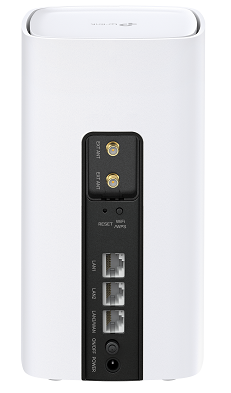
The following parts (view from top to bottom) are located on the back panel.
|
Item |
Description |
|---|---|
| RESET | Press and hold this button for at least 2 seconds until the Power LED blinks to reset the router to its factory default settings. |
| Wi-Fi/WPS |
Press and immediately release the button, and within 2 minutes press the WPS button on your client to start the WPS process. Press and hold the button for about 2 seconds, then release the button to turn on or off the wireless function of your router. |
| LAN1, LAN2, LAN3/WAN Ports |
For connecting the router to your PC or other Ethernet network devices. In wireless router mode, the WAN port is used for connecting to a Cable/FTTH/VDSL/ADSL device. |
| ON/OFF | The switch for the power. Press it to power on or off the router. |
| POWER | For connecting the modem router to power socket via the provided power adapter. |
2. Connect the Hardware
2.1 Position Your Modem Router
With the modem router, you can access your network from anywhere within the wireless network coverage. However, the wireless signal strength and coverage varies depending on the actual environment where your modem router is in. Many obstacles may limit the range of the wireless signal, for example, concrete structures, thick walls.
For your security and best Wi-Fi performance, please:
-
The product should not be located in a place where it will be exposed to moisture or excessive heat.
-
Place the router in a location where it can be connected to multiple devices as well as to a power source.
-
Make sure the cables and power cord are safely placed out of the way so they do not create a tripping hazard.
-
The router can be placed on a shelf or desktop.
-
Keep the router away from devices with strong electromagnetic interference, such as Bluetooth devices, cordless phones and microwaves.
-
Generally, the router is placed on a horizontal surface, such as on a shelf or desktop.
-
Try relocating the router to a spot that may receive a stronger mobile network signal, such as near a window.
2.2 Connect Your Modem Router
Before you start, turn off your modem, if any, and remove the backup battery if it has one. And place the router horizontally and orient the antennas vertically.
Follow the steps below to connect your router.
There are two dial-up Internet access methods: dial-up Internet access via Mobile WAN (SIM card), and dial-up Internet access via EWAN. You don’t need to connect both Mobile WAN (SIM card) and EWAN.
Method 1: Via Mobile WAN
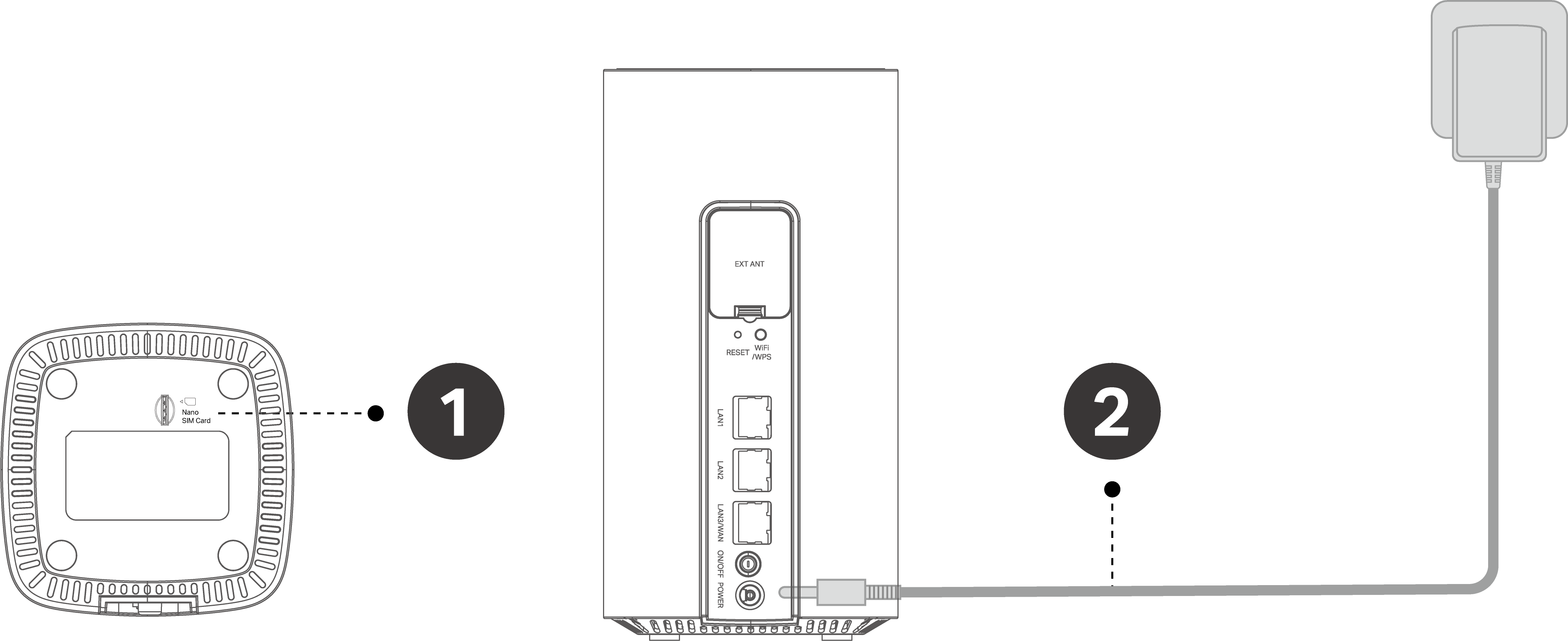
1. With the gold contacts facing right, insert the nano SIM card into the slot until you hear a click.
2. Connect the power adapter to the router and turn on the router.
Method 2: Via EWAN
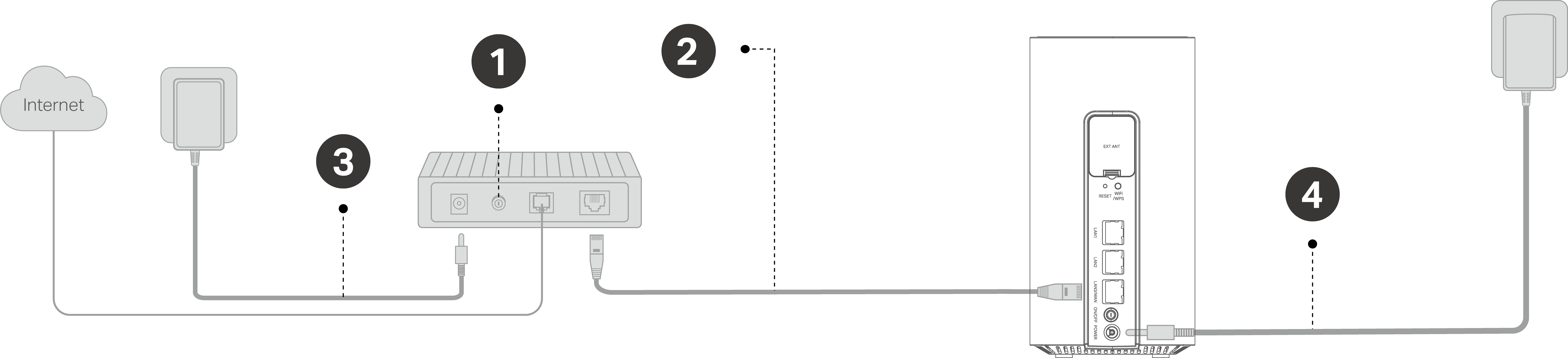
If your internet comes from an Ethernet outlet instead of a DSL / Cable / Satellite modem, connect the router’s WAN/LAN port to it, then follow steps 4 and 5 to complete the hardware connection.
1. Turn off the modem, and remove the backup battery if it has one.
2. Connect the modem to the router’s WAN port with an Ethernet cable.
3. Turn on the modem, and then wait about 2 minutes for it to restart.
4. Connect the power adapter to the router and turn on the router.
5. Verify that the hardware connection is correct by checking the following LEDs.

Note: If the Internet LED and Wi-Fi LED are off, press and hold the RESET button on the back for more than 2 seconds to reset the router. Both the LEDs should turn solid on.
6. Connect your computer to the router.
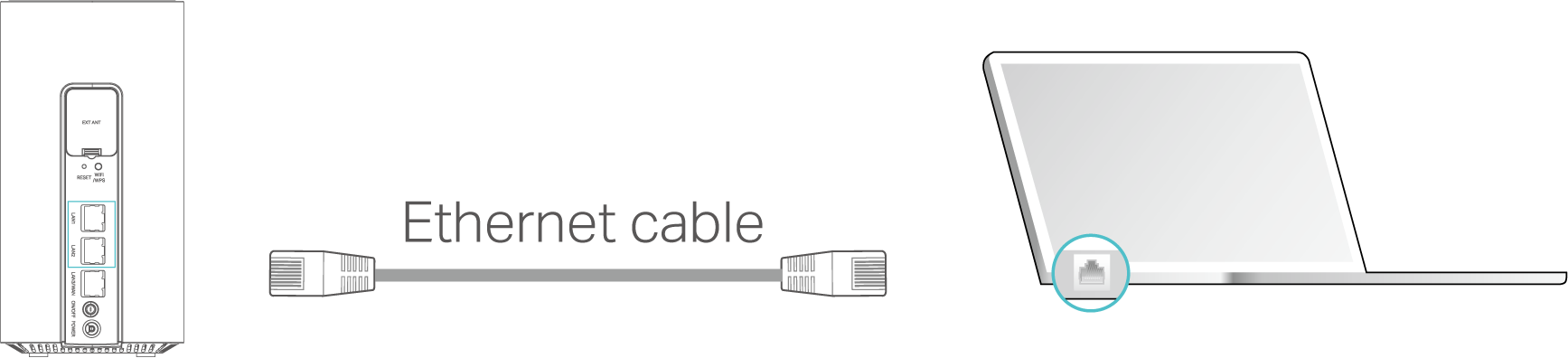
Option 1: Wired
Turn off the Wi-Fi on your computer and connect the devices as shown below.
Option 2: Wirelessly
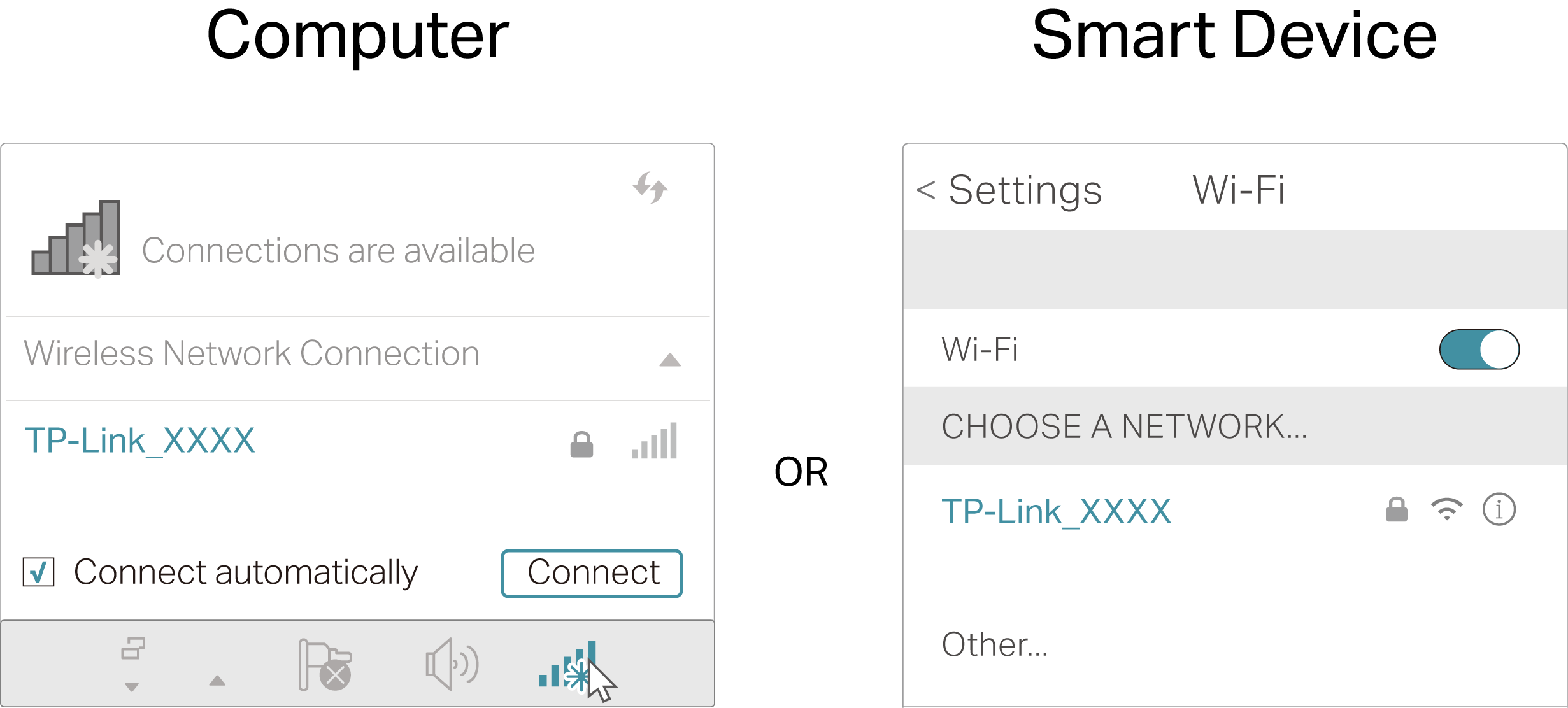
Find the SSID (Network Name) and Wireless Password printed on the label at the bottom of the router.
Click the network icon of your computer or go to Wi-Fi Settings of your smart device, and then select the SSID to join the network.
Option 3: Use the WPS button
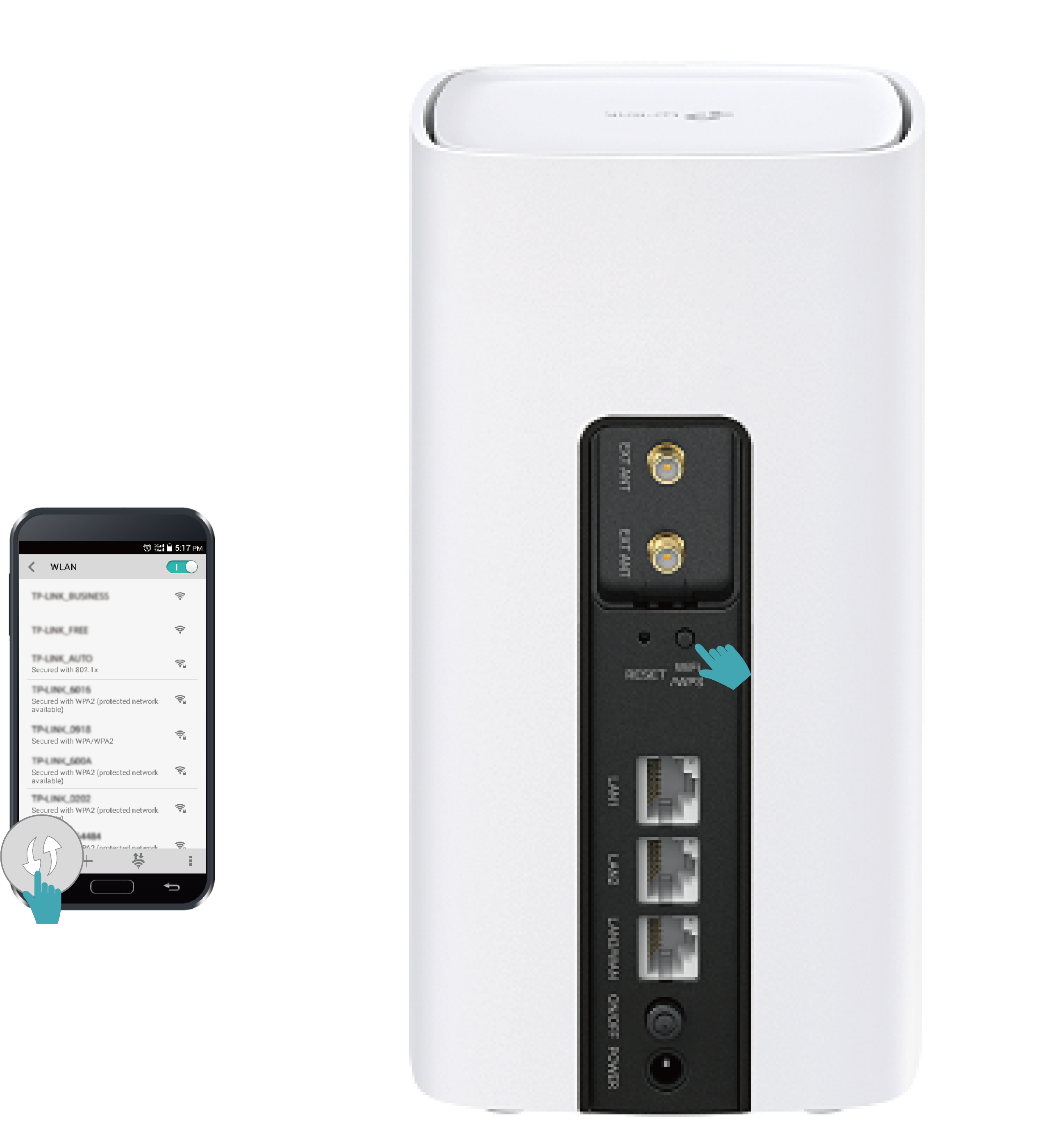
Wireless devices that support WPS, including Android phones, tablets, and most USB network cards, can be connected to your router through this method.
Note:
• WPS is not supported by iOS devices.
• The WPS function cannot be configured if the wireless function of the router is disabled. Also, the WPS function will be disabled if your wireless encryption is WEP. Please make sure the wireless function is enabled and is configured with the appropriate encryption before configuring the WPS.
1) Tab the WPS icon on your device’s screen. Here we take an Android phone for instance.
2) Within two minutes, press the WPS button on your router.
FAQ
Q1. What should I do if I forget my wireless password?
The default wireless password is printed on the label of the router. If the password has been altered:
-
Connect your computer to the router using an Ethernet cable.
-
Visit http://tplinkmodem.net or http://192.168.1.1, and log in with the password you set for the router.
-
Go to Wireless to retrieve or reset your wireless password.
Q2. What should I do if I forget my web management password?
-
If you are using a TP-Link ID to log in, click Forgot Password on the login page and then follow the instructions to reset it.
-
Alternatively, press and hold the Reset button of the router until the Power LED blinks to restore factory default settings, and then visit http://tplinkmodem.net or http://192.168.1.1 to create a new login password.
Note: You’ll need to reconfigure the router to surf the internet once the router is reset, and please mark down your new password for future use.
Q3. What should I do if I can’t log in to the router’s web management page?
This can happen for a variety of reasons. Please try the methods below to log in again.
-
Make sure your computer is connected to the router correctly and the corresponding LED indicator(s) light up.
-
Make sure the IP address of your computer is configured as Obtain an IP address automatically and Obtain DNS server address automatically.
-
Make sure http://tplinkmodem.net or http://192.168.1.1 is correctly entered.
-
Check your computer’s settings:
1) Go to Start > Control Panel > Network and Sharing Center.
2) Click Internet Options on the bottom left.
3) Click Connections and select Never dial a connection.
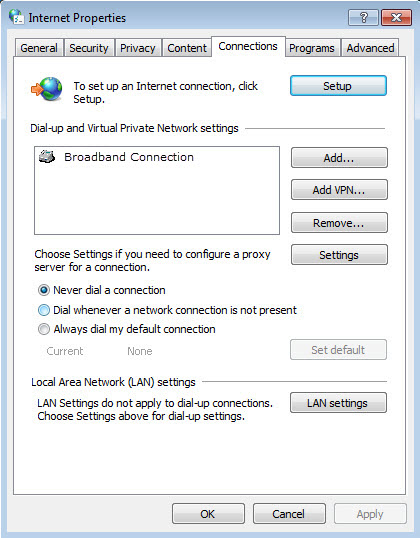
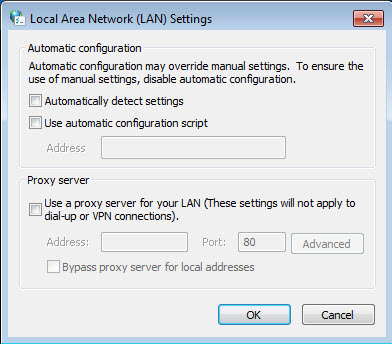
4) Click LAN settings and deselect the following three options and click OK.
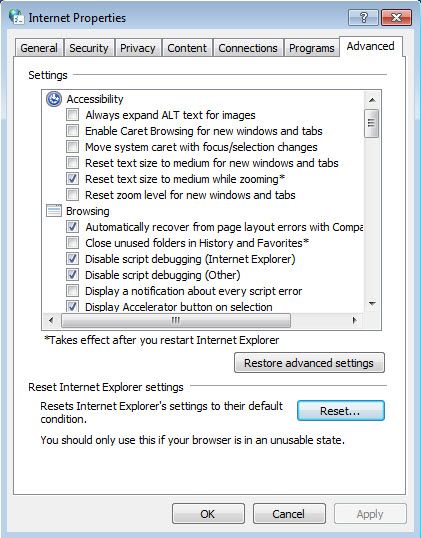
5) Go to Advanced > Restore advanced settings, click OK to save the settings.
-
Use another web browser or computer to log in again.
-
Reset the router to factory default settings and try again. If login still fails, please contact the technical support.
Note: You’ll need to reconfigure the router to surf the internet once the router is reset.
Q4. What should I do if I can’t access the internet even though the EWAN configuration is finished?
-
Visit http://tplinkmodem.net or http://192.168.1.1, and log in with your TP-Link ID or the password you set for the router.
-
Go to Advanced> Status to check internet status:
If IP Address is a valid one, please try the methods below and try again:
-
Your computer might not recognize any DNS server addresses. Please manually configure the DNS server.
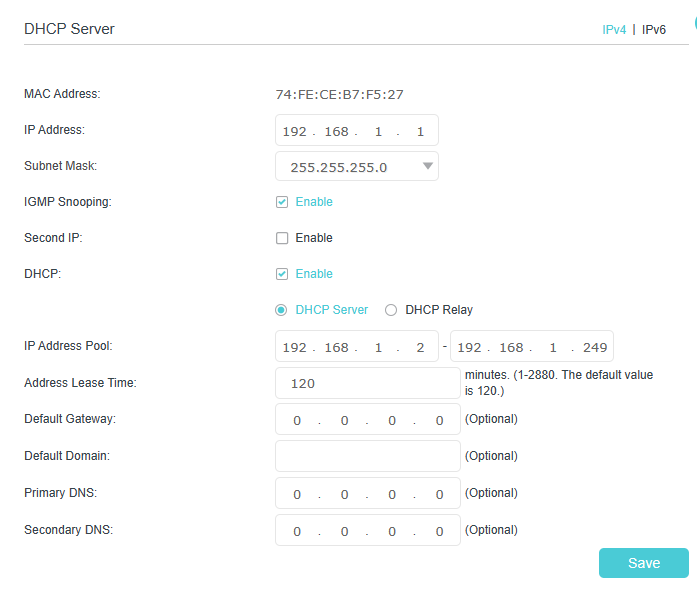
1) Go to Advanced > Network > LAN Settings > DHCP Server.
2) Enter 8.8.8.8 as Primary DNS, click Save.
Tips: 8.8.8.8 is a safe and public DNS server operated by Google.
-
Restart the modem and the router.
1) Power off your modem and router, and leave them off for 1 minute.
2) Power on your modem first, and wait about 2 minutes until it gets a solid cable or Internet light.
3) Power on the router.
4) Wait another 1 or 2 minutes and check the internet access.
-
Reset the router to factory default settings and reconfigure the router.
-
Upgrade the firmware of the router.
-
Check the TCP/IP settings on the particular device if all other devices can get internet from the router.
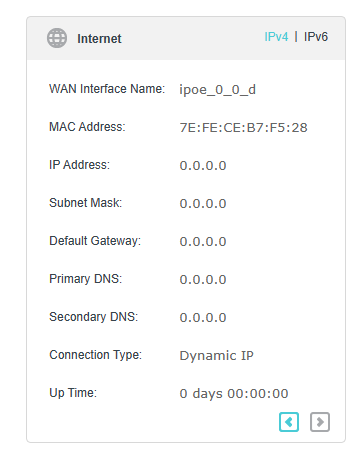
As the picture below shows, if the IP Address is 0.0.0.0, please try the methods below and try again:
-
Make sure the physical connection between the router and the modem is proper.
-
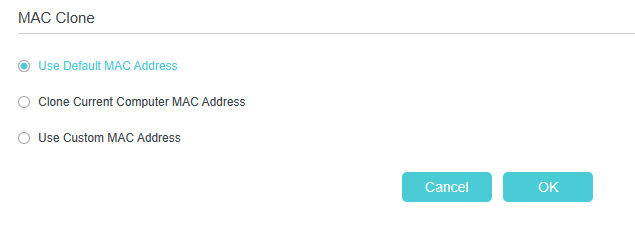
Clone the MAC address of your computer.
1) Visit http://tplinkmodem.net or http://192.168.1.1, and log in with your TP-Link ID or the password you set for the router.
2) Go to Internet or Advanced > Network > Internet and focus on the MAC Clone section.
3) Choose an option as needed (enter the MAC address if Use Custom MAC Address is selected), and click OK.
Tips:
• Some ISP will register the MAC address of your computer when you access the internet for the first time through their Cable modem, if you add a router into your network to share your internet connection, the ISP will not accept it as the MAC address is changed, so we need to clone your computer’s MAC address to the router.
• The MAC addresses of a computer in wired connection and wireless connection are different.
- Modify the LAN IP address of the router.
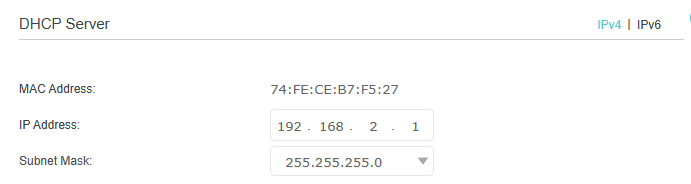
Note: Most TP-Link routers use 192.168.0.1/192.168.1.1 as their default LAN IP address, which may conflict with the IP range of your existing ADSL modem/router. If so, the router is not able to communicate with your modem and you can’t access the internet. To resolve this problem, we need to change the LAN IP address of the router to avoid such conflict, for example, 192.168.2.1.
1) Visit http://tplinkmodem.net or http://192.168.1.1, and log in with your TP-Link ID or the password you set for the router.
2) Go to Advanced > Network > LAN Settings.
3) Modify the LAN IP address as the follow picture shows. Here we take 192.168.2.1 as an example.
4) Click Save.
- Restart the modem and the router.
1) Power off your modem and router, and leave them off for 1 minute.
2) Power on your modem first, and wait about 2 minutes until it get a solid cable or Internet light.
3) Power on the router.
4) Wait another 1 or 2 minutes and check the internet access.
-
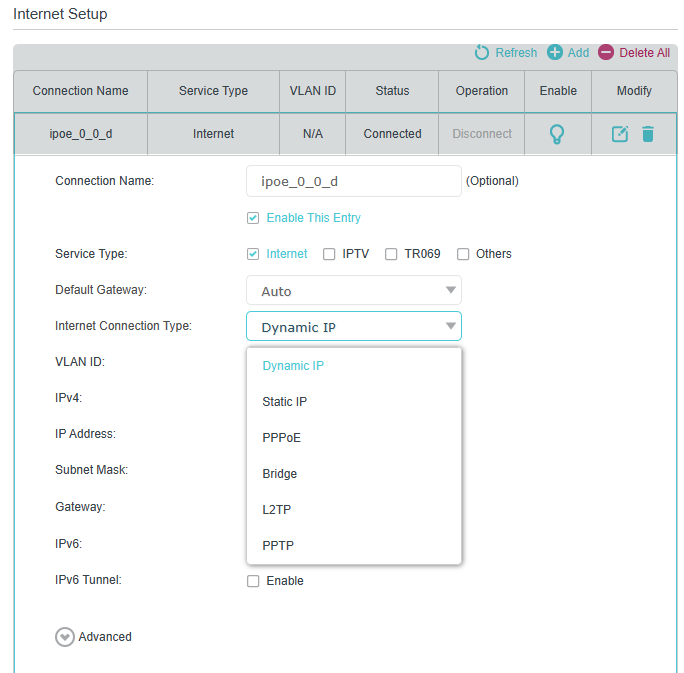
Double check the internet connection type.
1) Confirm your internet connection type, which can be learned from the ISP.
2) Visit http://tplinkmodem.net or http://192.168.1.1, and log in with your TP-Link ID or the password you set for the router.
3) Go to Advanced > Network > Internet.
4) Select your Internet Connection Type and fill in other parameters.
5) Click Save.
6) Restart the modem and the router again.
-
Please upgrade the firmware of the router.
If you’ve tried every method above but still cannot access the internet, please contact the technical support.
Q5. What should I do if I can’t find my wireless network or I cannot connect the wireless network?
If you fail to find any wireless network, please follow the steps below:
-
Make sure the wireless function of your device is enabled if you’re using a laptop with built-in wireless adapter. You can refer to the relevant document or contact the laptop manufacturer.
-
Make sure the wireless adapter driver is installed successfully and the wireless adapter is enabled.
- On Windows 7/8/10/11
1) If you see the message No connections are available, it is usually because the wireless function is disabled or blocked somehow.
2) Click Troubleshoot and windows might be able to fix the problem by itself.
-
On Windows XP
1) If you see the message Windows cannot configure this wireless connection, this is usually because windows configuration utility is disabled or you are running another wireless configuration tool to connect the wireless.
2) Exit the wireless configuration tool (the TP-Link Utility, for example).
3) Select and right click on My Computer on desktop, select Manage to open Computer Management window.
4) Expand Services and Applications > Services, find and locate Wireless Zero Configuration in the Services list on the right side.
5) Right click Wireless Zero Configuration, and then select Properties.
6) Change Startup type to Automatic, click on Start button and make sure the Service status is Started. And then click OK.
- On Windows 7/8/10/11
If you can find other wireless network except your own, please follow the steps below:
-
Check the Wi-Fi LED indicator on your wireless router/modem.
-
Make sure your computer/device is still in the range of your router/modem. Move it closer if it is currently too far away.
-
Go to Wireless or Advanced > Wireless > Wireless Settings, and check the wireless settings. Double check your wireless Network Name and SSID is not hided.
If you can find your wireless network but fail to connect, please follow the steps below:
-
Authenticating problem/password mismatch:
1) Sometimes you will be asked to type in a PIN number when you connect to the wireless network for the first time. This PIN number is different from the Wireless Password/Network Security Key, usually you can only find it on the label of your router.
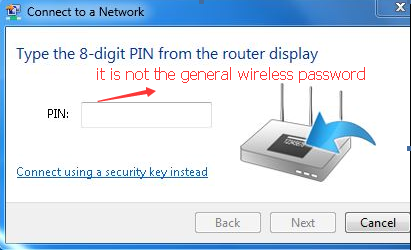
2) If you cannot find the PIN or PIN failed, you may choose Connecting using a security key instead, and then type in the Wireless Password/Network Security Key.
3) If it continues to show note of Network Security Key Mismatch, it is suggested to confirm the wireless password of your wireless router.
Note: Wireless Password/Network Security Key is case sensitive.
- Windows unable to connect to XXXX / Can not join this network / Taking longer than usual to connect to this network:
-
Check the wireless signal strength of your network. If it is weak (1~3 bars), please move the router closer and try again.
-
Change the wireless Channel of the router to reduce interference from other networks.
-
Re-install or update the driver for your wireless adapter of the computer.
-
Q6. What should I do if I can’t access the internet even though the Mobile WAN (SIM card) configuration is finished?
-
Verify that your SIM card is a 5G/4G or WCDMA card.
-
Verify that your SIM card is in your internet service provider’s service area.
-
Verify that your SIM card has sufficient credit.
-
Check the LAN connection: Open a web browser and enter http://tplinkmodem.net or http://192.168.1.1 in the address bar. If the login page does not appear, refer to Q1 and then try again.
- Launch a web browser, log in to the web management page, and check the following:
1) Go to Advanced > Network > Mobile WAN to verify the parameters provided by your ISP are correctly entered. If the parameters are incorrect, click Create Profile and enter the correct parameters, then select the new profile from the Profile Name list.
2) Go to Advanced > Network > PIN Management to verify if PIN is required. If it is, enter the correct PIN provided by your ISP, and click Save.
3) Go to Advanced > Network > Data Settings to verify if the Total/Monthly Used exceeds the Total/Monthly Allowance. If it does, click Correct and set Total/Monthly Used to 0 (zero), or disable Data Limit.
4) Go to Advanced > Network > Mobile WAN to verify that Mobile Data is enabled. If it is not, enable it to access the internet.
5) Confirm with your ISP if you are in a roaming service area. If you are, go to Advanced > Network > Mobile WAN to enable Data Roaming.
6) Go to Advanced > Network > Mobile WAN to confirm whether External Antennas is enabled:
If it is determined that an external antenna is connected, enable External Antennas.
If you are sure that no external antenna is connected, disable External Antennas.
Authentication
CE Mark Warning

OPERATING FREQUENCY(the maximum transmitted power)
2400MHz~2483.5MHz (20dBm)
5150MHz~5250MHz (23dBm)
5G n1, 3, 5, 7, 8, 20, 38, 40, 41 (23 dBm ±2 dB)
5G n28, 71 (23 dBm +2/-2.5 dB)
5G n77, 78, 79 (23 dBm +2/-3 dB)
5G n41, 77, 78, 79 HPUE (26 dBm +2/-3 dB)
LTE Band 1, 2, 3, 4, 5, 7, 8, 20, 28, 38, 40, 41, 66 (23 dBm ±2 dB)
LTE Band 41 HPUE (26 dBm ±2 dB)
WCDMA Band 1, 2, 5, 8 (23 dBm ±2 dB)
EU Declaration of Conformity
TP-Link hereby declares that the device is in compliance with the essential requirements and other relevant provisions of directives 2014/53/EU, 2009/125/EC, 2011/65/EU and (EU)2015/863.
The original EU Declaration of Conformity may be found at https://www.tp-link.com/en/support/ce/
RF Exposure Information
This device meets the EU requirements (2014/53/EU Article 3.1a) on the limitation of exposure of the general public to electromagnetic fields by way of health protection.
The device complies with RF specifications when the device used at 30 cm from your body.
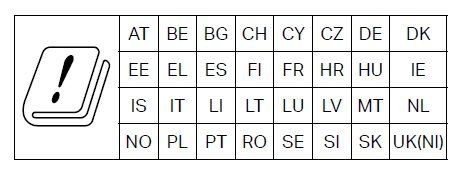
National Restrictions
Frequency band: 5150 - 5250 MHz:
Indoor use: Inside buildings only. Installations and use inside road vehicles and train carriages are not permitted. Limited outdoor use: If used outdoors, equipment shall not be attached to a fixed installation or to the external body of road vehicles, a fixed infrastructure or a fixed outdoor antenna. Use by unmanned aircraft systems (UAS) is limited to within the 5170 - 5250 MHz band.
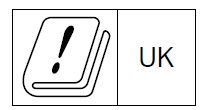
UKCA Mark

UK Declaration of Conformity
TP-Link hereby declares that the device is in compliance with the essential requirements and other relevant provisions of the Radio Equipment Regulations 2017.
The original UK Declaration of Conformity may be found at https://www.tp-link.com/support/ukca/
Attention: This device may only be used indoors in Great Britain.
Korea Warning Statements:
당해 무선설비는 운용중 전파혼신 가능성이 있음.


Продукт сертифіковано згідно с правилами системи УкрСЕПРО на відповідність вимогам нормативних документів та вимогам, що передбачені чинними законодавчими актами України.

Safety Information
-
Keep the device away from water, fire, humidity or hot environments.
-
Do not attempt to disassemble, repair, or modify the device. If you need service, please contact us.
-
Do not use damaged charger or USB cable to charge the device.
-
Do not use any other chargers than those recommended.
-
Do not use the device where wireless devices are not allowed.
-
Adapter shall be installed near the equipment and shall be easily accessible.
-
Use only power supplies which are provided by manufacturer and in the original packing of this product. If you have any questions, please don’t hesitate to contact us.
-
Operating Temperature: 0℃~40℃
-
請勿使用損壞的充電器或USB線來供應設備充電。
-
請勿使用推薦充電器以外的任何其他充電器。
-
變壓器應安裝在設備附近且易於操作。
-
運作溫度: 0°C~40°C (32°F~104°F)
This product uses radios and other components that emit electromagnetic fields. Electromagnetic fields and magnets may interfere with pacemakers and other implanted medical devices. Always keep the product and its power adapter more than 15 cm (6 inches) away from any pacemakers or other implanted medical devices. If you suspect your product is interfering with your pacemaker or any other implanted medical device, turn off your product and consult your physician for information specific to your medical device.
Please read and follow the above safety information when operating the device. We cannot guarantee that no accidents or damage will occur due to improper use of the device. Please use this product with care and operate at your own risk.
Explanation of the symbols on the product label
Note: The product label is on the bottom of the product and its I.T.E. power supply. Symbols may vary from products.
注意:產品標籤可以在產品底部和其I.T.E.電源供應器上找到。符號可能因產品而異。
| Symbol 符號解釋 |
Explanation 解釋 |
|---|---|
 |
Class II equipment II类設備 |
 |
Class II equipment with functional earthing 具有功能接地的II类設備 |
 |
Alternating current 交流電 |
 |
DC voltage 直流電壓 |
 |
Polarity of output terminals 輸出端子極性 |
 |
Indoor use only 僅限室內使用 |
 |
Dangerous voltage 危險電壓 |
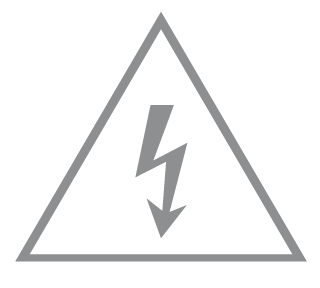 |
Caution, risk of electric shock 注意,有觸電危險 |
 |
Energy efficiency Marking 能源效率標示 |
 |
Protective earth 保護接地 |
 |
Earth 接地 |
 |
Frame or chassis 機架接地 |
 |
Functional earthing 功能接地 |
 |
Caution, hot surface 警告,表面高溫 |
 |
Caution 警告 |
 |
Operator’s manual 操作手冊 |
 |
Stand-by 待機 |
 |
“ON”/”OFF” (push-push) 「開」/「關」 ( 按壓式) |
 |
Fuse 保險絲 |
 |
Fuse is used in neutral N 保險絲用於中性線N |
 |
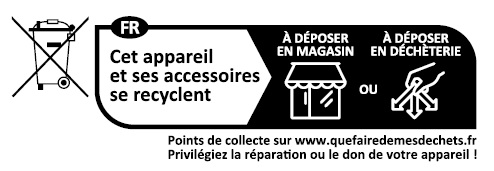
RECYCLING This product bears the selective sorting symbol for Waste electrical and electronic equipment (WEEE). This means that this product must be handled pursuant to European directive 2012/19/EU in order to be recycled or dismantled to minimize its impact on the environment. User has the choice to give his product to a competent recycling organization or to the retailer when he buys a new electrical or electronic equipment. 回收利用 本產品標示有「廢棄電氣電子設備(WEEE)」的分類回收標誌。這表示本產品必須依據歐盟指令 2012/19/EU 進行妥善回收或拆 解,以減少對環境的影響。 使用者可選擇將本產品交給合格的回收機構,或在購買新電器或電子設備時,交回給零售商進行回收處理。 |
 |
Caution, avoid listening at high volume levels for long periods 注意,避免長時間以高音量收聽 |
 |
Disconnection, all power plugs 斷開所有電源插頭 |
| m | Switch of mini-gap construction 微間隙結構的開關 |
| µ | Switch of micro-gap construction (for US version) Switch of micro-gap / micro-disconnection construction (for other versions except US) 微小間隙結構開關(適用於美國版) 微小間隙 / 微小斷開結構開關(適用於美國以外的其他版本) |
| ε | Switch without contact gap (Semiconductor switching device) 無接點間隙開關(半導體開關裝置) |