
How to Change MTU Settings on TP-Link Deco
This article covers step-by step instuction on changing the MTU setting on Deco app.
The Maximum Transmission Unit (MTU) determines the largest packet size (in bytes) that can be sent over your network without fragmentation. While most ISPs and Ethernet networks use the standard 1500 bytes (which is also Deco's default setting), your specific ISP may require a different value. Using an incorrect MTU size can cause slow speeds or connection issues.
Before You Begin
- Download the Deco app by visiting the Google Play Store, App Store, or by scanning the QR code.

- Contact your ISP to get the recommended MTU size for your connection.
Step-by-Step Guide
Step 1: Access Internet Settings
Connect your phone to the Deco’s Wi-Fi.
Open the Deco app, and go to More > Internet Connection > Internet Settings.
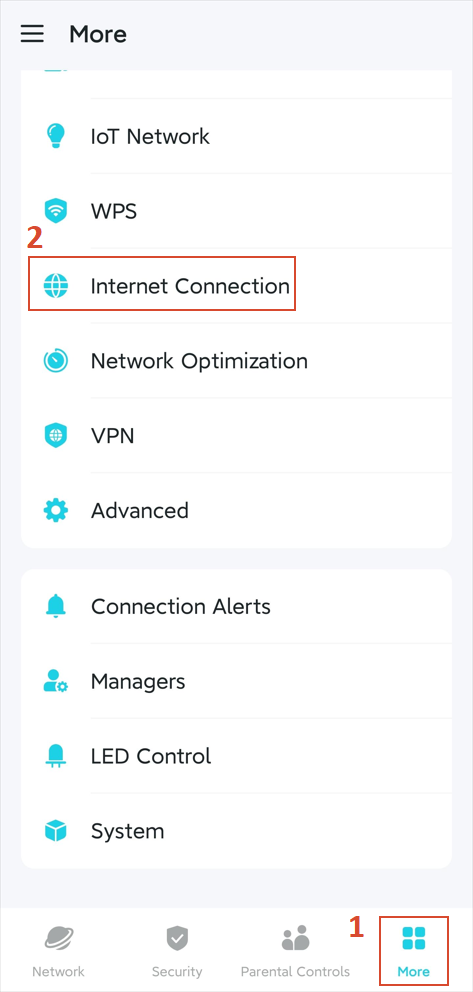
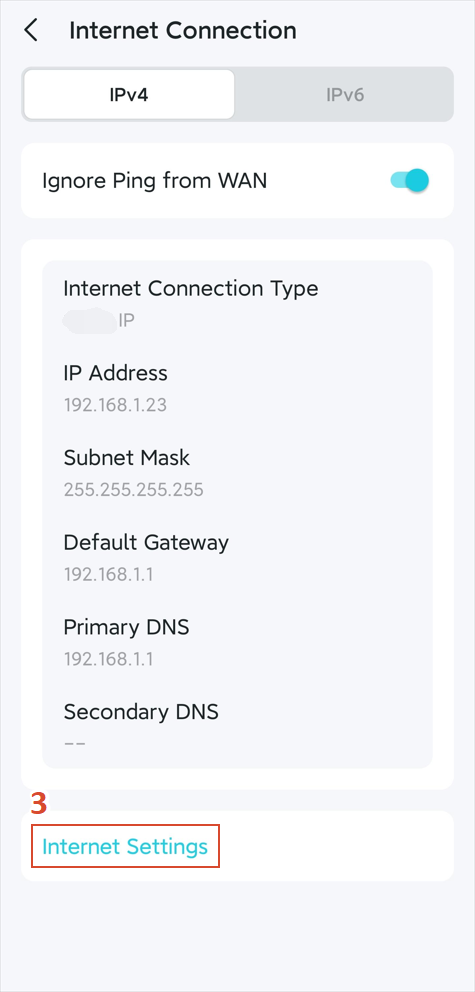
Step 2: Adjust MTU Settings
Find and tap MTU Size, enter the value provided by your ISP.
Click Save to apply the settings.
QA
Q1. How do I know if I need to change my MTU settings?
A1. You typically only need to adjust MTU if your ISP specifically requires it.
Get to know more details of each function and configuration, please go to the Download Center to download the manual of your product.
Looking For More
¿Es útil esta pregunta frecuente?
Sus comentarios nos ayudan a mejorar este sitio.


_1548225296080i.jpg)

TP-Link Community
Still need help? Search for answers, ask questions, and get help from TP-Link experts and other users around the world.