
How to Find the Matter Pairing Code on Your TP-Link Device: 3 Methods
The Matter pairing code is a unique code required to add a Matter-certified device to a smart home platform such as Alexa, Google Home, or Apple Home. You may need the Matter setup code when setting up a new device or adding an existing device to an additional smart home platform.
This guide covers three ways to find it: on the device casing, on a backup sticker inside the product box, and using the Tapo or Kasa app.
Key Takeaways
- The Matter setup code is a unique number required to pair a TP-Link Matter-certified device with a third-party smart home platform such as Alexa, Google Home, or Apple Home.
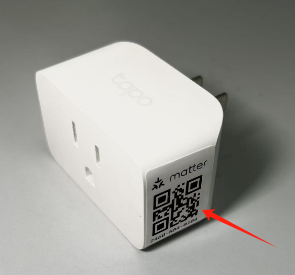
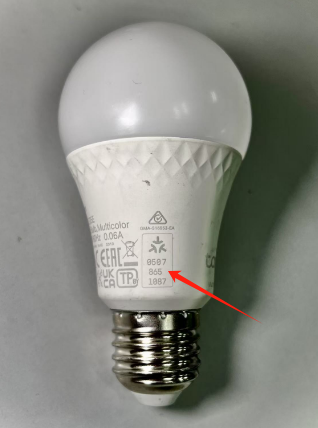
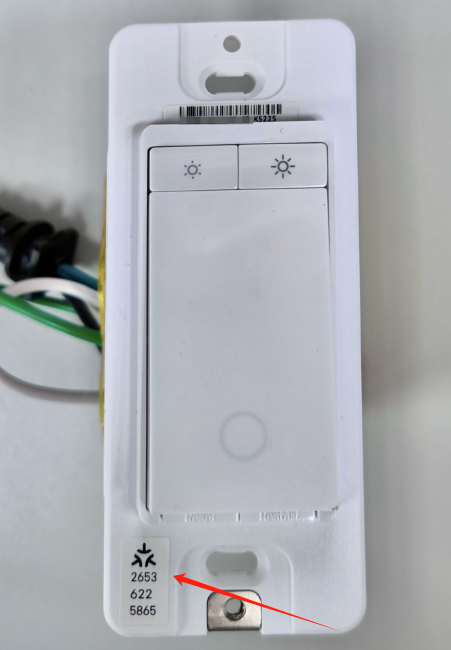
- Method 1: The code is printed on the device casing — on the side for plugs, in the middle below the light sphere for bulbs, and on the side near the button for switches.
- Method 2: A backup code sticker is included inside the product box in case the code on the device becomes damaged or unreadable.
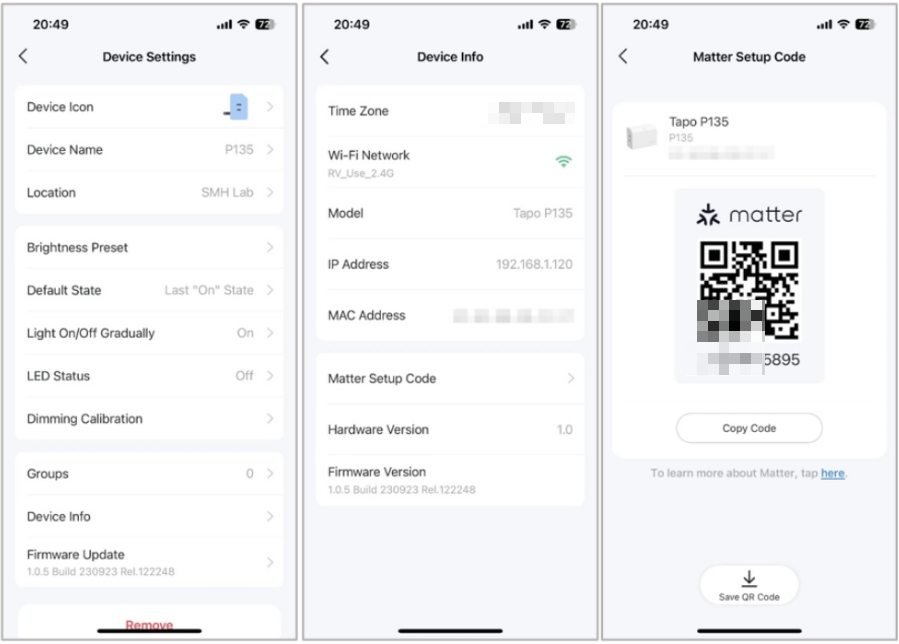
- Method 3: If the device is already added in the Tapo or Kasa app, the electronic code can be generated via Device Settings > Device Info > Matter Setup Code.
Method 1. Printed/Sticker Code on the Device
The Matter setup code is printed on the device casing. The exact location varies by device type:
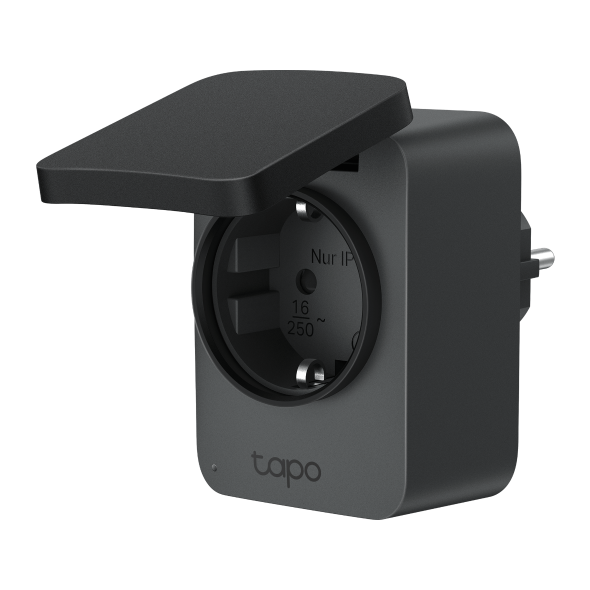
Plug: The code is located on the side of the device casing
Bulb: The code is located in the middle of the casing, just below the light sphere and above the bulb base.
Switch: The code is located on the side of the casing near the button.
Method 2. Backup Code Sticker in the Product Box
A backup Matter code sticker is included inside the product box in case the code on the device becomes damaged or unreadable.
Method 3. Electronic Code from the Tapo/Kasa App
Step 1: Set up your Matter-certified devices to Tapo/Kasa app first.
Step 2: Tap your Matter device finished setup in Tapo/Kasa app Home page > Tap the gear icon in the top right corner to enter the Device Settings page > Tap Device Info > Tap Matter Setup Code. Then you can find the electronic Matter setup code. It's suggested to save it to the album of your phone.
Looking For More
Ez a GY.I.K. hasznos volt?
Véleménye segíti az oldal fejlesztését


TP-Link Community
Still need help? Search for answers, ask questions, and get help from TP-Link experts and other users around the world.