
How to Log In to Your TP-Link Router
This guide covers how to access your TP-Link router's admin panel (also called the web management page) on any TP-Link router model. You can get there using tplinkwifi.net or the TP-Link router login IP address 192.168.0.1.
Key Takeaways
- The default login address for TP-Link routers is tplinkwifi.net, 192.168.0.1. Any of these will open the admin panel.
- You must be connected to the router's network, either by Ethernet cable or Wi-Fi, before you can access the login page.
- Use Chrome, Firefox, or Edge for the best compatibility with the web management page.
- Newer TP-Link router models require you to create a custom admin password on first login, and older models use “admin” as both the default username and password.
- If you prefer managing your router from a phone, the TP-Link Tether app is an alternative to the browser-based login.
Step 1: Connect Your Device to the TP-Link Router
Before you can access the router's web management page, your device must be connected to the router. The management page does not require an Internet connection, but it does require a connection to the router itself.
Option A: Wired connection
Connect your computer to one of the router's LAN ports using an Ethernet cable. A wired connection is recommended when changing wireless settings or performing firmware updates.
Option B: Wireless connection
Connect your device to the router's Wi-Fi network. If this is your first time setting up the router, use the default Wi-Fi name and password printed on the router's label.
Step 2: Access the Router Login Page in Your Browser
Open Chrome, Firefox, or Edge — these browsers work best with the TP-Link web management page. Older browsers may cause login failures or missing features.
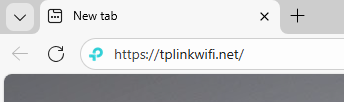
In the address bar at the top of your browser window, type one of the following and press Enter:
- tplinkwifi.net
- 192.168.0.1
Note: Type the address directly into the address bar (not the search bar). Using a search engine will not take you to the login page.
Step 3 (Optional): Proceed Past the Privacy Warning
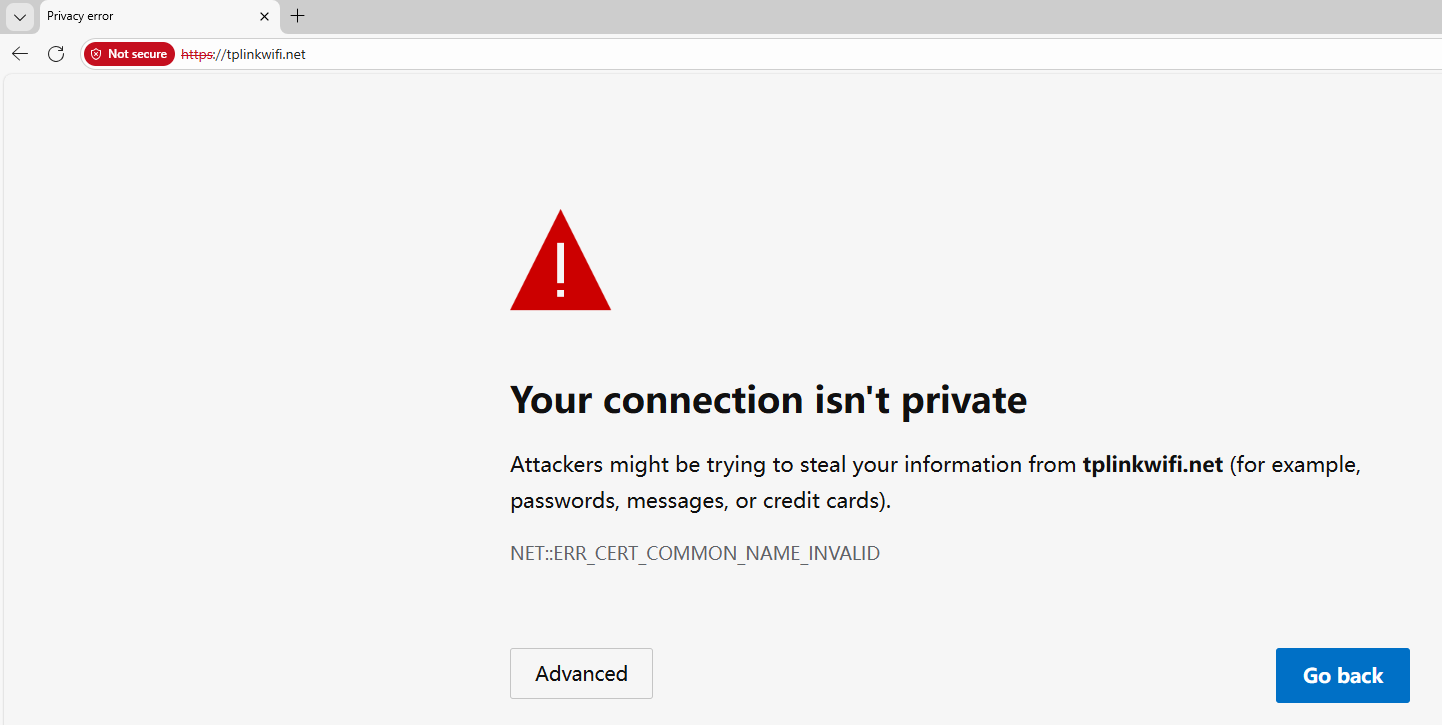
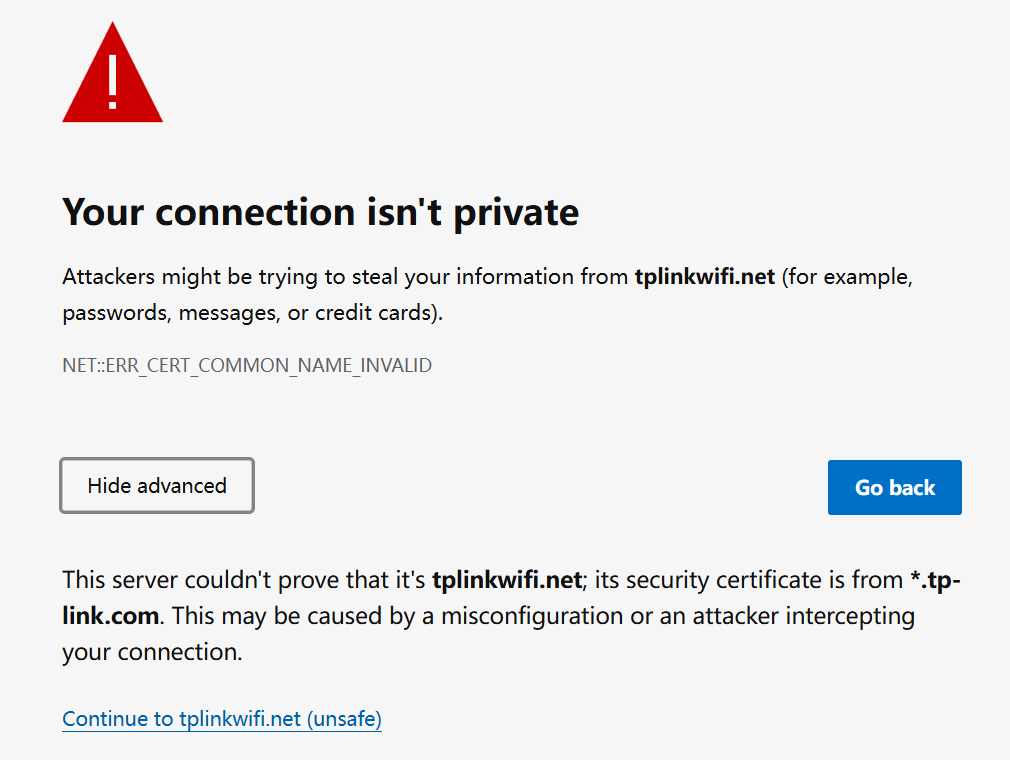
If your browser shows a "Privacy Error" or "Your connection isn't private" warning, this is expected behavior. The TP-Link web interface uses a self-signed certificate rather than one issued by a trusted authority. Your connection remains secure.
To continue, click Advanced, then select Proceed to tplinkwifi.net (unsafe) or Proceed to 192.168.0.1 (unsafe).
If no warning appears, skip ahead to Step 4.
For more details on why this warning appears, see Why the TP-Link HTTPS web interface is detected as unsecure by some web browsers.
Step 4: Enter Your Password and Sign In
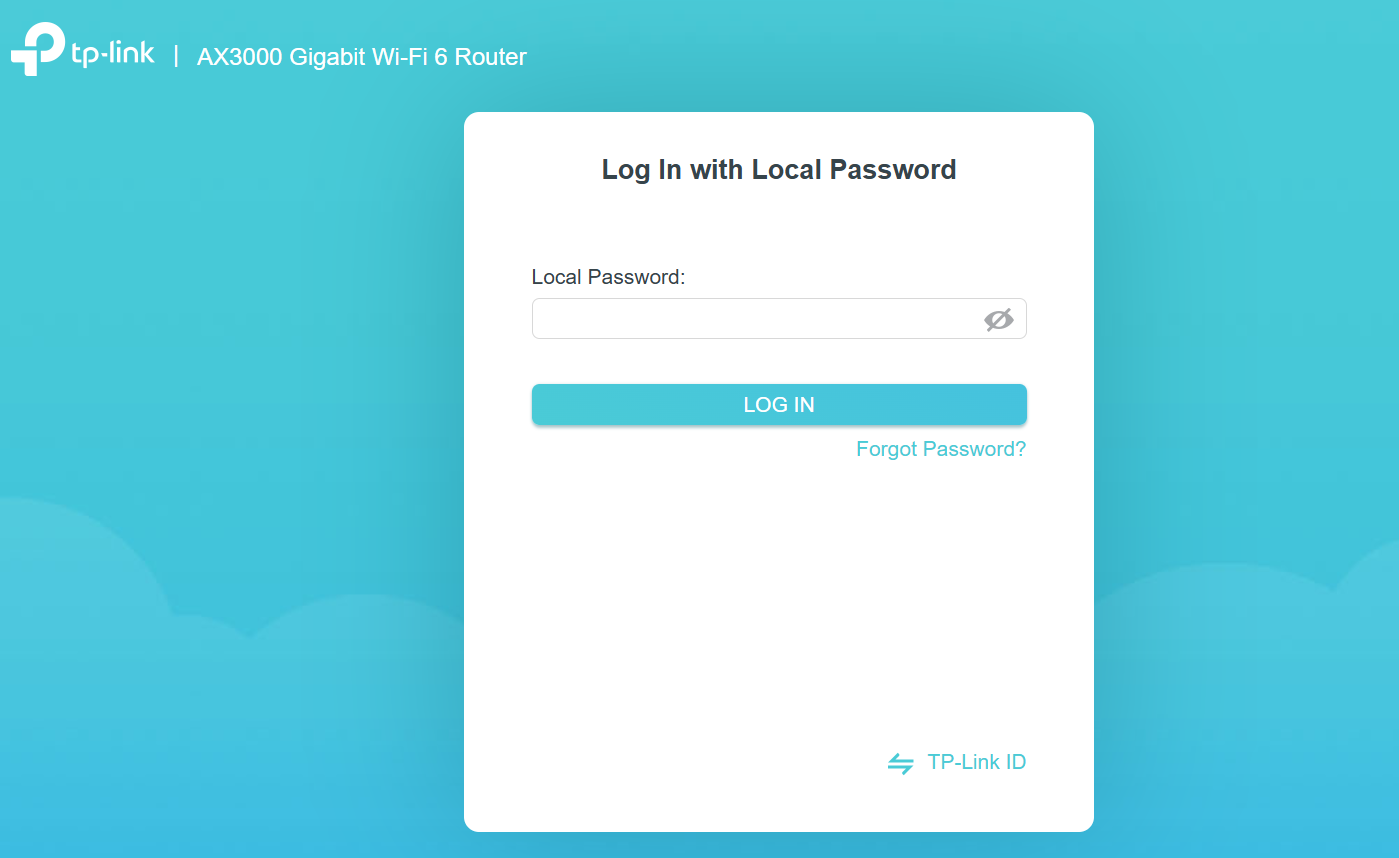
What you see on the login screen depends on your situation:
- First-time setup: You will be prompted to create a secure admin password. Some older models display a username and password field pre-filled with "admin" for both.
- Returning users: Enter the local admin password you created during initial setup.
- TP-Link ID account users: If you previously linked your router to a TP-Link ID, sign in using your TP-Link account credentials instead. You can toggle between local password and TP-Link ID login on the sign-in screen.
If you've forgotten your router login password, you will need to reset the router to factory defaults to regain access.
Troubleshooting: Can't Reach the Login Page?
If you see an error like "no internet" or "this site can't be reached" when trying to access tplinkwifi.net or the IP address, try the following:
- Try the IP address instead: If tplinkwifi.net doesn't load, enter 192.168.0.1 or 192.168.1.1 directly in the address bar.
- Disable VPN or proxy: An active virtual private network (VPN) or proxy can prevent your browser from reaching the router's local address. Disable it and try again.
- Use a wired connection: If you're connecting wirelessly and can't reach the page, try plugging directly into the router with an Ethernet cable.
- Try different web browsers: Browser extensions may cause issues. Attempt access using an alternate browser (e.g., Chrome, Firefox, Edge).
- Try different end devices: If you have another computer, smartphone, or tablet, attempt to log in from that device to isolate the problem.
- Clear your browser cache: Cached data can sometimes interfere with loading the management page. Clear your cache and try again.
For more detailed help, see what to do if you can't log into the web-based interface of your TP-Link device.
Ez a GY.I.K. hasznos volt?
Véleménye segíti az oldal fejlesztését
3.0-L-D-2000px_normal_1584496932325u.png)

3.0&4.0-F_normal_1584493102128p.png)