
How to Change Time Settings on the TP-Link 5G/4G LTE Router
System time is the time displayed while the router is running. The system time you configure here will be used for other time-based functions like Parental Controls. You can choose the way to obtain the system time as needed.
Key Takeaways
- Change the router time settings through the router web management page or the Tether app.
- Select the correct time zone to ensure the router displays the correct local time.
- Verify the displayed router time after saving the settings.
Configuration
Method 1: Via Web Management Page
1. Log in to the web-based interface of the router. If you don’t know how to do that, please refer to How to log in to web management page of TP-Link 5G/4G Router
2. Go to Advanced > System Tools > Time Settings.
A: To set up System Time
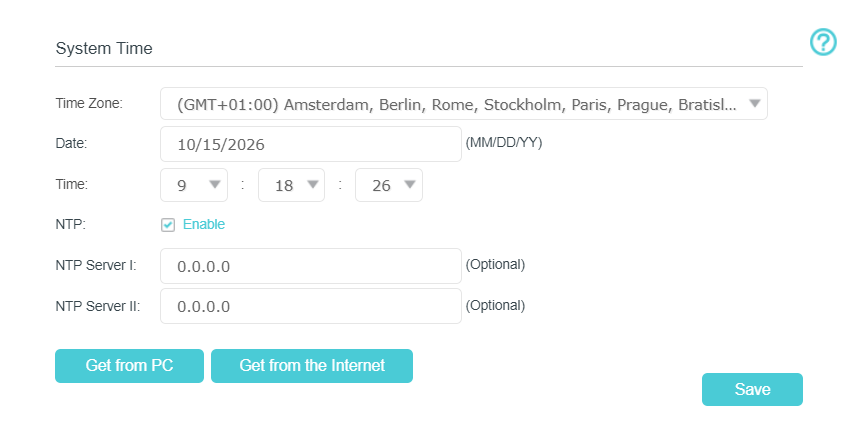
Configure the system time using the following methods:
Manually: Select your time zone and enter your local time.
Get from PC: Click this button if you want to use the current managing PC’s time.
Get GMT: Click this button if you want to get time from the Internet. Make sure your router can access the Internet before you select this way to get system time.
After completing the configuration, click Save to apply the settings.
Note: Leave NTP Server I and NTP Server II fields as default unless necessary.
B: To set up Daylight Saving Time
1. Select Enable Daylight Saving Time.
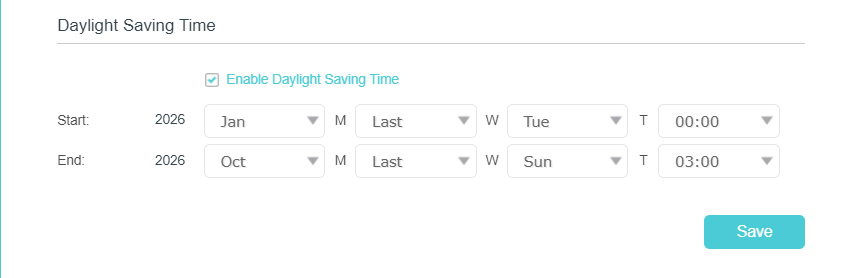
2. Select the correct Start date and time when daylight saving time starts in your local time zone.
3. Select the correct End date and time when daylight saving time ends in your local time zone.
4. Click Save.
Note: Daylight Saving Time will take effect from the day (Monday to Sunday) of the week (1st, 2nd, 3rd, 4th, and last week) in a given month. For example, if you want to set Daylight Saving Time from March 13, 2026, on a TP-Link router, you may set the Start Time as 2026, March,2nd, Friday.
Method 2: via the Tether App
1. Ensure your smartphone is currently connected to your TP-Link router's main Wi-Fi network
2. Launch the TP-Link Tether app and tap on your router icon under the My Devices list
3. Enter the administrator login password you created for your router (if prompted)
4. Tap More at the bottom of the screen, then select System to configure the time settings.
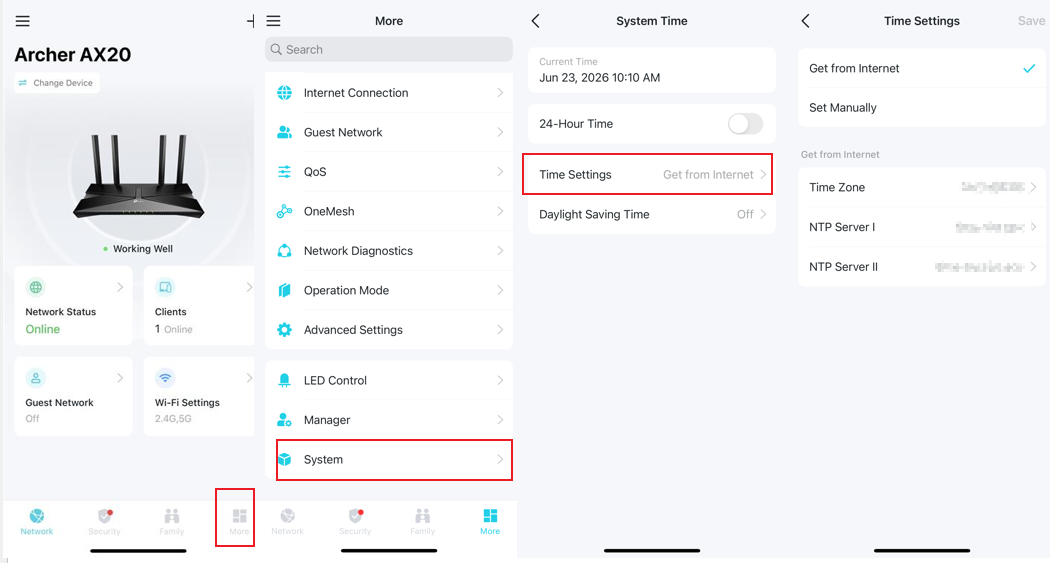
Configure the system time using the following methods:
Set Manually: Select your time zone and enter your local time.
Get from Internet: Click this button if you want to get time from the Internet. Make sure your router can access the Internet before you select this way to get system time.
Daylight Saving Time: Daylight Saving Time will take effect from the day (Monday to Sunday) of the week (First, 2nd, 3rd, 4th, and last week) in a given month. For example, if you want to set Daylight Saving Time from March 13, 2026, on a TP-Link router, you may set the Start Time as 2026, March,2nd, Friday.
After completing the configuration, click Save to apply the settings.
Note: Not all LTE router models support changing the time zone within the Tether app. If you do not see this option in the app, please refer to Method 1 to change the time zone.
To get to know more details of each function and configuration, please go to the Download Center to download the manual for your product
Looking For More
Is this faq useful?
Your feedback helps improve this site.



TP-Link Community
Still need help? Search for answers, ask questions, and get help from TP-Link experts and other users around the world.