
What if I forget my TP-Link ID password for TP-Link ISP-customized Router
 9698
9698Introduction
If you forget your TP-Link ID password or your account is locked, please follow the steps below to reset it.
Configuration
Method 1: Via Aginet app
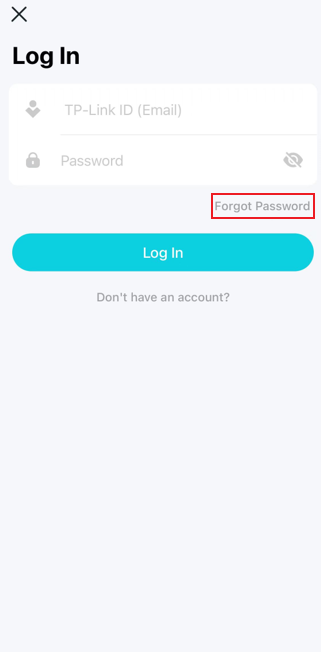
Step 1. Open the Aginet app and on the Log In page, click on Forgot Password.
If you have logged in to the Aginet app but forgot your password, please log out of the app first before creating a new one.
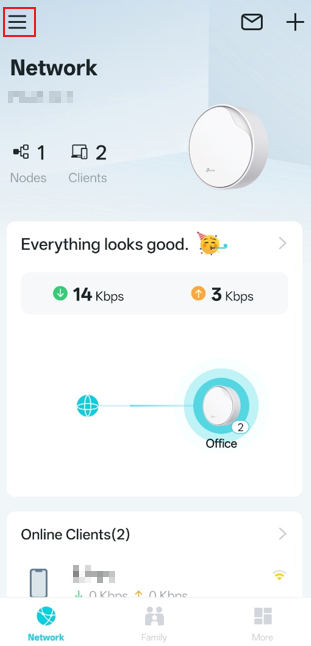
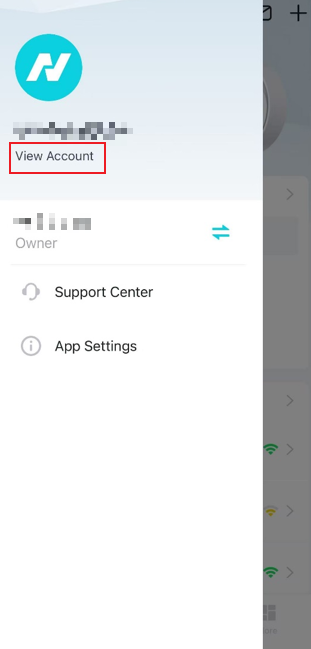
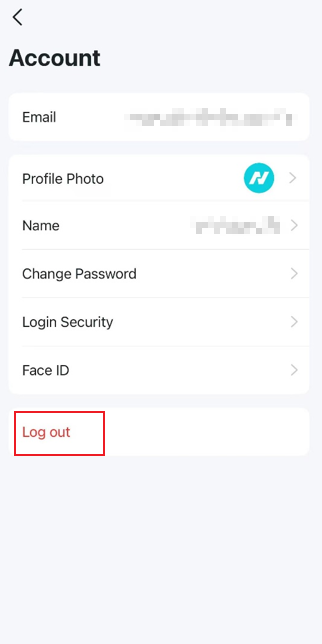
On the Aginet app, tap the three-line button in the top left corner, select View Account, and select Log out.
Step 2. Enter your TP-Link ID username (email address), and click on SEND.
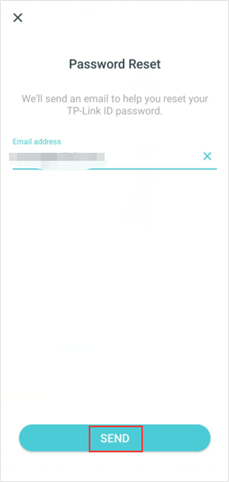
Step 3. Go to your email inbox. TP-Link will send an email subject “TP-Link ID: Password Reset” to the provided address. Follow the instructions in the email to reset your password.
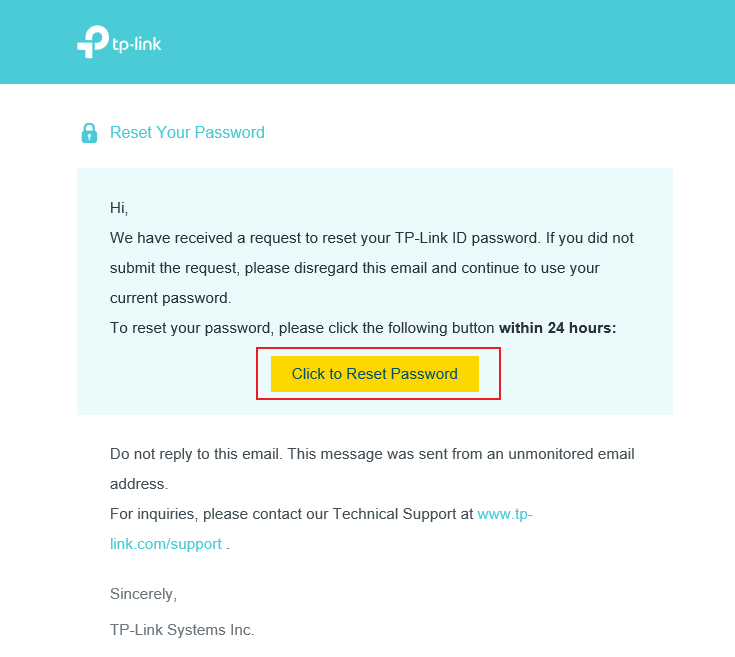
Step 4. Click Reset Password and then enter and confirm your new password on the pop-up page.
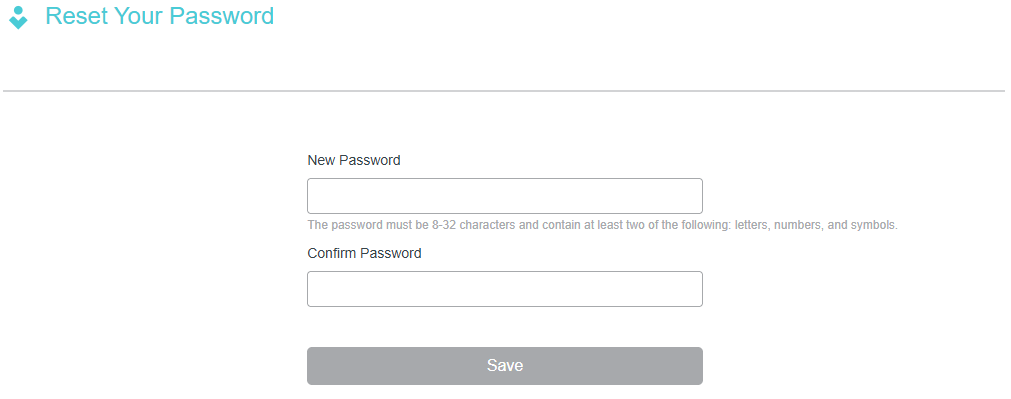
Note: When creating a new password, please enter 6-32 characters, excluding spaces.
If you do not receive the password reset email, please check your email settings to troubleshoot.
Step 5. After resetting the password successfully, go back to the Aginet app, click on ALREADY RESET, and then you can log in to the Aginet app with your new password.
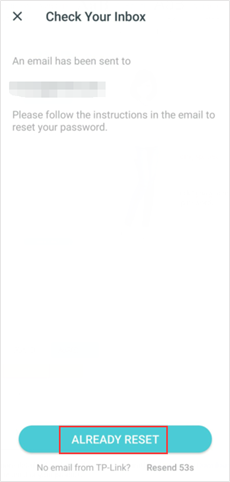
Alt text: The Already Reset location.
Method 2: Via TP-Link cloud website
Step 1. Open a browser, type https://community.tp-link.com/en/forgetpw in the address bar, and press Enter. On the pop-up webpage, please type in your registered email address and click OK. A request email will be sent to your mailbox.
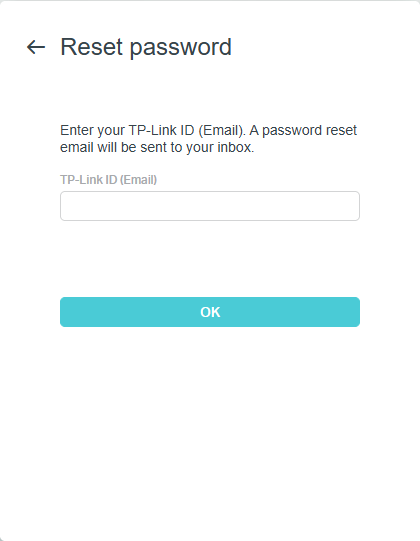
Step 2. Open the requested email, and then tap Click to Reset Password.
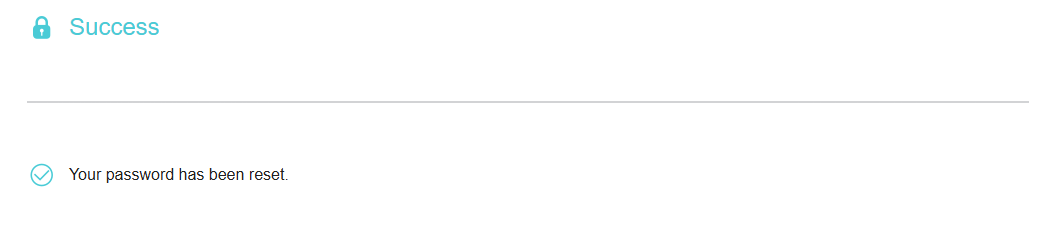
Step 3. On the pop-up webpage, please enter and confirm your new password, then click Save. Now you can log in to the router with your new password.
Est-ce que ce FAQ a été utile ?
Vos commentaires nous aideront à améliorer ce site.

