
How to Add Your Matter-Certified Device into Multiple Controllers
Matter’s multi-admin support allows your Matter-enabled smart home device to be controlled using multiple Matter-enabled third-party Apps. For example, your TP-Link Matter-enabled device could be set up with Alexa, then could be shared with Google Home or more Matter-enabled smart home apps.
This article will show you how to share your connected Matter-enabled device with another Matter-enabled third-party App or assistant.
If you are setting up a Matter-compatible device with another assistant and it fails, please refer to this Troubleshooting for Tapo/Kasa Matter configuration on third-party platform.
Notes:
1. Before you begin the setup process, please ensure your Matter device, your phone, and the Matter-enabled Hub are connected to the same Wi-Fi network. (Your Matter device and phone are required to connect to 2.4 GHz Wi-Fi)
2. The Matter setup code can only be used to add the device to the first ecosystem. For the second commissioning, you will need to open the app of the first ecosystem to generate a new setup code.
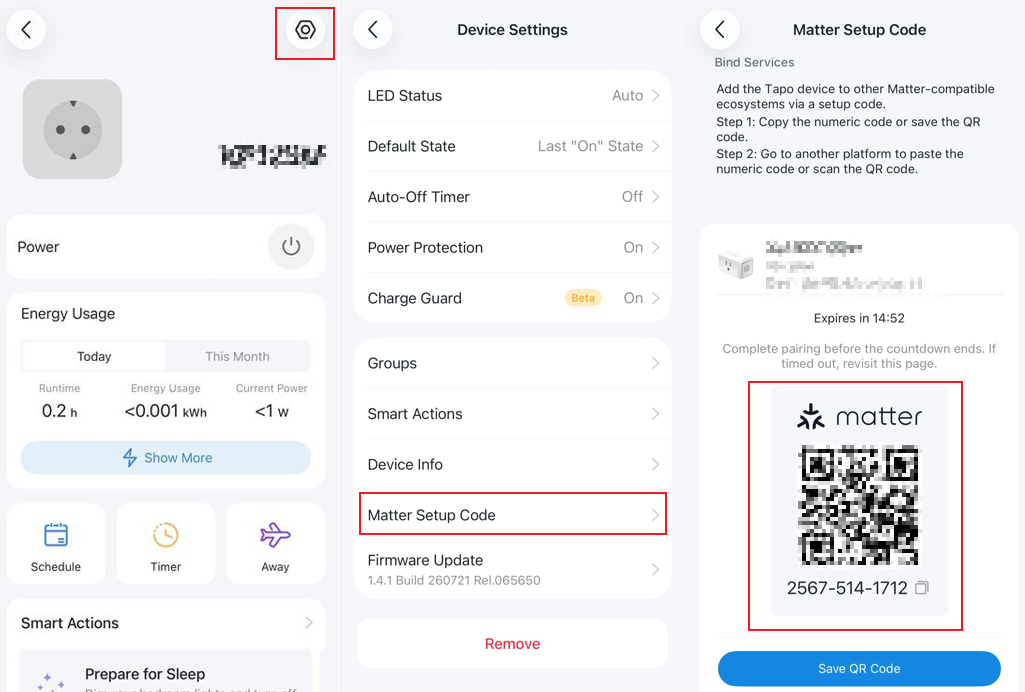
3. If you have already configured a Matter device in the Tapo app and want to add it to other ecosystems, go to the Matter Setup Code (For Tapo Hub, go to the Bind to Matter) interface in the Tapo app to generate a new code, which will be valid for 15 minutes.
Guidance for Specific Apps
How to set up the Alexa-connected Matter device with another Matter-enabled third-party App
Launch the Alexa app and go to the device Settings page.

Tap Other Assistants and Apps, then tap Add Another to create an 11-digit setup code.


Copy the setup code.
Note: The pairing code will expire in 15 minutes. You will need to reset the device to renew the timer.

Launch the other controller app and follow the setup instructions to enter the code. Follow the remaining on-screen instructions to complete the setup process.
For more instructions about Matter setup in Alexa, please refer to Alexa Smart home FAQs
How to set up the Google Home connected Matter device with another Matter-enabled third-party App
Launch the Google Home app, then go to the device settings page.


Tap Linked Matter apps & services, then tap Link apps & services.


Create a new paring code:
Using the Pairing Code:
(1) Choose Using pairing code.

(2) Copy the pairing code.


(3) Launch Another app and follow the setup instruction to enter the pairing code.
Notes:
1. Make sure that the pairing code page of Google Home remains open when you are setting up your Matter device in another app with the pairing code.
2. The pairing code will expire in 3 minutes.
Using a QR Code:
(1) Choose Share with QR code.


(2) Open the Apple Home app on another mobile device and scan this QR code.
Launch the other controller app and follow the setup instructions to enter the code. Follow the remaining on-screen instructions to complete the setup process.
For more instructions about Matter setup in Google Home, please refer to the link Manage Matter-enabled devices in the Google Home app
How to set up the Apple Home connected Matter device with another Matter-enabled third-party App
Launch your Home app, then go to the Device Settings page.


Tap Turn On Pairing Mode, then Copy Code.


Launch the other controller app and follow the setup instructions to enter the code. Follow the remaining on-screen instructions to complete the setup process.
Notes:
1. If you tap ‘Dismiss’, you must wait 5 minutes to create a new code. Please copy the code or take a screenshot to keep the code. Alternatively, you can restart your device to generate a new code immediately.
2. The pairing code will expire in 5 minutes.
For more instructions about Matter setup in Apple Home, please refer to the link Apple Home Matter support.
How to set up the SmartThings connected Matter device with another Matter-enabled third-party App
For Android SmartThings:
Launch your SmartThings app, tap your Matter device and tap the settings icon in the top right corner.

Tap Share with other services.

Share with other services.
(1) Tap Share, your Matter device can be shared to the available Matter service (Here take Google as an example, SmartThings APP has linked Google in advance.).
(2) Tap QR code to generate QR code and Numeric code. (The following process is for after tapping QR code.)

Launch the other controller app and follow the setup instructions to use the code. Follow the remaining on-screen instructions to complete the setup process.
Notes:
1. Make sure that the pairing code page of SmartThings remains open when you scan or enter the sharing code.
2. The pairing code will expire in 15 minutes.
For iOS SmartThings:
Launch your SmartThings app, tap your Matter device and tap the settings icon on the top right corner. Then tap Share with other services.

Tap Share device to generate QR code and Numeric code.


Launch the other controller app and follow the setup instructions to use the code. Follow the remaining on-screen instructions to complete the setup process.
Note: Make sure that the pairing code page of SmartThings remains open when you scan or enter the sharing code.
The pairing code will expire in 15 minutes.
For more instructions about Matter setup in SmartThings, please refer to the link SmartThings x Matter Integration.
Looking For More
¿Es útil esta pregunta frecuente?
Sus comentarios nos ayudan a mejorar este sitio.

TP-Link Community
Still need help? Search for answers, ask questions, and get help from TP-Link experts and other users around the world.