
How to Uninstall Old Device Drivers in Windows, Including TP-Link Drivers
Old or unused device drivers can cause newly installed hardware, including TP-Link Wi-Fi and PCIe adapters, to malfunction. They can also cause Windows to freeze or become unstable. If you need to remove old drivers to resolve a TP-Link adapter that isn't working or a driver that won't install correctly, this guide shows how to use Device Manager to identify and uninstall hidden or unused driver entries.
The steps below apply to Windows 7, 8, 10, and 11. After completing the process, you can verify that your driver is installed correctly.
Key Takeaways
- Old or unused device drivers may appear as faded (greyed-out) icons in Windows Device Manager when "Show hidden devices" is enabled.
- Hidden devices represent drivers for hardware that is no longer connected. These can safely be uninstalled.
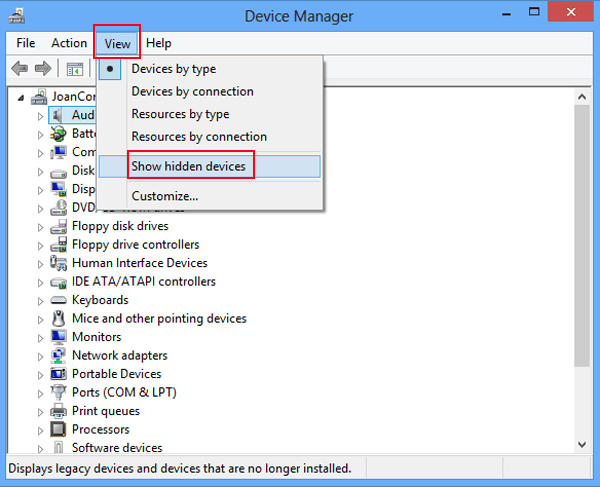
- To view hidden devices in Device Manager, click the View tab and select "Show hidden devices." This option may be disabled by system policy in some environments.
- Right-clicking a faded device icon and selecting Uninstall removes the old driver entry from Windows.
- This process applies to TP-Link Wi-Fi USB adapters and PCIe adapters across Windows 7, 8, 10, and 11.
How to Remove Old Drivers in Windows
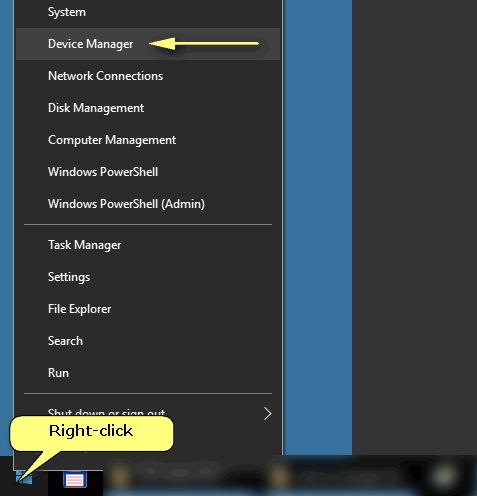
Step 1. Right-click on the Start menu and click on the Device Manager.
Step 2. Click the View tab and select Show hidden devices. Expand the branches in the device tree & look for the faded icons. These indicate unused device drivers.
Right-click the faded device and select Uninstall
The ability to view hidden devices is enabled by default, but may be disabled by your administrator or system policy. If the 'Show hidden devices' option is not available, contact your system administrator for assistance.
Looking For More
Byla tato FAQ užitečná?
Vaše zpětná vazba nám pomůže zlepšit naše webové stránky


TP-Link Community
Still need help? Search for answers, ask questions, and get help from TP-Link experts and other users around the world.