
Linking Kasa Devices to the Tapo App: Your Most Common Questions Answered
Does Tapo work with Kasa? Yes — Tapo and Kasa are both TP-Link smart home brands, and most Kasa devices can be managed directly from the Tapo app without any reconfiguration. Linking both ecosystems lets you control all your devices from a single app, so there is no need to switch between Kasa and Tapo. The linking process uses a simple authorization step through your TP-Link ID. This page answers the most common questions about Kasa and Tapo compatibility.
Key Takeaways
- Most Kasa devices can be added to and managed from the Tapo app. The exceptions are the Kasa KE100 and KE110, which do not support the Tapo app.
- No reconfiguration is needed. Existing Kasa devices and settings sync to the Tapo app through a simple authorization process using the same TP-Link ID on both apps.
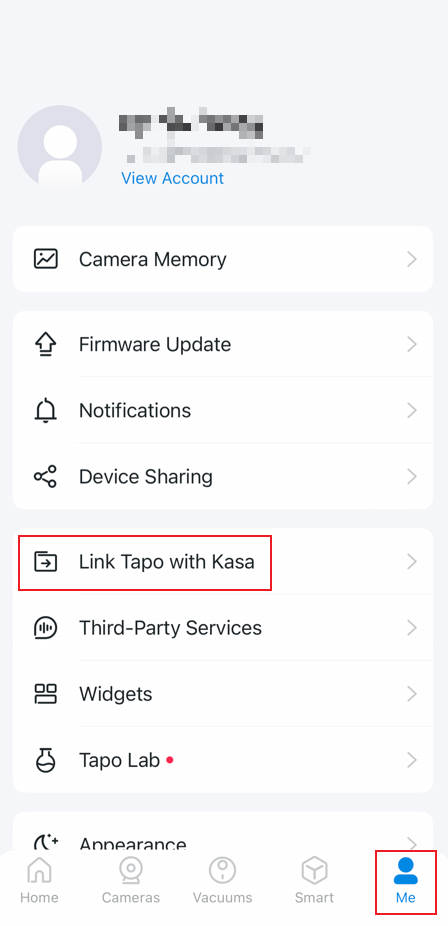
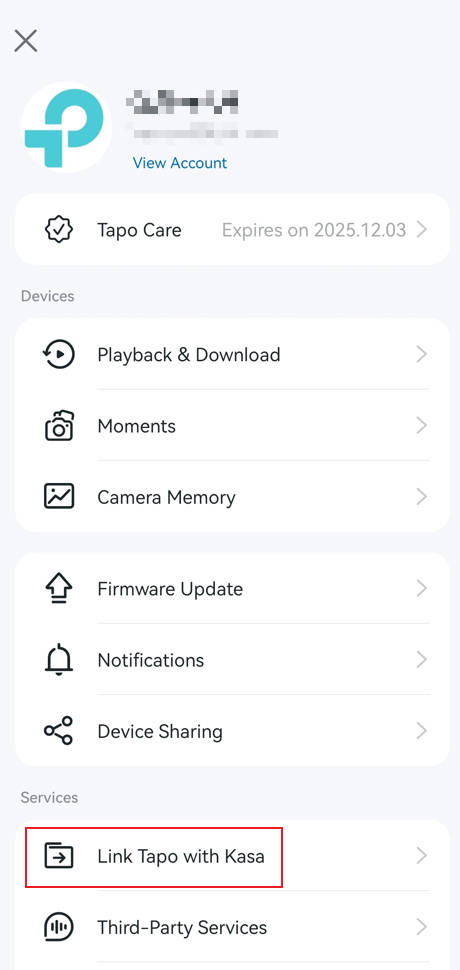
- To link Tapo with Kasa, open the Tapo app and go to Me > Link Tapo with Kasa. Both apps must be logged into the same TP-Link ID for this to work.
- Kasa Care and Tapo Care subscriptions are independent. Kasa cloud video history cannot be transferred to or viewed in the Tapo app.
- Kasa cameras linked to the Tapo app can subscribe to Tapo Care to access additional features, including cloud video clip history, rich notifications, Smart Sort, Weekly Report, and Video Summary.
Tapo and Kasa Compatibility: Frequently Asked Questions
Q1: What Are the Benefits of Adding Kasa Devices to the Tapo App?
Unified simplicity — when linked, you can control both Kasa and Tapo devices from one place, with no need to switch between two separate apps.
If you don’t own any Tapo devices yet, please rest assured that TP-Link continues to expand our Kasa ecosystem, striving to offer the widest range of smart home devices in the industry.
Q2: Which Kasa Devices Are Compatible With the Tapo App?
Most Kasa devices can be managed in the Tapo app. However, please note that while most models are compatible, there are a few exceptions.
Kasa KE100, KE110, unfortunately, do not support the Tapo App.
Q3: Do I Need to Reconfigure My Kasa Devices to Use Them in the Tapo App?
No reconfiguration is needed. You can sync your existing Kasa devices and settings to the Tapo app through a simple authorization process.
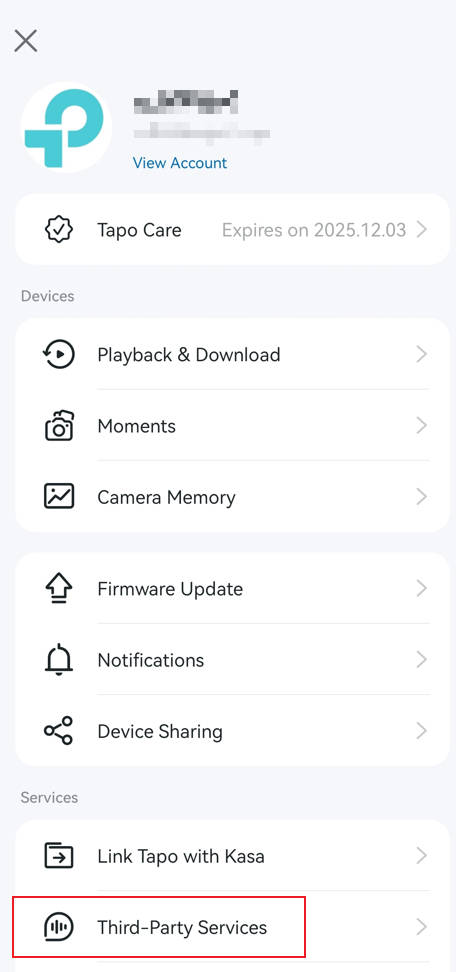
To quickly authorize your Kasa account with Tapo, follow these steps: Open the Tapo App > navigate to Me page (either tap the Me tab in the bottom right or tap the profile icon in the top left corner) > select Link Tapo with Kasa.
Note: Authorization requires the same TP-Link ID on both the Kasa and Tapo apps. If you are logged in with different accounts, authorization will not be possible.
 or
or 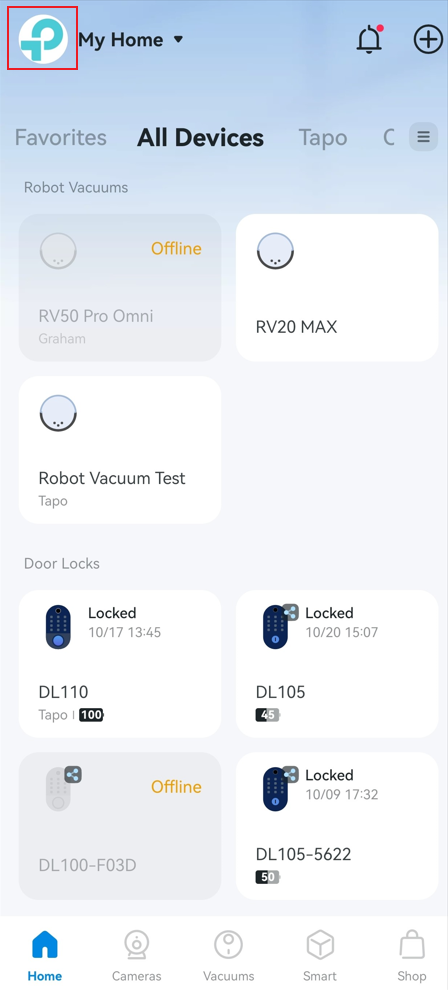
Q4: Which Kasa Services and Features Are Supported in the Tapo App?
Supported Kasa services and features in the Tapo App
- Kasa Devices
- Kasa Groups
- Kasa Smart Actions
- Scenes
- Features such as timers, away mode, and schedules
Services and features that will NOT be synced to Tapo App
- Subscription. Kasa Care and Tapo Care subscriptions are independent services; the remaining Kasa Care subscription and Kasa history cloud videos cannot be transferred to Tapo. Kasa history cloud videos cannot be viewed in the Tapo App. However, you can add your Kasa camera to the Tapo Care plan to continue enjoying advanced services in the new Tapo 3.0 or higher version of the App!
- Room settings. Kasa devices added to the Tapo app appear in the All Devices tab. You will need to manually assign them to rooms.
Q5: What Should I Do to Make Sure My Kasa Devices Work With the Tapo App?
- Check whether your Kasa device is supported by the Tapo APP. Refer to Q2.
- If you own a Kasa camera with a Kasa Care subscription, kindly note that the Kasa cloud videos cannot be viewed in the Tapo APP. Keep your Kasa App to watch historical cloud videos, or download and export them locally.
- If you're interested in continuing the cloud service subscription, please ensure that the auto-renewal of the existing Kasa Care service has been canceled. You can choose to subscribe to Tapo Care after your current Kasa Care plan expires.
Q6: What's the Difference Between Kasa Care and Tapo Care for Kasa Cameras?
|
|
Kasa Cam without Kasa Care |
Kasa Cam with Kasa Care |
Kasa Cam with Tapo Care |
|
Live view |
√ |
√ |
√ |
|
Instant notifications |
√ |
√ |
√ |
|
Two-Way audio |
√ |
√ |
√ |
|
Activity zones |
√ |
√ |
√ |
|
Local storage |
√ |
√ |
√ |
|
Motion detection |
√ |
√ |
√ |
|
Person detection |
√ |
√ |
√ |
|
Motion tracking* |
√ |
√ |
√ |
|
Cloud video clip history |
|
√ |
√ |
|
Manual Record Video |
|
√ (Stored on the Cloud) |
√ (Stored in the App) |
|
Rich notifications with snapshots |
|
√ |
√ |
|
Smart Sort* |
|
|
√ |
|
Weekly Report* |
|
|
√ |
|
Video Summary* |
|
|
√ |
*These functions may vary by product models and firmware. More devices will be supported soon. Refer to the software release notes for your specific model or the settings in your Tapo App for accurate information.
Q7: What Services Do Kasa Cameras Get With a Tapo Care Subscription?
- 7/30-Day Clip Video History*
- Rich Notification (Push notification with a snapshot)
- <New> Smart Sort: Classify your recorded videos with different tags. Always enjoy the most attractive and important videos with classification when needed.
- <New> Weekly Report**: Summarize camera events and activities, and get a report on what happened last week!
- <New> Video Summary**: Compile your video clips into a short video that summarizes what happened throughout the day.
*Tapo care plans can be different based on regions and areas. Learn more about the Tapo care plan in your area from the Tapo Care website.
**The Weekly Report and Video Summary feature will be supported soon on Kasa Camera. Stay tuned for updates!
Q8: How Do I Link Kasa Devices to Third-Party Services in the Tapo App?
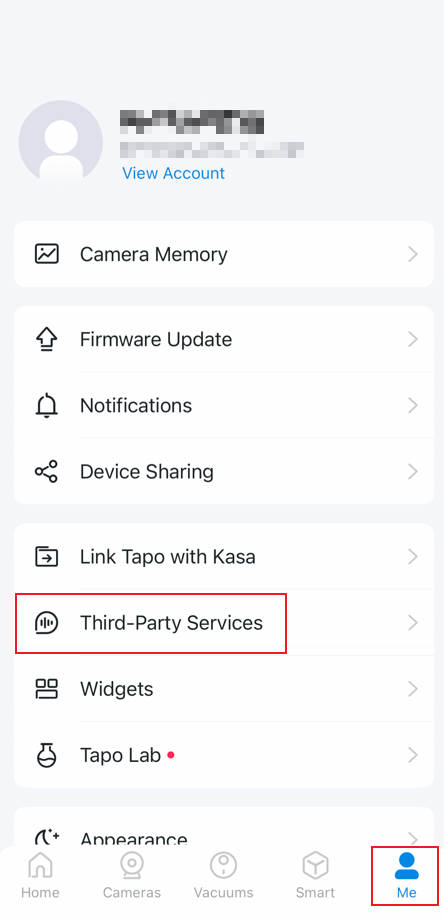
Open the Tapo app Me page (either tap the Me tab in the bottom right or tap the profile icon in the top left corner). Tap Third-Party Services, select the service you want to connect to, choose Kasa Skill and follow the in-app instructions.
 or
or 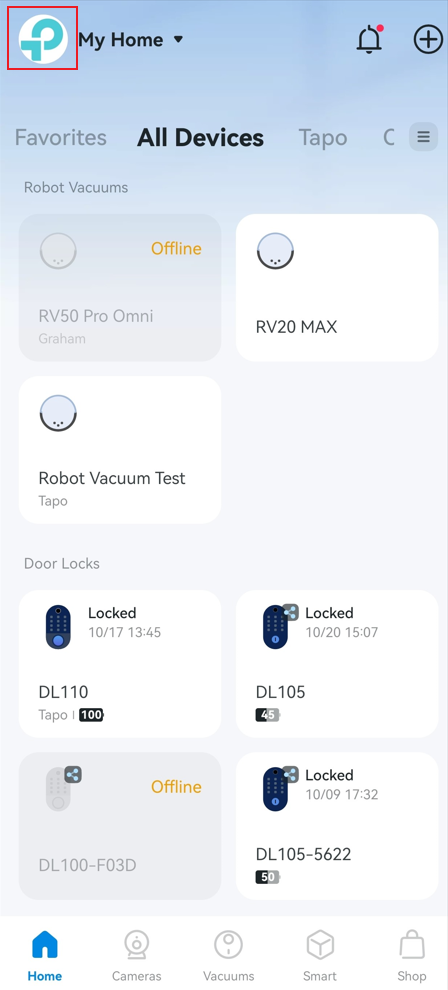
Looking For More
¿Es útil esta pregunta frecuente?
Sus comentarios nos ayudan a mejorar este sitio.

TP-Link Community
Still need help? Search for answers, ask questions, and get help from TP-Link experts and other users around the world.