
TP-Link Router Firmware Update Failed: How to Fix It
A TP-Link firmware update can fail for several reasons, including a lost Internet connection, an incorrect firmware file, or a browser compatibility problem. None of these are difficult to resolve. This page covers fixes for both online upgrade failures and manual (local) firmware update errors so you can find the right solution for your situation.
Key Takeaways
- Online firmware updates require an active Internet connection and TP-Link Cloud compatibility. Devices that do not support TP-Link Cloud cannot use the online update method.
- If an online firmware update fails, manually setting the router's DNS server to a public DNS address such as 8.8.8.8 or 1.1.1.1 can resolve the issue.
- For manual updates, the firmware file must be extracted after downloading. The correct file format is a .bin file, not a compressed folder.
- Always verify that the firmware downloaded matches the exact model number, hardware version, and regional version (US or EU) of the device before updating.
- If the update progress bar is stuck, wait five minutes before taking action. If it does not complete, try refreshing the browser or switching to Firefox, Microsoft Edge, or Chrome.
This article shows how we can handle cases where firmware upgrades fail on TP-Link devices.
Fixing a Failed TP-Link Online Firmware Update
Step 1: Check whether the TP-Link device supports online upgrades or not
Only devices that support the TP-Link Cloud service have an online upgrade function. You may check the following compatibility list:
TP-Link Cloud Compatible Devices
Step 2: Confirm the internet connectivity of the TP-Link device
Only devices that connect to the internet successfully can upgrade the firmware online smoothly.
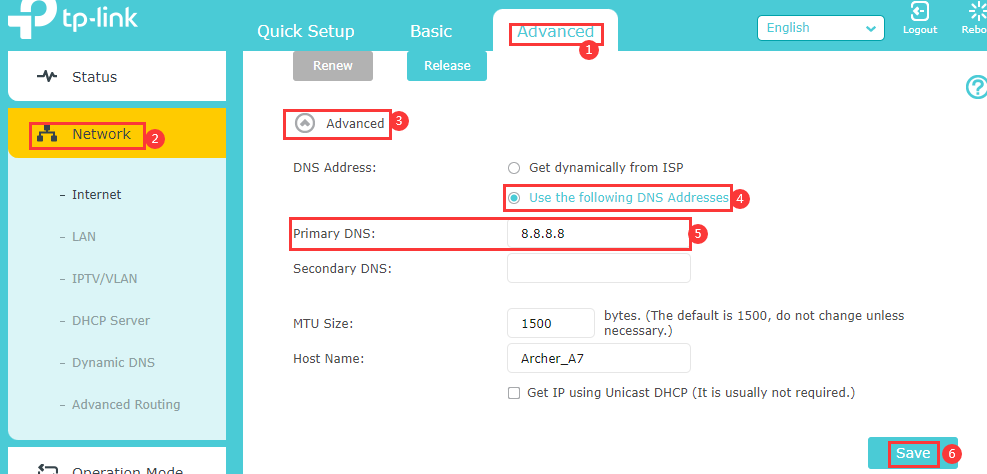
Step 3: Change the DNS Server manually
Try manually assigning a static DNS server to the router's WAN/Internet settings. You may try some popular public DNS servers, such as Google’s 8.8.8.8 or CloudFlare’s 1.1.1.1. Please refer to the following screenshot.
Step 4: Try to upgrade firmware locally or manually by downloading the latest firmware on the computer
Please refer to How to upgrade the firmware on TP-Link devices?
Fixing a Failed Manual Firmware Update
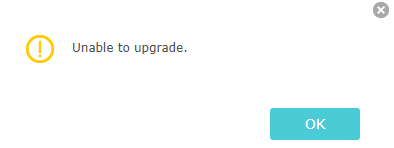
Case 1: The error message 'unable to upgrade
Step 1: Verify the format of the latest firmware.
After downloading the latest firmware from the TP-Link official website, you should extract that folder first. The correct format of firmware should be a bin file.
Step 2: Check whether you have downloaded the correct firmware version for your TP-Link device
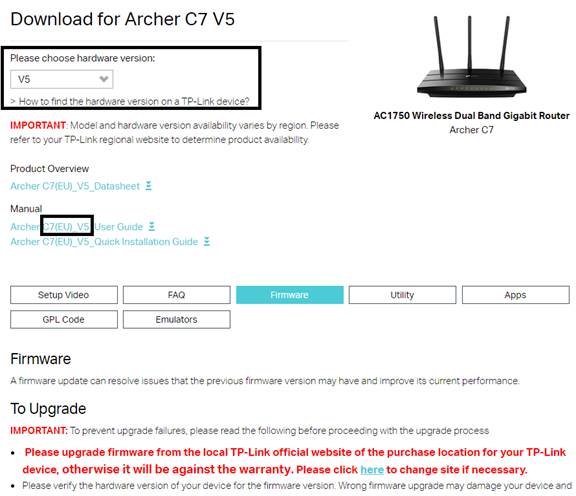
1. Check the model number, hardware version, EU or US version of the TP-Link device by referring to How to find the hardware version on a TP-Link device
Reminder: Please upgrade firmware/software from the local TP-Link official website of the purchase location for your TP-Link device, otherwise it may cause upgrade failure or mistakes and be against the warranty.
2. Select the corresponding hardware version on the download website.
Case 2: The progress bar is stuck
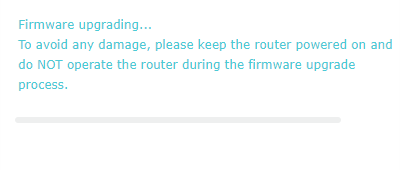
1. Wait up to five minutes to see if the progress is finished.
2. Try to refresh the web page first. Then upgrade again.
3. Try using a different web browser (Firefox, Microsoft Edge, Chrome, etc.) to upgrade.
Note: If there is a sudden power outage during the upgrade, there is a high chance that the router will become bricked. At this point, you may refer to How to use webpage firmware recovery if the router become brick (new logo)?
If the above suggestions cannot help you out, please contact TP-Link technical support with the following info:
- The model number, hardware version, and current firmware version of the TP-Link device;
- The firmware version downloaded from the TP-Link official website.
- The screenshot of the error info is displayed on the firmware upgrade page.
To get to know more details of each function and configuration, please go to Download Center to download the manual of your product.
Looking For More
¿Es útil esta pregunta frecuente?
Sus comentarios nos ayudan a mejorar este sitio.

3.0_A_RGB_normal_1584493572647x.png)


TP-Link Community
Still need help? Search for answers, ask questions, and get help from TP-Link experts and other users around the world.