
So richten Sie das Hotspot-Backup auf Ihrem TP-Link Deco ein
Mit Hotspot Backup können Sie einen mobilen Hotspot oder ein nahegelegenes Wi-Fi-Netzwerk als Backup-Internetquelle konfigurieren. Wenn Ihre primäre kabelgebundene Verbindung ausfällt, erkennt das Deco-System automatisch die vorkonfigurierte Backup-Quelle und stellt eine Verbindung her, damit der Internetzugang bestehen bleibt. Sobald die primäre Verbindung wiederhergestellt ist, wechselt das System nahtlos zurück.
Das Wichtigste auf einen Blick
- Hotspot Backup verwendet einen mobilen Hotspot oder ein anderes Wi-Fi-Netzwerk, wenn die primäre kabelgebundene Internetverbindung nicht verfügbar ist.
- Der Hotspot muss eingeschaltet, in Reichweite und mit dem Internet verbunden sein, bevor Deco ihn verwenden kann.
- Sie können mehrere Hotspots speichern; Deco wählt automatisch den besten verfügbaren konfigurierten Hotspot aus.
- Es wird empfohlen, einen festen WAN-Port festzulegen, wenn kabelgebundene Clients während des Backup-Betriebs Internetzugang benötigen.
- Speed Limit und Access Permission helfen dabei, Bandbreite und mobile Datennutzung zu kontrollieren und festzulegen, welche Geräte über den Hotspot online gehen dürfen.
Voraussetzungen
- Aktualisieren Sie die Deco-App und Ihre Deco-Geräte auf die neueste verfügbare Firmware.
- Bereiten Sie einen mobilen Hotspot oder ein Wi-Fi-Netzwerk mit Internetzugang vor.
- Platzieren Sie den Hotspot innerhalb einer stabilen Wi-Fi-Reichweite des Haupt-Deco.
Hotspot Backup einrichten
Schritt 1: Hotspot Backup finden und aktivieren
Öffnen Sie die Deco-App und gehen Sie zu More > Advanced > Internet Backup.
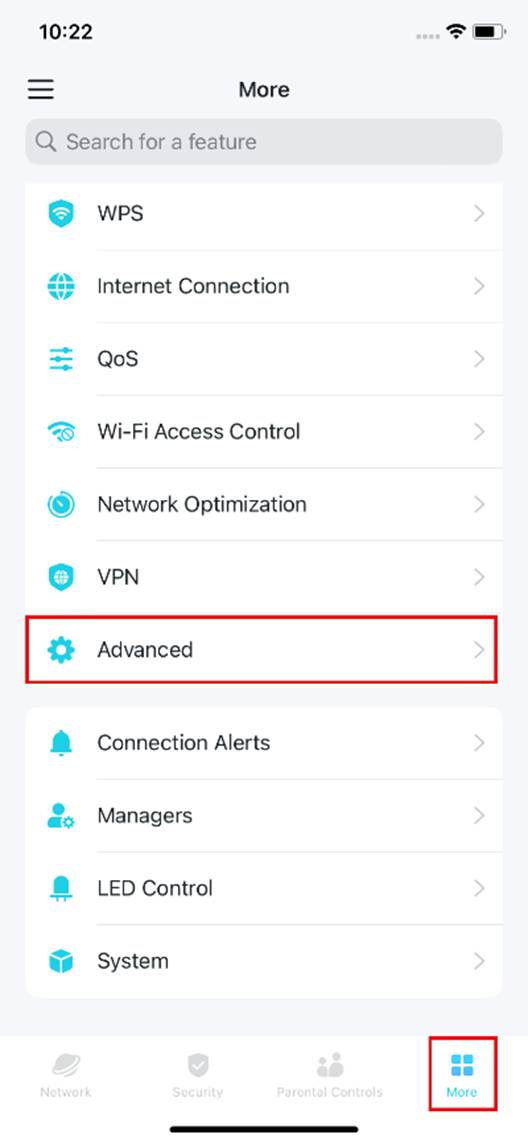
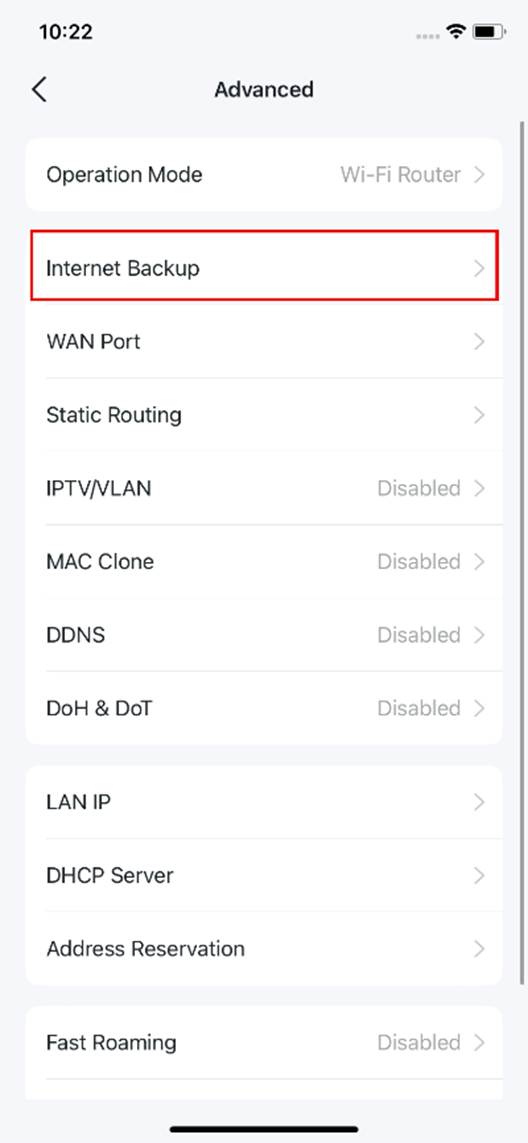
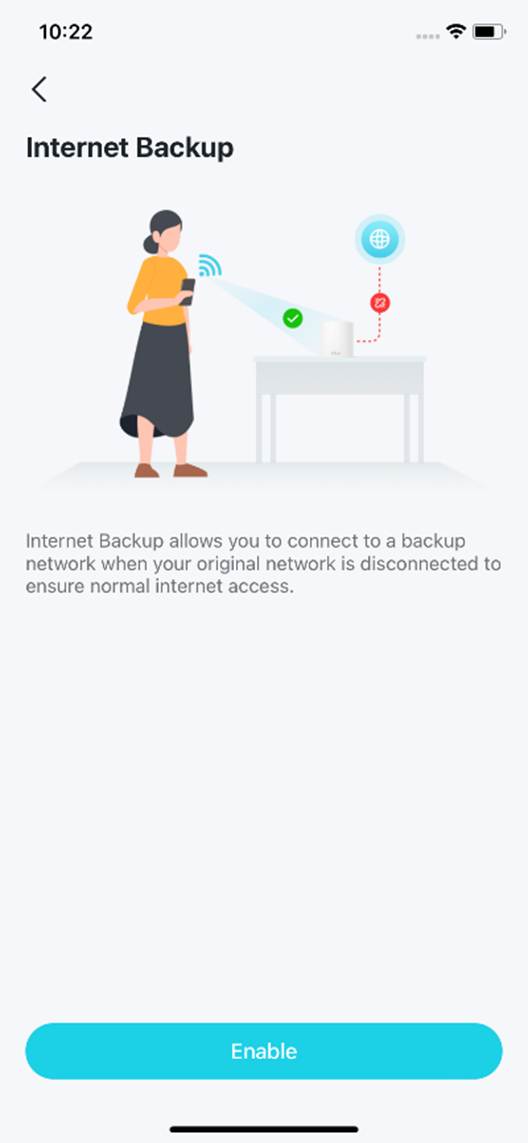
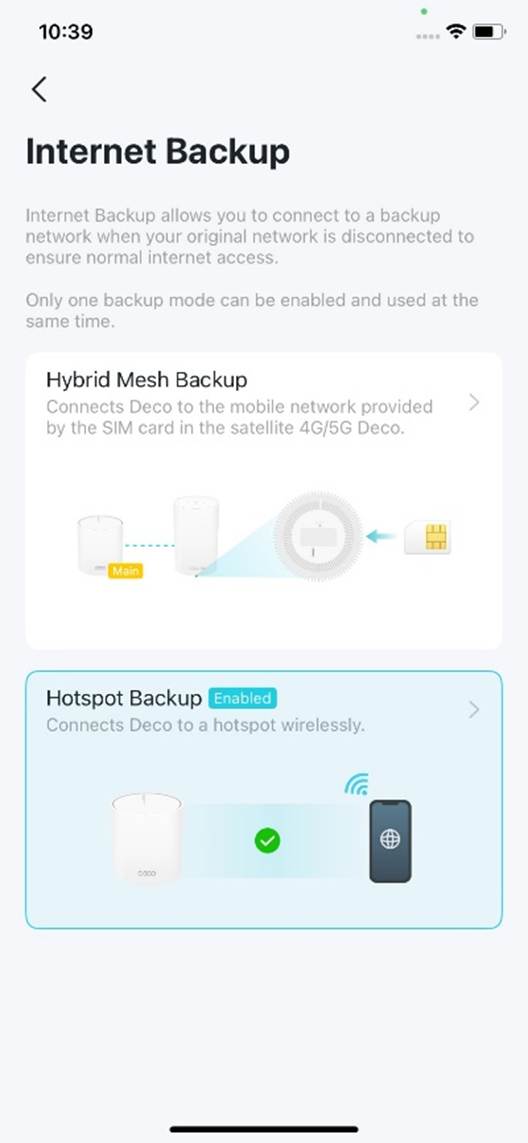
Aktivieren Sie Internet Backup. Wenn mehrere Backup-Modi verfügbar sind, wählen Sie Hotspot Backup.
Schritt 2: Mit dem Hotspot-Wi-Fi verbinden
Die App sucht automatisch nach Hotspots in der Nähe. Wenn das Wi-Fi Ihres Hotspots ausgeblendet ist, klicken Sie auf Add Hotspot und geben Sie den Wi-Fi-Namen und das Passwort manuell ein.
Warten Sie andernfalls, bis die Suche abgeschlossen ist, wählen Sie einen Hotspot aus der Liste und geben Sie dessen Wi-Fi-Passwort ein.
Hinweis: Wenn mehrere Hotspots hinzugefügt wurden, verbindet sich Deco automatisch mit dem besten verfügbaren Hotspot.
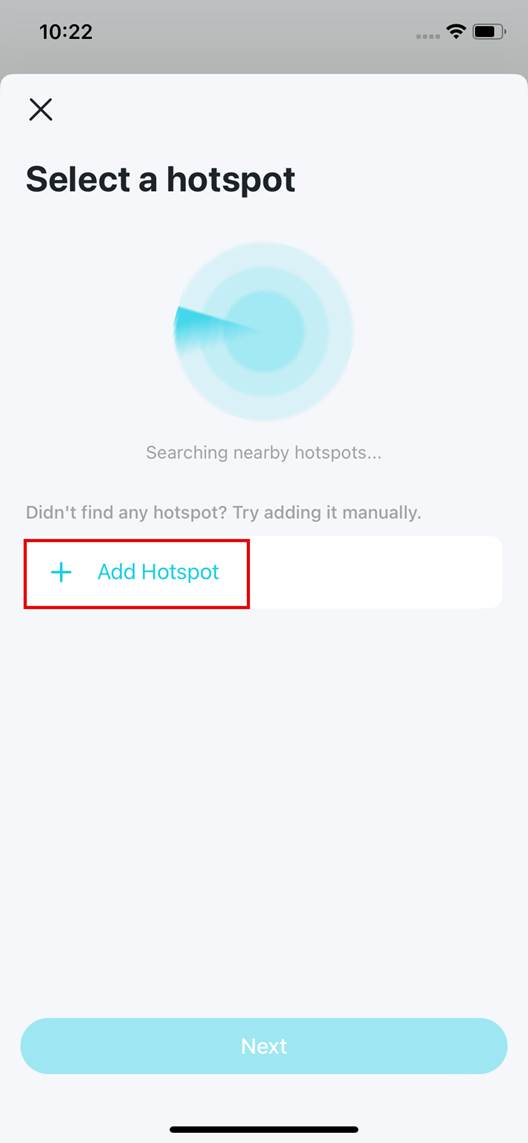
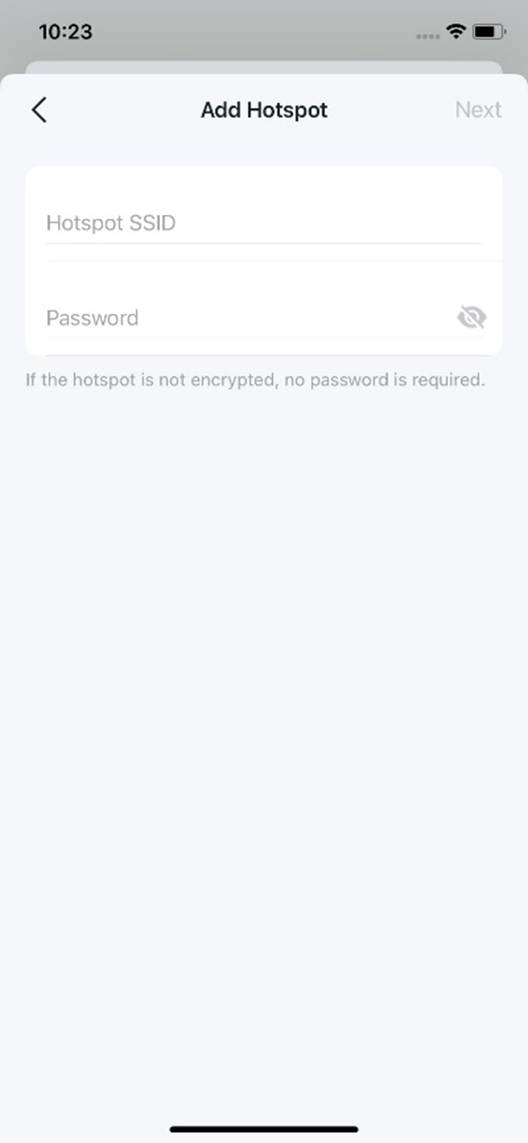
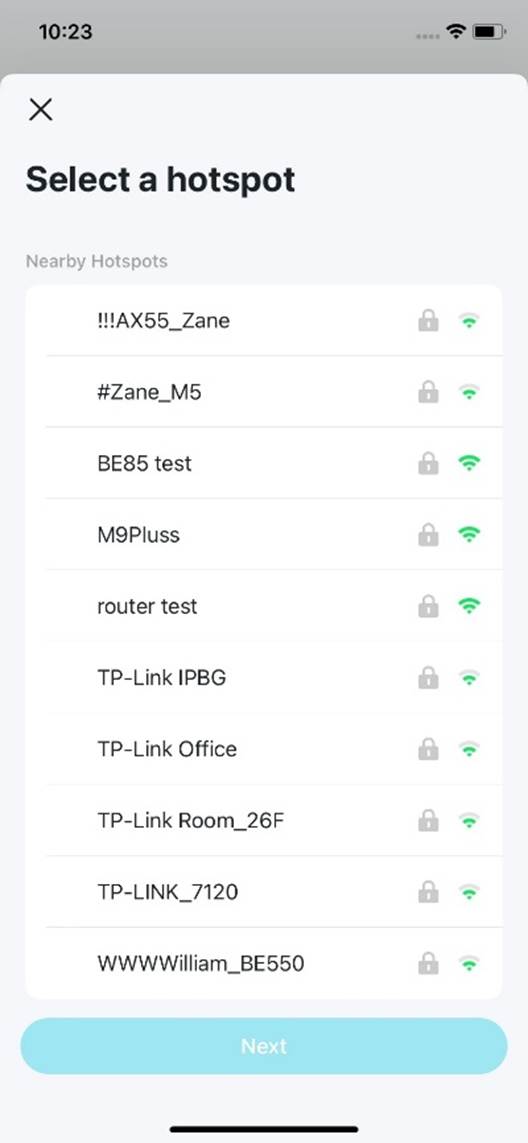
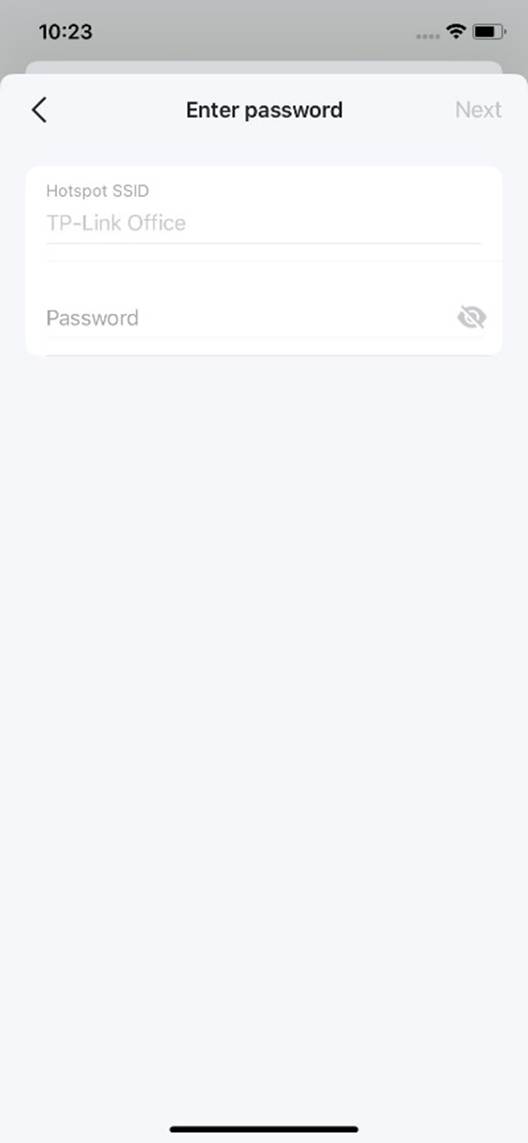
Nach dem Hinzufügen eines Hotspots können Sie dessen Netzwerkverbindung testen.
Hinweis: Der Test kann einige Zeit dauern. Stellen Sie sicher, dass der Hotspot eingeschaltet ist und über Internetzugang verfügt. Das Deco-Netzwerk kann während des Tests vorübergehend instabil sein.
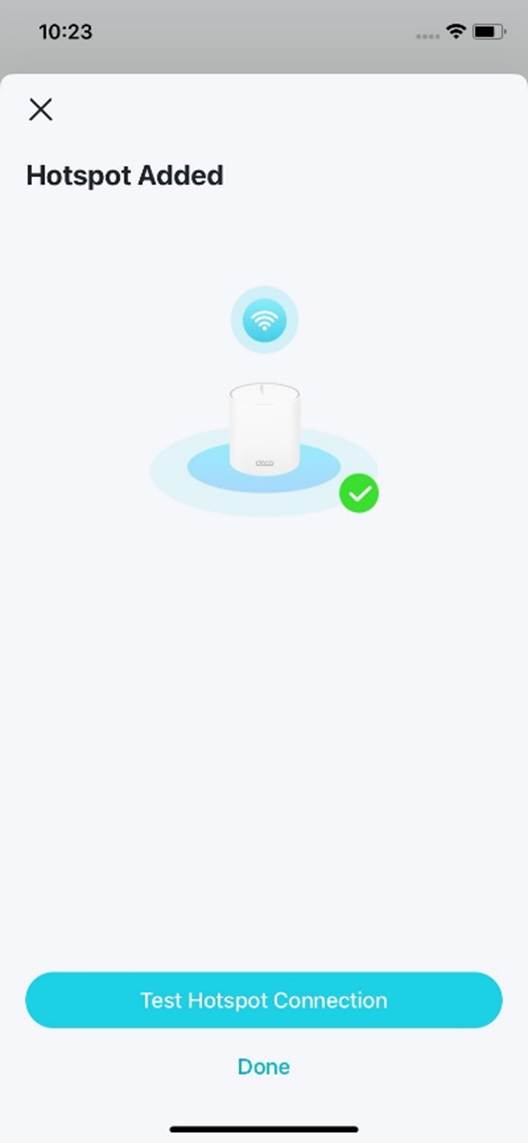
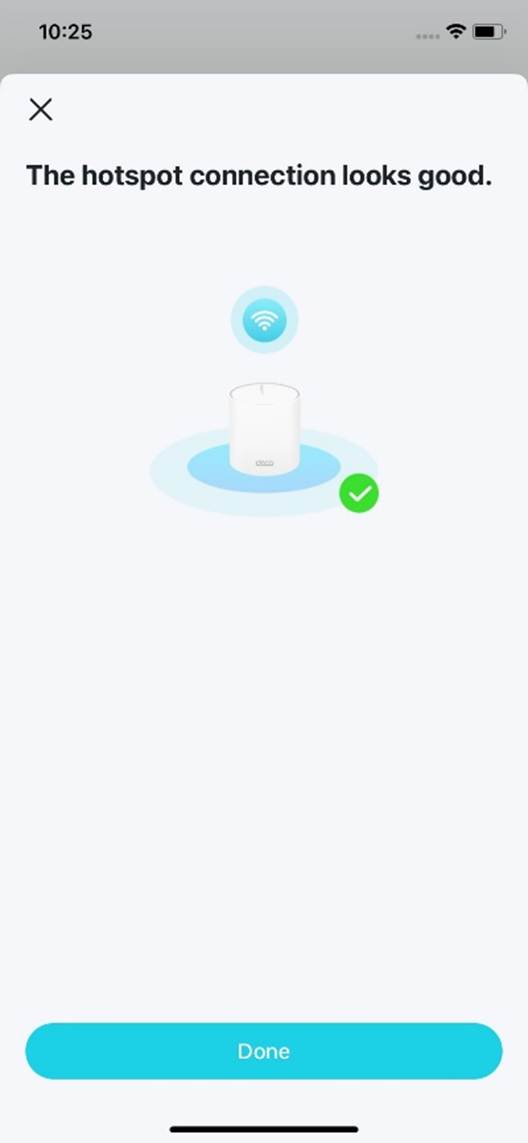
Um mehrere Hotspots hinzuzufügen, gehen Sie zu More > Advanced > Internet Backup und klicken Sie neben Hotspot List auf die Schaltfläche Add.
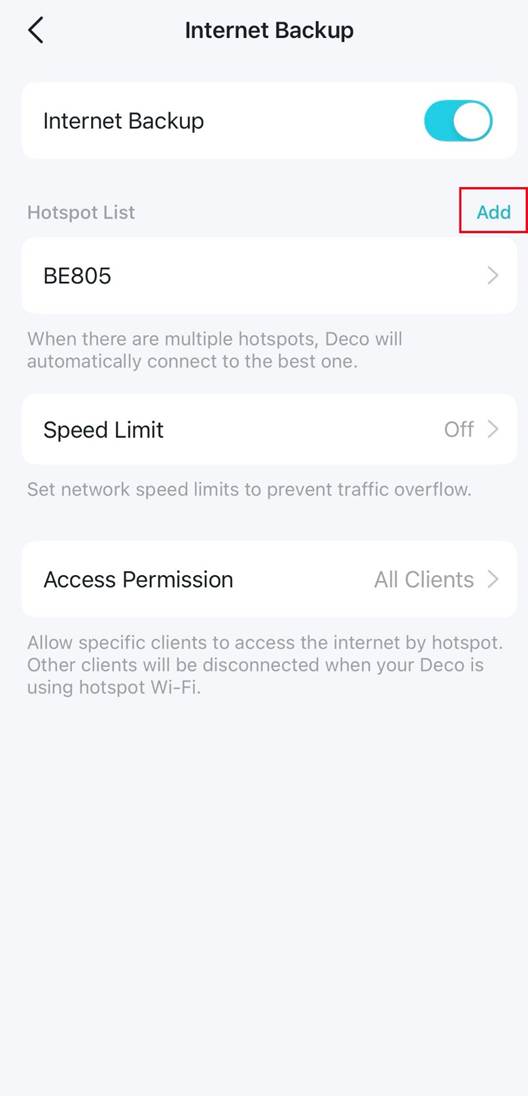
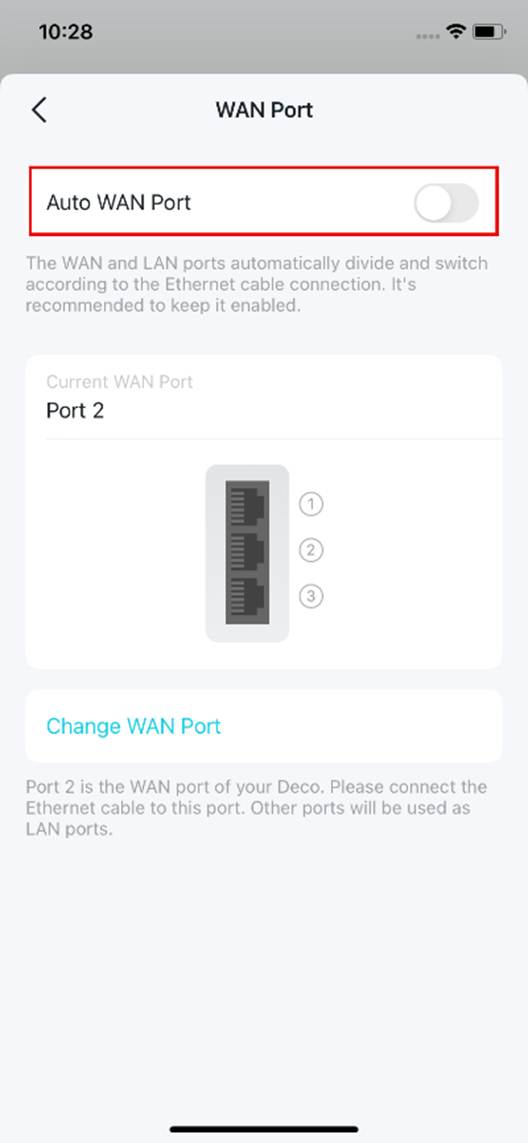
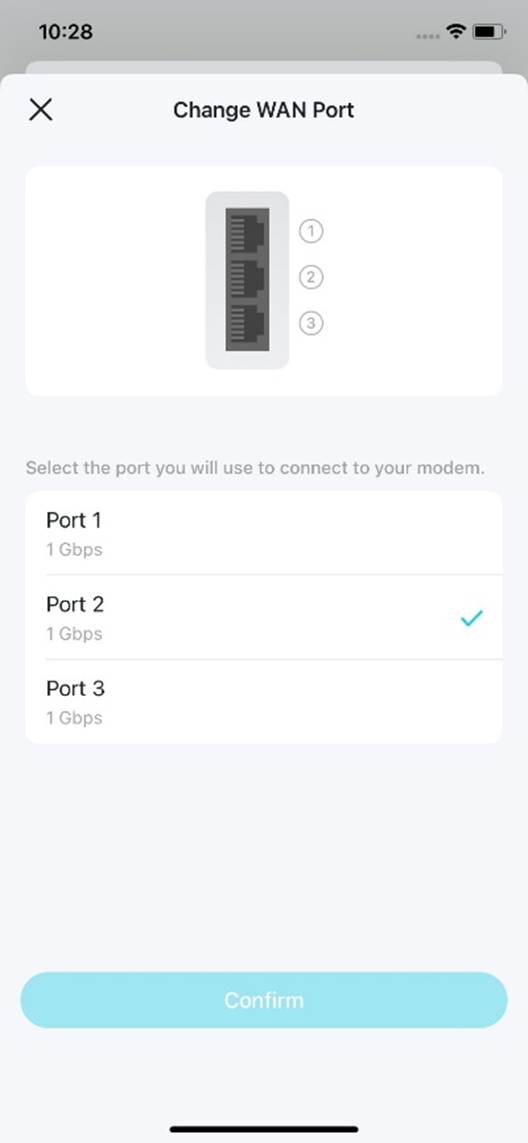
Schritt 3: Festen WAN-Port festlegen (optional)
Legen Sie einen festen WAN-Port fest, damit kabelgebundene Clients bei Verwendung des Backup-Netzwerks auf das Internet zugreifen können.
Hinweis: Tippen Sie auf die Option zum Festlegen eines festen WAN-Ports oder gehen Sie zu More > Advanced > WAN Port. Deaktivieren Sie anschließend Auto WAN Port und legen Sie einen festen WAN-Port für Ihren Deco fest.
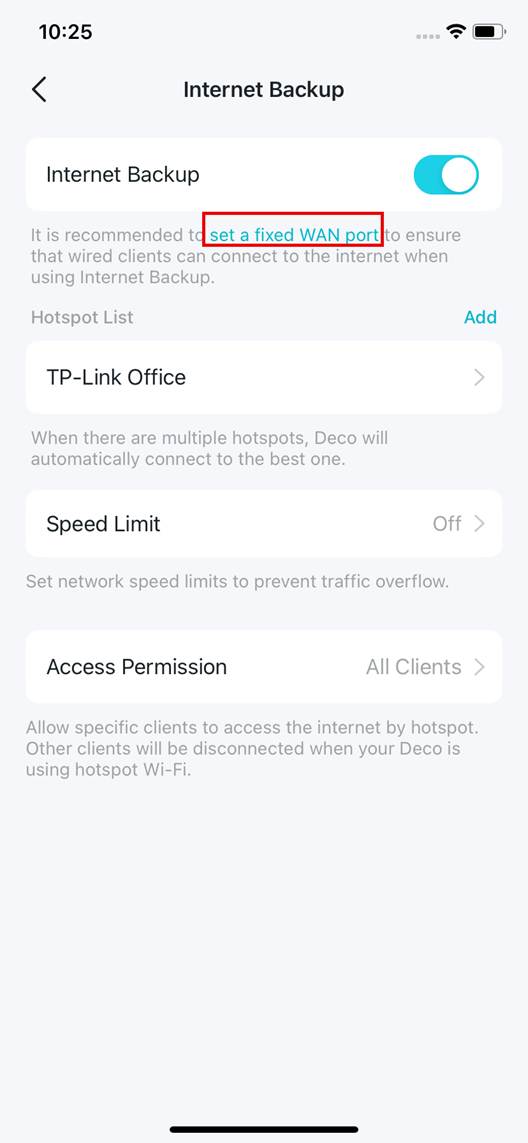
Schritt 4: Speed Limit und Access Permission festlegen (optional)
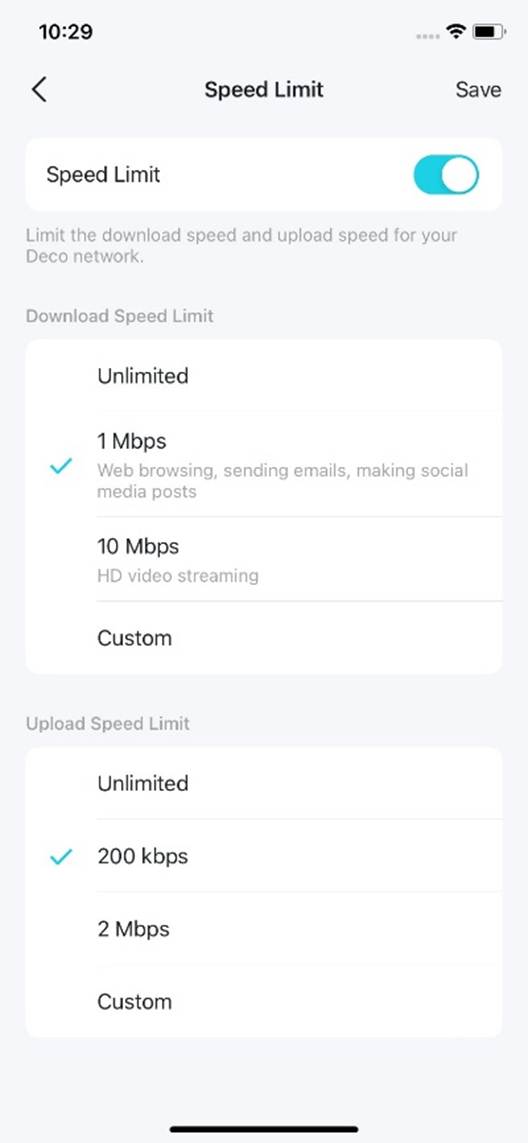
Sie können die folgenden Einstellungen nach Bedarf konfigurieren.
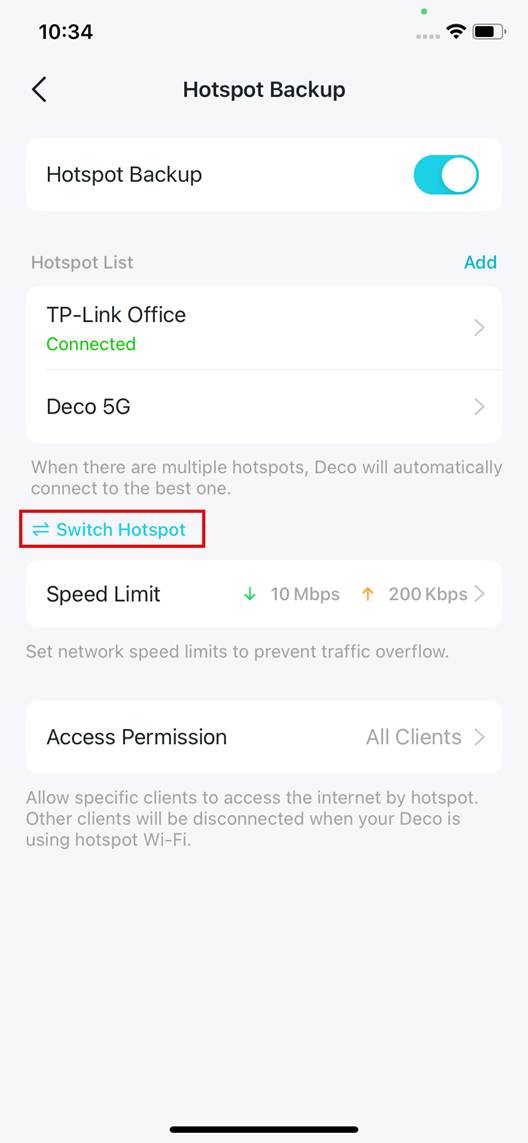
- Speed Limit: Begrenzen Sie die Download- und Upload-Geschwindigkeit Ihres Deco-Netzwerks, um übermäßigen Datenverkehr zu vermeiden.
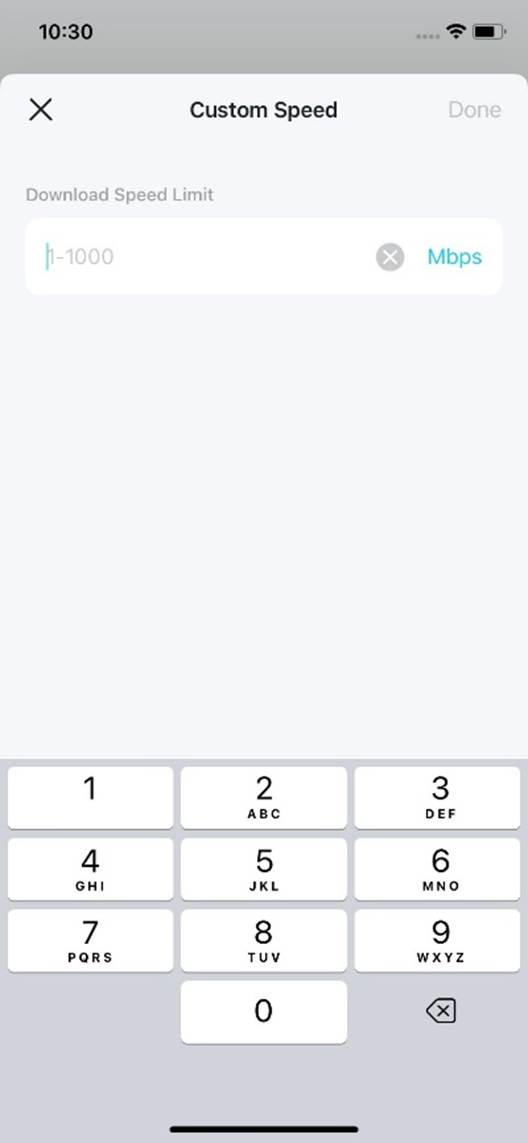
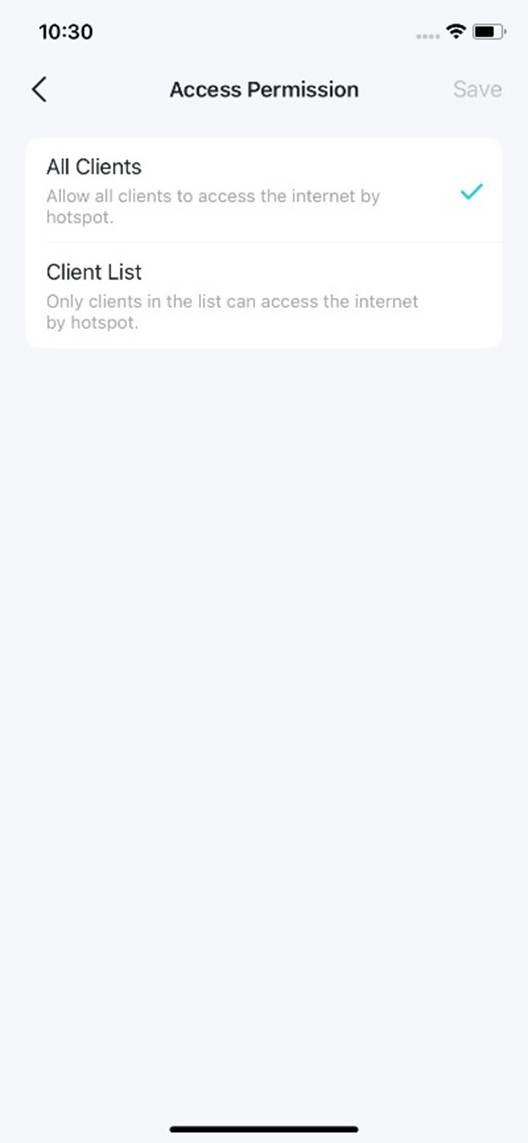
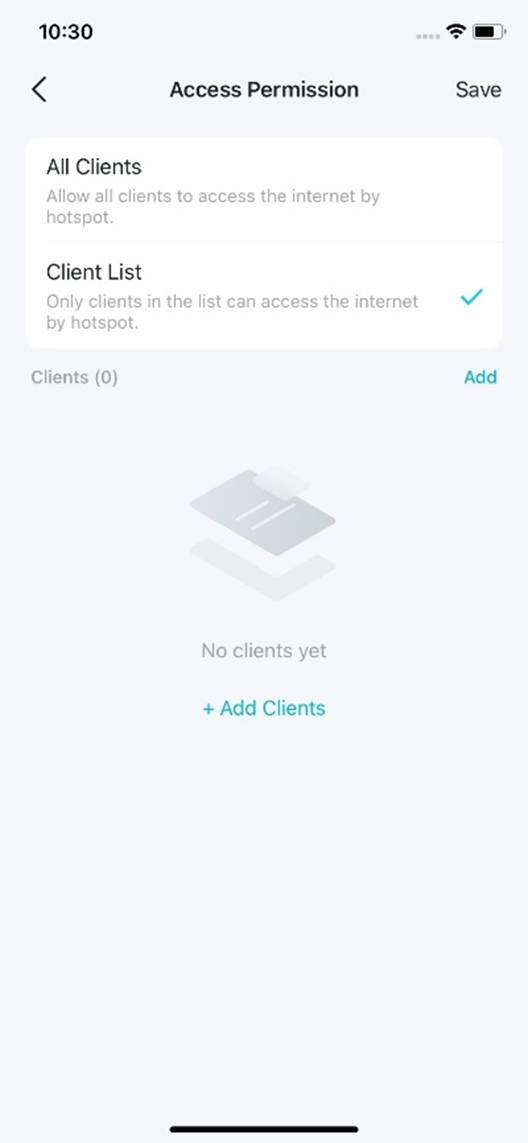
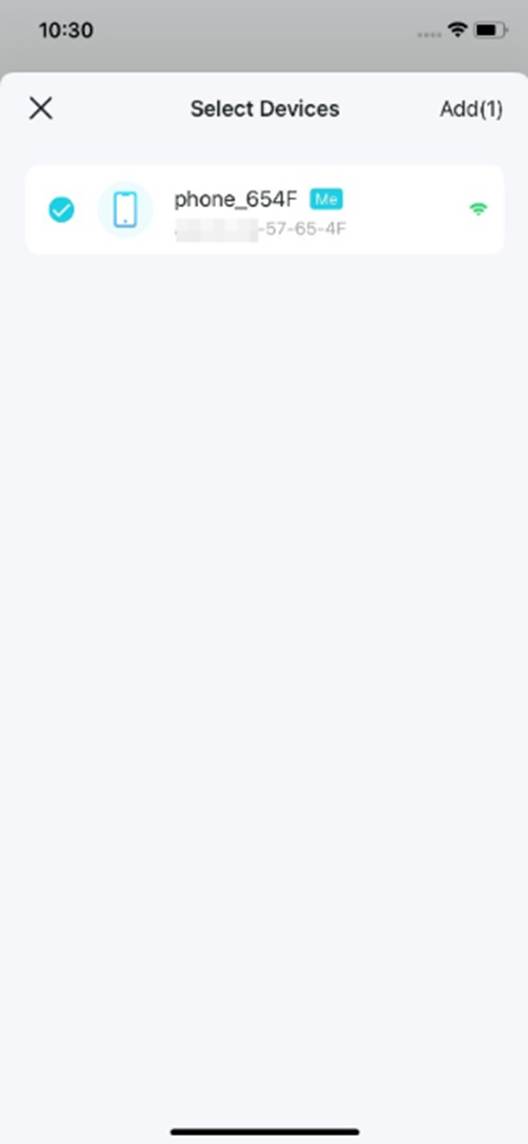
- Access Permission: Erlauben Sie bestimmten Clients den Internetzugang über den Hotspot. Andere Clients werden getrennt, wenn Ihr Deco das Hotspot-Wi-Fi verwendet.
Hinweis: Sie können aktuell mit dem Deco-Netzwerk verbundene Clients zur Client List hinzufügen oder Clients aus der Liste löschen.
Einrichtung abgeschlossen!
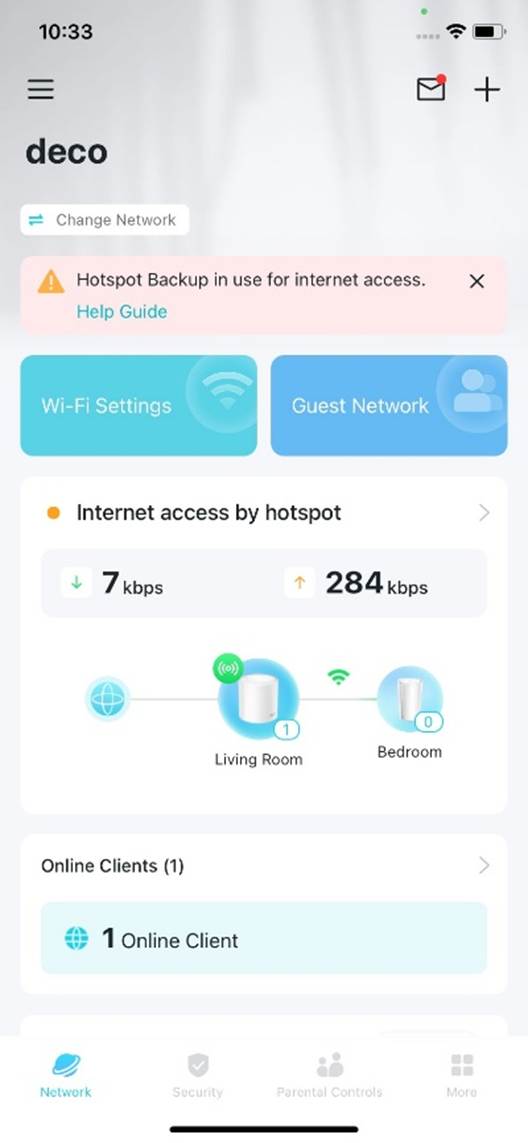
Wenn die primäre Internetverbindung ausfällt, schalten Sie den konfigurierten Hotspot ein. Deco wechselt automatisch zum Hotspot, damit das Netzwerk online bleibt.
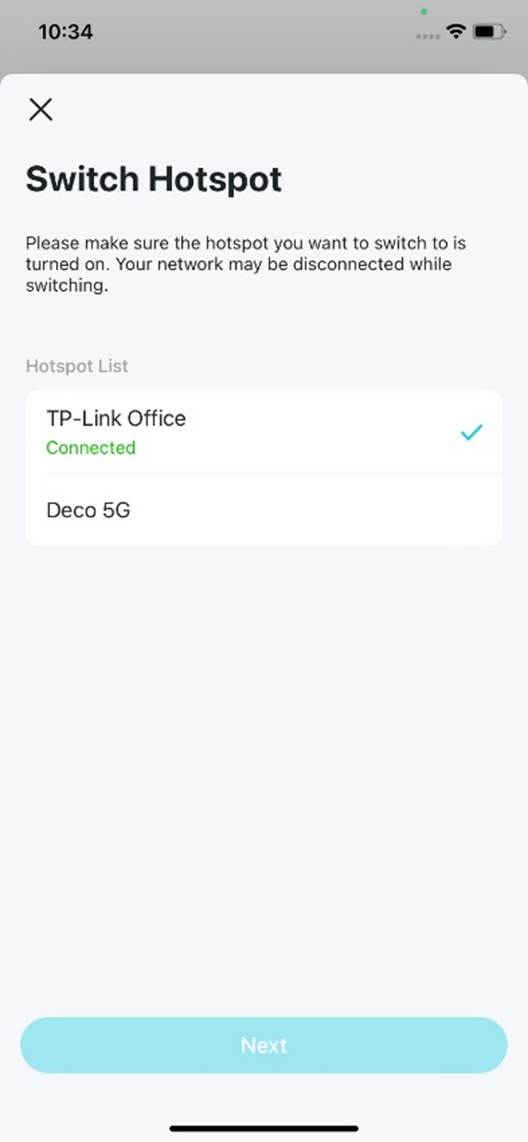
Hinweis: Während Hotspot Backup aktiv ist, tippen Sie auf Switch Hotspot, um einen anderen konfigurierten Hotspot auszuwählen.
Weitere Informationen zu den einzelnen Funktionen und Konfigurationen finden Sie im Download-Center im Handbuch Ihres Produkts.
Looking For More
Finden Sie diese FAQ hilfreich?
Mit Ihrer Rückmeldung tragen Sie dazu bei, dass wir unsere Webpräsenz verbessern.
_Overview_normal_20211130005706l.png)



TP-Link Community
Still need help? Search for answers, ask questions, and get help from TP-Link experts and other users around the world.
Von United States?
Erhalten Sie Produkte, Events und Leistungen speziell für Ihre Region