Como configurar a hora do sistema em um roteador TP-Link personalizado pelo provedor de internet
 12202
12202Introdução
O horário do sistema reflete o tempo atual de operação do roteador e serve como base para recursos dependentes de tempo, como o Controle dos Pais, com opções de sincronização configuráveis.
Requisitos
- Roteador TP-Link
- Computador ou Laptop
Configuração
Faça login na interface baseada na web do roteador, vá em Avançado (Advanced) > Ferramentas de Sistema (System Tools) > Configurações de Horário (Time Settings) e consulte as seguintes instruções de acordo com o seu cenário.
Cenário 1: Obter o horário pela internet
Passo 1. No campo Horário do Sistema (System Time), selecione o seu Fuso Horário (Time Zone) local na lista suspensa.
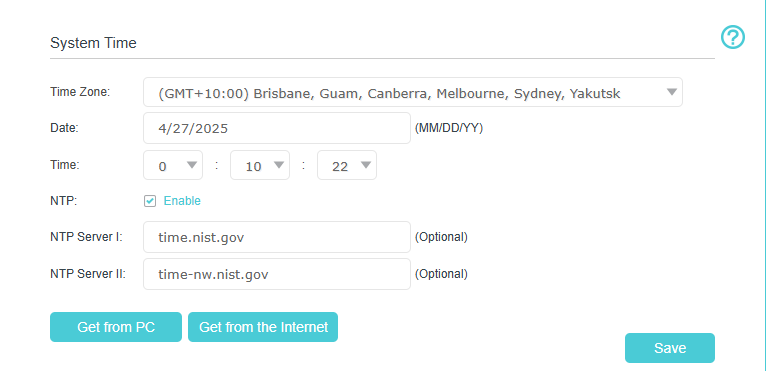
Passo 2. No campo Servidor NTP I (NTP Server I), insira o endereço IP ou nome de domínio do servidor NTP desejado.
Passo 3. (Opcional) No campo Servidor NTP II (NTP Server II), insira o endereço IP ou nome de domínio de um segundo servidor NTP.
Passo 4. Clique em Obter da Internet (Get from the Internet) para obter o horário atual da rede e clique em Salvar (Save).
Cenário 2: Obter o horário do PC
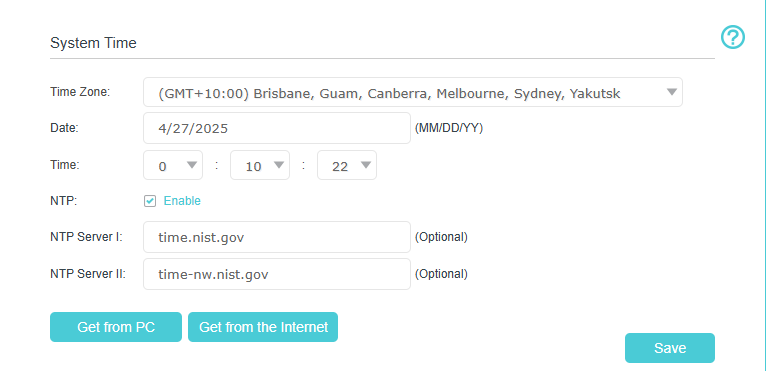
No campo Horário do Sistema (System Time), clicar em Obter do PC (Get from PC) obterá as configurações de fuso horário e hora diretamente do seu computador.
Cenário 3: Configurar o Horário de Verão
Passo 1. Selecione Habilitar Horário de Verão (Enable Daylight Saving Time).
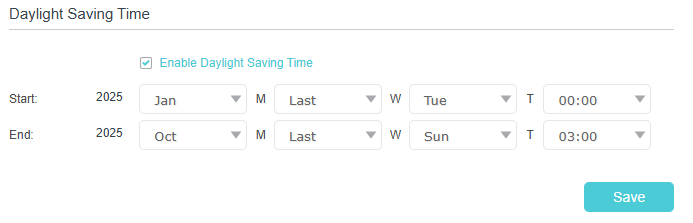
Passo 2. Selecione a data e hora de Início (Start) corretas de quando o horário de verão começa em seu fuso horário local.
Passo 3. Selecione a data e hora de Término (End) corretas de quando o horário de verão termina em seu fuso horário local.
Passo 4. Clique em Salvar (Save).
Nota: O horário de verão entrará em vigor a partir do dia (segunda a domingo) da semana (1ª, 2ª, 3ª, 4ª ou última semana) em um determinado mês. Por exemplo, se você deseja definir o Horário de Verão a partir de 8 de março de 2019 no roteador TP-Link, você deve definir o Horário de Início como 2019, Março, 2ª, Sexta-feira.
Perguntas Frequentes (QA)
P1: Ainda consigo obter a configuração de horário corretamente sem especificar um endereço de servidor NTP exato?
R1: Sim. Nossos roteadores vêm equipados com endereços de servidores NTP públicos. O roteador solicitará a configuração de tempo desses servidores públicos quando o campo de servidor NTP for deixado em branco.
P2: Posso definir o horário manualmente?
R2: Sim. Você pode definir manualmente o fuso horário, Mês/Dia/Ano e Hora/Minuto/Segundo e clicar em salvar.
Para saber mais detalhes de cada função e configuração, acesse o Centro de Download para baixar o manual do seu produto.
Esta FAQ é útil?
Seu feedback ajuda a melhorar este site.