
XC220-G3 Quick Installation Guide
 223
223
Quick Installation Guide - AC1200 Wireless XPON Router
*Images may differ from actual products.
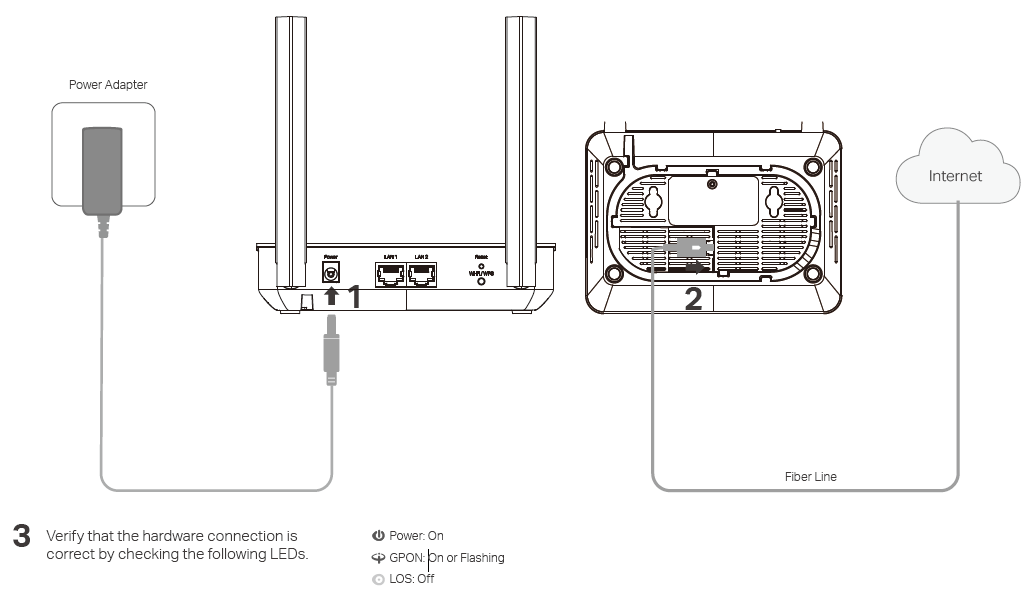
Step 1. Connect the Hardware
1. Power on the router.
2. Connect a fiber line to the PON port on the bottom of the router.
3. Verify that the hardware connection is correct by checking the following LEDs.
Step 2. Configure the Router
1. Connecting your computer to the router via a wired or wireless connection.
Wired:
Connect the your computer to the LAN por of the router via an Ethernet Cable.

Wireless:
Connect wirelessly by using the SSID (network name) and Wireless Password printed on the product label at the bottom of the router.
2. Registering the router via a web browser.
A. Launch a web browser and type in http://tplinkmodem.net or http://192.168.1.1
Note: If the login page does not appear, please refer to FAQ > Q1.

B. Create a password to get started.

C. Follow the step-by-step instructions of the Quick Setup to complete the registration and initial configuration.
You can easily manage your network through the Aginet app. Download and install the Aginet app. Search for Aginet on the Apple App Store or Google Play, or simply scan the QR code.

Step 3. Enjoy the Internet
Now you can enjoy your internet!
Button Explanation
|
Button |
Description |
|---|---|
|
RESET |
Press and hold this button for at least 5 seconds to reset the router to its factory default settings. |
|
WPS/Wi-Fi |
Short press the button to start WPS synchronization. |
LED Indicators
|
LED |
Status |
Indication |
|---|---|---|
|
Power
|
On |
Power is on. |
|
Off |
Power is off. |
|
|
PON
|
On |
The router is registered with the ISP |
|
Flashing |
The router is trying to register with the ISP |
|
|
Off |
The router is not yet registered with the ISP |
|
|
LOS
|
On |
The router is unable to transmit optical signal. |
|
Flashing |
No optical signal is received or the received signal is too weak. |
|
|
Off |
The router is receiving optical signal properly. |
|
|
Internet
|
On |
Internet connection is available. |
|
Flashing |
The router is transmitting or receiving data. |
|
|
Off |
No Internet connection or the router works on Bridge mode. |
|
|
LAN
|
On |
A device is connected to the LAN port. |
|
Flashing |
The LAN port is transmitting or receiving data. |
|
|
Off |
No device is connected to the LAN port. |
|
|
Wi-Fi
|
On |
At least one radio interface is enabled. |
|
Flashing |
WPS pairing ongoing. |
|
|
Off |
Both 2.4 and 5GHz radio interfaces are disabled. |


FAQ (Frequently Asked Questions)
Q1. What can I do if I cannot access the web management page?
A1. Make sure that the computer is properly connected to the router via the Ethernet cable.
A2. Make sure that the computer connected to the router is set to obtain an IP address automatically. Refer to Q6 for instructions.
A3. Make sure that http://tplinkmodem.net or http://192.168.1.1 is correctly entered, or use another web browser and try again.
A4. Disable then enable the network adapter being used.
A5. Restore the router to its factory default settings and reconfigure the router by following the instructions in this Quick Installation Guide.
Q2. What can I do if I cannot access the Internet?
A1. Make sure that all cables are connected properly and securely to the router.
A2. Check the GPON LED and make sure that it is lit and stable, indicating that the router is registered with the ISP. If not, make sure that the provided GPON SN and/or GPON Password are entered correctly in the Advanced > Network > GPON Settings page.
A3. Disconnect and reconnect the fiber cable to the router. Wait for 2 minutes and try again.
A4. Make sure that the computer connected to the router is set to obtain an IP address automatically. Refer to Q6 for instructions.
A5. Contact your ISP if the problem still exists.
Q3. How do I restore my router to its factory default settings?
A. With the router powered on, use a pin to press and hold the RESET button on the back panel of the router for about 5 seconds until all LEDs turn on, then release the button.
Q4. What can I do if I forget my web management page or password?
A. Refer to Q3 to restore the router then set a new password.
Q5. What can I do if I forget my wireless network password?
A1. The default Wireless Password is printed on the product label of the router.
A2. If the default Wireless Password has been changed, log in to the router's web management page and go to Basic > Wireless to retrieve or reset your password.
Q6. How do I change my computer‘s setting to obtain an IP address automatically?
A. To change the computer's network settings, follow the steps below.
For MAC OS X
1. Click the Apple icon on the upper-left corner of the taskbar.
2. Go to System Preferences > Network.
3. Select Ethernet in the left panel.
4. Under Configure IPv4, select Using DHCP.
5. Click Apply.
For Windows 7/8/8.1/10
1. Right-click the Network icon (e.g.  ) on the system tray and select Open Network and Sharing Center > Change adapter settings.
2. Right-click the wired network connection (Local Area Connection or Ethernet by default) and select Properties.
3. Double-click Internet Protocol Version 4 (TCP/IPv4).
4. Select both Obtain an IP address automatically and Obtain DNS server address automatically, then click OK.
5. Click OK again to save your configuration.
For Windows XP
1. Right-click the Network icon (e.g.  ) on the system tray and select Open Network Connections.
2. Right-click the wired network connection (Local Area Connection by default) and select Properties.
3. Double-click Internet Protocol (TCP/IP).
4. Select both Obtain an IP address automatically and Obtain DNS server address automatically, then click OK.
5. Click OK again to save your configuration.
Safety Information
• Keep the device away from water, fire, humidity or hot environments.
• Do not attempt to disassemble, repair, or modify the device. If you need service, please contact us.
• Do not use the device where wireless devices are not allowed.
• Do not use damaged charger or USB cable to charge the device.
• Do not use any other chargers than those recommended.
• Adapter shall be installed near the equipment and shall be easily accessible.
Please read and follow the above safety information when operating the device. We cannot guarantee that no accidents or damage will occur due to improper use of device. Please use this product with care and operate at your own risk.
For technical support, user guides, and other information, visit https://www.tp-link.com/en/support/download/ or scan the QR code

Resolução 680 - ANATEL: “Este equipamento não tem direito à proteção contra Interferência prejudicial e não pode causar interferência em sistemas devidamente autorizados"
Para informações de aspectos de segurança e adequação do produto no território brasileiro consulte: www.gov.br/anatel/pt-br/
Esta FAQ é útil?
Seu feedback ajuda a melhorar este site.