
How to Set Up the 2-Cam Kit (Tapo HB610Tapo HB410/Tapo HB112)
The Tapo 2-Cam Kit, such as Tapo HB610/Tapo HB410/Tapo HB112, includes one Tapo H500 and two Tapo Camera units. Setting up your Tapo 2-Cam Kit is quick and easy. This guide walks you through downloading the Tapo app, configuring the CentralHub, and connecting your cameras for complete home monitoring.
Key Takeaways
- Download and sign in to the Tapo app before starting the installation process.
- Set up the Tapo H500 CentralHub first before adding any cameras.
- Keep the cameras close to the hub during setup for automatic device discovery.
- Follow the in-app instructions to add additional cameras to the CentralHub and complete the installation.
Configuration
Step 1: Download the Tapo App
Open the Google Play or App Store, or scan the QR code to download the Tapo app.

Step 2: Log In
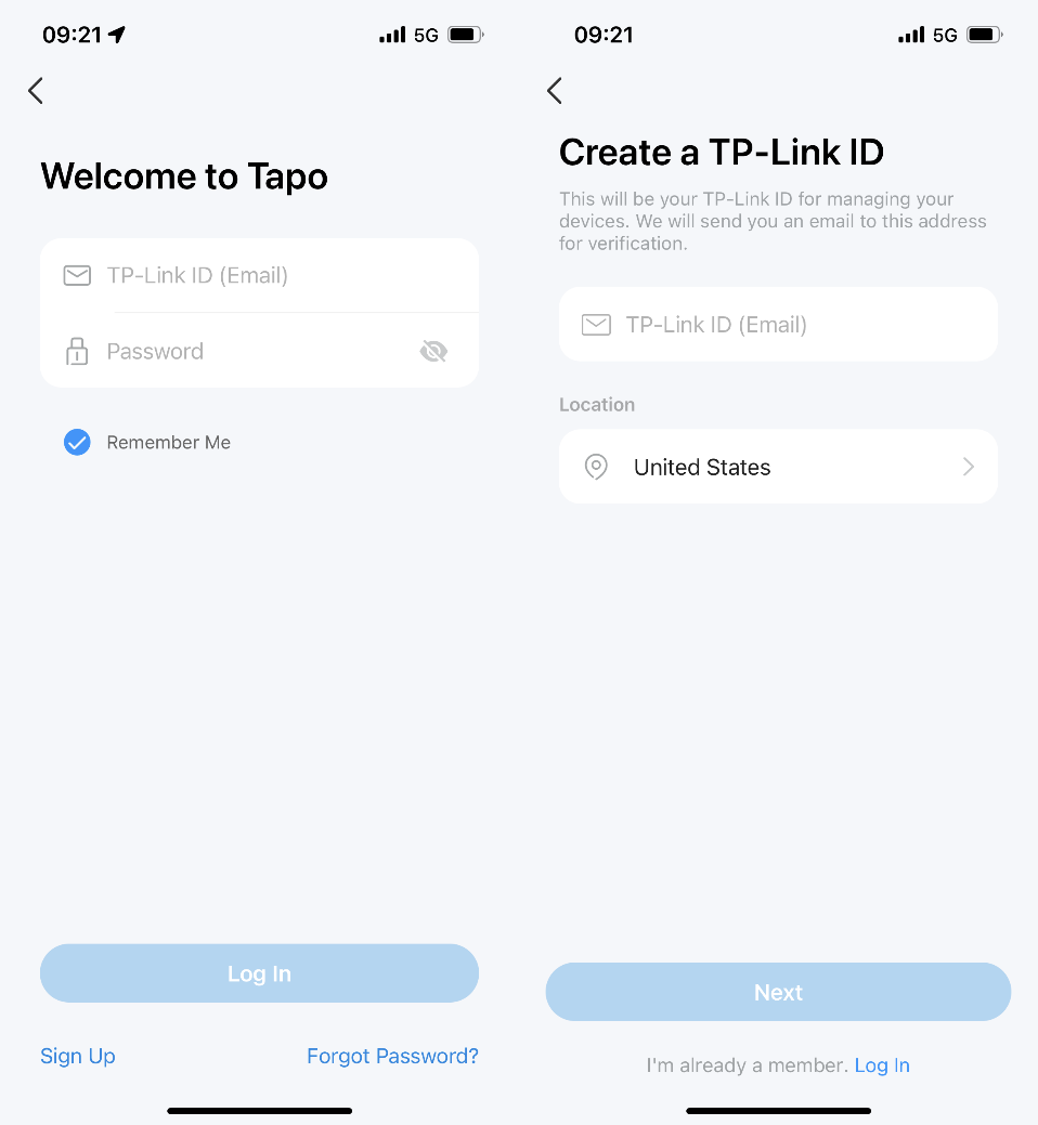
Open the app and use your TP-Link ID to log in. If you don’t have a TP-Link ID, tap Sign Up to create one, and the app will guide you through the rest.
Step 3: Set Up the CentralHub
Option 1: Tap the + button in the Tapo app and select “Add Device”.
Option 2: Tap the + Button in the Tapo app and select “Scan QR code.”
(Follow the  symbol on the CentralHub to find where you should press, and you will see the QR Code.)
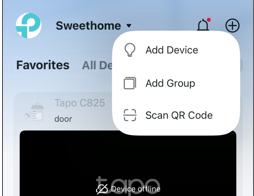
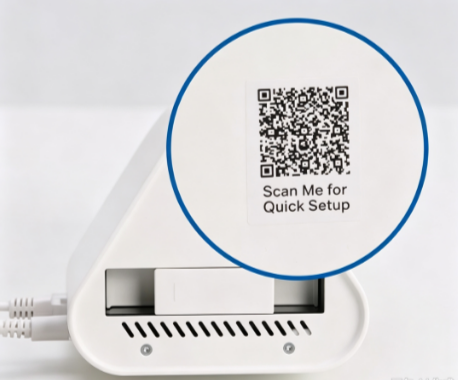
Then follow the instructions in the app or refer to the How to Set Up Tapo Smart CentralHub (Tapo H500) to finish the setup process.
Step 4: Set Up the Camera
1. After finishing setting up the CentralHub, you will see the following option and select “A Set of Devices”.
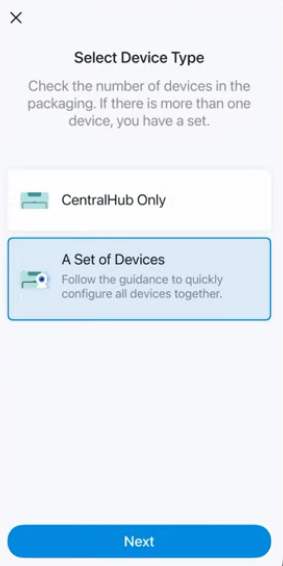
2. Move your camera close to the hub and your phone. Power up your camera, press the reset button for at least five seconds until the LED blinks red, and then wait until the camera's LED blinks red and green; the phone will find and set up the camera automatically.
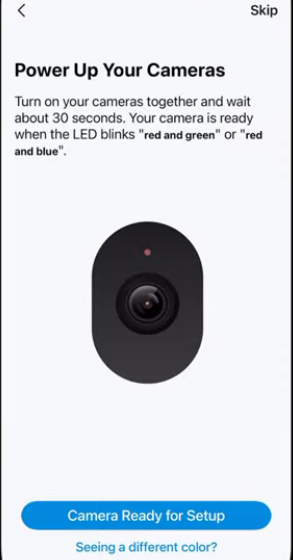
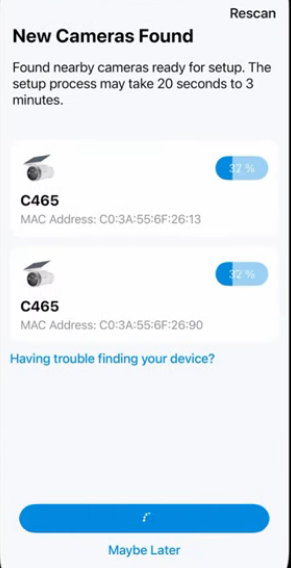
Step 5: Add More Cameras to CentralHub
After the camera setup is complete, follow the in-app instructions to add more devices to the CentralHub.

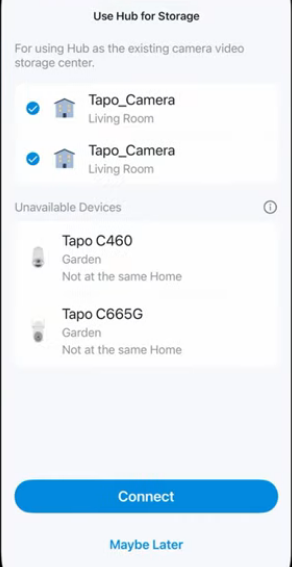
To learn more about each function and configuration, please visit the Download Center to download the manual for your product
Buscando mas
¿Es útil esta pregunta frecuente?
Sus comentarios nos ayudan a mejorar este sitio.



TP-Link Community
Still need help? Search for answers, ask questions, and get help from TP-Link experts and other users around the world.