
How to set cleaning order for Tapo Robot Vacuum
 10754
10754Introduction
This FAQ addresses common inquiries and provides step-by-step guidance on how to set a custom cleaning order for your Tapo Robot Vacuum. You will learn how to define the sequence in which rooms are cleaned and how to apply this custom order to your cleaning schedules.
Requirements
- Download Tapo app by visiting the Google Play Store, the App Store, or by scanning the QR code.
- Configure the Robot Vacuum with the app.
Configuration
Follow the instructions below to set a custom cleaning order. The steps differ slightly depending on your robot vacuum model.
Part 1: For Tapo RV20/30 Max series
You can set a cleaning order in both Everywhere cleaning and Room cleaning modes.
Scenario 1: Setting a Custom Room Cleaning Order
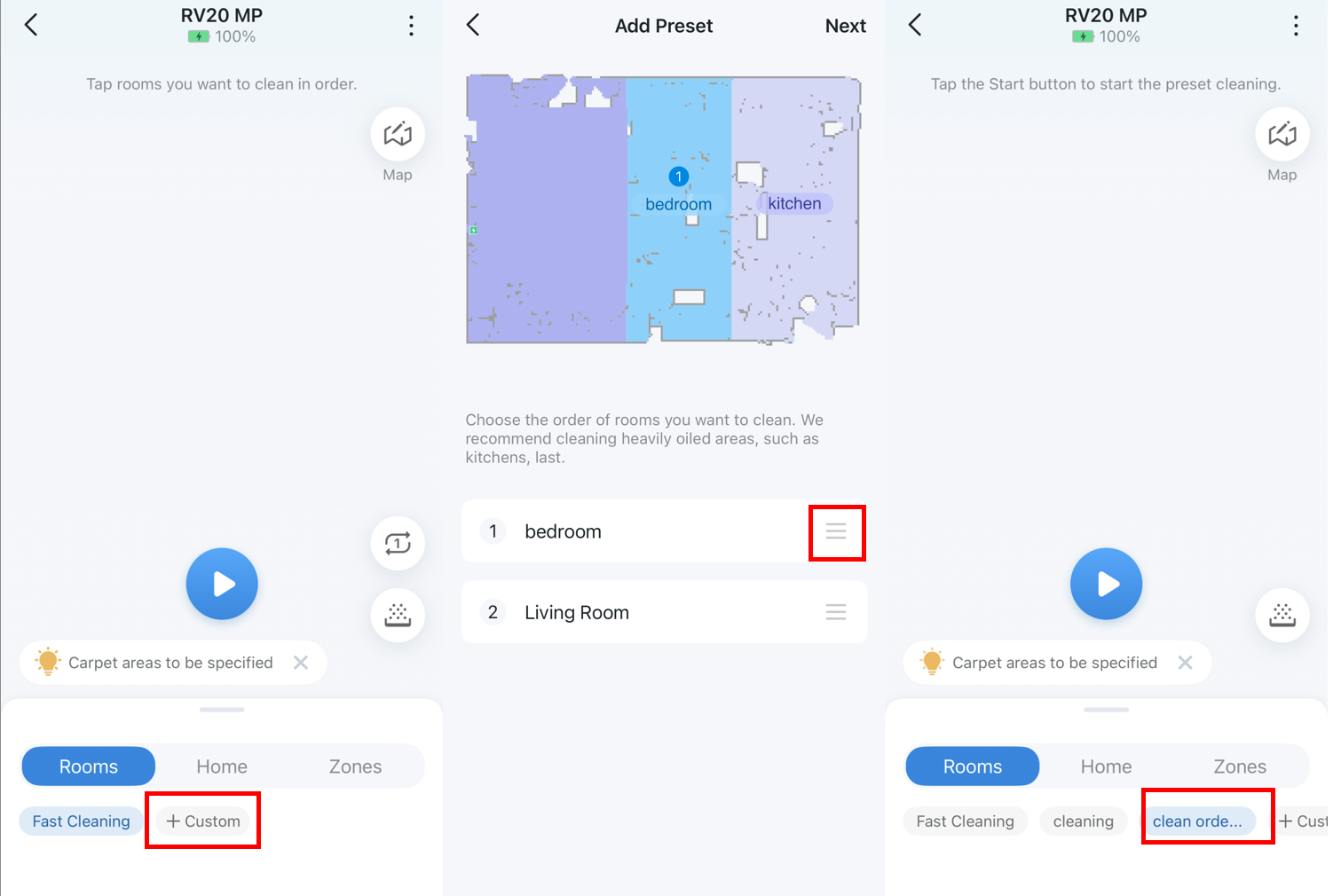
Step 1. Swipe up the menu bar and select the Rooms mode.
Step 2. Tap the +Custom button.
Step 3. Tap on the rooms on the map. The cleaning order will be shown at the bottom. Press and hold the drag icon on the right side of a room to adjust its position in the sequence.
Step 4. Tap Next in the top-right corner, adjust your Cleaning Preference, and tap Next again.
Step 5. Name and save this custom cleaning preset.
Step 6. You can quickly select this preset under the Rooms tab for future cleanings.
Scenario 2: Setting a Custom Order for Everywhere Cleaning
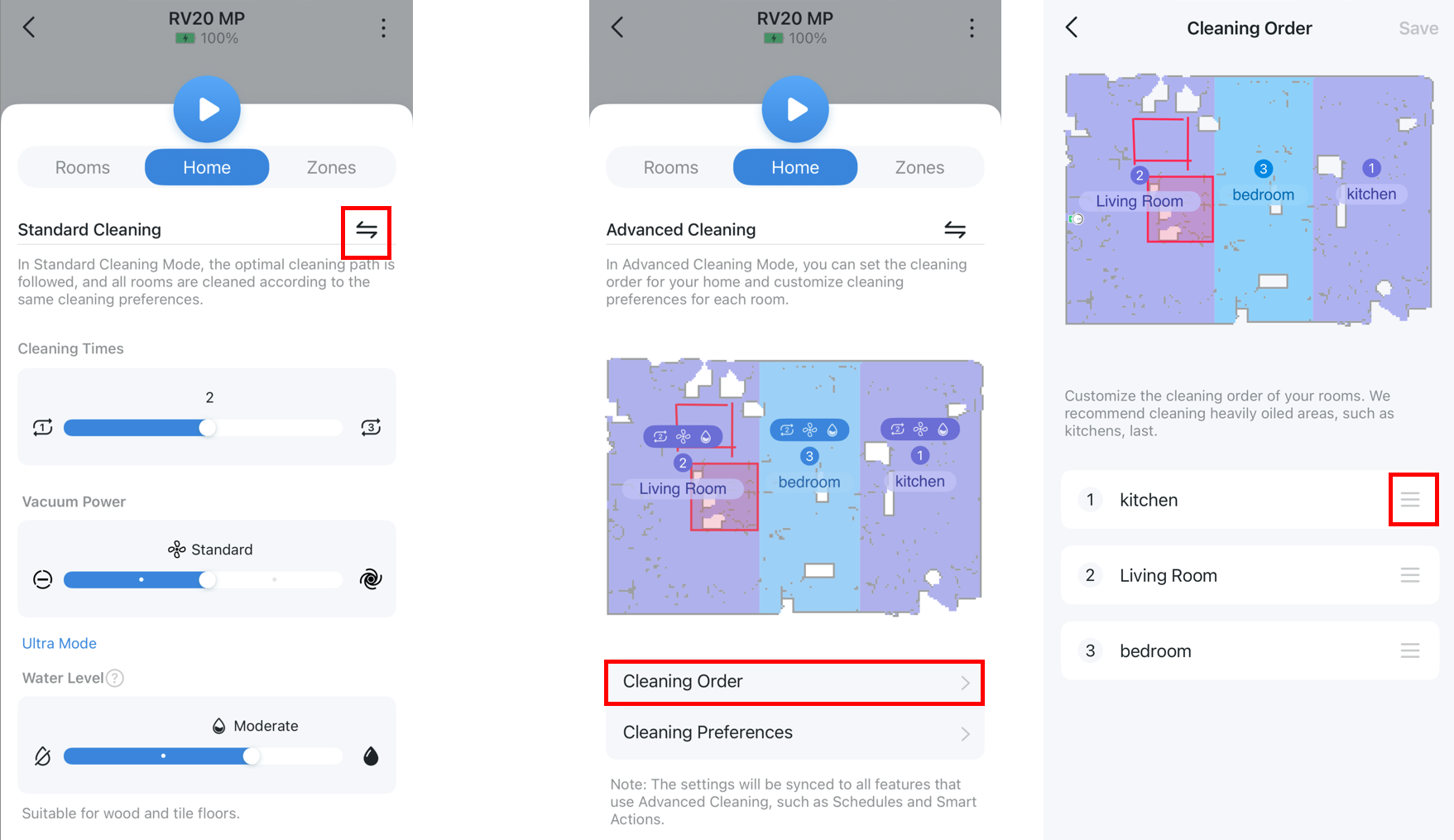
Step 1. In the menu bar, select the Home option.
Step 2. Tap the switch icon next to Standard Cleaning to change it to Advanced Cleaning.
Step 3. Tap Cleaning Order and drag the rooms at the bottom to set your custom sequence.
Scenario 3: Applying the Custom Order to a Schedule
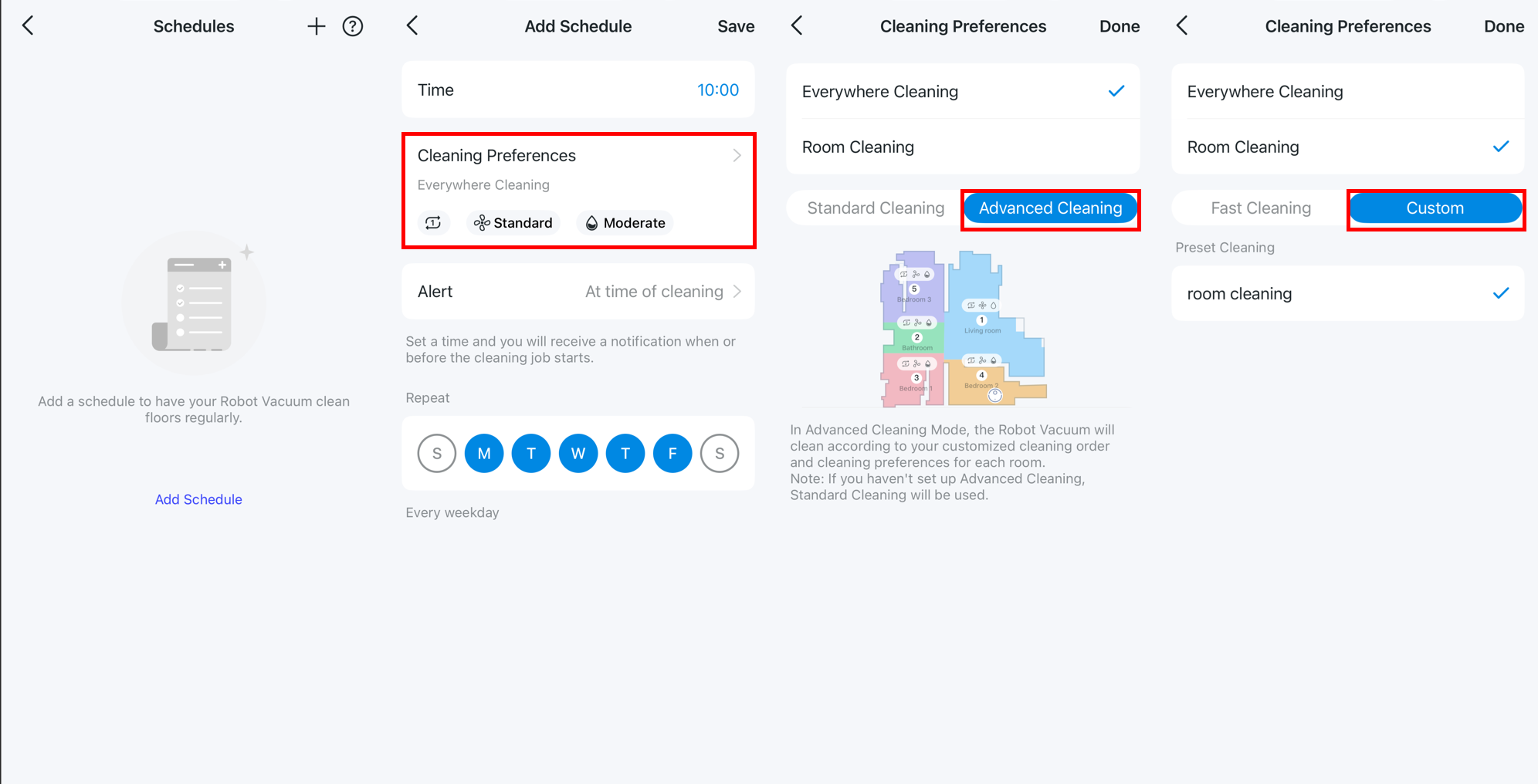
Step 1. Go to More Settings (⁝) > Schedules.
Step 2. Select or add a schedule, then tap Cleaning Preferences.
Step 3. To use your custom order:
- For whole-home cleaning: Select Everywhere Cleaning > Advanced Cleaning. The robot will use the sequence you set in the Advanced Cleaning menu.
- For specific rooms: Select Room Cleaning > Custom, then check your saved preset. The robot will follow the order defined in that preset.
Part 2: For Tapo RV50 series
You can also set a cleaning order for both Home and Room cleaning modes on your RV50 series, but the menu location is different.
Scenario 1: Setting a Custom Room Cleaning Order
Step 1. In the bottom menu bar, select Room.
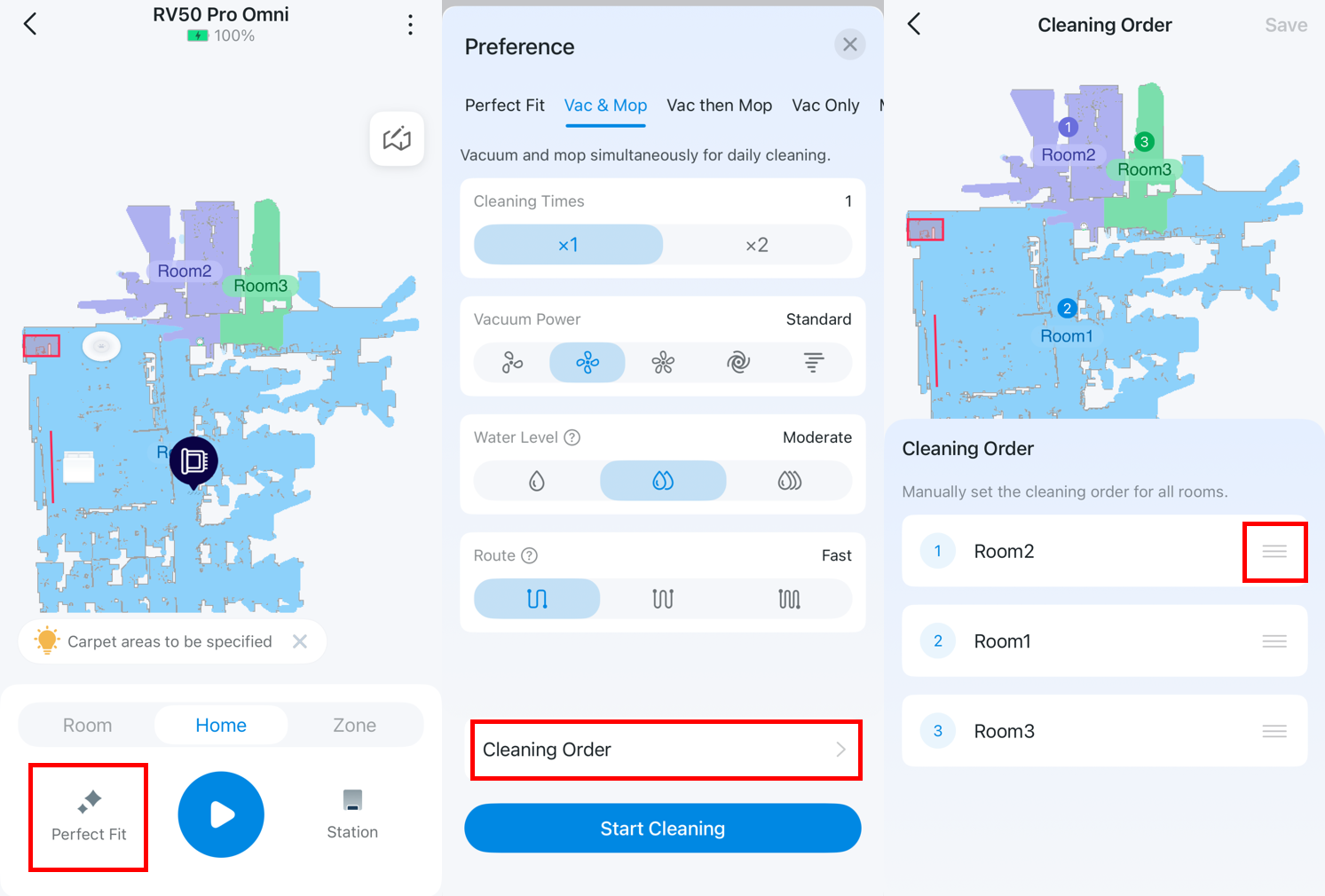
Step 2. Tap the icon to the left of the Start Cleaning button.
Step 3. Select Cleaning Order at the bottom.
Step 4. Choose the rooms you want to clean and drag the icon on the right to set their order.
Step 5. Tap the Save button in the top-right corner to save.
Scenario 2: Setting a Custom Order for Everywhere Cleaning
Step 1. In the bottom menu bar, select Home.
Step 2. Tap the icon to the left of the Start Cleaning button.
Step 3. Select Cleaning Order at the bottom.
Step 4. Choose the rooms you want to clean and drag the icon on the right to set their order.
Step 5. Tap the Save button in the top-right corner to save.
Scenario 3: Applying the Custom Order to a Schedule
Step 1. Go to More Settings (⁝) > Schedules.
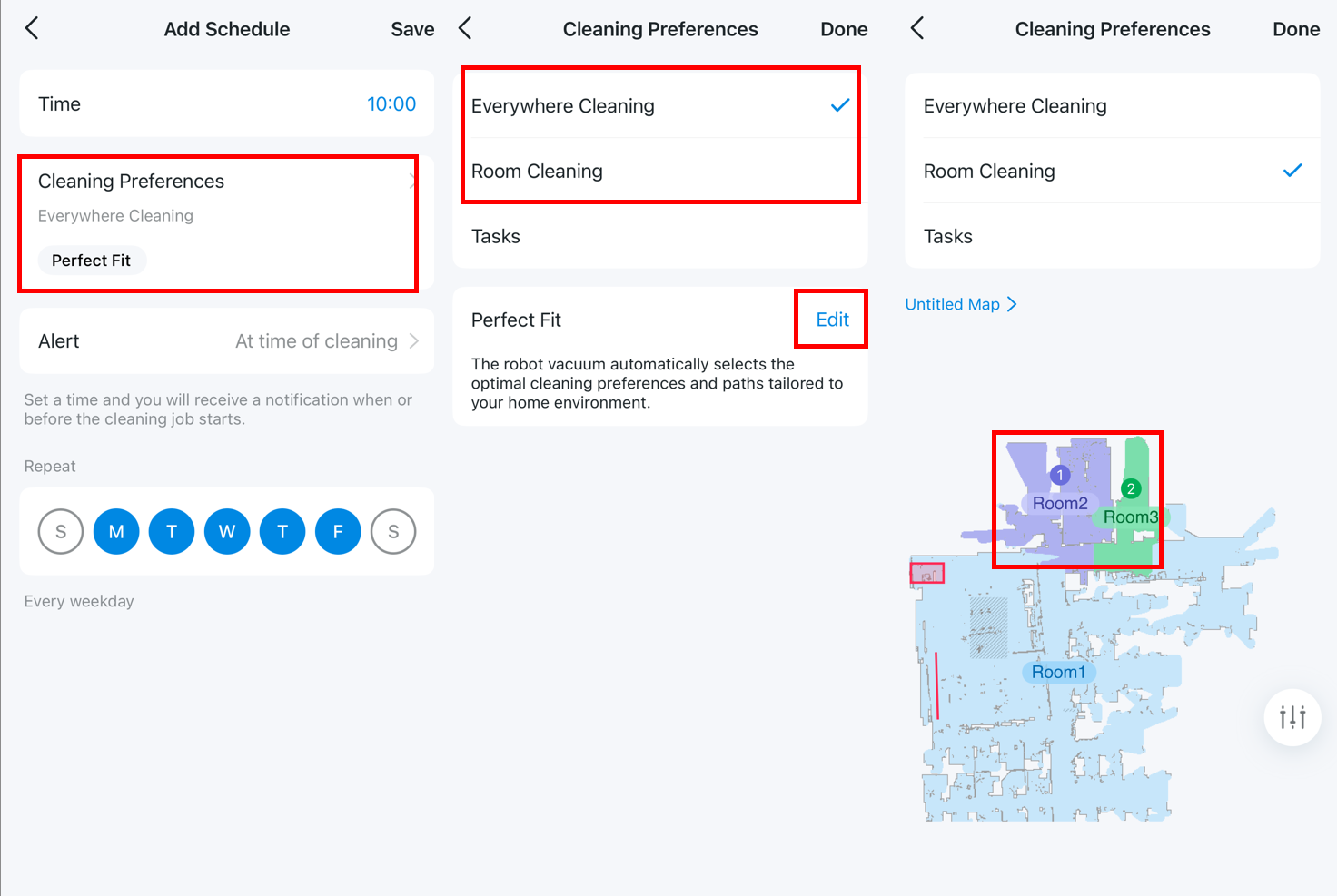
Step 2. Select or add a schedule, then tap Cleaning Preferences.
Step 3. To use your custom order:
- For whole-home cleaning: Select Everywhere Cleaning, tap Edit, and set it to any cleaning mode except Perfect Fit. The robot will use the sequence you previously set in the Everywhere Cleaning menu.
- For specific rooms: Select Room Cleaning and then manually sort the rooms by tapping on them on the map. The schedule will be cleaned in the order you set.
Get to know more details of each function and configuration please go to Download Center to download the manual of your product.
Is this faq useful?
Your feedback helps improve this site.


TP-Link Community
Still need help? Search for answers, ask questions, and get help from TP-Link experts and other users around the world.