
How to troubleshoot if I have low speed with TP-Link Wireless 4G LTE or 5G NR Router working as 3G 4G Router Mode
 7392
7392Introduction
Internet speed may be affected by many factors. This FAQ will help you identify the cause of the problem and offer tips to improve speed.
Requirements
- TP-Link Router/Another Router (Optional)/Ethernet Cable/Computer or Laptop/Valid SIM Card
- Speed Test and Comparison:
1) Connect a computer/laptop to the 4G LTE or 5G NR Router via Ethernet Cable, and test the wired speed of the router
2) Connect a laptop or mobile device to the Wi-Fi Network of the 4G LTE Router, and test the wireless speed of the router. If it is a dual-band router, please test both 2.4 GHz and 5 GHz Wi-Fi speeds.
3) Insert the same SIM Card into another 4G router with the same LTE category at the exact location, then test the wired and wireless speed on the same client device. For example, TL-MR6400 is an LTE Cat4 product that doesn’t support 4G+ (LTE Cat6 or higher is called 4G+), so we need to compare its speed with another LTE Cat4 product.
If the wired and wireless speeds of the TP-Link router are both much slower than those of another router, please refer to Case One.
If there is no significant difference in wired speed between the two routers, but the TP-Link router's wireless speed is much slower than the other router's, please refer to Case Two.
Note: You might use a mobile phone to compare speeds; however, most mobile phones now support much higher LTE categories, such as Cat19 or Cat20, or even 5G. The higher the LTE category supported, the higher the maximum speed it can reach, so it doesn’t make sense to compare two devices' speeds when they support different LTE categories.
Troubleshooting
Case One: Both wired and wireless speeds of the TP-Link router are much slower than those of another router
Step 1. Log in to the web interface of the 4G LTE Router, go to Advanced > Status, and look for Network Type, Band, and Signal Strength in the Mobile Section.
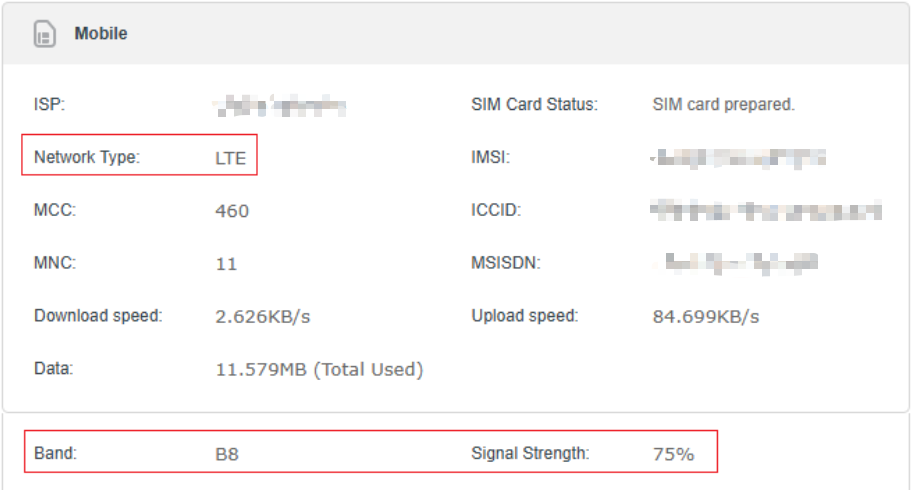
Step 2. If the Network Type is not 4G, please confirm whether the 4G signal in your area is strong. If so, please go to Advanced > Network > Mobile WAN page, change Network Mode to 4G Only, and click Save.
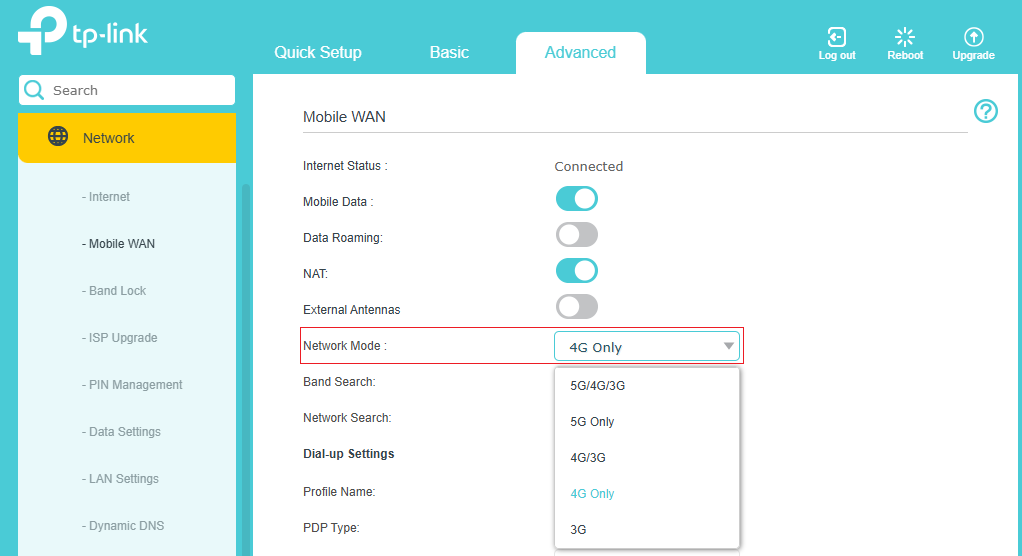
Then please check if the Network Type would be 4G LTE, and if the signal strength is good (75% or 100%)
Step 3. If the wired speed of the router is still relatively slow, please check if there are other available profiles listed in the drop-down list of Profile Name on Advanced > Network > Mobile WAN page:
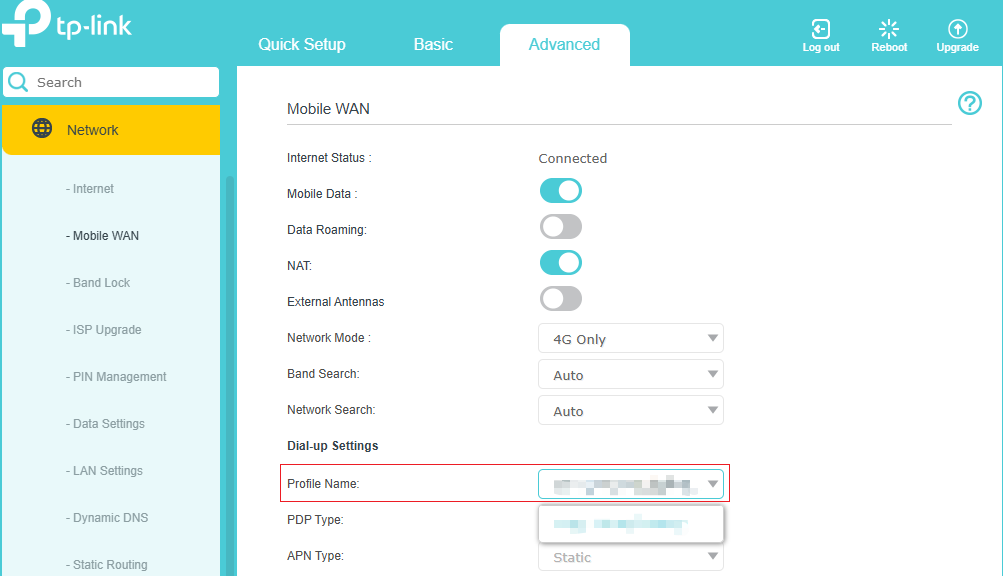
Or contact your SIM card provider to see if they have other APN settings. If so, try creating a connection profile on Advanced > Network > Mobile WAN page to see if the speed improves.
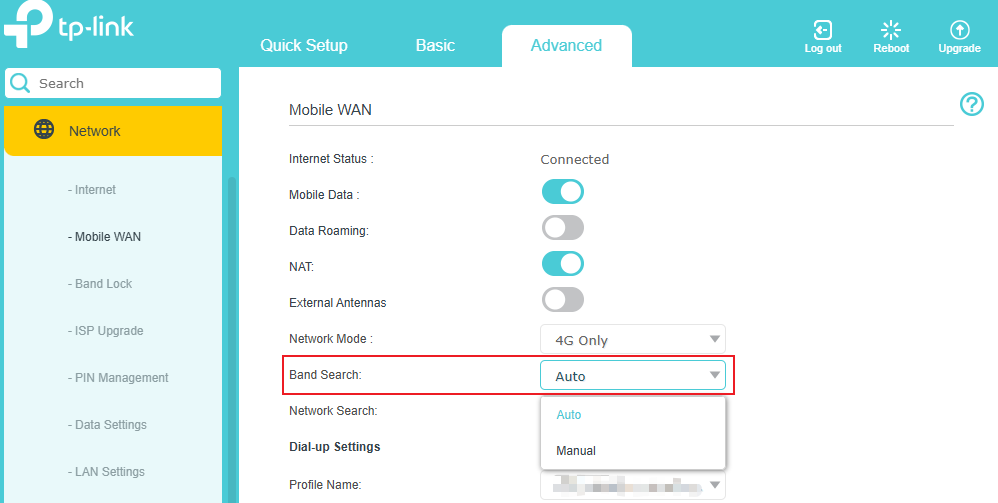
Step 4. If your 4G LTE Router supports manual 4G band selection, you could also try to change the band from Auto to Manual, then select the same band working on your other router, or select the supported band of your SIM card one by one to find the best band in your area to improve the speed.
Step 5. Make sure the firmware version is the latest one. Contact TP-Link support if your wired download speed is much lower than it should be. Provide those speed test results, the troubleshooting you have done, and the results.
Case Two: Only wireless speed of the TP-Link router is much slower than that of the other one
Step 1. Simplify the network topology by connecting one end device to the 4G LTE router via Wi-Fi, and run Speedtest® three times without performing any high-bandwidth activities, such as P2P downloads. Take screenshots.
Step 2. Check the wireless link speed of your end device. Take Screenshots.
Step 3. Change Channel Width,2.4GHz→40MHz, 5GHz→80Mhz.
Step 4. Does the problem occur on 5 GHz or 2.4 GHz? If end devices support 5GHz as well, connect to 5GHz to see if it’s better.
For 2.4GHz, change the channel. Channels 1, 6, and 11 are generally best, but any channel can be used; please try a few more channels.
A wireless channel determines which operating frequency will be in use. It is not necessary to change the channel unless you’re experiencing interference from nearby wireless networks. You can find it on Advanced > Wireless > Wireless Settings page.
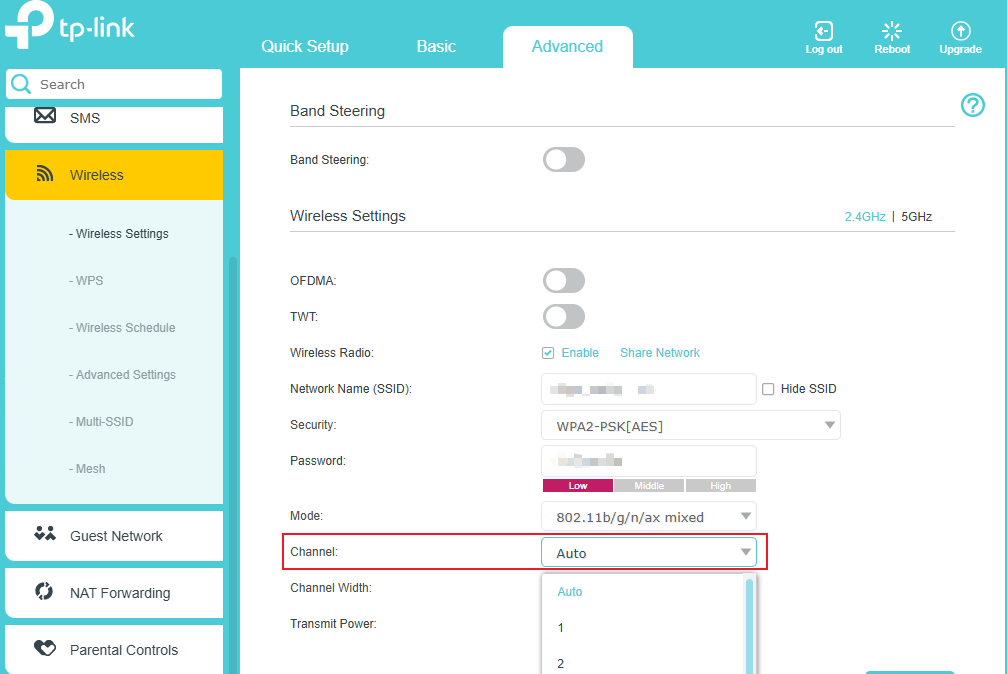
Step 5. Make sure the firmware version is the latest one. Contact TP-Link support if your wired download speed is much lower than it should be. Provide those speed test results, the troubleshooting you have done, and the results.
QA
Q1: How can I switch from 4G to 5G mode to improve speed?
A1: You may log into the router’s web interface, go to Advanced > Network > Mobile WAN > Network Mode, then select 5G/4G/3G to allow automatic switching based on available signal.
Note: We do not recommend selecting 5G Only unless you are certain your carrier provides stable 5G SA (Standalone) coverage in your area. The rest of the troubleshooting steps remain the same as outlined in Case One.
Q2: Why is my mobile phone faster than the router?
A2: Most modern smartphones support higher LTE categories (e.g., Cat19, Cat20) or even 5G, which allows them to achieve faster speeds than routers with lower LTE categories (e.g., Cat4 or Cat6). For accurate comparison, use another router with the same LTE category as your TP-Link device.
Q3: Can I manually select a better 4G or 5G band?
A3: Yes, if your router supports manual band selection. Go to Advanced > Network > Mobile WAN > Band Search, switch from Auto to Manual, then test each available band to find the most stable and fastest option in your area.
這篇faq是否有用?
您的反饋將幫助我們改善網站
