Click to skip the navigation bar

如何在TP-Link Tether App上 使用 Wi-Fi 熱點圖

設定指南
更新十月 5, 2026

本文將介紹 Tether App 中的 Wi-Fi 熱點圖功能,涵蓋從建立平面圖、Deco 擺放、模擬到訊號測試等操作。


開始之前

  • 您可以從 Google Play 商店、App Store 下載 Tether App,或掃描下方 QR Code 進行下載。接著,請遵循 App 的指示來設定您的網路。
The App Store and Google Play logo, a QR code, and the Tether app logo.

  • 請確保您的裝置與 App 版本支援此功能。部分型號可能需要升級韌體。

注意:步驟可能因您裝置的作業系統而異。此處以 iOS 系統為例。


Wi-Fi 熱點圖

建立平面圖

裝置擺放

擺放模擬

訊號測試


Wi-Fi 熱點圖

什麼是 Wi-Fi 熱點圖

Tether App 中的 Wi-Fi 熱點圖,是一種利用不同顏色標示的視覺化呈現,用來顯示您家中或辦公室各處的訊號強度、品質與整體效能。

透過清晰的視覺化總覽,您可以快速找出訊號微弱或無訊號的死角,藉此判斷是否需要增加 AP 節點,或是調整現有裝置的位置。熱點圖功能允許您測試不同的擺放配置、減少干擾並優化頻寬分配——從而確保您的空間擁有可靠的 Wi-Fi 效能。

若要建立熱點圖,請先繪製或上傳您的平面圖。接著標示物理障礙物(例如牆壁和門),以模擬它們對 Wi-Fi 訊號的影響。將您的裝置放置在平面圖上後,熱點圖會顯示訊號的傳播情況,讓您可以調整裝置位置以獲得更佳的覆蓋範圍。

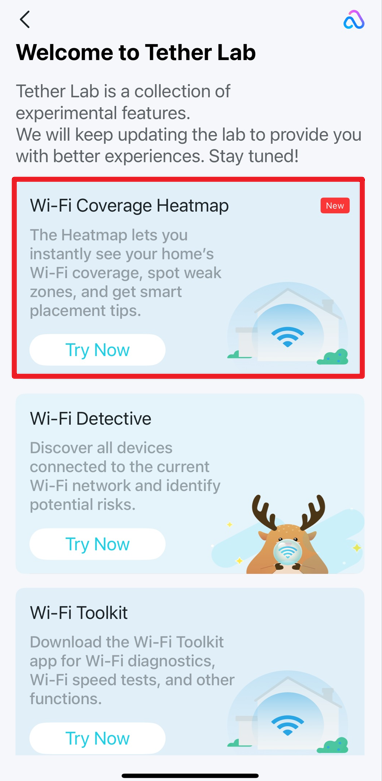
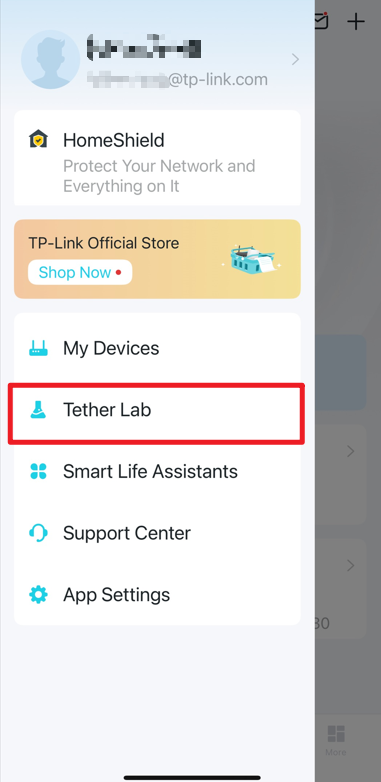
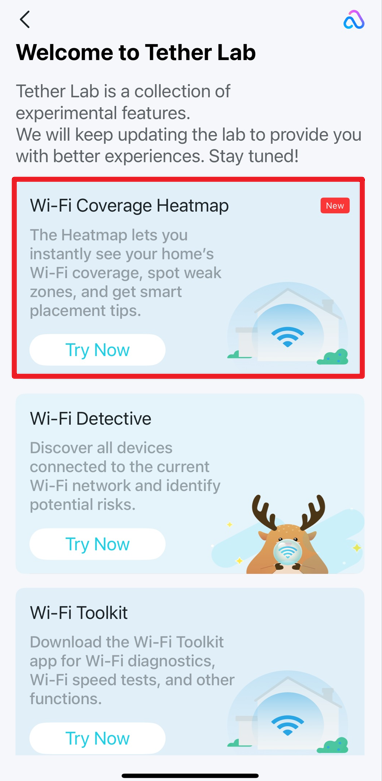
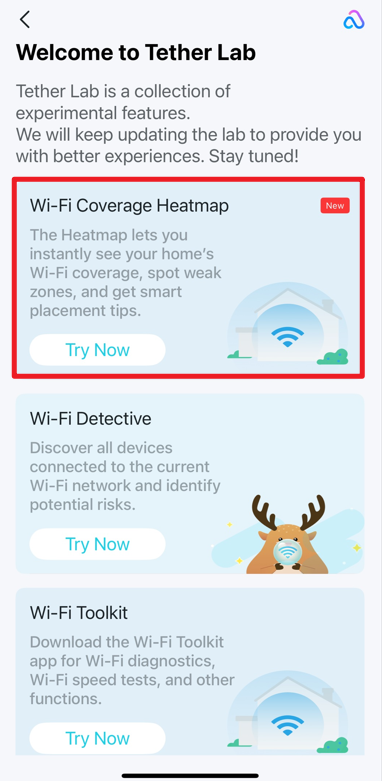
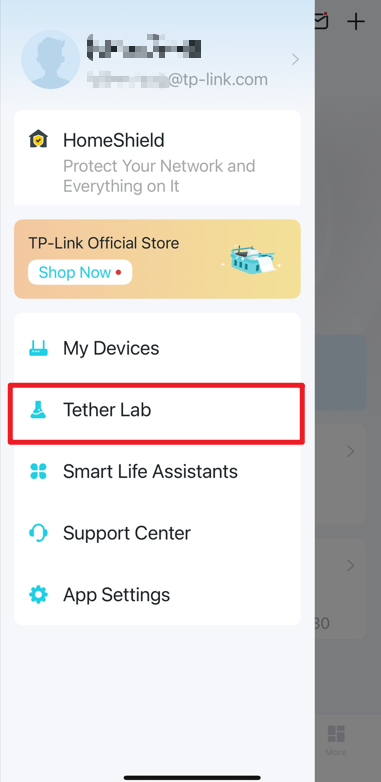
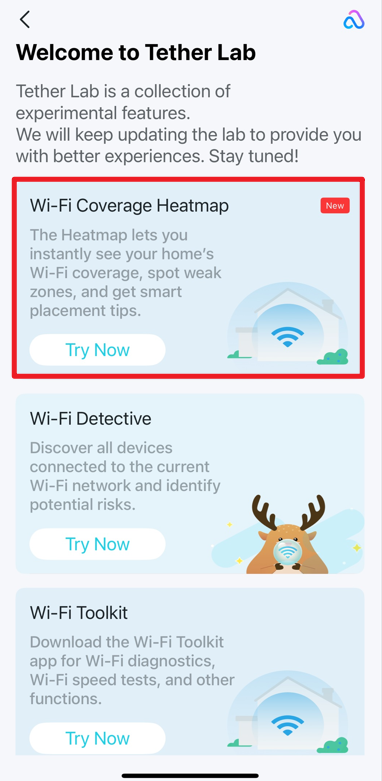
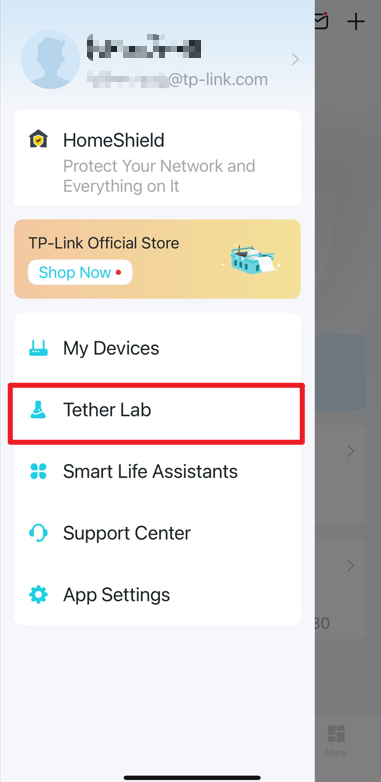
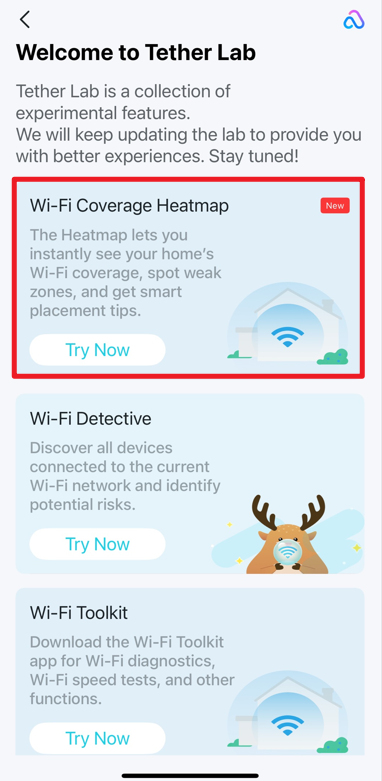
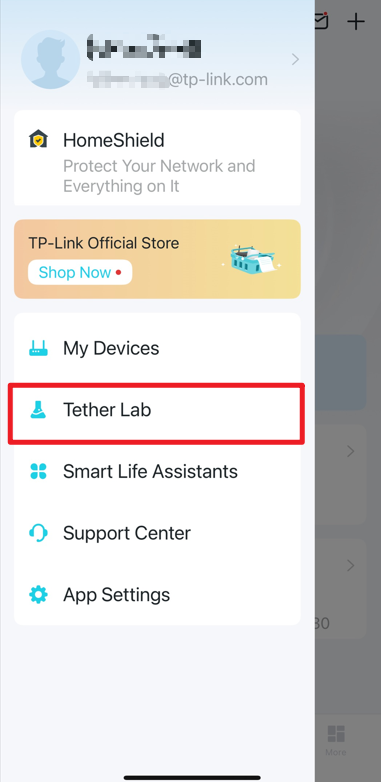
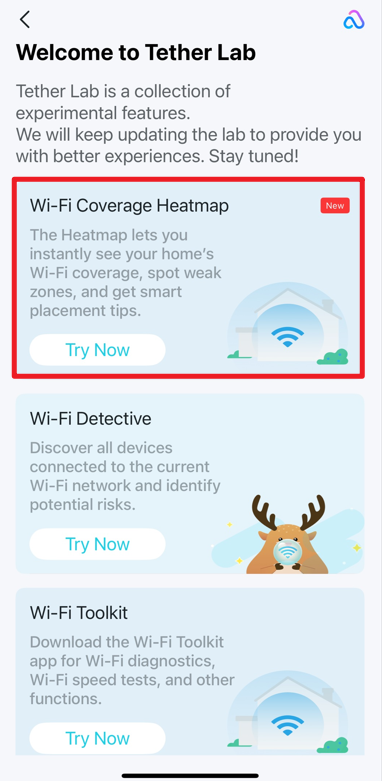
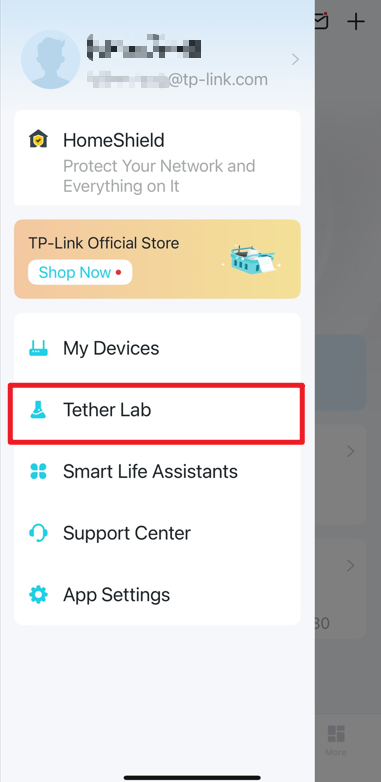
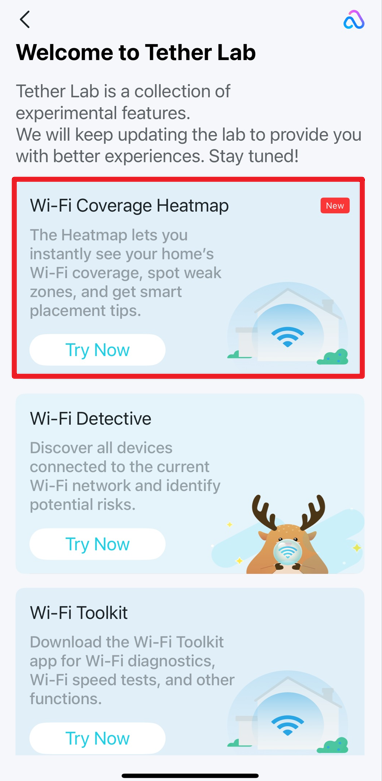
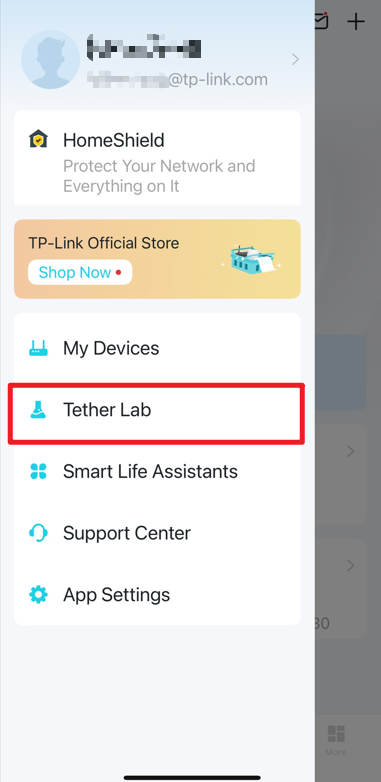
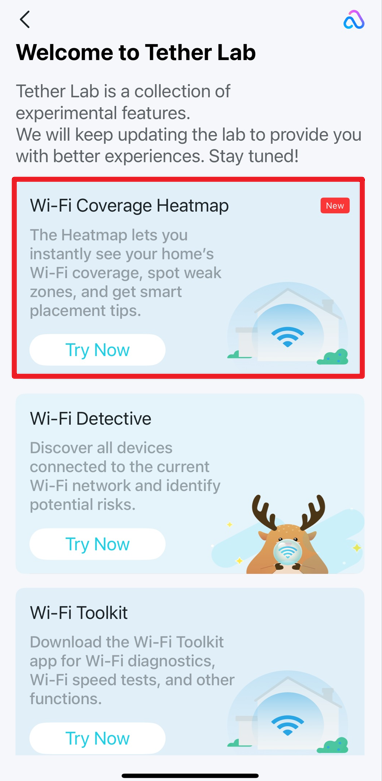
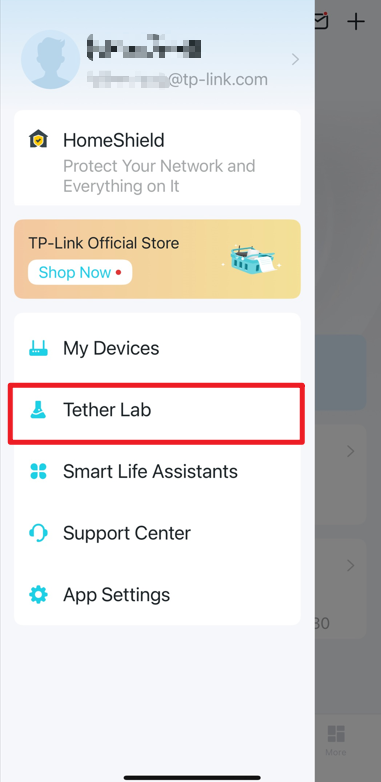
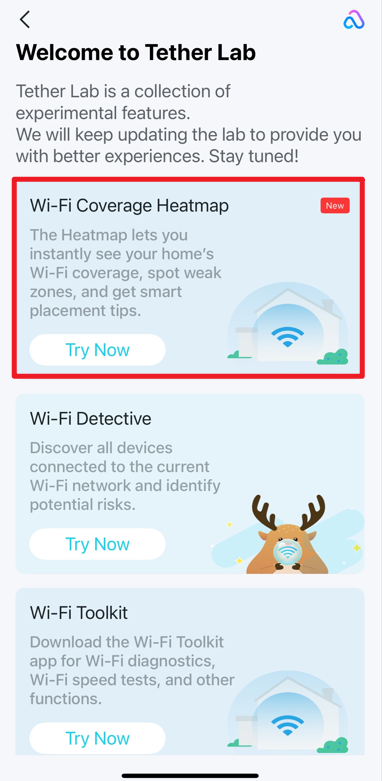
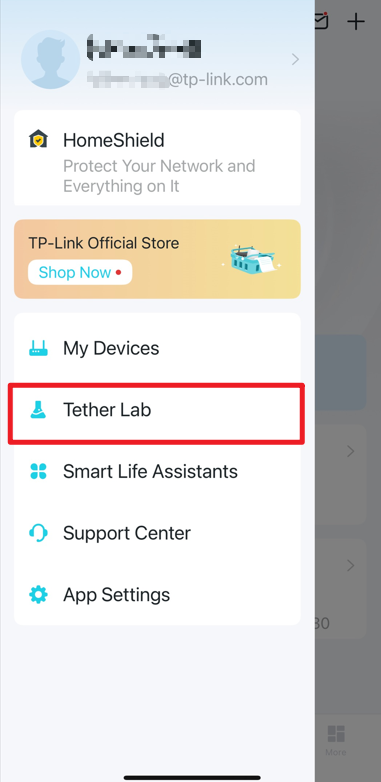
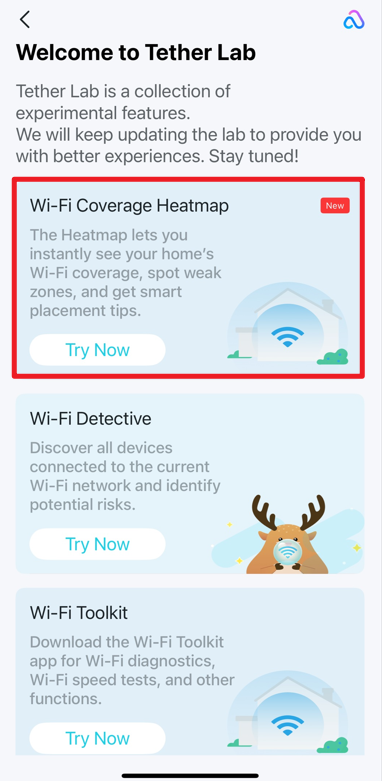
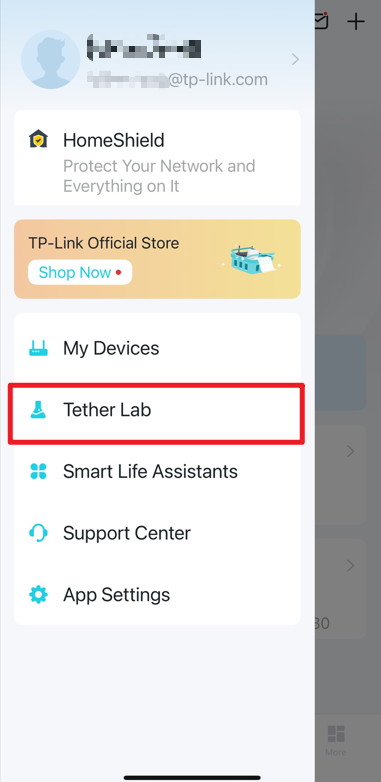
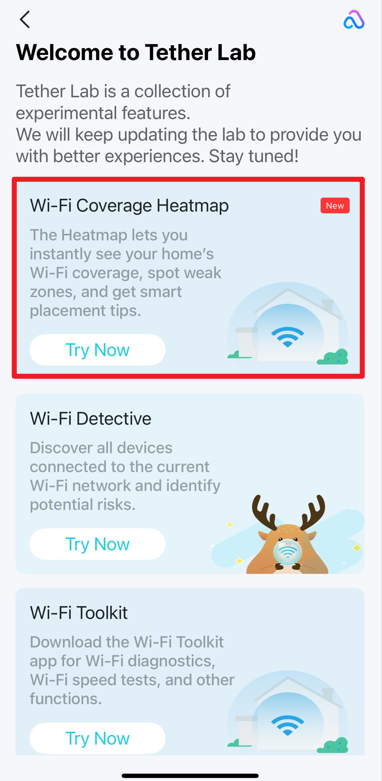
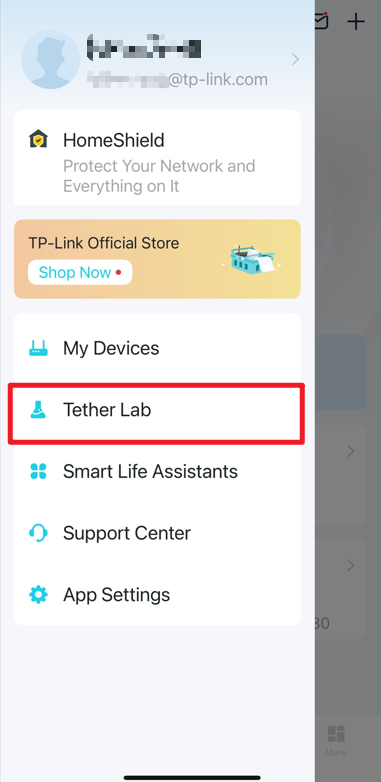
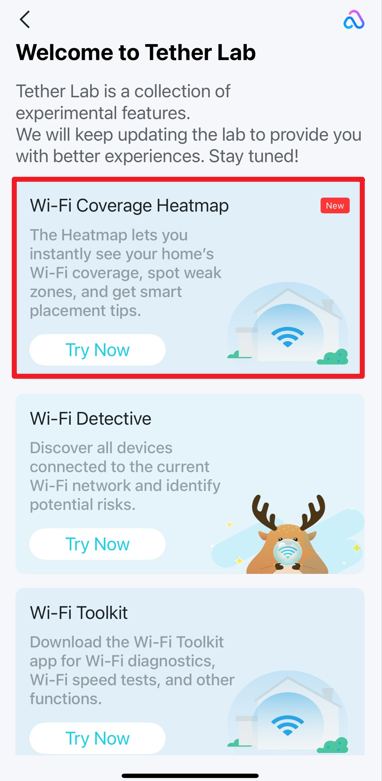
若要找到此選項,請開啟 Tether App,點擊左上角的 The hamburger icon.,前往 Tether 實驗室 ,然後點擊 Wi-Fi 覆蓋熱點圖  卡片上的 立即體驗。
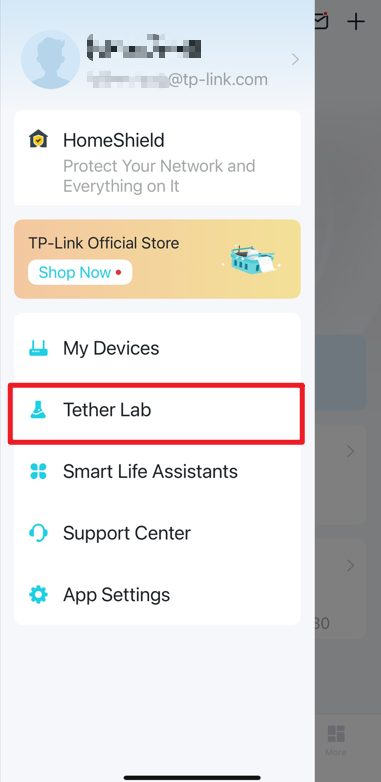
Locate Tether Lab in the side panel in the Tether app.Locate Wi-Fi Coverage Heatmap card in the Tether lab in the Tether app.


如何建立全屋 Wi-Fi 熱點圖

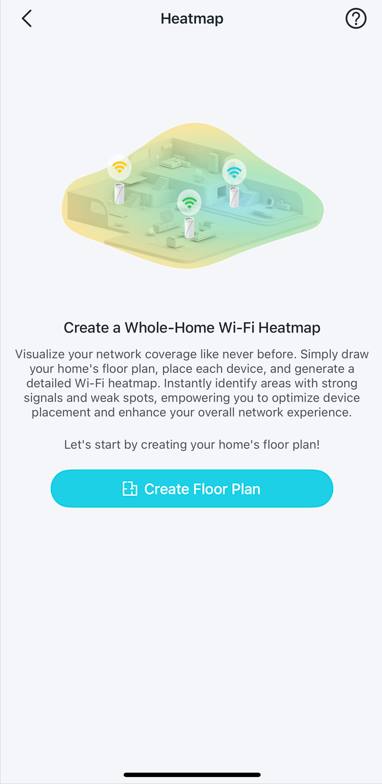
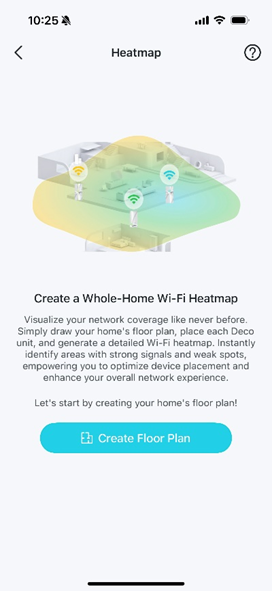
步驟 1. 開啟 Tether App,點擊左上角的 The hamburger icon.,前往 Tether 實驗室 ,然後點擊 Wi-Fi 覆蓋熱點圖 卡片上的 立即體驗 。點擊 建立平面圖 開始操作。
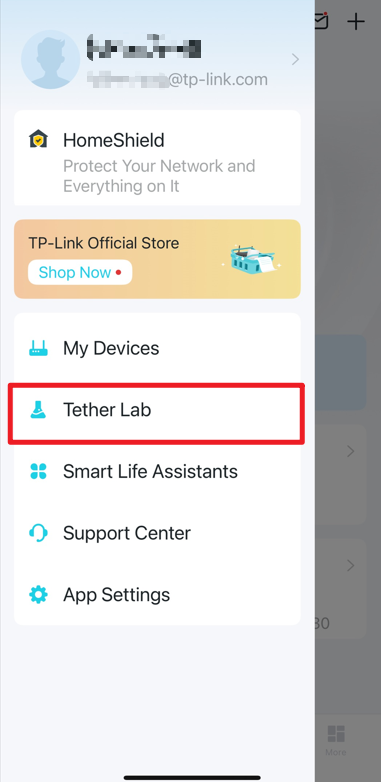
Locate Tether Lab in the side panel in the Tether app. Locate Wi-Fi Coverage Heatmap card in the Tether lab in the Tether app. The start page displayed the first time you access the heatmap feature.

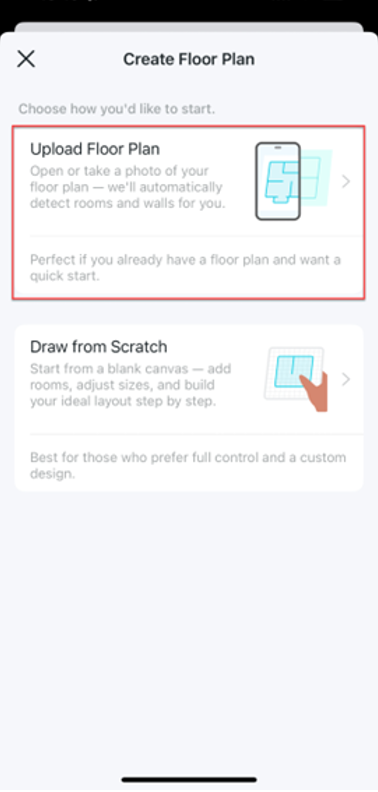
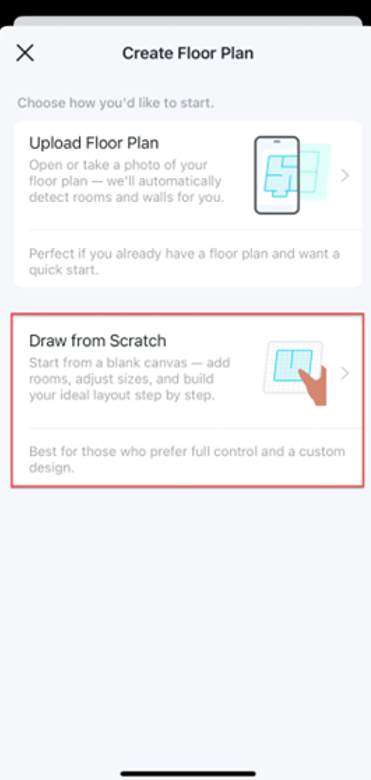
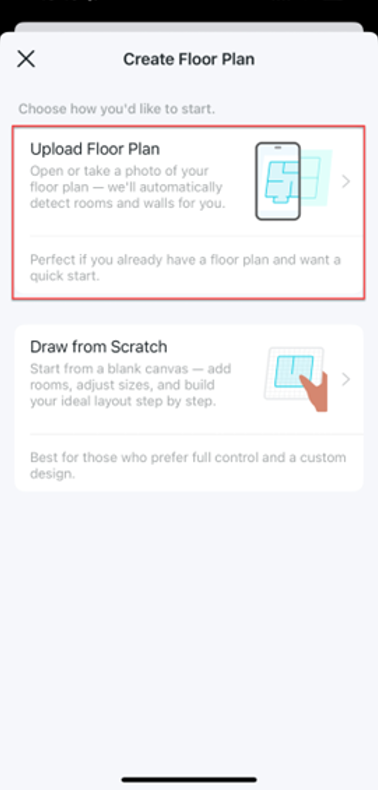
步驟 2. 選擇一種開始方式。您可以匯入現有的平面圖,或是從空白畫布開始建立。

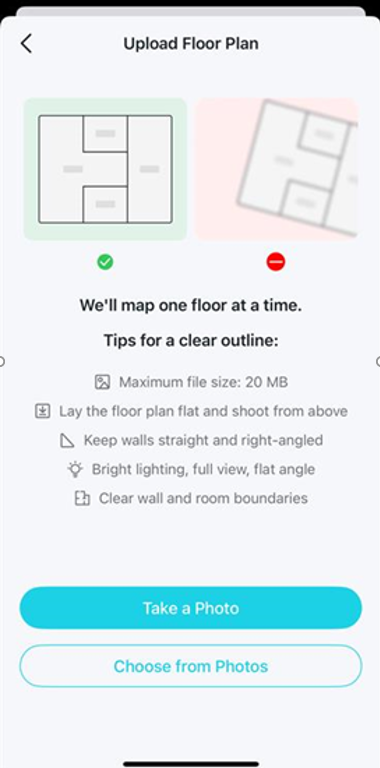
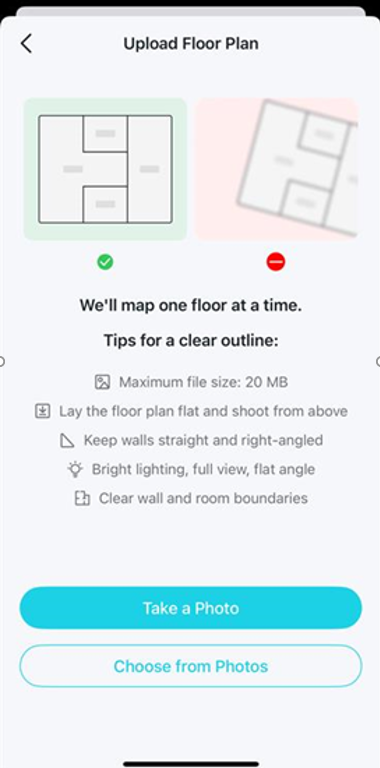
  • 上傳平面圖:上傳現有的平面圖照片以快速開始。

The Create Floor Plan page, which offers two options for a user to begin, and "Upload Floor Plan" is selected. A page that offers tips and requirements for uploading a floor plan with a clear outline.  Below the tips are two prominent buttons: "Take a Photo" and "Choose from Photos".

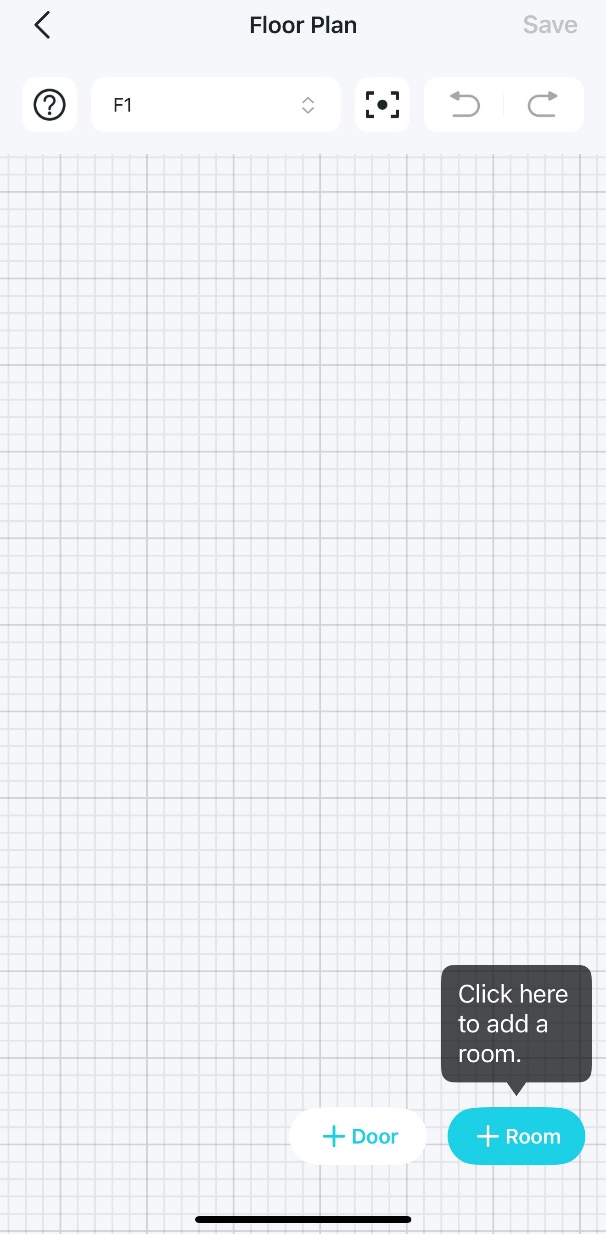
  • 從空白繪製:從空白畫布開始,逐步建立您理想的格局。

The Create Floor Plan page, which offers two options for a user to begin, and "Draw from Scratch" is selected. A floor plan displayed over a blank grid background, allowing for custom drawing.

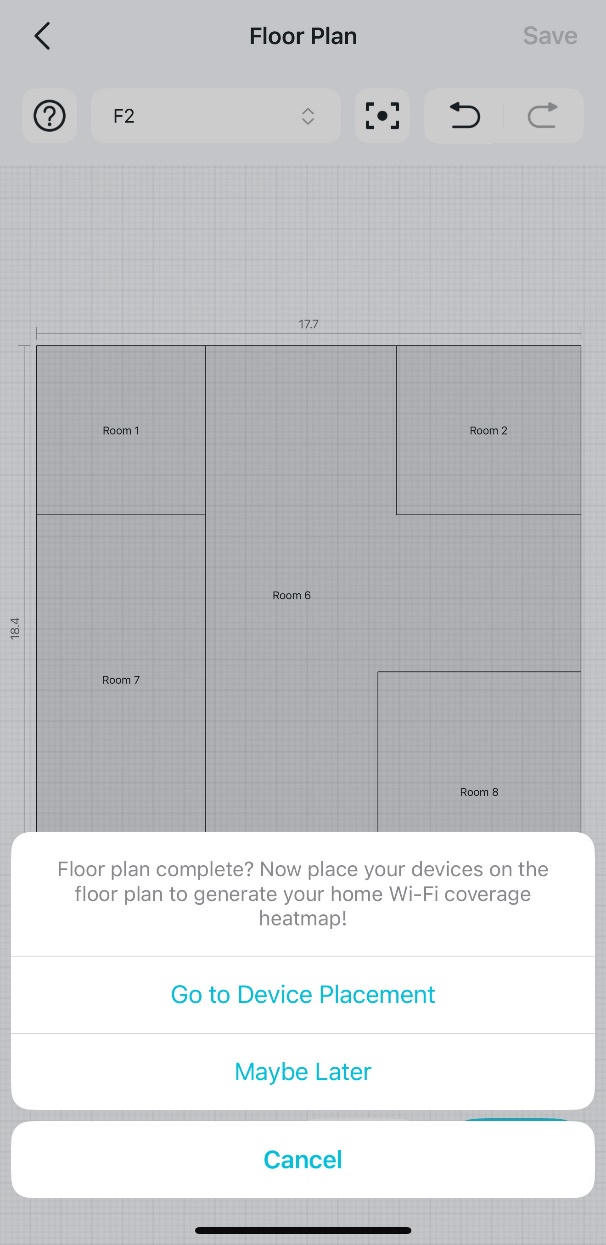
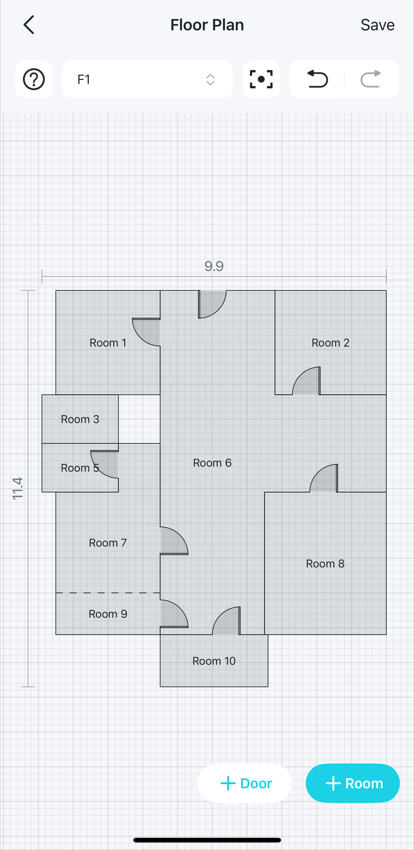
步驟 3. 透過新增樓層、房間和門來客製化您的平面圖,然後點擊 儲存。

After saving your floor plan, a message appears prompting you to proceed to the next step: Go to Device Placement.

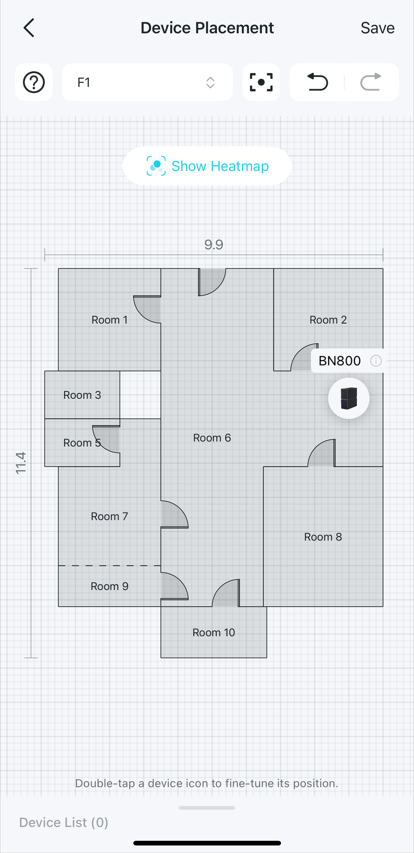
步驟 4. 將裝置擺放在平面圖上並儲存,熱點圖便成功建立。您可以點擊 顯示熱點圖,在熱點圖上查看 Wi-Fi 訊號狀態。
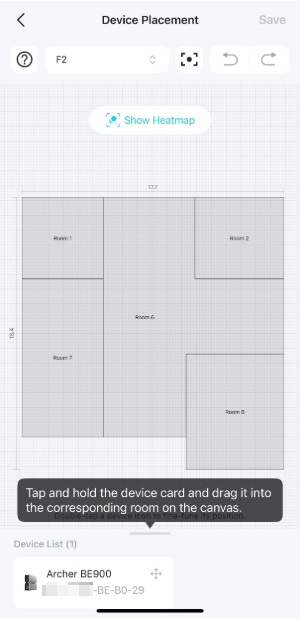
A screenshot of the "Device Placement" screen shows a gray floor plan layout on a gridded canvas alongside instructions for adding a Wi-Fi router. A Wi-Fi coverage heatmap for a home floor plan with five rooms. The map indicates "Excellent" coverage with "100% Wi-Fi strength and virtually no dead zones." The screen suggests using a "Placement Simulation" tool to boost the signal.


如何讀取您的 Wi-Fi 熱點圖

步驟 1. 開啟 Tether App,點擊左上角的 The hamburger icon/,前往 Tether 實驗室,然後點擊 Wi-Fi 覆蓋熱點圖 卡片上的 立即體驗。
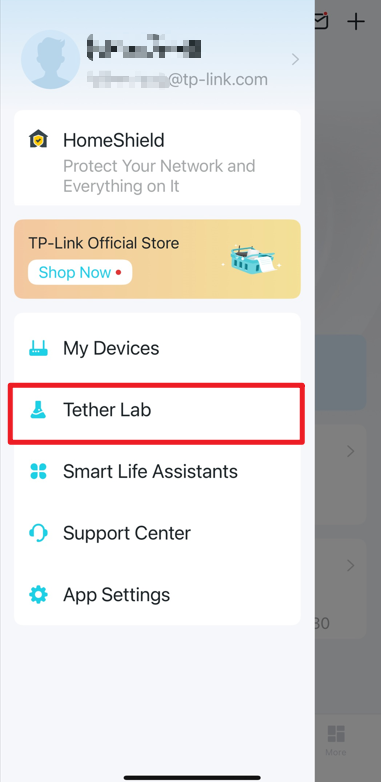
Locate Tether Lab in the side panel in the Tether app.Locate the Wi-Fi Coverage Heatmap card in the Tether Lab in the Tether app.

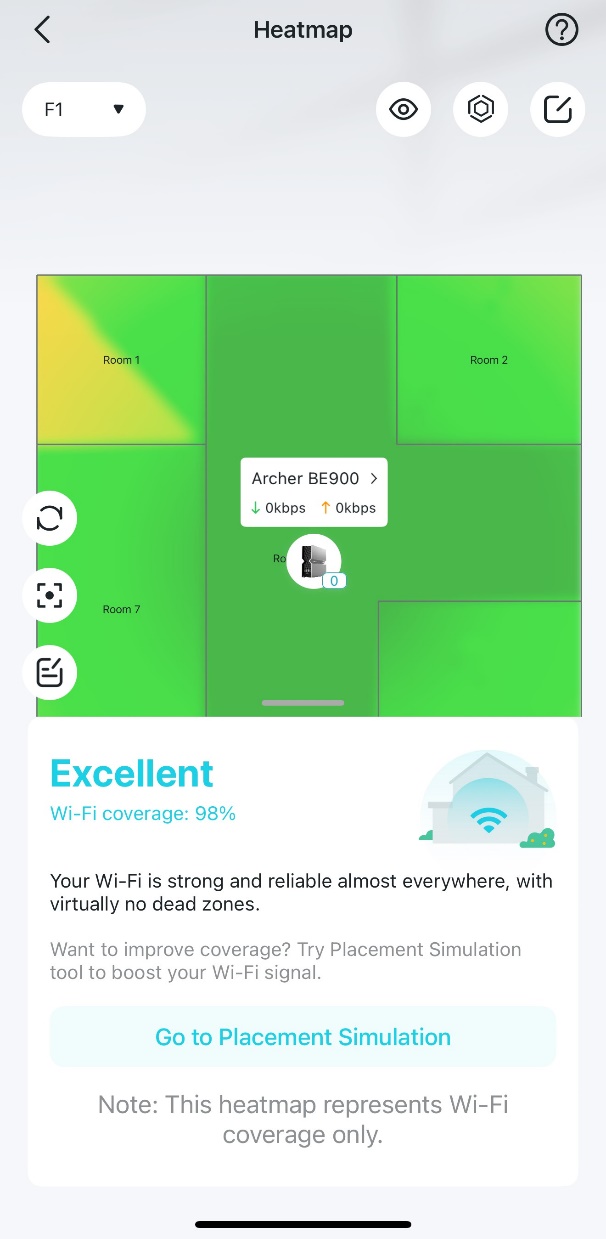
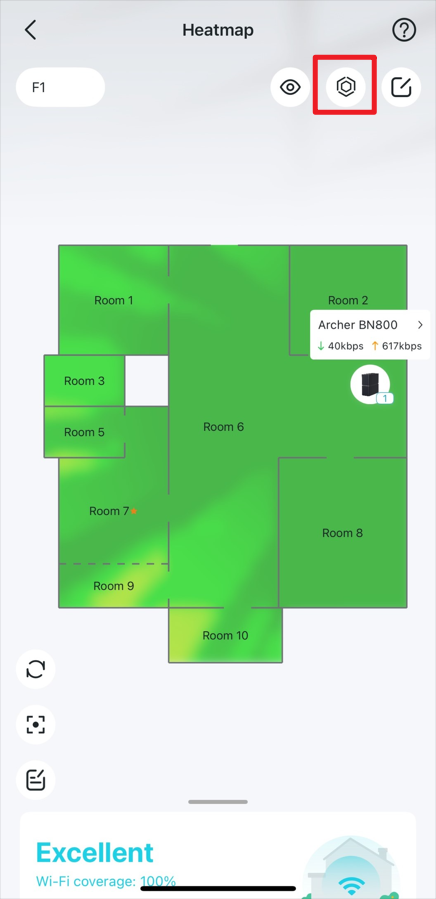
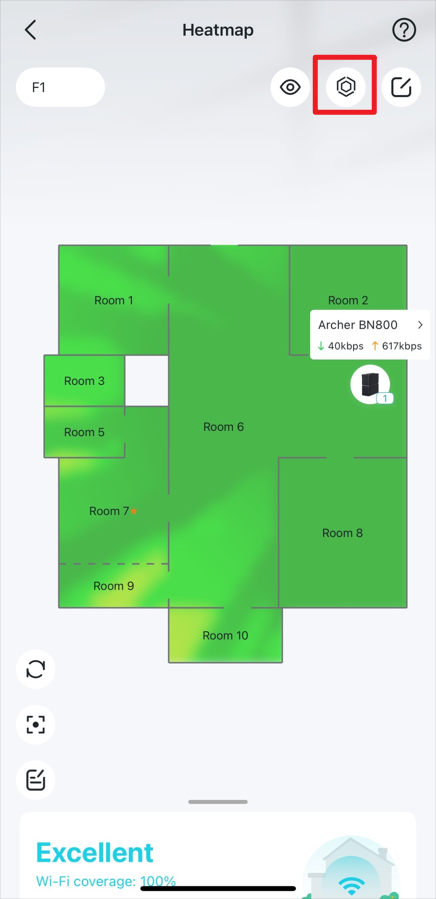
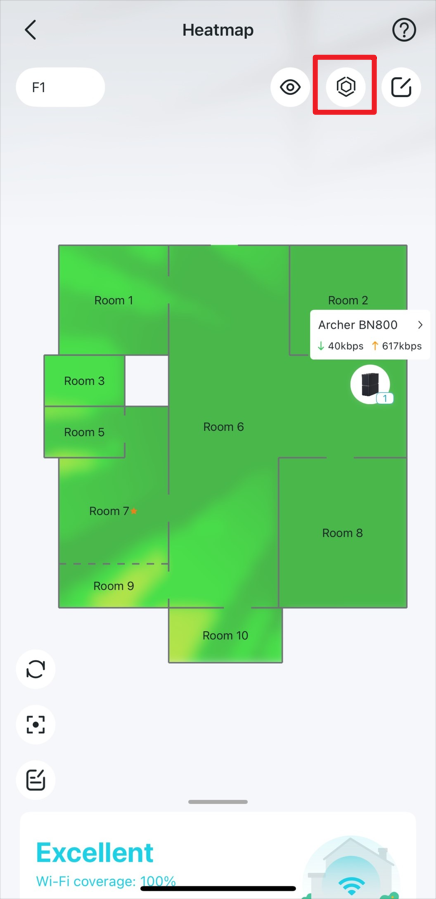
步驟 2. 在熱點圖上,您可以執行以下操作:

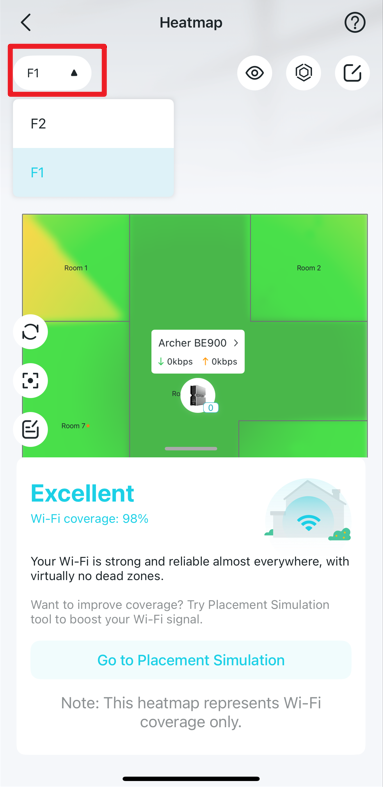
a. 點擊樓層按鈕以切換樓層視圖。

Show the position of the floor button on the screen.

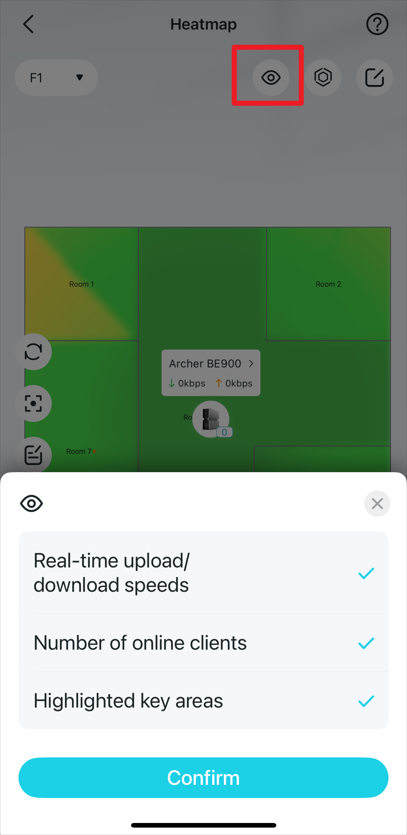
b. 點擊預覽圖示 The eye icon.,然後選擇要在熱點圖上顯示的內容。

Shows the position of the View button on the screen.

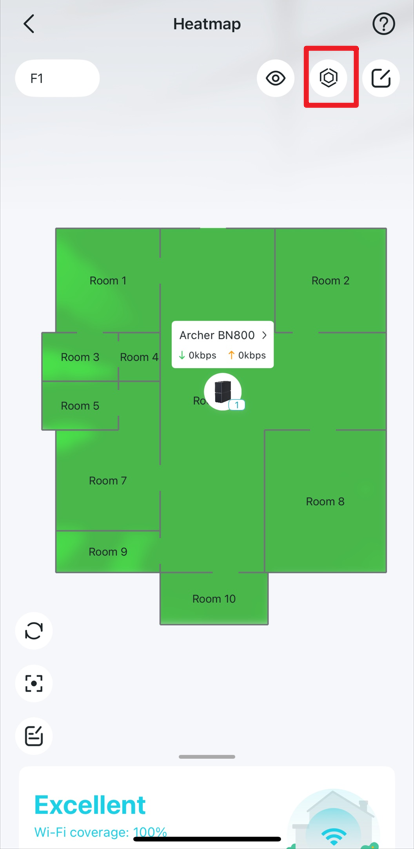
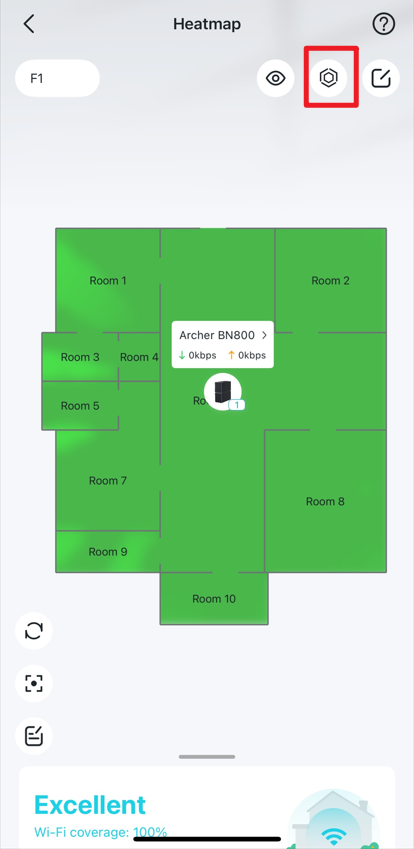
c. 點擊圖示 The Simulated Placement icon. 進入「模擬擺放」頁面。

Shows the position of the Simulated Placement button on the screen.

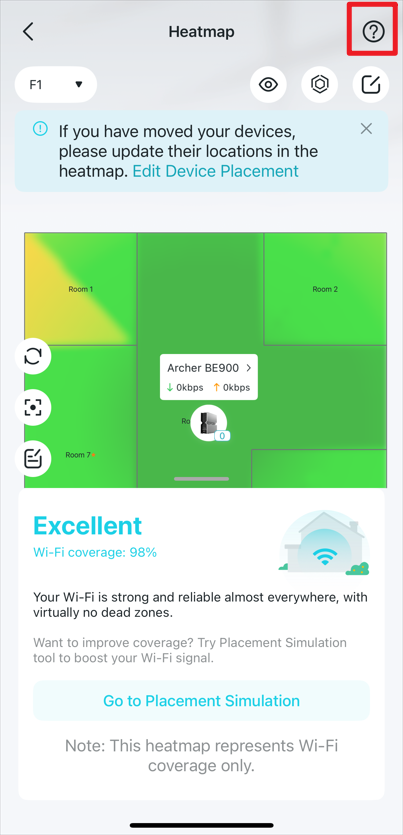
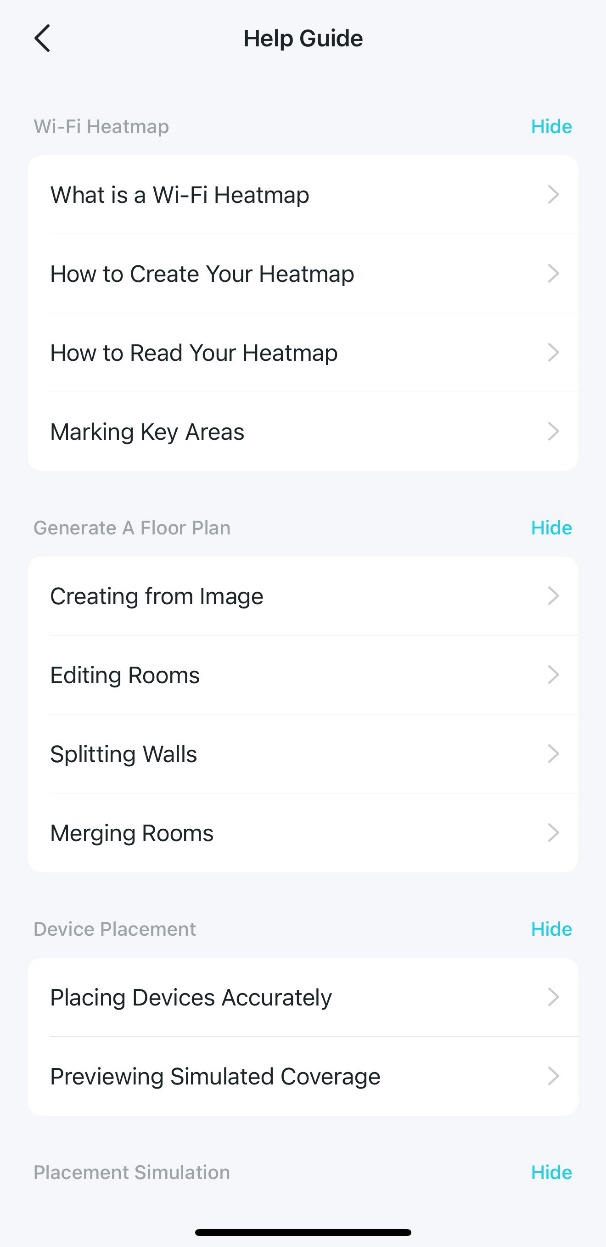
d. 點擊圖示 The question icon. 查看「幫助指南」。

Show the position of the support button on the screen. The Help Guide page.

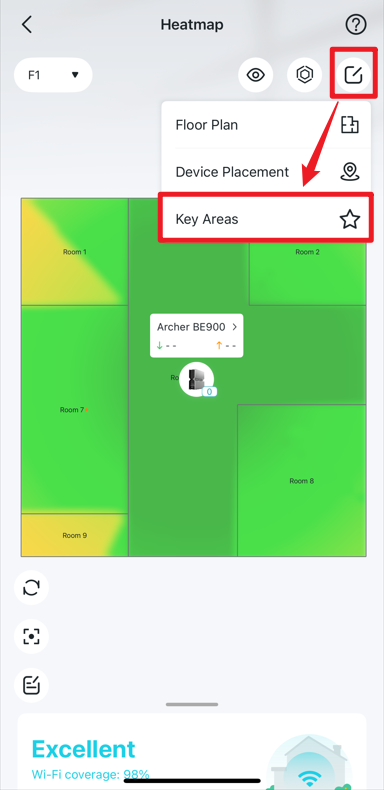
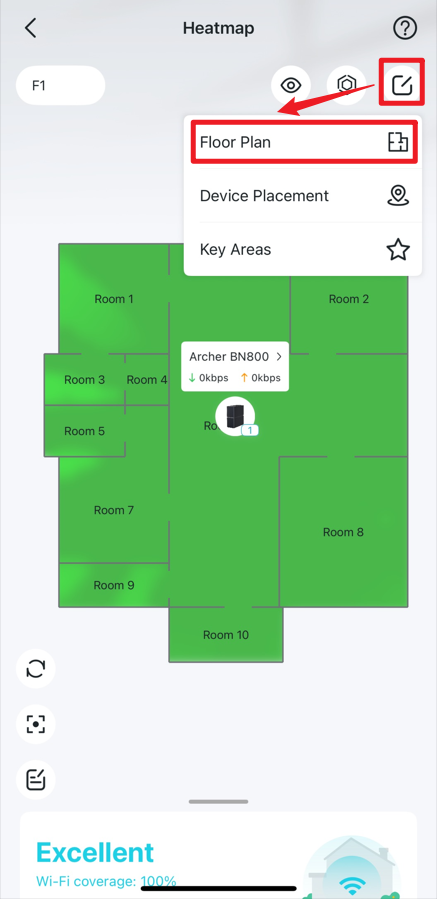
e. 點擊編輯圖示 The edit icon. 來設定平面圖、擺放裝置,以及標記重點區域。

Show the position of the Edit and Key Areas button on the screen.

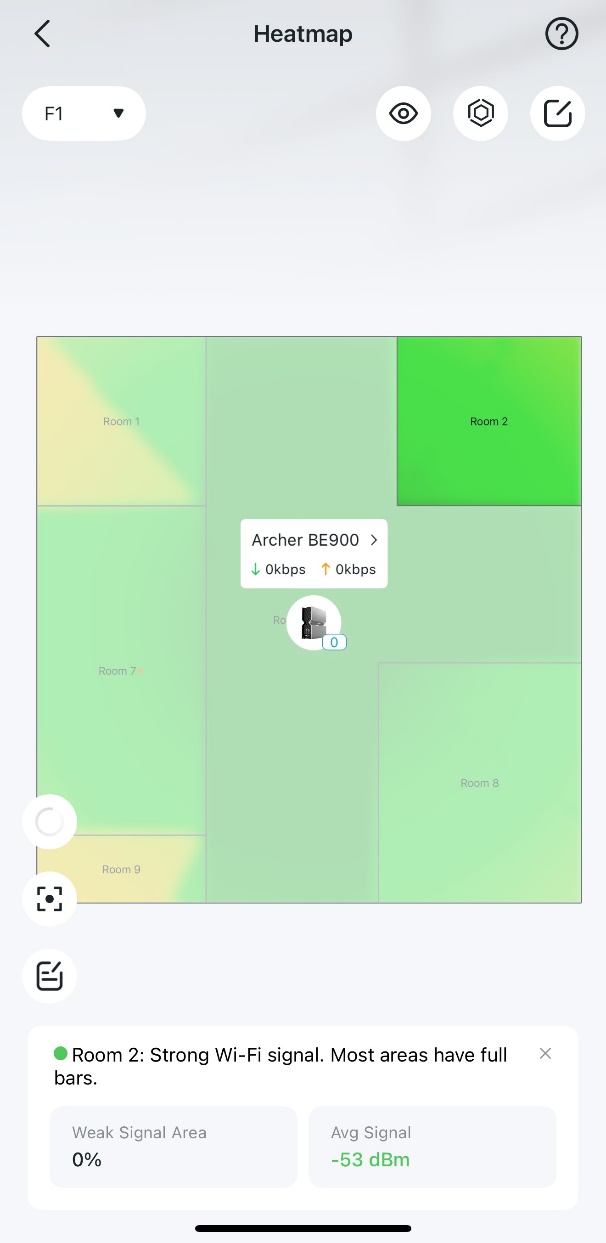
f. 點擊房間以查看該房間的 Wi-Fi 訊號狀態。

The focus is on Room 2, which is highlighted in vibrant green on the upper-right corner of the floor plan, while the surrounding rooms are dimmed out.

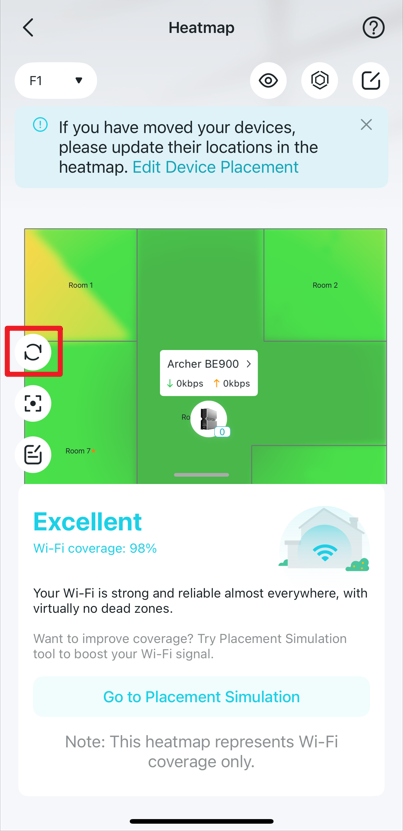
g. 點擊圖示 The refresh icon. 重新整理熱點圖頁面。

Shows the position of the Refresh button on the screen.

h. 點擊圖示 The center icon. 將熱點圖置中顯示於螢幕。

i. 在熱點圖頁面上滑,即可查看當前的 Wi-Fi 覆蓋狀態。


如何在熱點圖上標記重點區域

步驟 1. 開啟 Tether App,點擊左上角的 The hamburger icon.,前往 Tether 實驗室,然後點擊 Wi-Fi 覆蓋熱點圖卡片上的 立即體驗。

Locate Tether Lab in the side panel in the Tether app.Locate the Wi-Fi Coverage Heatmap card in the Tether Lab in the Tether app.

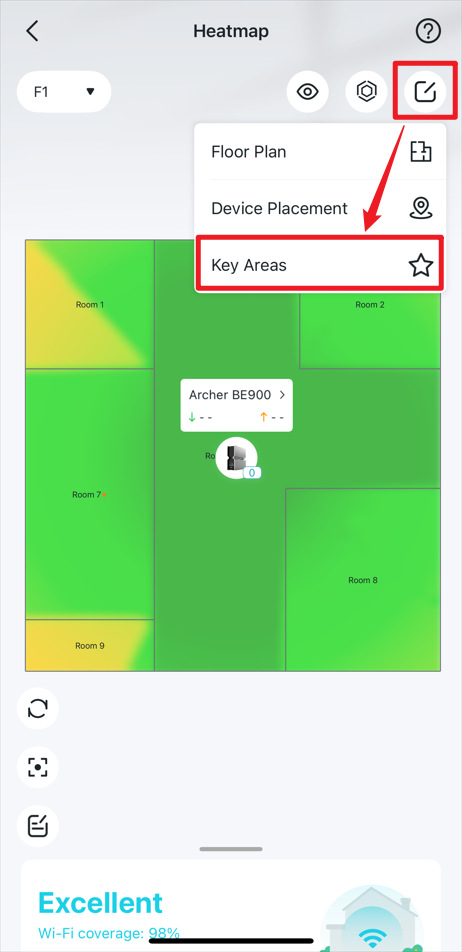
步驟 2. 在熱點圖上,點擊編輯圖示 The edit icon.,並選擇 重點區域。

Show the position of the Edit and Key Areas buttons on the screen.

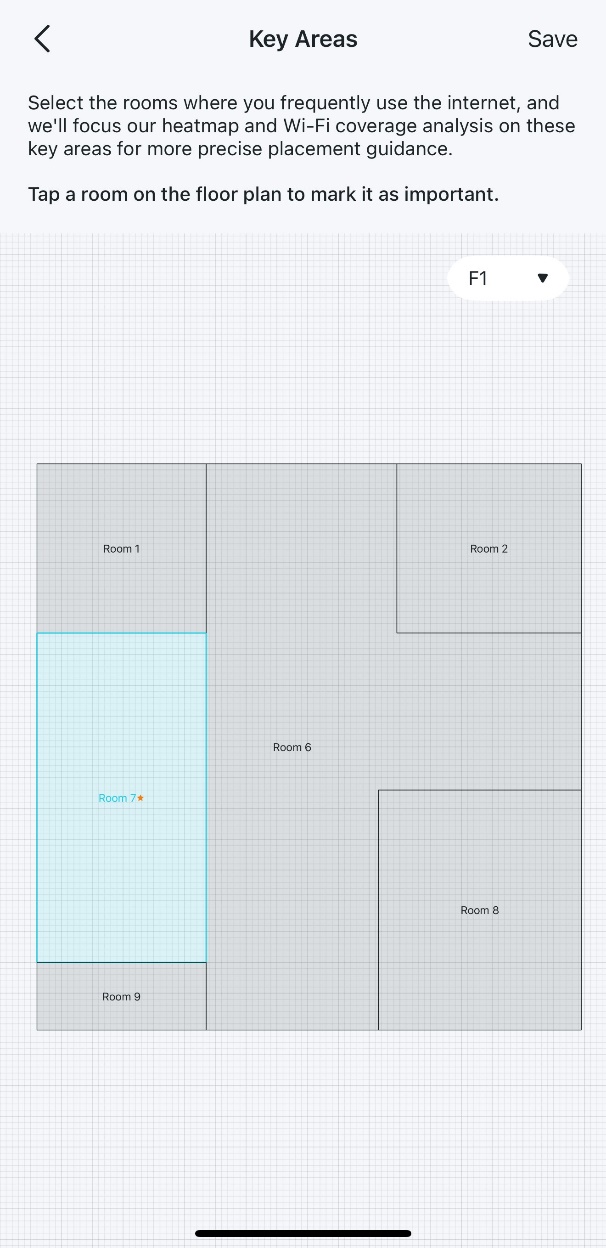
步驟 3. 點擊您經常上網的房間,將其標記為重點區域(帶有星號符號)。此後,Wi-Fi 覆蓋分析會將重點放在這些區域,以提供更準確的擺放建議。

The Key Areas page displays one room highlighted in blue, indicating that it is a key area.


建立平面圖

如何透過現有平面圖快速產生 Wi-Fi 熱點圖

步驟 1. 開啟 Tether App,點擊左上角的 The hamburger icon.,前往 Tether 實驗室,然後點擊 Wi-Fi 覆蓋熱點圖 卡片上的 立即體驗。
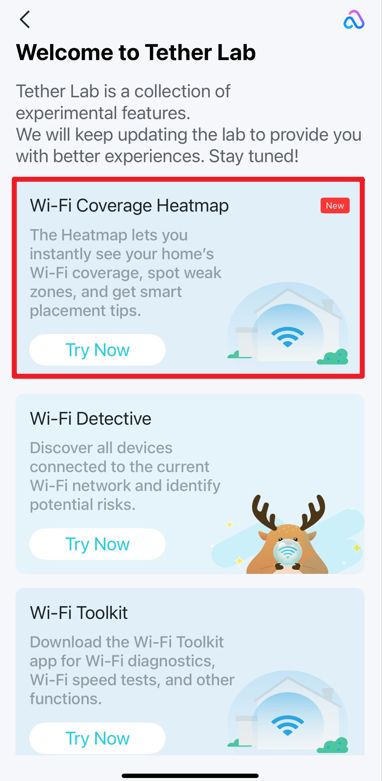
Locate Tether Lab in the side panel in the Tether app.Locate the Wi-Fi Coverage Heatmap card in the Tether Lab in the Tether app.The start page displayed the first time you access the heatmap feature.

步驟 2. 選擇 上傳平面圖 並上傳符合要求的現有平面圖照片。它將自動根據上傳的圖片偵測並繪製平面圖。

The Create Floor Plan page, which offers two options for a user to begin, and "Upload Floor Plan" is selected.A page that offers tips and requirements for uploading a floor plan with a clear outline.  Below the tips are two prominent buttons: "Take a Photo" and "Choose from Photos".

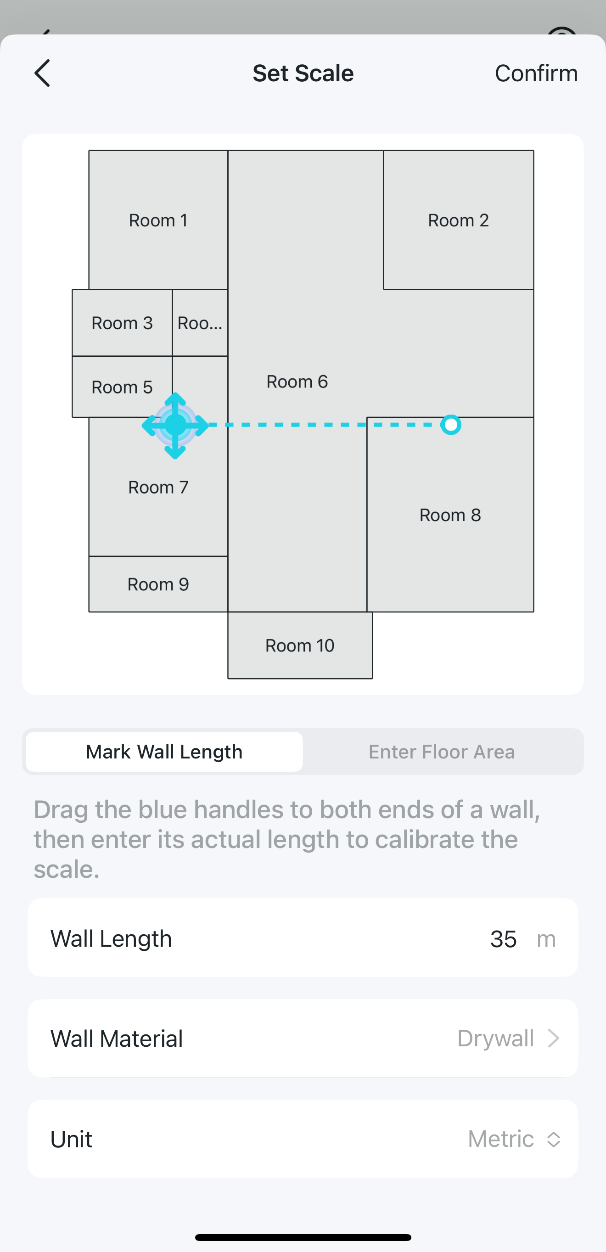
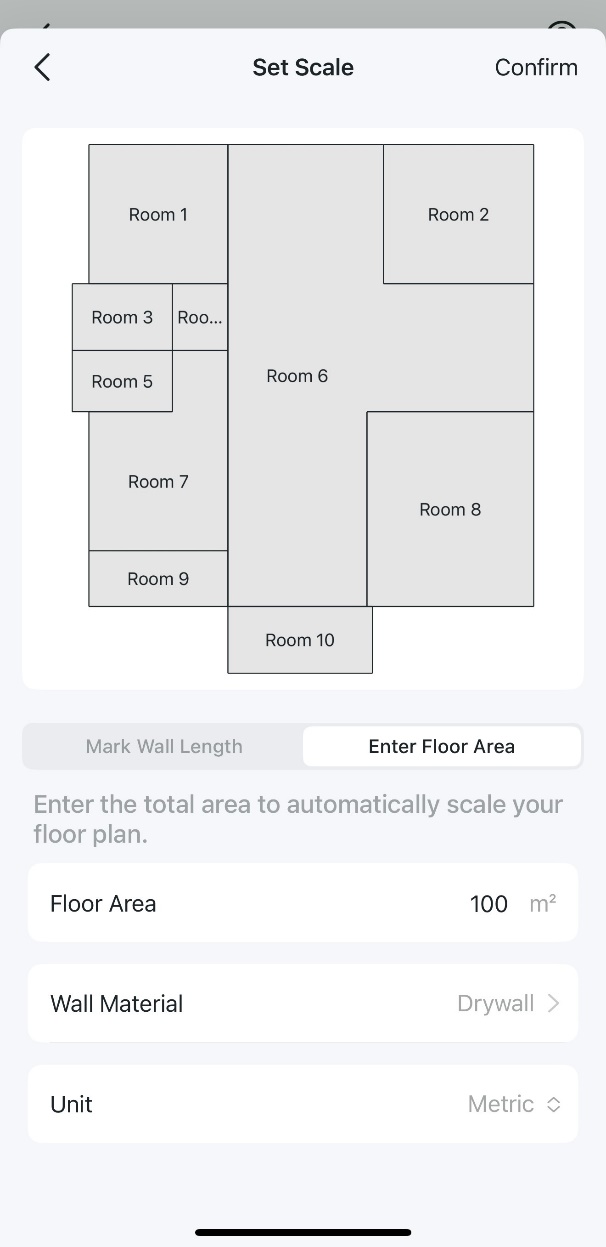
步驟 3. 根據實際情況選擇單位並設定比例,包含牆壁長度、牆壁材質和樓層面積。

This screen allows you to calibrate your Wall Length, Wall Materials, and Unit.This screen allows you to calibrate your Floor Area, Wall Materials, and Unit.

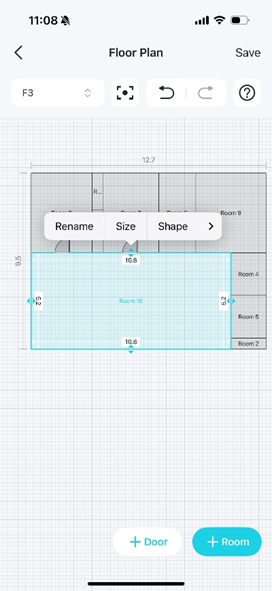
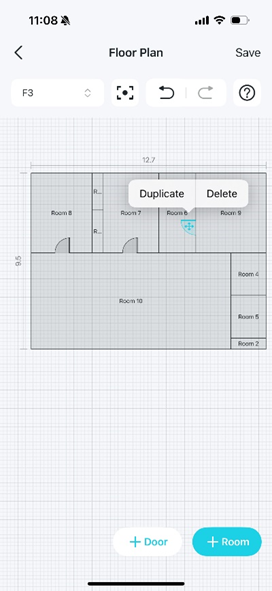
步驟 4. 客製化您的平面圖,包含新增樓層、房間與門。

A floor plan editing page with a room is selected, displaying a menu with options for Rename, Size, and Shape.A floor plan editing page with a door is selected, displaying a menu with options for Duplicate and Delete.

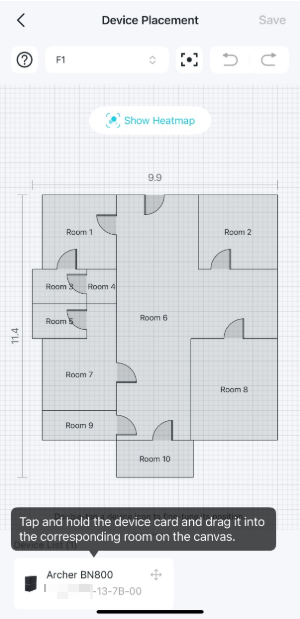
步驟 5. 長按裝置圖示將裝置擺放到平面圖上並儲存。接著便成功建立熱點圖,您可以在熱點圖上查看 Wi-Fi 訊號狀態。

The Device Placement page displays a floor plan with a Device List below and a Show Heatmap in the upper middle area.The Simulated Placement page displays a floor plan with a device icon within the Room 6 area.


如何編輯平面圖上的房間

步驟 1. 開啟 Tether App,點擊左上角的 The hamburger icon.,前往 Tether 實驗室,然後點擊 Wi-Fi 覆蓋熱點圖 卡片上的 立即體驗。
Locate Tether Lab in the side panel in the Tether app.Locate the Wi-Fi Coverage Heatmap card in the Tether Lab in the Tether app.

步驟 2. 在您的熱點圖上,點擊編輯圖示The edit icon. 並選擇 平面圖 (Floor Plan)。

Show the position of the Edit and Floor Plan button on the screen.

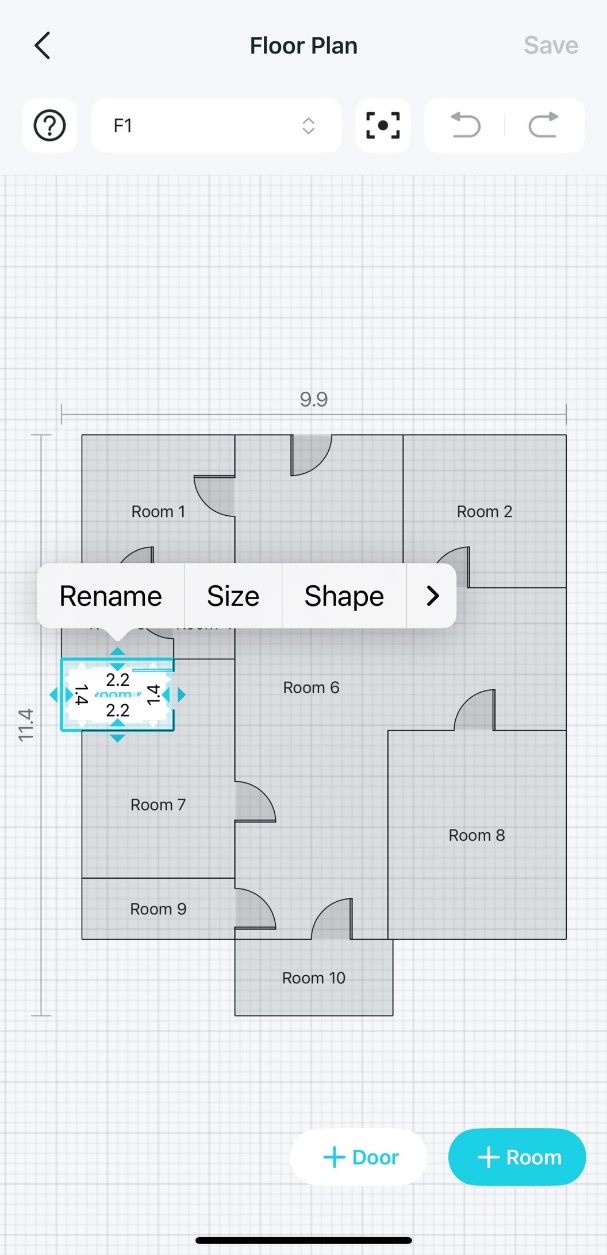
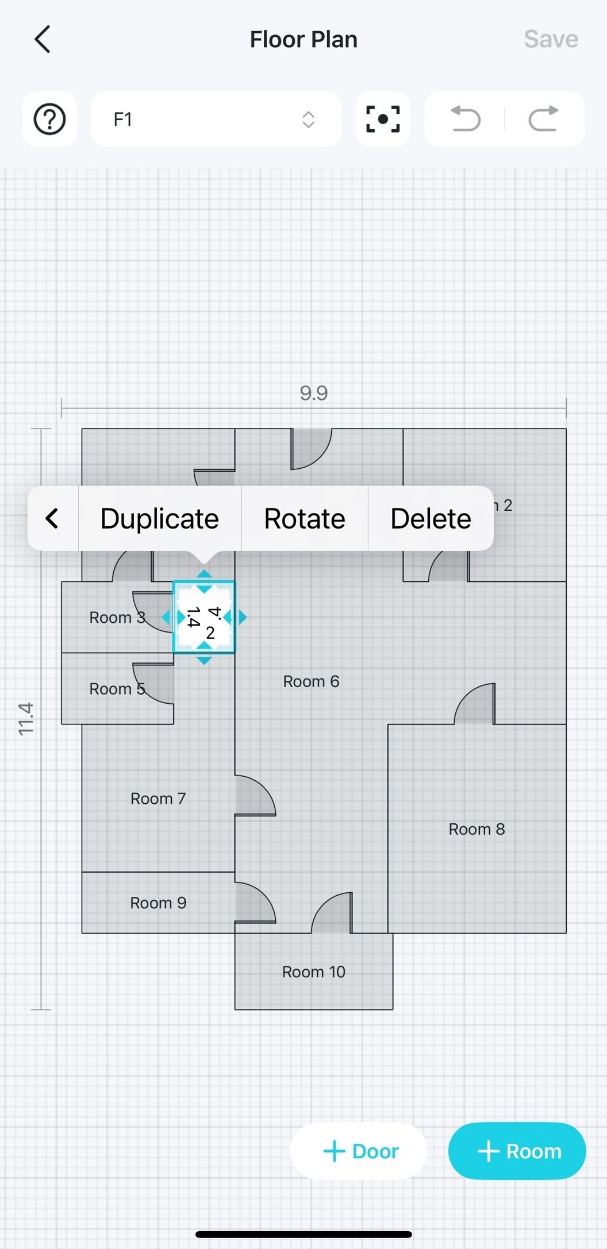
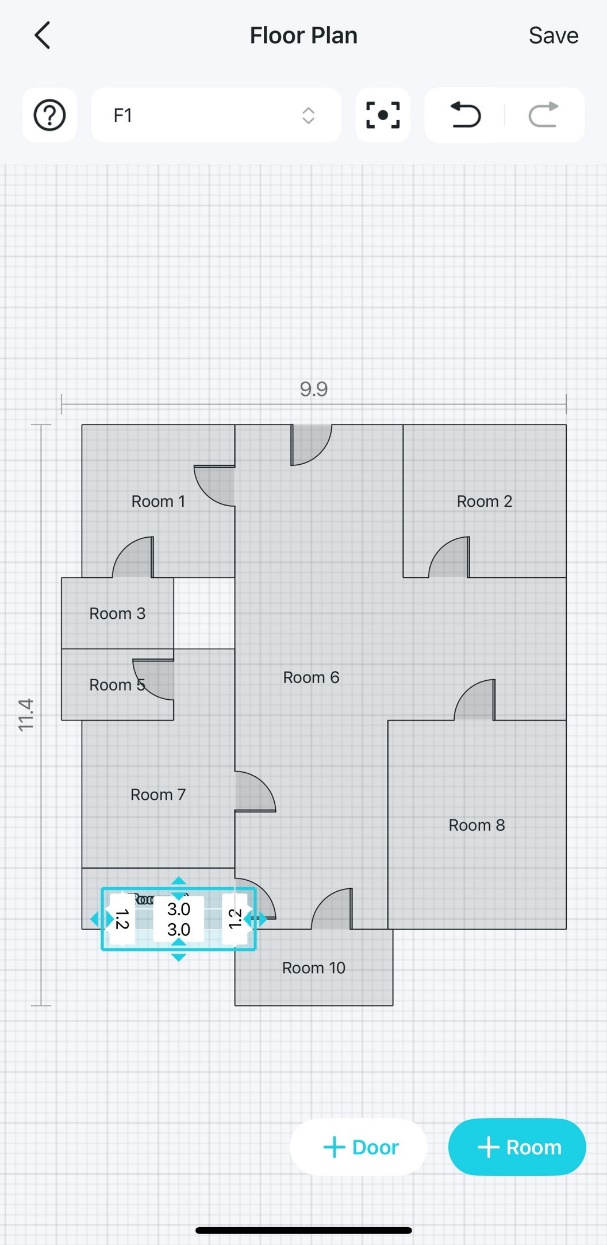
步驟 3. 點擊房間,您可以編輯以下內容:

A floor plan editing page displays a selected room with a pop-up menu with 'Rename',  'Size', and 'Shape' options.A floor plan editing page displays a selected room with a pop-up menu with 'Duplicate',  'Rotate', and 'Delete' options.

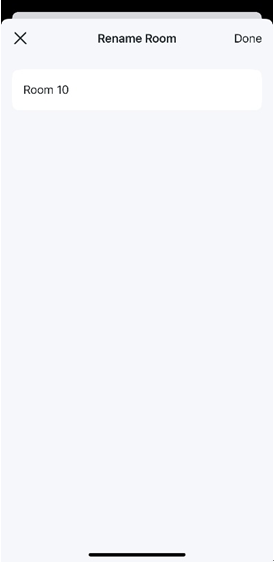
a. 重新命名房間。

Room name editing page, containing input fields for the room name.

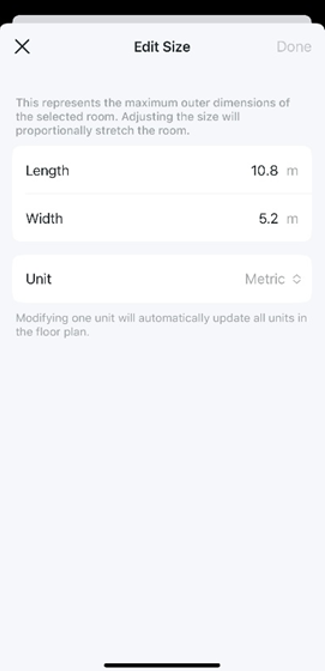
b. 編輯房間尺寸。

Room size editing page, containing input fields for length, width, and units.

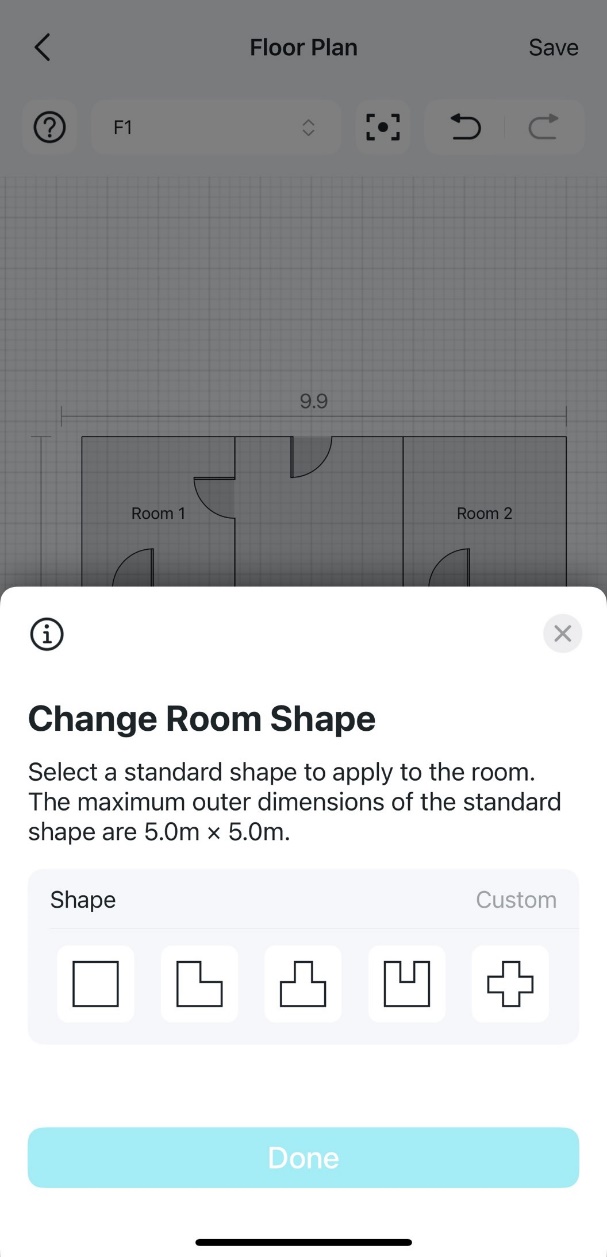
c. 變更房間形狀。

Room shape editing page, offering multiple standard shapes for the room.

d. 複製房間。

A floor plan editing page shows a duplicated room.

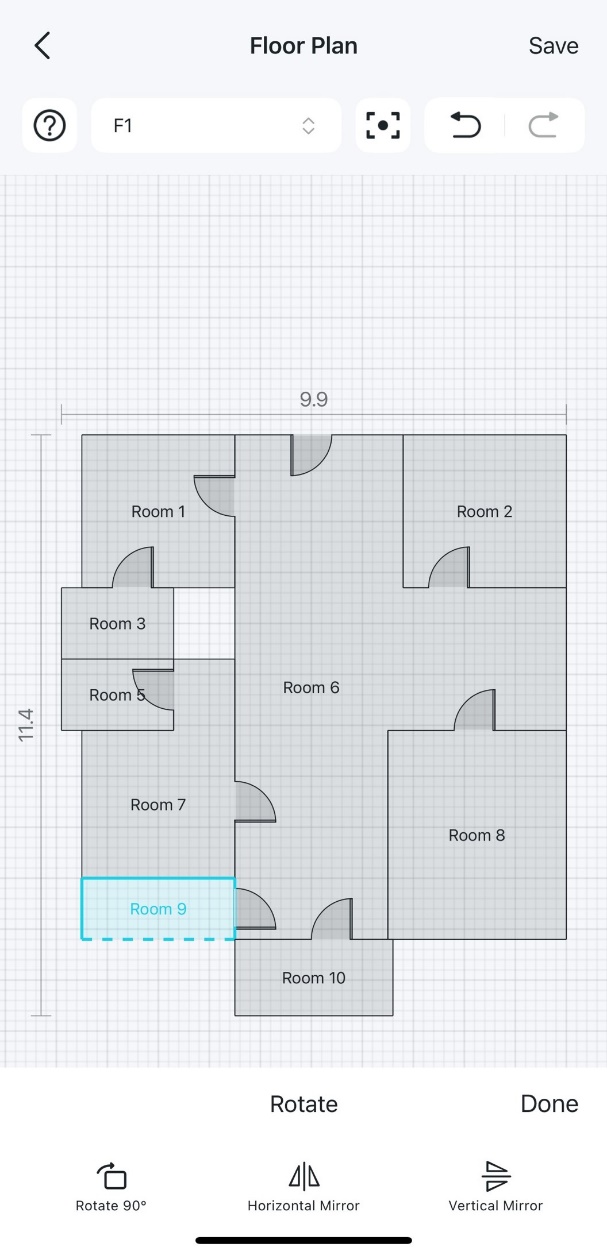
e. 旋轉房間。

A floor plan editing page displays various rotation options, including "Rotate," "Horizontal Mirror," and "Vertical Mirror."

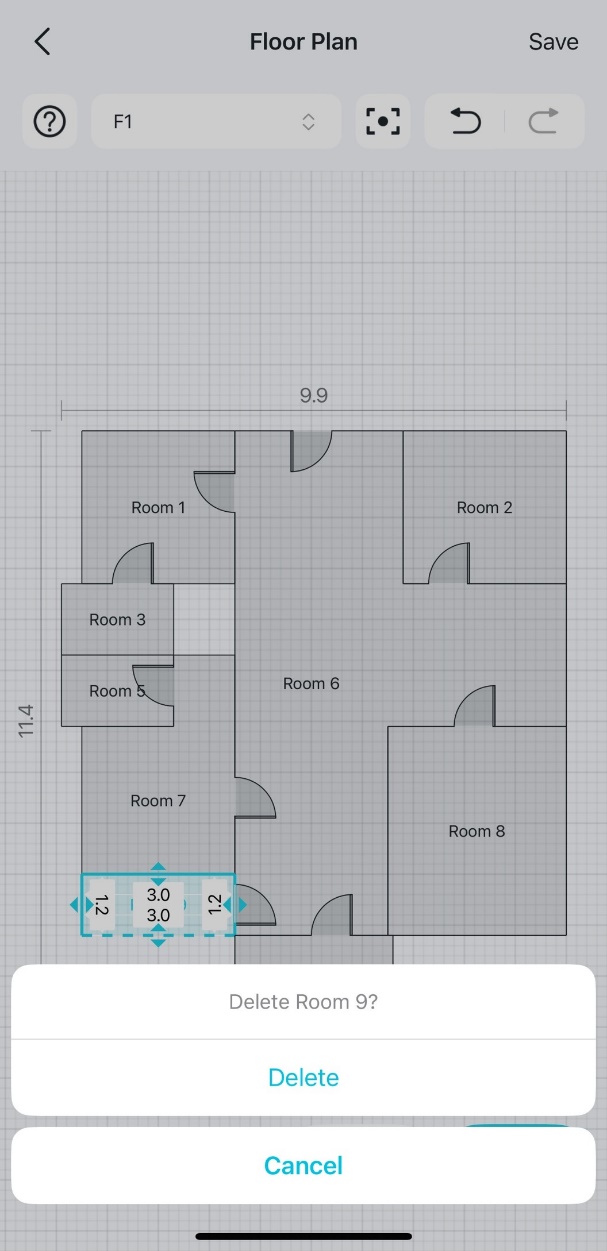
f. 刪除房間。

A floor plan editing page displays a selected room with a pop-up window asking 'Delete Room 9?'.

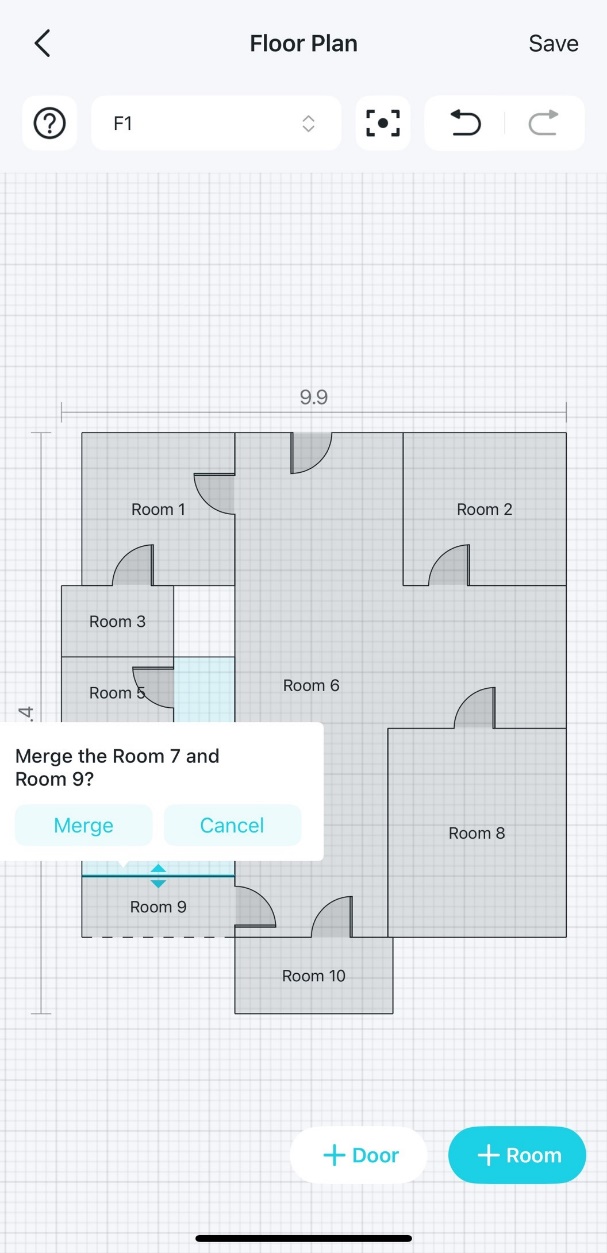
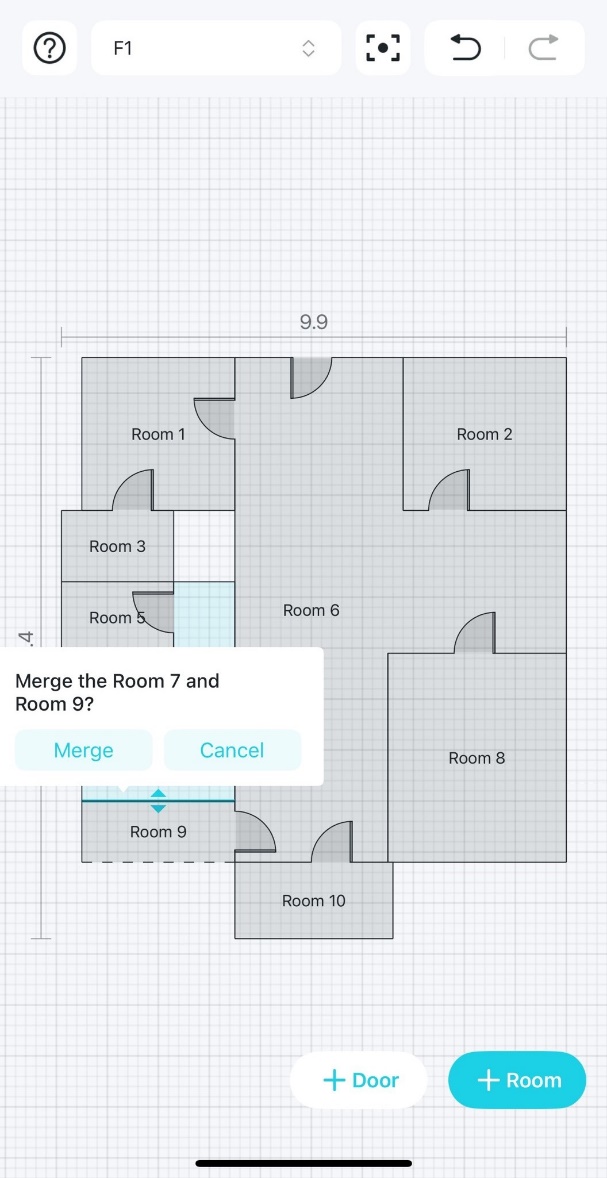
步驟 4. 點擊兩個相鄰房間之間的牆壁即可合併房間。

A floor plan editing page with a confirmation dialog box asking to 'Merge Room 7 and Room 9?'.


如何分割平面圖上的牆壁

步驟 1. 開啟 Tether App,點擊左上角的 The hamburger icon.,前往 Tether 實驗室,然後點擊 Wi-Fi 覆蓋熱點圖 卡片上的 立即體驗。
Locate Tether Lab in the side panel in the Tether app.Locate the Wi-Fi Coverage Heatmap card in the Tether Lab in the Tether app.

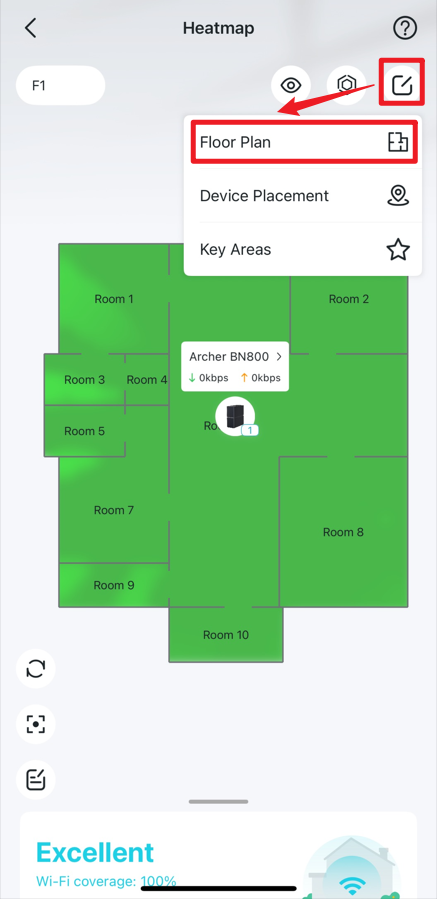
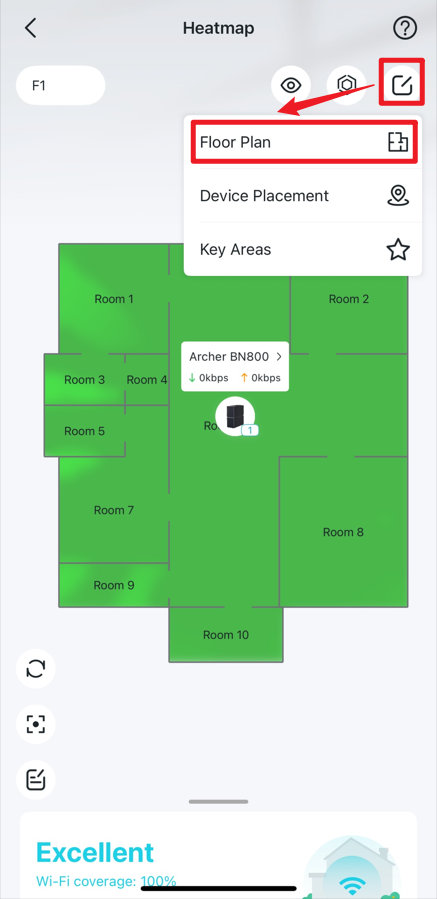
步驟 2. 在您的熱點圖上,點擊編輯圖示 The edit icon. 並選擇 平面圖。

Locate the Edit icon and Floor Plan option in a heatmap.

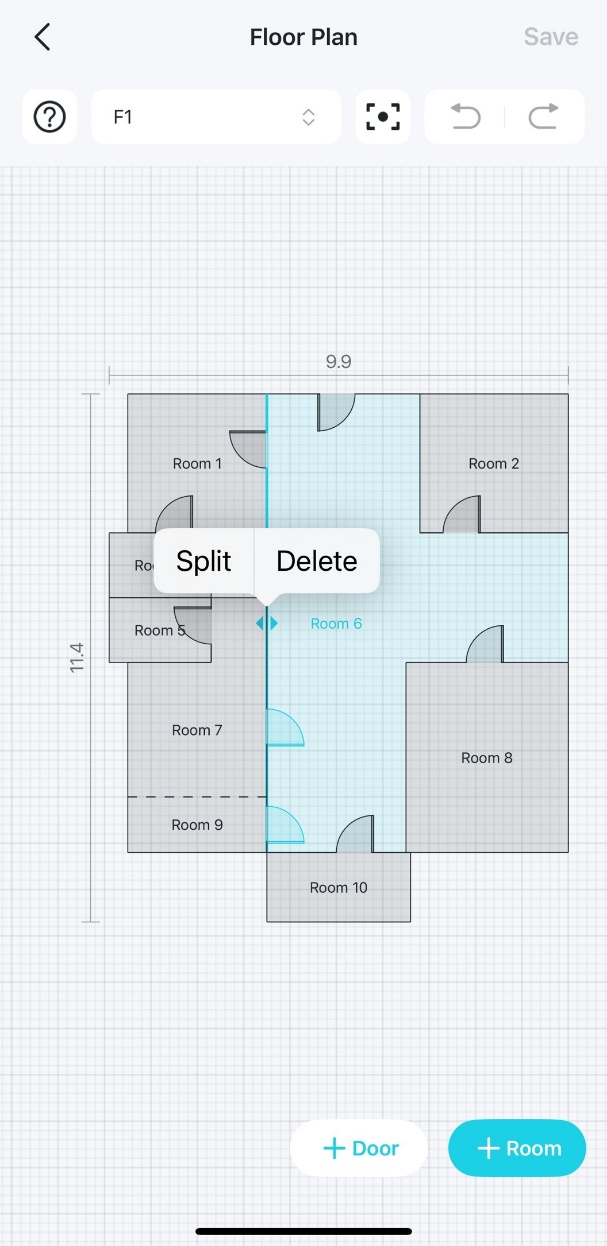
步驟 3. 點擊房間牆壁,然後點擊 分割。

A floor plan editing page displays a selected room with a pop-up menu with 'Split' and 'Delete' options.

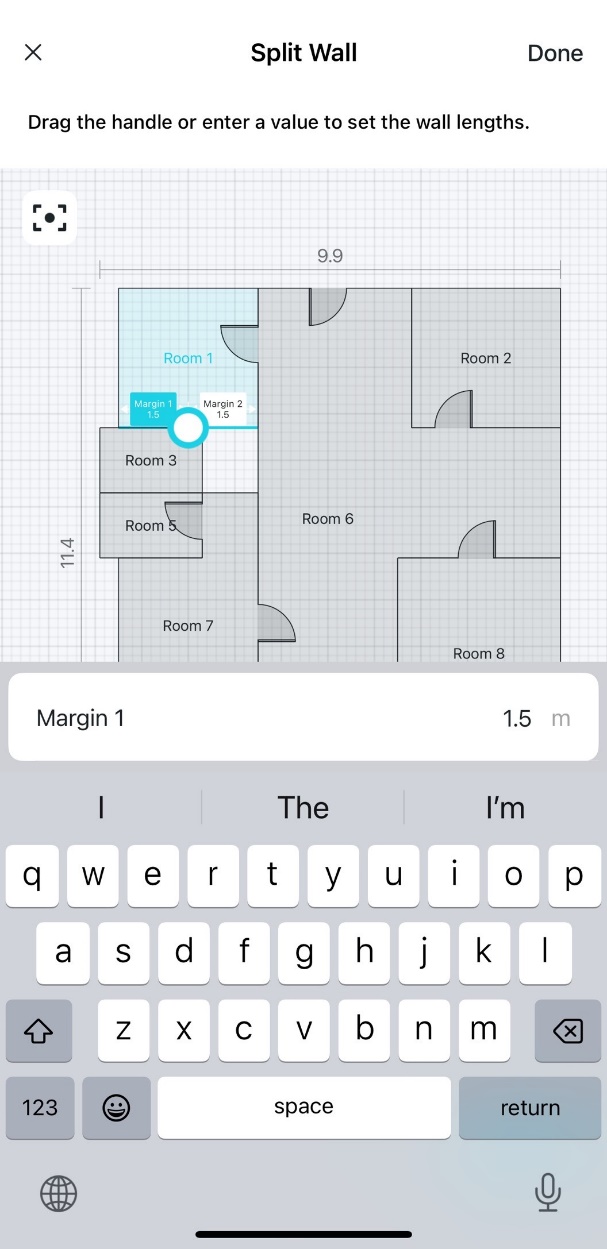
步驟 4. 拖曳控制桿或輸入數值來設定牆壁長度,然後點擊 完成。

The Split Wall page to set wall lengths by dragging a handle or entering a value.

步驟 5. 接著您就可以分別設定這兩道牆。


如何合併平面圖上的房間

步驟 1. 開啟 Tether App,點擊左上角的 The hamburger icon.,前往 Tether 實驗室,然後點擊 Wi-Fi 覆蓋熱點圖 卡片上的 立即體驗。
Locate Tether Lab in the side panel in the Tether app.Locate the Wi-Fi Coverage Heatmap card in the Tether Lab in the Tether app.

步驟 2. 在您的熱點圖上,點擊編輯圖示 The edit icon. 並選擇 平面圖。

Locate the Edit icon and Floor Plan option in a heatmap.

步驟 3. 點擊相鄰兩個房間之間的牆壁,並選擇 合併。兩個房間之間的實線會變成虛線,表示房間合併成功。

A floor plan editing page with a confirmation dialog box asking to 'Merge the Room 7 and Room 9?'.A floor plan editing page displaying Room 7 and Room 9 have already been merged.


裝置擺放

如何在熱點圖上準確擺放裝置

步驟 1. 開啟 Tether App,點擊左上角的 The hamburger icon.,前往 Tether 實驗室,然後點擊 Wi-Fi 覆蓋熱點圖 卡片上的 立即體驗。
Locate Tether Lab in the side panel in the Tether app.Locate the Wi-Fi Coverage Heatmap card in the Tether Lab in the Tether app.

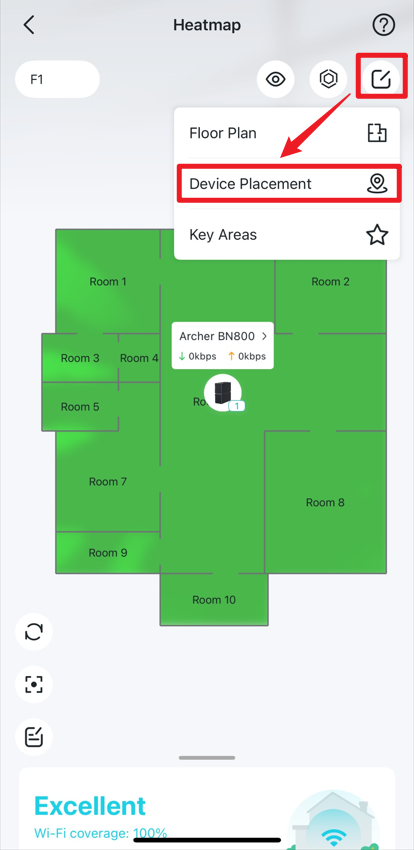
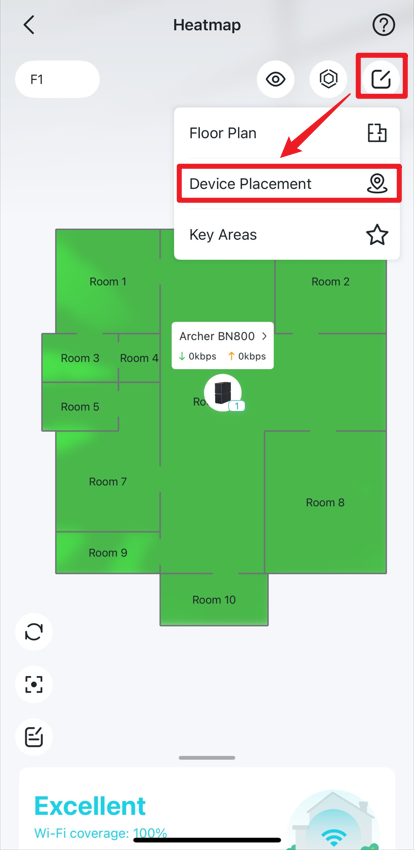
步驟 2. 在熱點圖上,點擊編輯圖示 The edit icon. 並選擇 裝置擺放。

Locate the Edit icon and the Device Placement option on the heatmap.

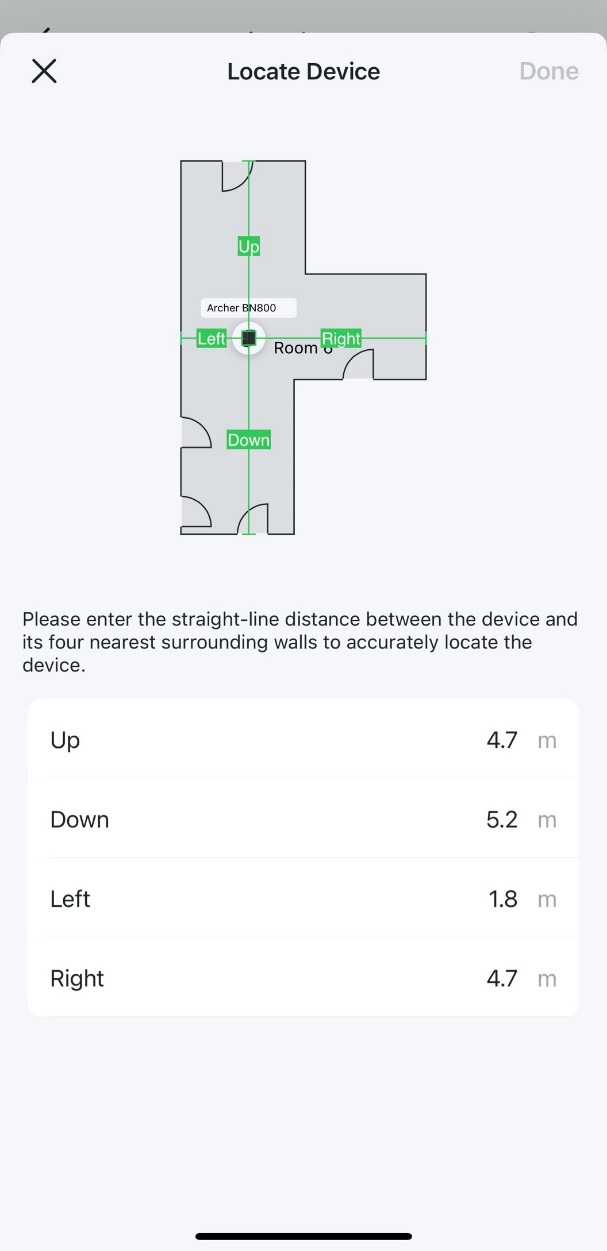
步驟 3. 點擊兩下裝置圖示,透過輸入裝置與周圍四面牆之間的直線距離,即可精確定位裝置。接著點擊 完成 (Done) 並儲存設定。

The Locate Device page displaying a floor plan with a device icon and green lines indicating distances to surrounding walls.  Input fields below show the measured distances.


如何預覽您的 Wi-Fi 熱點圖

步驟 1. 開啟 Tether App,點擊左上角的 The hamburger icon.,前往 Tether 實驗室,然後點擊 Wi-Fi 覆蓋熱點圖 卡片上的 立即體驗。
Locate Tether Lab in the side panel in the Tether app. Locate the Wi-Fi Coverage Heatmap card in the Tether Lab in the Tether app.

步驟 2. 在熱點圖上,點擊編輯圖示 The edit icon. 並選擇 裝置擺放。

Locate the Edit icon and the Device Placement option on the heatmap.

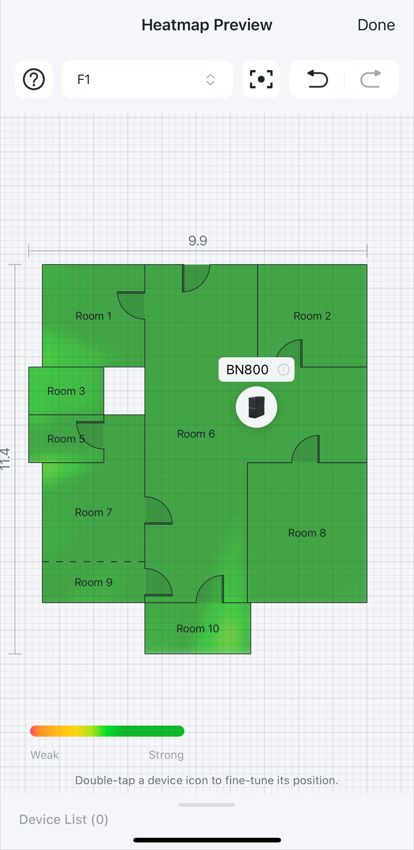
步驟 3. 點擊 顯示熱點圖 以預覽目前的熱點圖。然後根據即時的熱點圖狀態調整裝置位置。

The Device Placement page shows an icon in the center indicating a device location, and a 'Show Heatmap' button is visible at the top center.The Heatmap Preview page shows that most visible areas are covered in green, suggesting strong Wi-Fi signal coverage. A color gradient scale at the bottom indicates signal strength from Weak (orange/red) to Strong (green).


擺放模擬

什麼是擺放模擬

步驟 1. 開啟 Tether App,點擊左上角的 The hamburger icon.,前往 Tether 實驗室,然後點擊 Wi-Fi 覆蓋熱點圖 卡片上的 立即體驗。
Locate Tether Lab in the side panel in the Tether app.Locate the Wi-Fi Coverage Heatmap card in the Tether Lab in the Tether app.

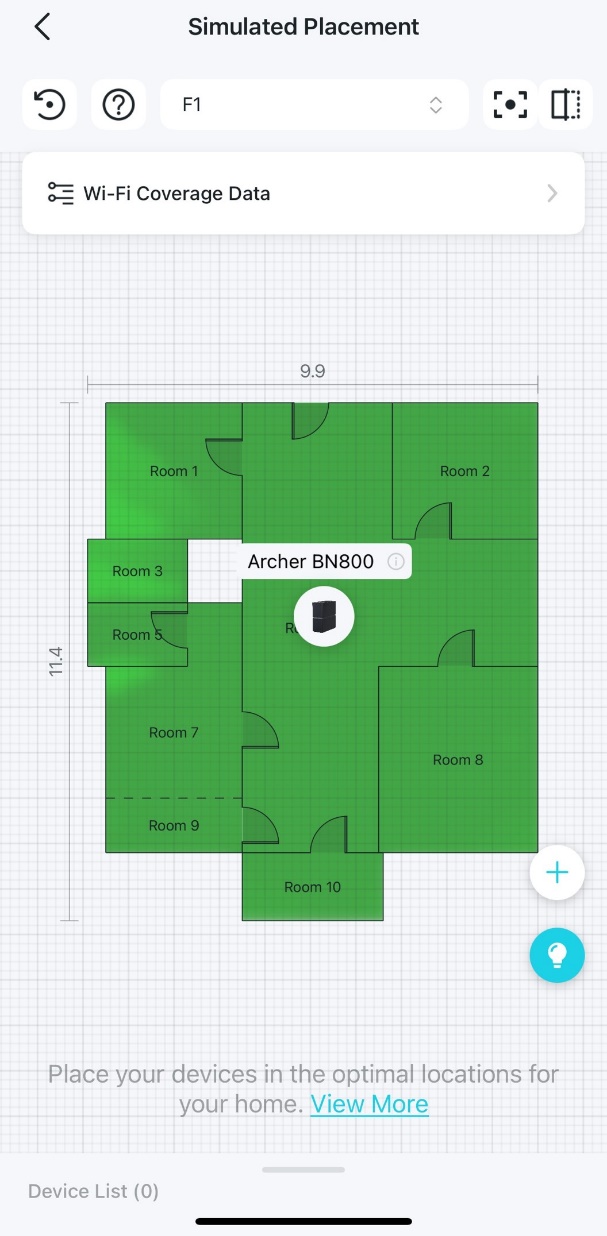
步驟 2. 在熱點圖上,點擊圖示 The similator icon. 進入 模擬擺放 頁面。

Locate the Simulated Placement icon on the heatmap.

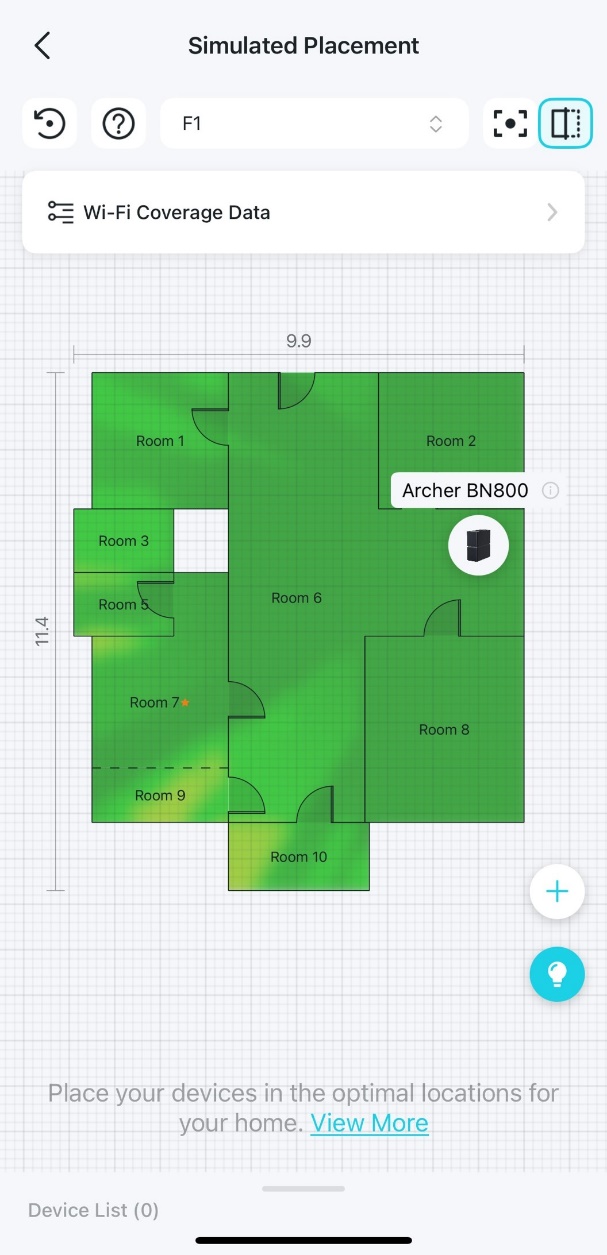
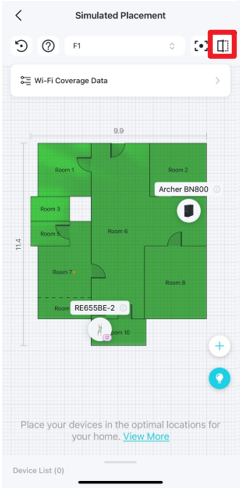
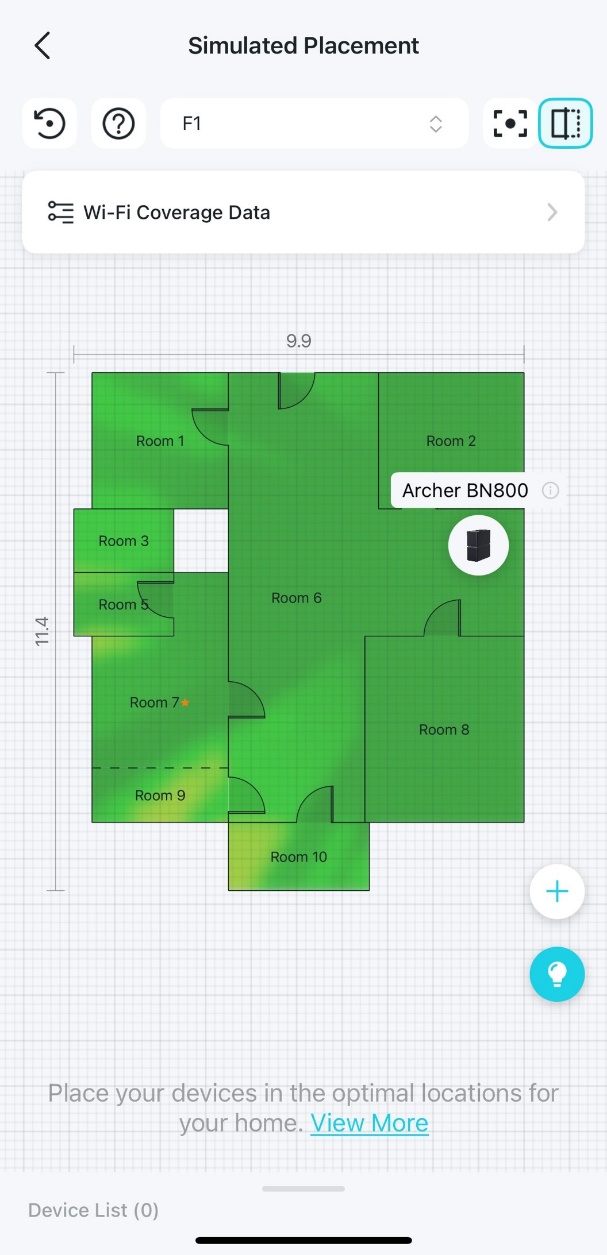
步驟 3. 在「模擬擺放」頁面上,您可以執行以下操作:

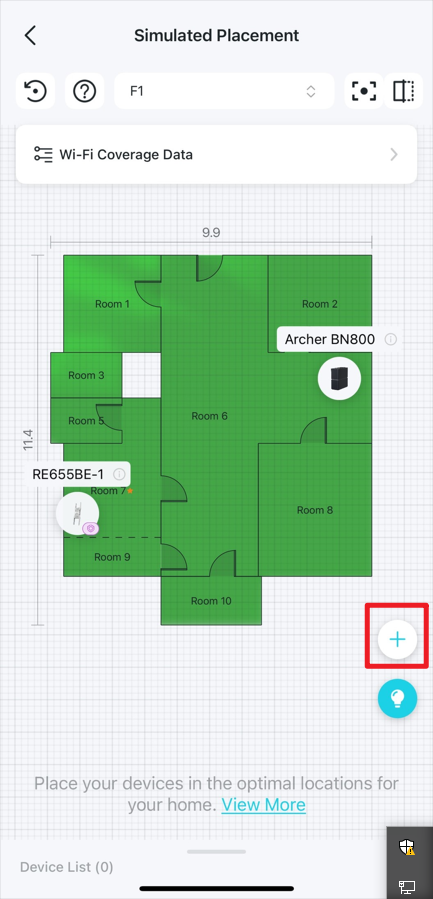
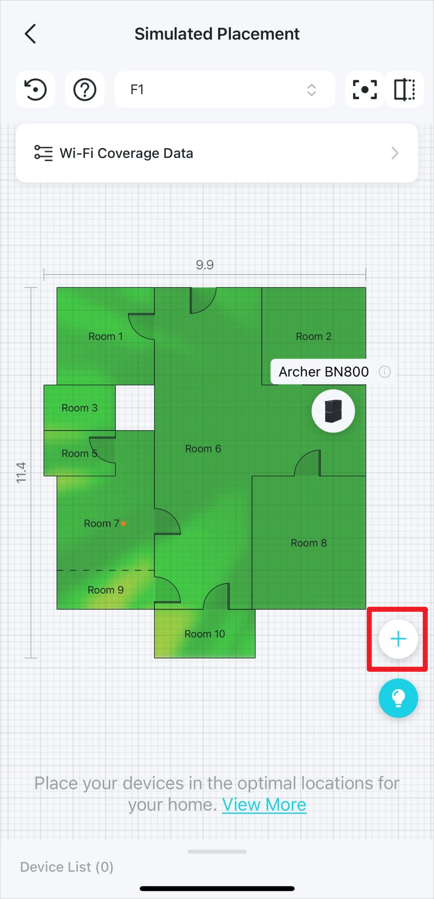
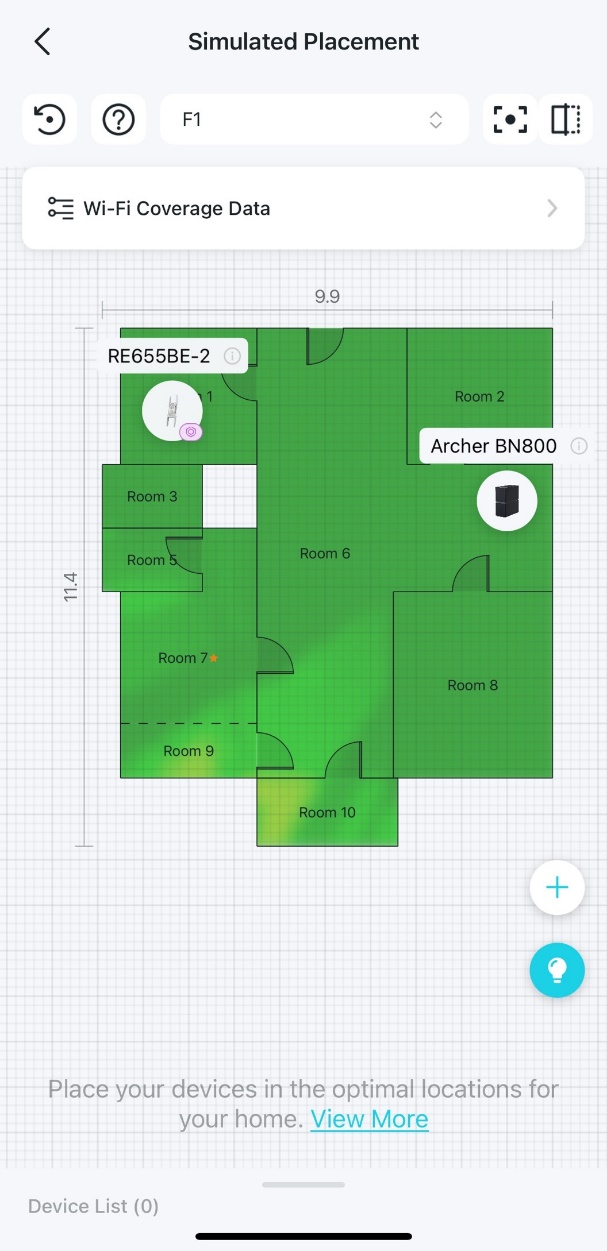
  • 新增虛擬裝置:點擊「新增」圖示,虛擬裝置即會顯示在熱點圖上。移動虛擬裝置以觀察熱點圖的變化,進而選擇最佳的裝置擺放位置。

Locate the Add icon on the Simulated Placement page and a virtual device added on the heatmap.

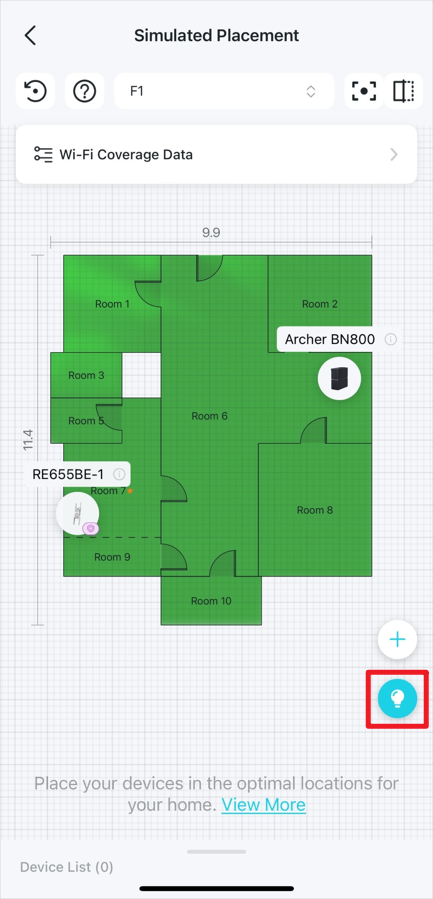
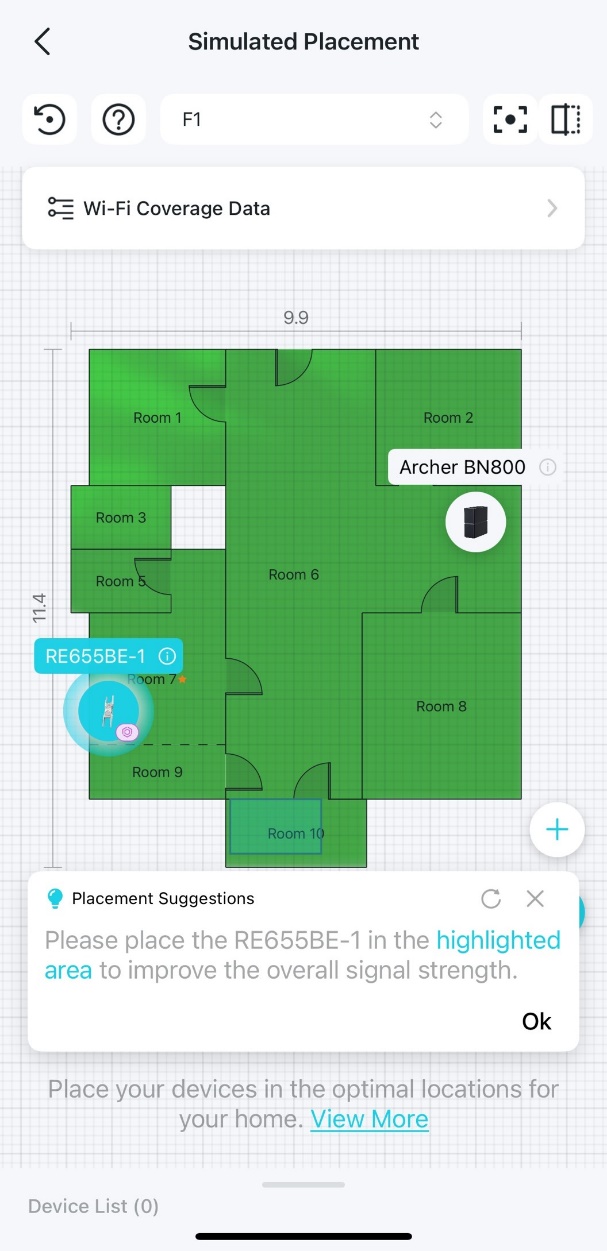
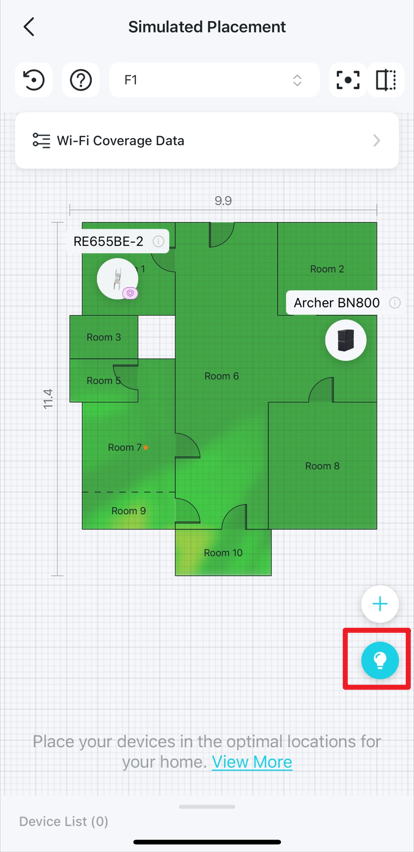
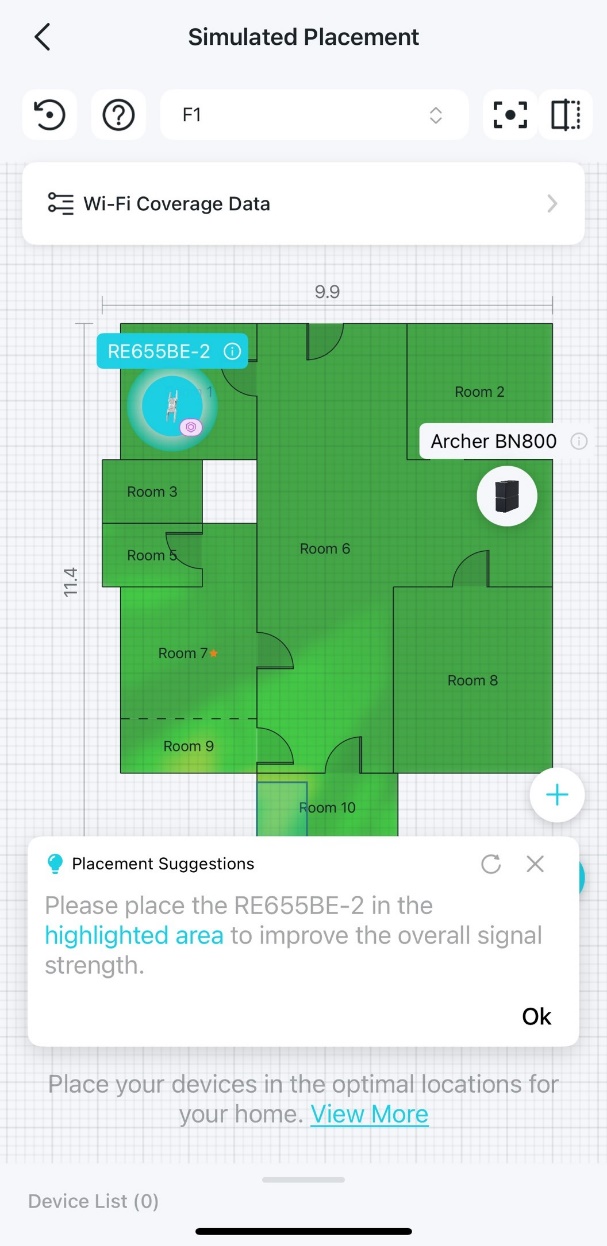
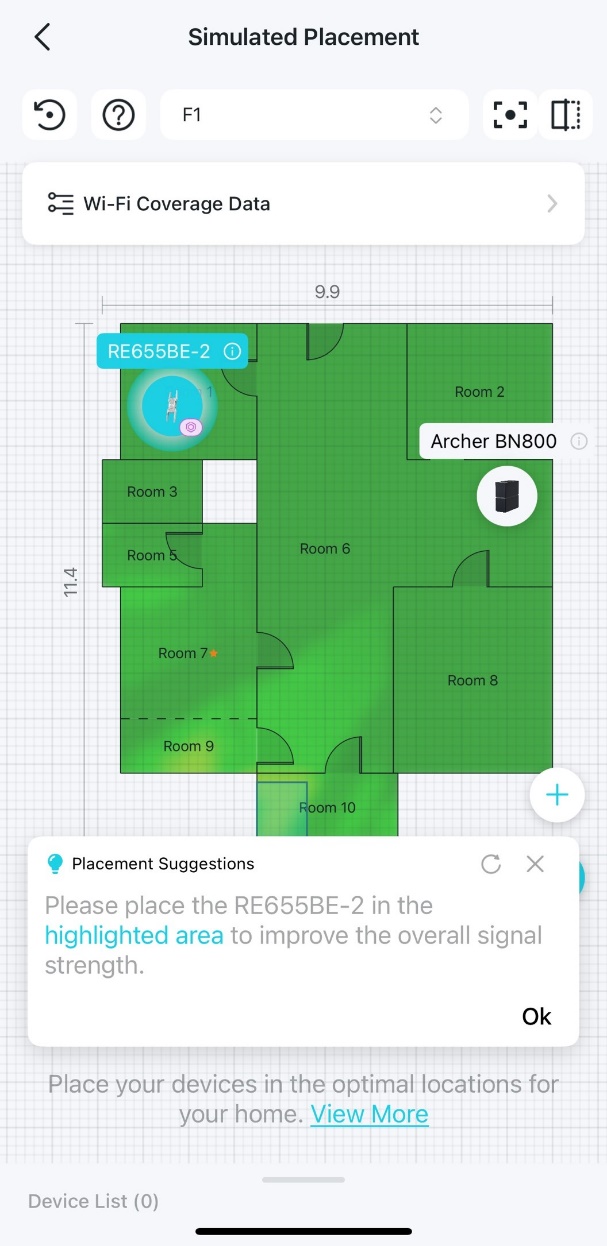
  • 查看擺放建議:點擊燈泡圖示以查看該樓層的擺放建議。點擊裝置圖示可查看針對該裝置的建議。接著您可以據此調整裝置的擺放位置。

Locate the Placement Suggestions icon on the heatmap.A floor plan with a pop-up suggestion window to instruct how to place the device.

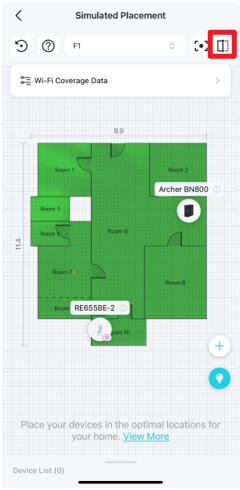
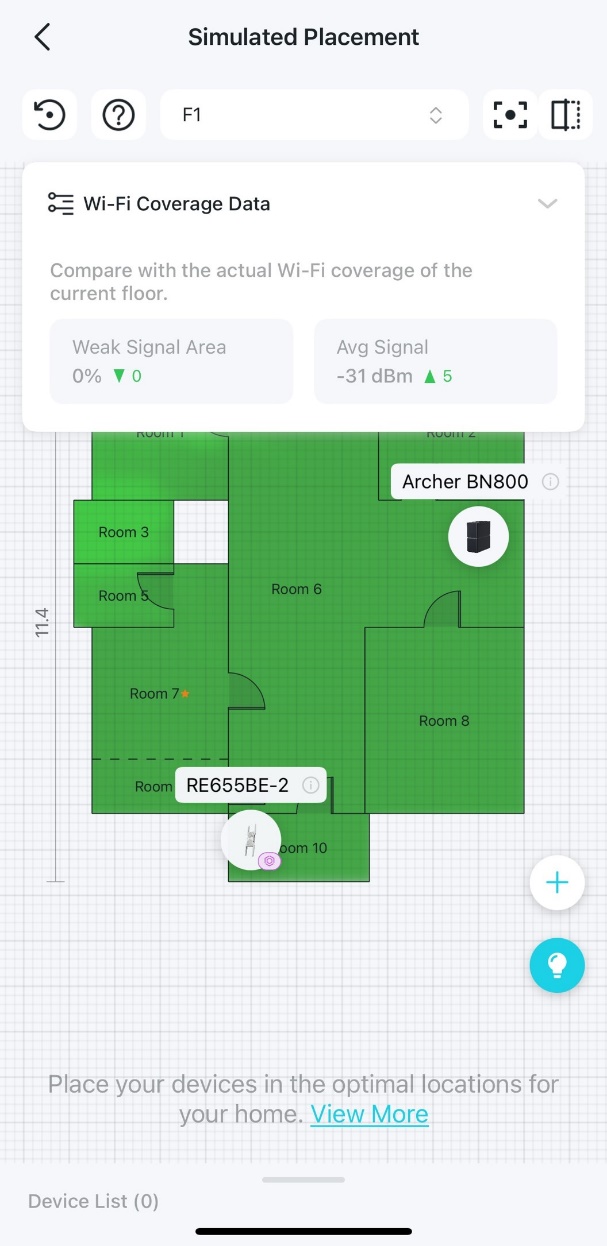
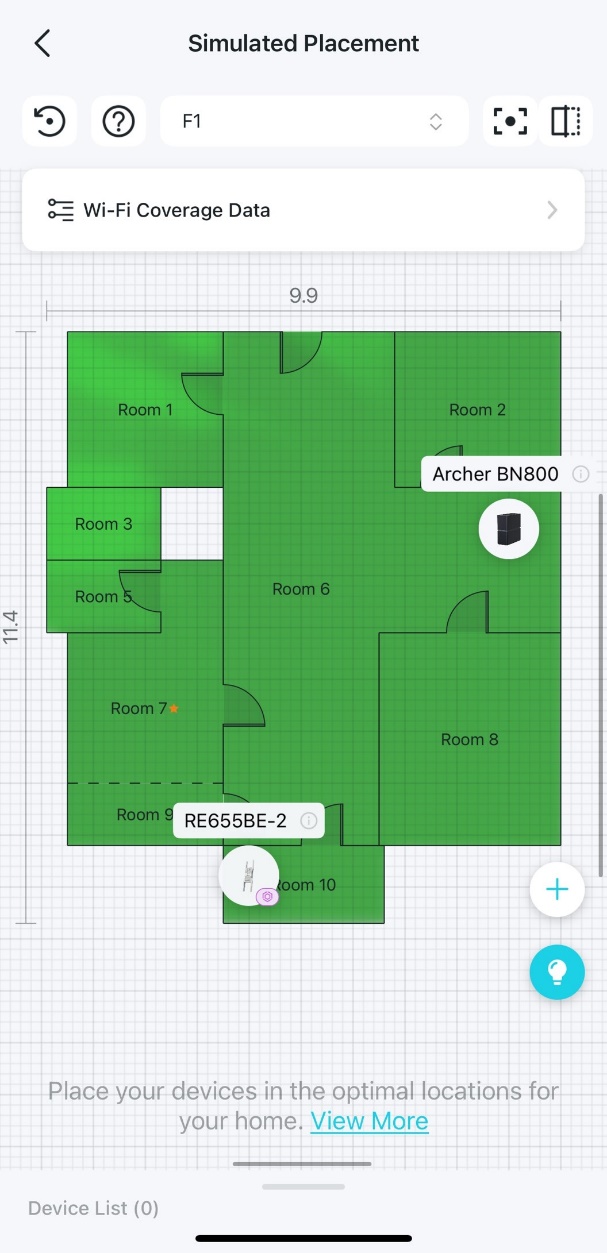
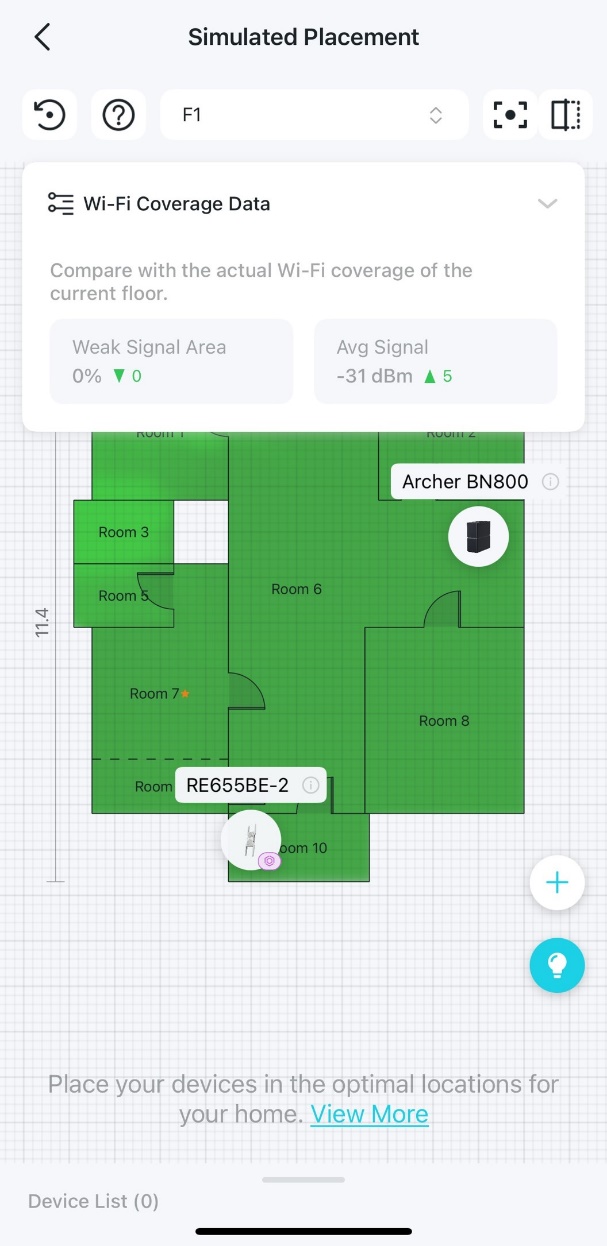
  • 查看比對熱點圖:長按圖示 The comparison icon. 可顯示目前網路的實際 Wi-Fi 覆蓋範圍。

Locate the comparison icon on the Simulated Placement page.The Simulated Placement page displays the network's actual Wi-Fi coverage.

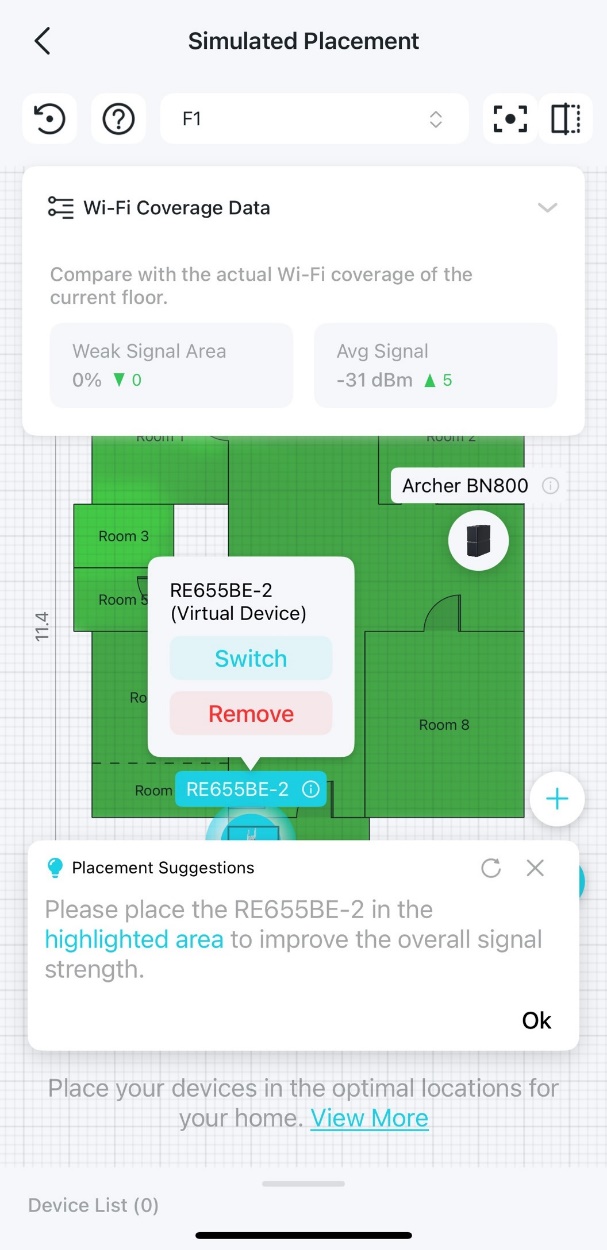
  • 查看比對數據:點擊 Wi-Fi 覆蓋數據,即可顯示目前樓層實際 Wi-Fi 覆蓋範圍的比對數據。

A Wi-Fi Coverage Data card displaying statistics like “Weak Signal Area” and “Avg Signal” compared with the actual Wi-Fi coverage of the current floor.


如何利用熱點圖建議最佳化裝置擺放位置

步驟 1. 開啟 Tether App,點擊左上角的 The hamburger icon.,前往 Tether 實驗室,然後點擊 Wi-Fi 覆蓋熱點圖 卡片上的 立即體驗。
Locate Tether Lab in the side panel in the Tether app.Locate the Wi-Fi Coverage Heatmap card in the Tether Lab in the Tether app.

步驟 2. 在熱點圖上,點擊圖示 The similator icon. 進入 模擬擺放 頁面。

Locate the Simulated Placement icon on the heatmap.

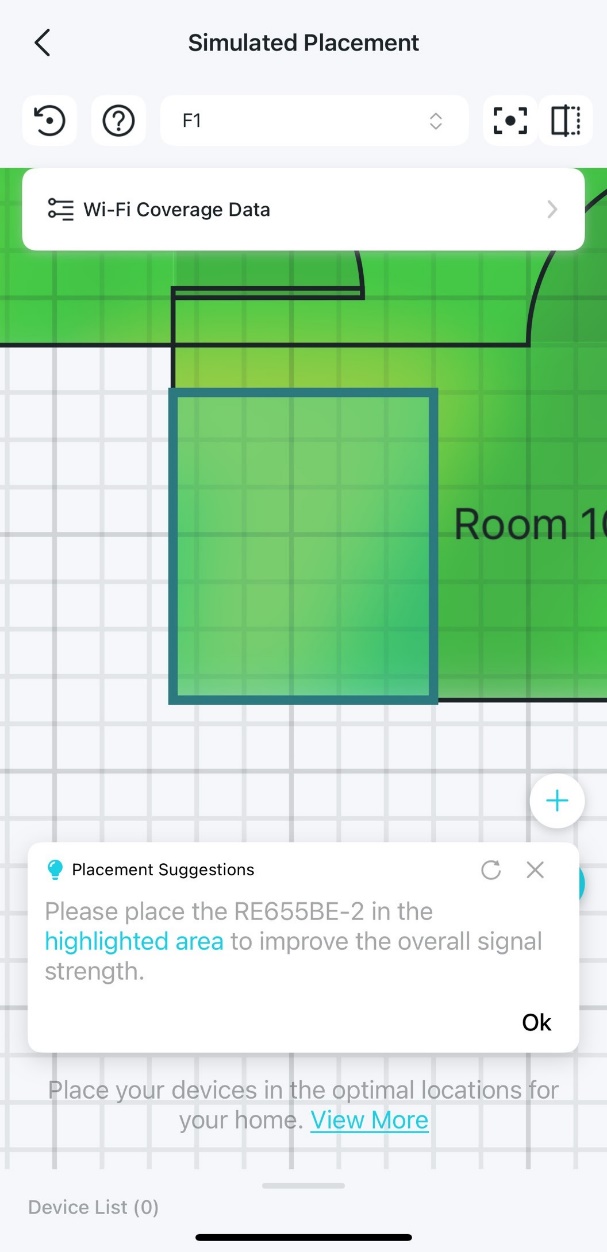
步驟 3. 點擊燈泡圖示以查看擺放建議。點擊裝置圖示可查看針對該裝置的建議。接著點擊標記區域 來調整您的裝置位置。

Locate the Placement Suggestions icon on the heatmap.A floor plan with a pop-up suggestion window to instruct how to place the device.A floor plan with a highlighted area for adjusting the device position.


如何在熱點圖上加入虛擬裝置進行模擬

步驟 1. 開啟 Tether App,點擊左上角的 The hamburger icon.,前往 Tether 實驗室,然後點擊 Wi-Fi 覆蓋熱點圖 卡片上的 立即體驗。
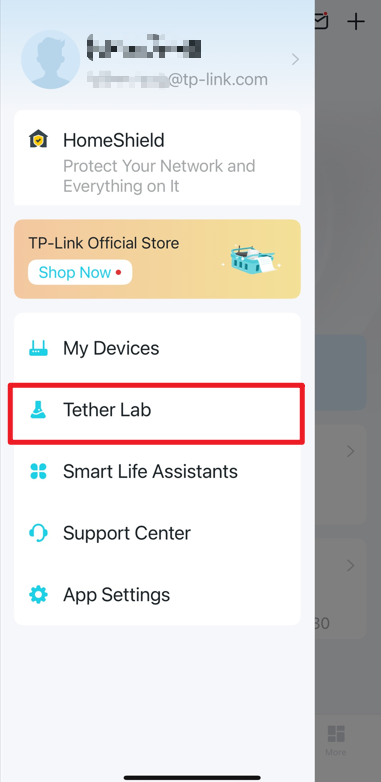
Locate Tether Lab in the side panel in the Tether app.Locate Wi-Fi Coverage Heatmap card in the Tether lab in the Tether app.

步驟 2. 在熱點圖上,點擊圖示 The simiulator icon. 進入 模擬擺放 頁面。

Locate the Simulated Placement icon on the heatmap.

步驟 3. 點擊「新增」圖示,虛擬裝置即會顯示在熱點圖上。

Locate the Add icon on the Simulated Placement page.A floor plan with a virtual device added on the heatmap.

步驟 4. 您可以對虛擬裝置執行以下操作:

a. 點擊虛擬裝置以查看擺放建議。

A floor plan with a pop-up suggestion window to instruct how to place the device.

b. 長按裝置以根據熱點圖來移動位置。

A floor plan with a virtual device added.

c. 點擊圖示 The property icon. 移除虛擬裝置。

A floor plan with a pop-up suggestion window with a Remove Device button.


如何在熱點圖上比對模擬數據與實際網路數據

步驟 1. 開啟 Tether App,點擊左上角的 The hamburger icon.,前往 Tether 實驗室,然後點擊 Wi-Fi 覆蓋熱點圖 卡片上的 立即體驗。
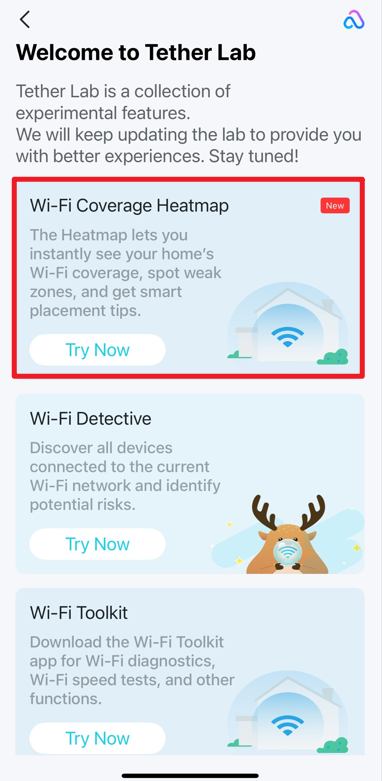
Locate Tether Lab in the side panel in the Tether app.Locate the Wi-Fi Coverage Heatmap card in the Tether Lab in the Tether app.

步驟 2. 在熱點圖上,點擊圖示 The simulator icon. 進入 模擬擺放 頁面。

Locate the Simulated Placement icon on the heatmap.

步驟 3. 長按圖示 The comparison icon. 即可顯示目前網路的實際 Wi-Fi 覆蓋範圍。

Locate the comparison icon on the Simulated Placement page.The Simulated Placement page displays the network's actual Wi-Fi coverage.

步驟 4. 點擊 Wi-Fi 覆蓋數據 即可顯示目前樓層實際 Wi-Fi 覆蓋範圍的比對數據。

A Wi-Fi Coverage Data card displaying the statistics like “Weak Signal Area” and “Avg Signal” compared with the actual Wi-Fi coverage of the current floor.


訊號測試

哪些裝置相容於訊號測試功能

我們的訊號測試熱點圖功能目前已經過驗證,並支援多款主流裝置型號,包括 iPhone 13 mini、Samsung Galaxy S23 Ultra 以及 Google Pixel 9 Pro XL。

注意:在某些特定情況下,熱點圖的實測功能可能會無法使用。這可能發生在使用較新版本的 iOS 裝置和作業系統時,或是遇到從基地台端沒有回應 11k 請求的自主漫遊工作站時。


為何訊號測試對於精確的熱點圖至關重要

雖然我們可以透過上傳的平面圖和預測模擬來產生家庭 Wi-Fi 熱點圖,但現實世界的訊號效能會受到許多環境變數的影響。現場訊號測試對於捕捉實際訊號行為,以及確保最終熱點圖的準確性和可靠性而言至關重要。

物理障礙物如水泥牆、金屬框架或厚磚可能會顯著減弱 Wi-Fi 訊號,而模擬可能無法完全考慮到這些因素。透過實地步行測試 (walk-test) 可以測量這些材質的實際影響,提供可能與模擬設定不同的數據。訊號測試將預測模型轉化為經過驗證、具備實用價值的熱點圖——讓您對 Wi-Fi 設計在實際環境中的表現充滿信心。

現場測試可精確找出訊號微弱或無訊號的死角。這使我們能基於數據針對裝置擺放進行精準調整——從而減少訊號重疊、消除覆蓋盲區,並最終將網路效能最佳化。


如何在熱點圖上執行訊號測試

步驟 1. 開啟 Tether App,點擊左上角的 The hamburger icon.,前往 Tether 實驗室,然後點擊 Wi-Fi 覆蓋熱點圖 卡片上的 立即體驗。
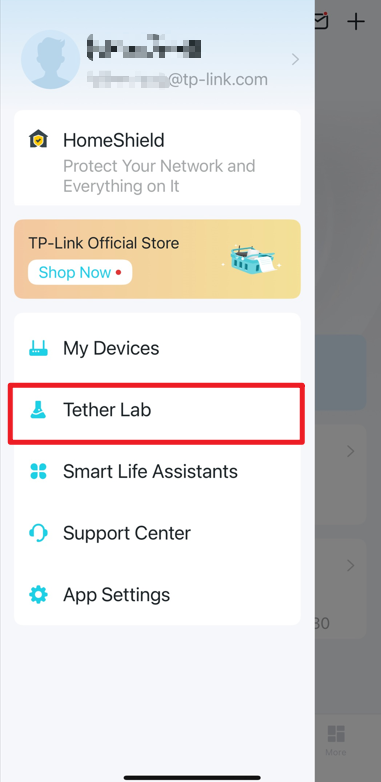
Locate Tether Lab in the side panel in the Tether app.Locate the Wi-Fi Coverage Heatmap card in the Tether Lab in the Tether app.

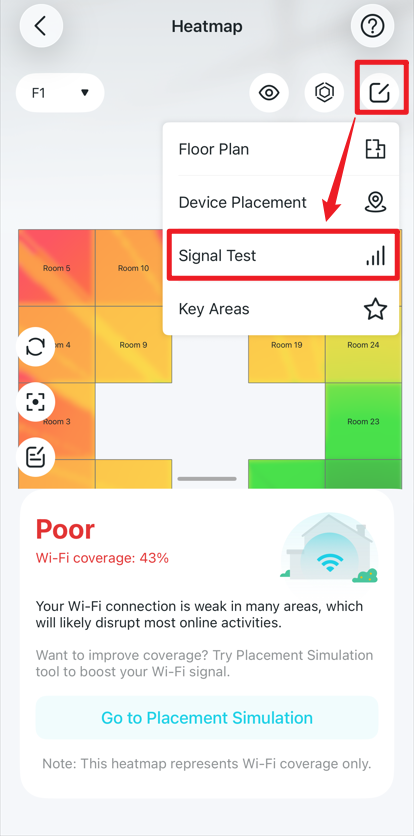
步驟 2. 在熱點圖上,點擊編輯圖示 The edit icon. 並選擇 訊號測試。

Locate the Edit icon and the Signal Test option on the heatmap page.

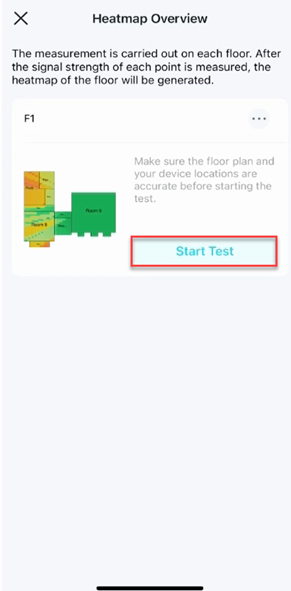
步驟 3. 確保您的平面圖和裝置擺放位置正確,然後點擊 開始測試。

Locate the Start Test button on a floor card in the Heatmap Overview page.

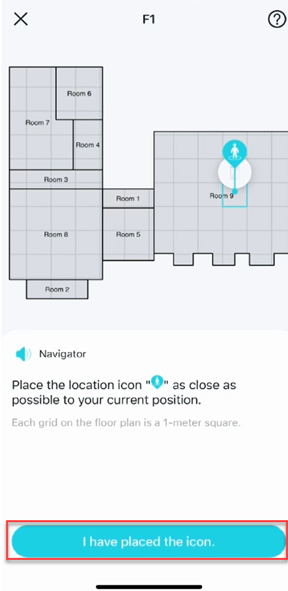
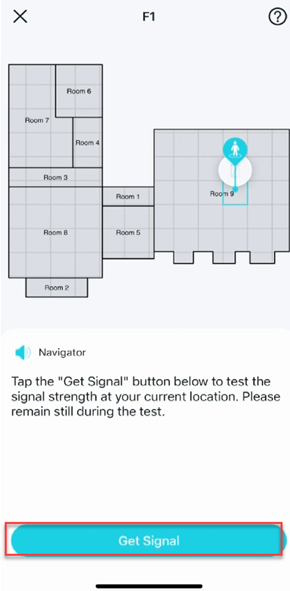
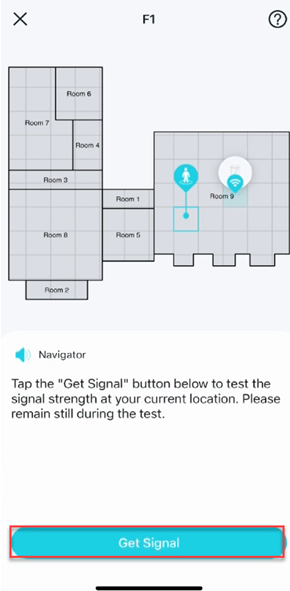
步驟 4. 前往您經常使用網路的區域,並將定位圖示放置在您目前的位置。接著點擊 獲取訊號 來針對該位置執行測試。測試期間請保持靜止。

注意:如果您不確定要在哪裡測試,請點擊「顯示推薦位置」以取得更多建議。
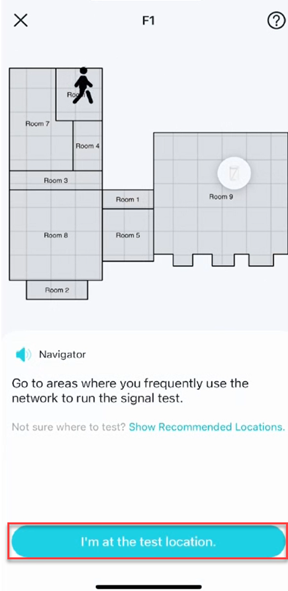
Instructions on how to choose a location to run the signal test.Instructions on how to place the location icon at your current position.Locate the Get Signal button for starting the test at your current position.

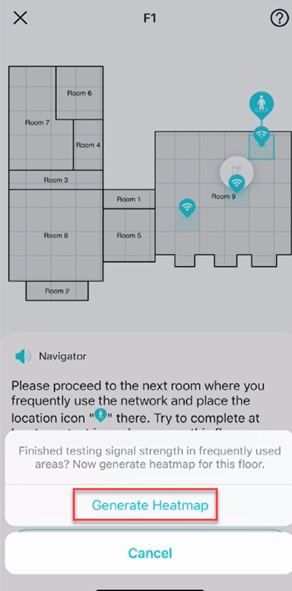
步驟 5. 移動至其他房間,並按照上述相同步驟執行訊號測試。完成每個樓層的所有測試後,產生熱點圖。
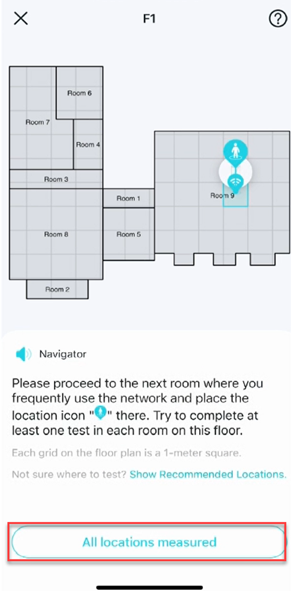
Instructions on how to run the signal test at each location. Instructions on how to test the signal strength at your current position. Locate the Generate Heatmap button when finished with the signal test.


想了解更多每個功能與設定的詳細資訊,請前往 下載中心 下載您產品的手冊。

相關 FAQ

更多相關文章

這篇faq是否有用?

您的反饋將幫助我們改善網站

這篇文章適用於:

Community

TP-Link Community

Still need help? Search for answers, ask questions, and get help from TP-Link experts and other users around the world.

Visit the Community >