
如何將 Tapo 門鈴恢復出廠設置
這份指南說明如何將 Tapo 門鈴恢復出廠設定,包含「實體重置按鈕」與「Tapo App」兩種方式,適用於多款 Tapo 門鈴型號
注意:當防盜警報被觸發時,門鈴將無法回應重置操作。在進行重置之前,請同時長按 SYNC/RESET 按鈕與防盜按鈕約 10 秒,以停用防盜警報。如何暫停或停止 Tapo 門鈴的防盜警報.
方法一:透過重置按鈕
第一步:將門鈴從安裝支架上拆下
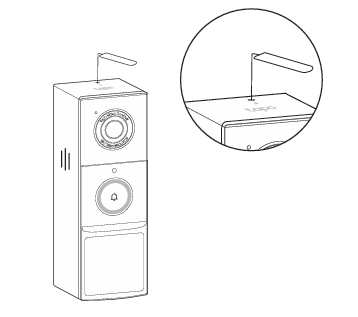
案例 1:適用於 Tapo D130/Tapo D210/Tapo D230S1/Tapo D235/Tapo D225
使用門鈴附帶的拆卸針,將門鈴從安裝支架上取下。
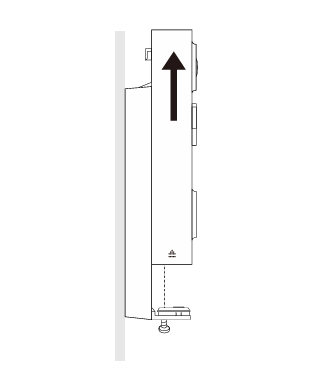
案例 2. 適用於 Tapo D205
鬆開支架底部的螺絲,握住門鈴本體並向上拉,即可將門鈴從支架上取下。
步驟 2:找到重置按鈕並重置門鈴
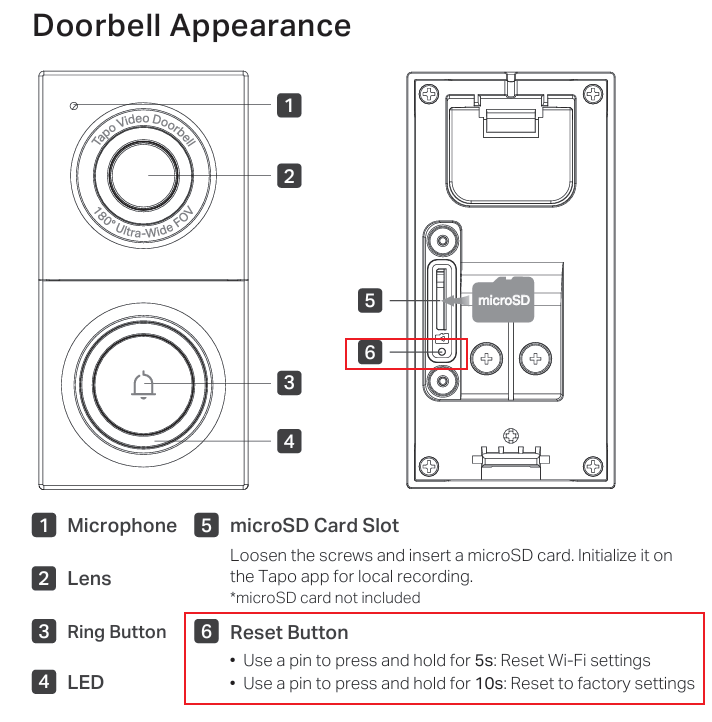
案例一:適用於 Tapo D130
- 重置 Wi-Fi 設定: 使用細針按住 RESET 按鈕約 5 秒。
- 恢復出廠設定: 使用細針按住 RESET 按鈕約 10 秒。
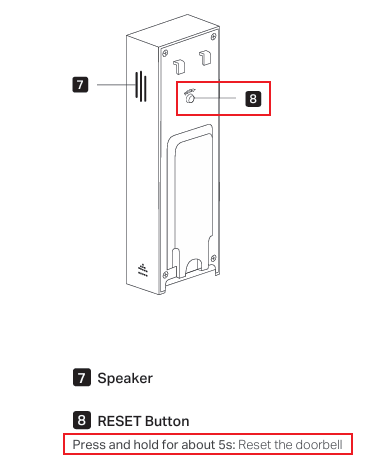
案例 2. 適用於 Tapo D205/TD20
按住 RESET 按鈕 5 秒鐘。
案例 3. 適用於 Tapo D210/TD21
按住 SYNC/RESET 按鈕約 5 秒。
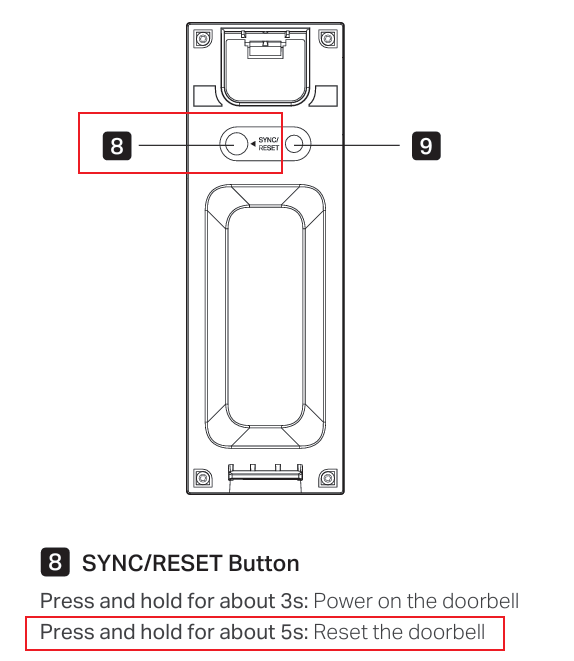
案例 4. 適用於 Tapo D230/TD23
按住同步/重設按鈕 5 秒鐘。
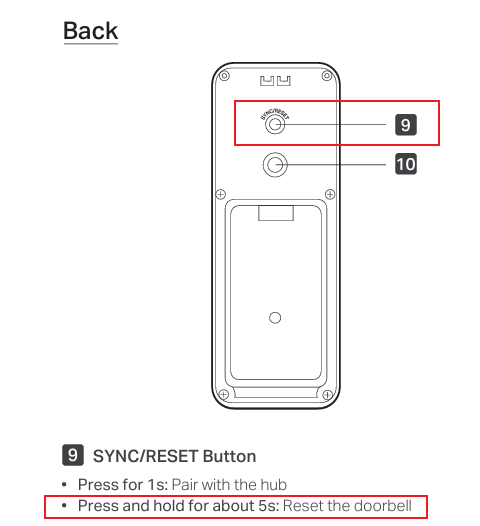
案例 5. 適用於 Tapo D235/Tapo D225/TD25
按住同步/重設按鈕 5 秒鐘。
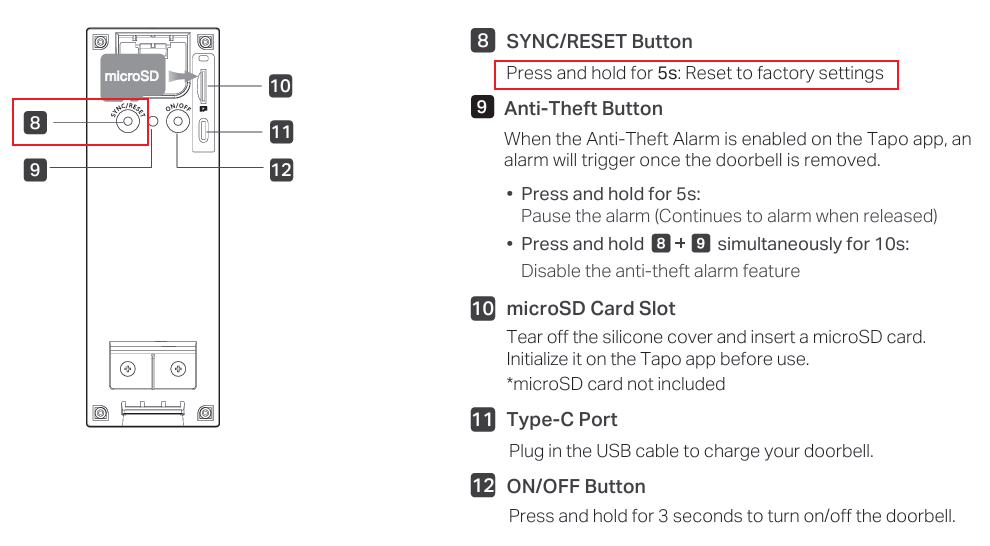
方法二:透過 Tapo 應用
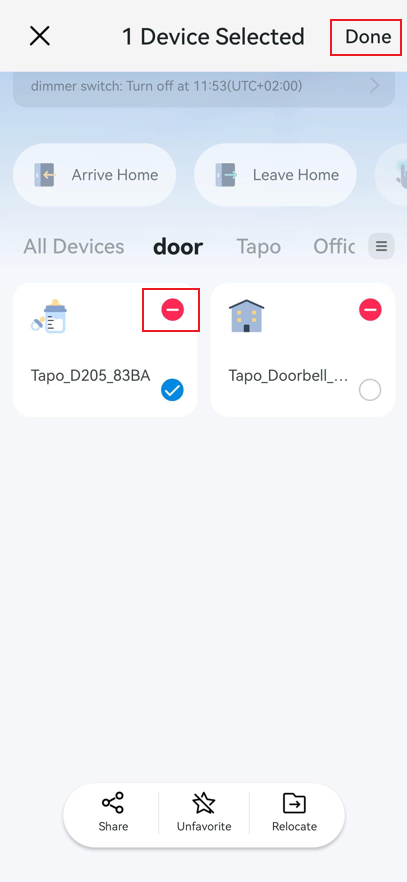
方案一:從首頁移除門鈴
在 Tapo App 首頁上,長按您的門鈴設備卡片,然後點選減號圖示。門鈴將從您的 TP-Link 帳戶中移除並重設為預設值。請注意,此操作也會斷開門鈴與任何已關聯的第三方服務(例如 Alexa 和 Google Assistant)的連線。
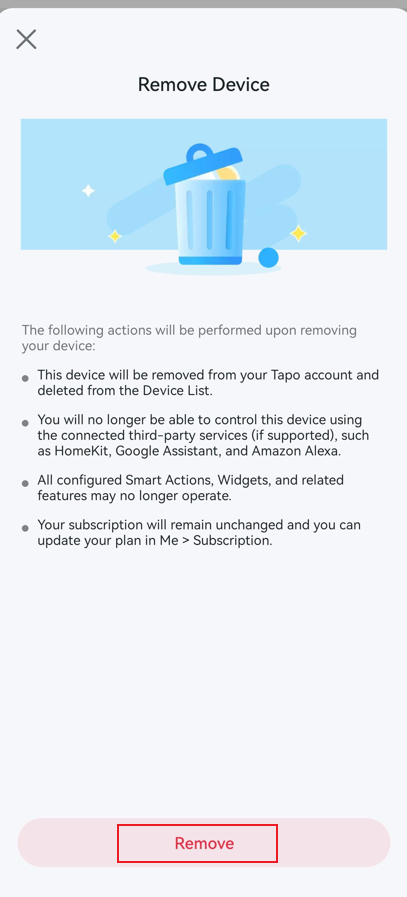
狀況 2:從門鈴設定頁面移除門鈴
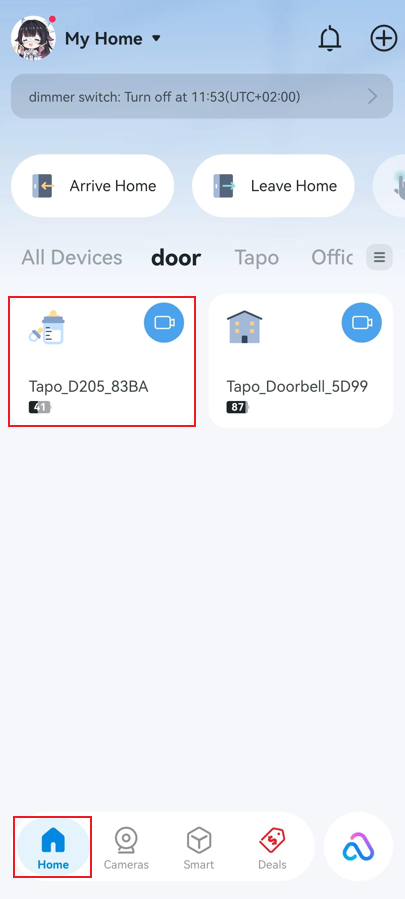
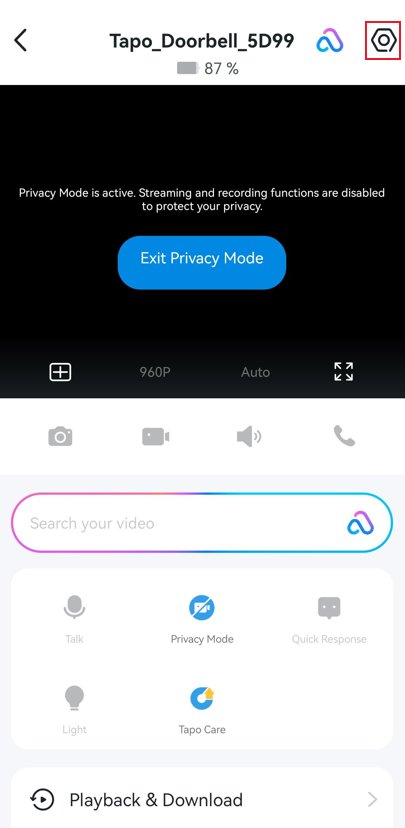
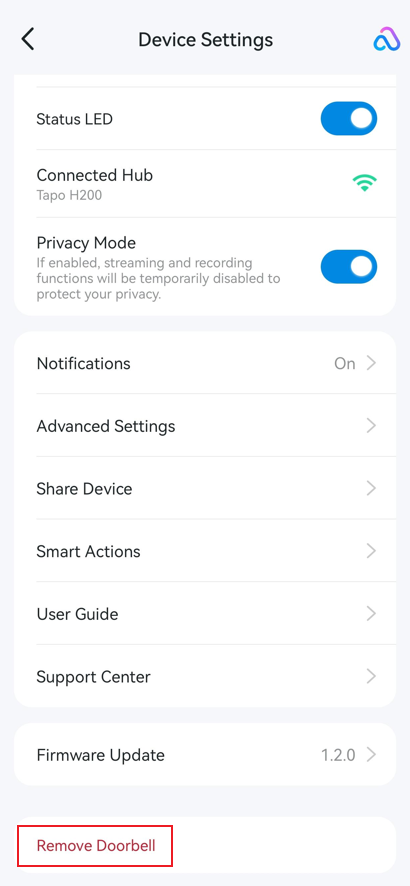
在 Tapo App 首頁上,點選您的門鈴設備卡進入即時視圖頁面。然後點擊右上角的齒輪圖標,打開門鈴設備設定。點擊「移除門鈴」即可從您的 TP-Link 帳戶移除 Tapo 門鈴。
更多相關文章
這篇faq是否有用?
您的反饋將幫助我們改善網站



TP-Link Community
Still need help? Search for answers, ask questions, and get help from TP-Link experts and other users around the world.