
How to set up the Mac OS to obtain an IP address automatically
 107838
To install a TP-Link device you should configure the computer to obtain an IP address automatically first, so that the computer can get a correct IP address from the TP-Link device. This procedure will also allows your computer to automatically determine most network parameters. Follow the steps below to know how to set your computer to automatically obtain an IP address.
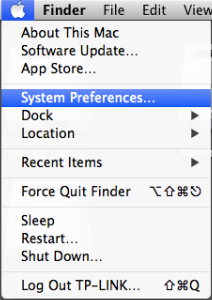
1. Click the Apple icon, from the Apple drop-down list, select System Preferences.
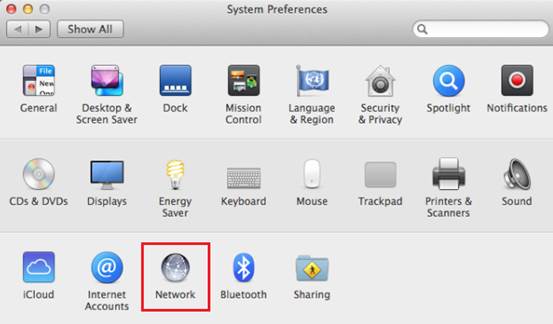
2. Click the Network icon.
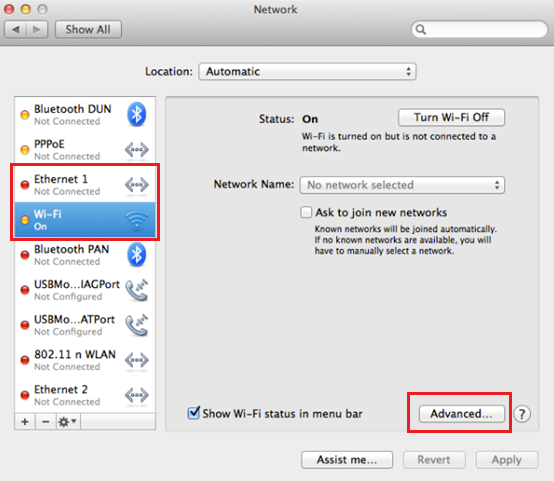
3. In the left column, select Ethernet (for wired connection) or Wi-Fi(for wireless connection), then Click the Advanced.
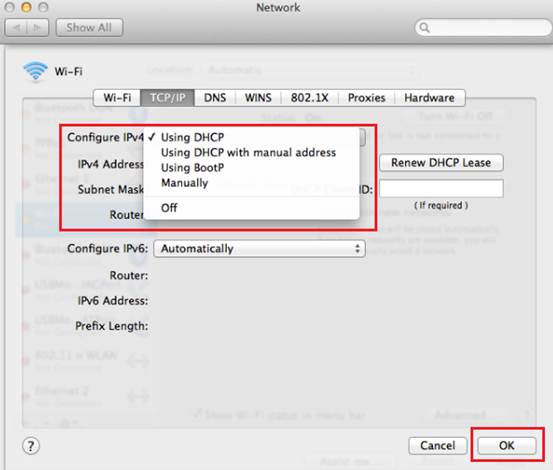
4. Click TCP/IP.

5. From the Configure IPv4 drop-down list, select Using DHCP, then click the OK button.
Is this faq useful?
Your feedback helps improve this site.

TP-Link Community
Still need help? Search for answers, ask questions, and get help from TP-Link experts and other users around the world.