
What is PIN Code when I connect my Windows 7 to wireless router?
 588179
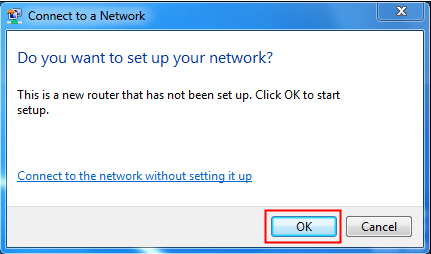
If your wireless router or access point has the QSS (Quick Security Setup) or called WPS (Wi-Fi Protected Setup) function and your computer with Windows 7 connects to the new unsecured wireless network first time, a small window will pop out.
If the wireless network you want to connect to is secured, please type in the wirless password directly.
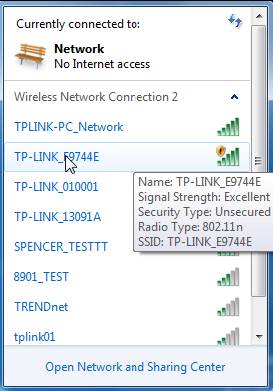
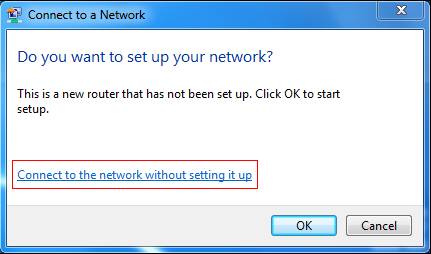
There are two methods to connect to your wireless network:
Method 1 Click Connect to the network without setting it up, then you will connect to the unsecured network.
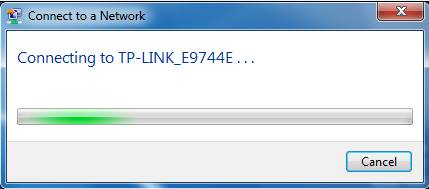
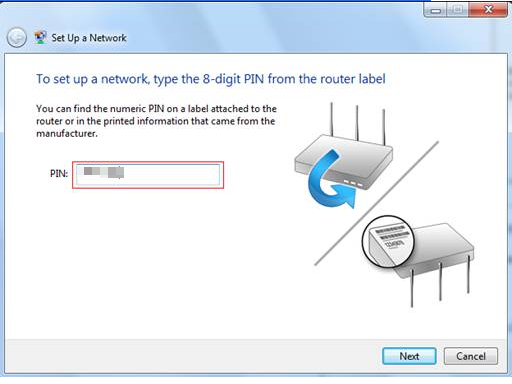
Method 2 Click OK button, then it will pop out PIN Code window.
Step 1
Type in 8-digit PIN code, you can find it on the label at the bottom of the device.
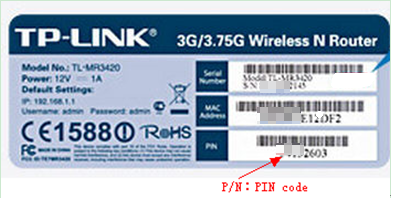
Step 2
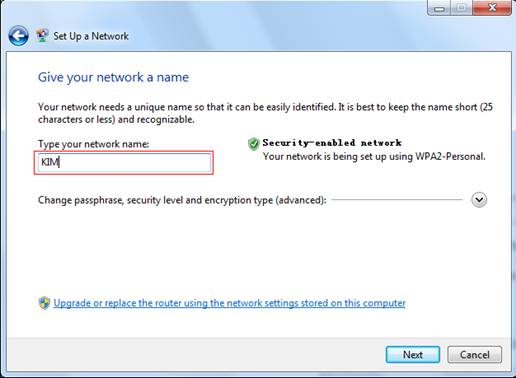
Click Next, Type in your network name
Step 3
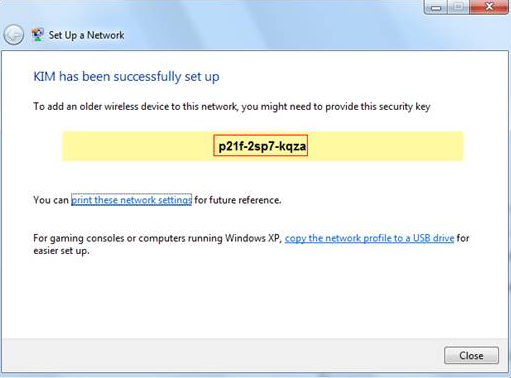
Click Next, the router will set a WPA2-Personal password for your wireless network automatically. You need remember the password. It is the key of your wireless network.
Step 4
Click Close. Then you have connected to the wireless network successfully.
Is this faq useful?
Your feedback helps improve this site.

TP-Link Community
Still need help? Search for answers, ask questions, and get help from TP-Link experts and other users around the world.


