How to connect to wireless network by using built-in Utility/Client on Windows 7
User Application Requirement
Updated 06-29-2022 02:19:05 AM79263
Step 1
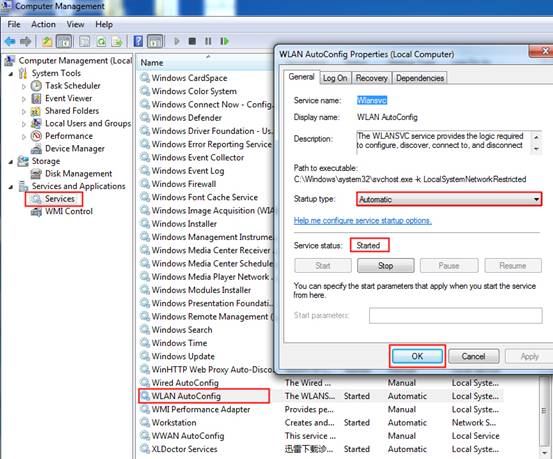
Right click "My computer" and select "Manage".
Step 2
Select "Services" in the left menu and find/enable "WLAN AutoConfig".
Step 3
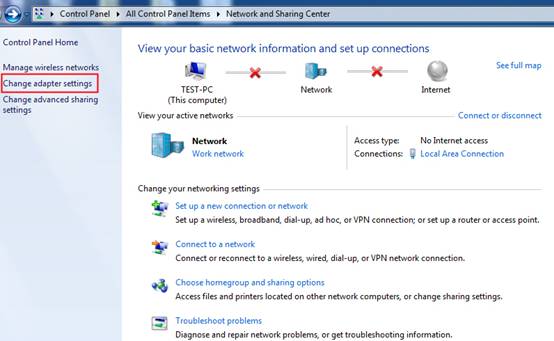
Click Start -> Control Panel, Select and click Network and Sharing Center or Network and Internet-> View network status and tasks, then click Change adapter settings.
Step 4
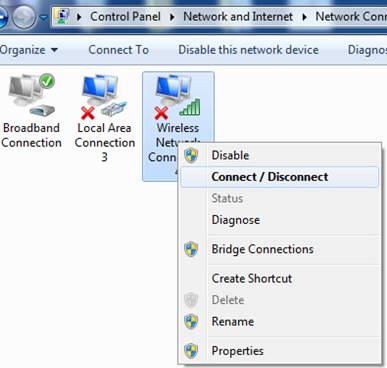
Select the wireless connection, right click it and select Connect/Disconnect.
Step 5
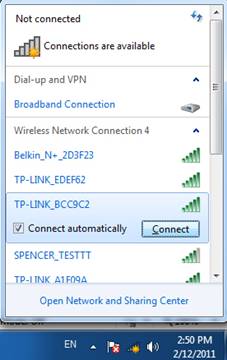
At the right side corner, a small popup show the wireless networks. Click Refresh button to view the wireless network. Select the correct one, then double click it or click Connect.
Step 6
If the wireless network is secured, you will be requested to enter the password to connect to it, then click OK.
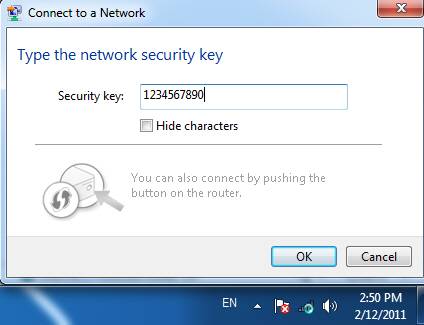
After a few minutes, it will connect to the wireless network.

Is this faq useful?
Your feedback helps improve this site.

What’s your concern with this article?
Dissatisfied with product
Too Complicated
Confusing Title
Does not apply to me
Too Vague
Other
Thank you
We appreciate your feedback. Click here to contact TP-Link technical support.
TP-Link Community
Still need help? Search for answers, ask questions, and get help from TP-Link experts and other users around the world.
This website uses cookies to improve website navigation, analyze online activities and have the best possible user experience on our website. You can object to the use of cookies at any time. You can find more information in our privacy policy . Don’t show again
Your Privacy Choices
This website uses cookies to improve website navigation, analyze online activities and have the best possible user experience on our website. You can object to the use of cookies at any time. You can find more information in our privacy policy . Don’t show again
These cookies are necessary for the website to function and cannot be deactivated in your systems.
Analysis cookies enable us to analyze your activities on our website in order to improve and adapt the functionality of our website.
The marketing cookies can be set through our website by our advertising partners in order to create a profile of your interests and to show you relevant advertisements on other websites.