
How to configure the TP-Link Travel Router in Standard Wireless Router mode
 211478
Introduction
The TP-Link Travel Routers support multiple operating modes to accommodate diverse connectivity needs, including Wireless Router/Access Point/Range Extender/Client/Hotspot mode. This article provides step-by-step instructions for configuring them in Wireless Router mode effectively.
Wireless Router mode enables internet sharing and network coverage for multiple devices in a home or small office. If it doesn’t match your network environment, identify which operation mode is suitable for you first.
Configuration
Note: This guide uses TL-WR902AC and TL-WR3602BE as reference models to show the installation steps. The actual interface and function options shown in this FAQ may vary slightly from those of your product model. For more details, please refer to your router's User Guide.
.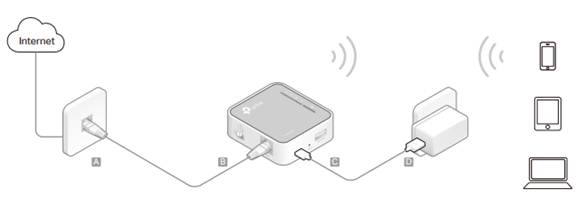
Step 1. Switch the operating mode to Share ETH, then use an Ethernet cable to connect the TL-WR902AC's Ethernet port to the internet source, such as the modem or the Ethernet port on the wall.
Note: There is no physical switch button on the TL-WR802N and TL-WR810N to control the operating mode; you can select the mode after accessing the web management.
Step 2. Connect your computer to the router wirelessly. The Wi-Fi network name (SSID) and password are on the router’s label.
Step 3. Open a browser to visit tplinkwifi.net or 192.168.0.1 to log in to the web management page with the username and password you set for the router. The default is admin (all lowercase) for both the username and the password.
Step 4. Click Next to start the Quick Setup.
Note: For the TL-WR802N and TL-WR810N, select Standard Wireless Router, then go to Step 5.
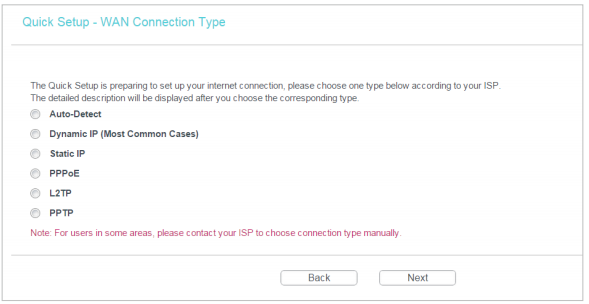
Step 5. Select the WAN connection type and input ISP-provided connection parameters (if required). Verify settings before clicking Next.
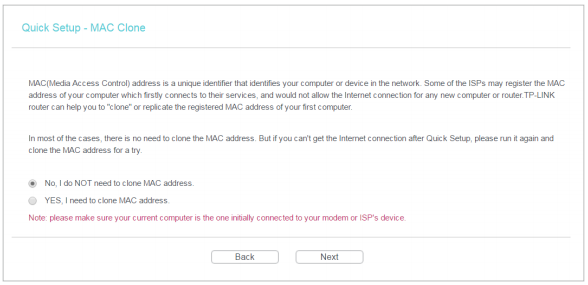
Step 6. On the MAC Clone page, select No, I do NOT need to clone MAC Address (recommended for most configurations). And click Next.
Step 7. Then complete the setup by following the on-screen instructions.
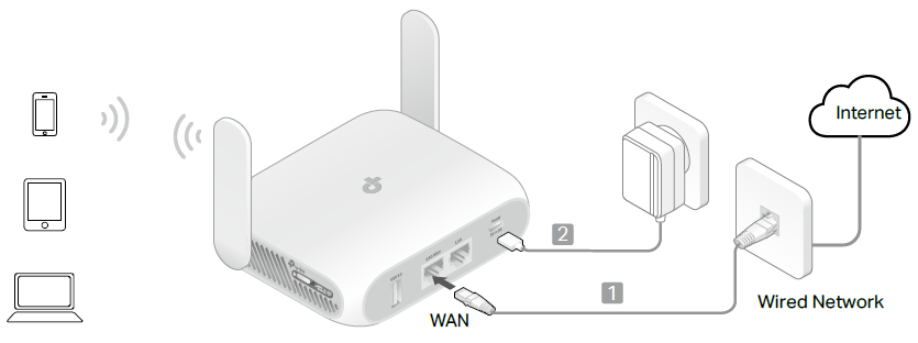
Step 1. Connect the router’s WAN port to your modem’s LAN port or wall Ethernet jack using the Ethernet cable.
Step 2. Power on the router and wait until the status LED stabilizes with a solid blue/red indicator.
Step 3. Connect a computer to the router wirelessly or via a wired connection, then open a browser to visit tplinkwifi.net or 192.168.0.1 to log in to the web management page.
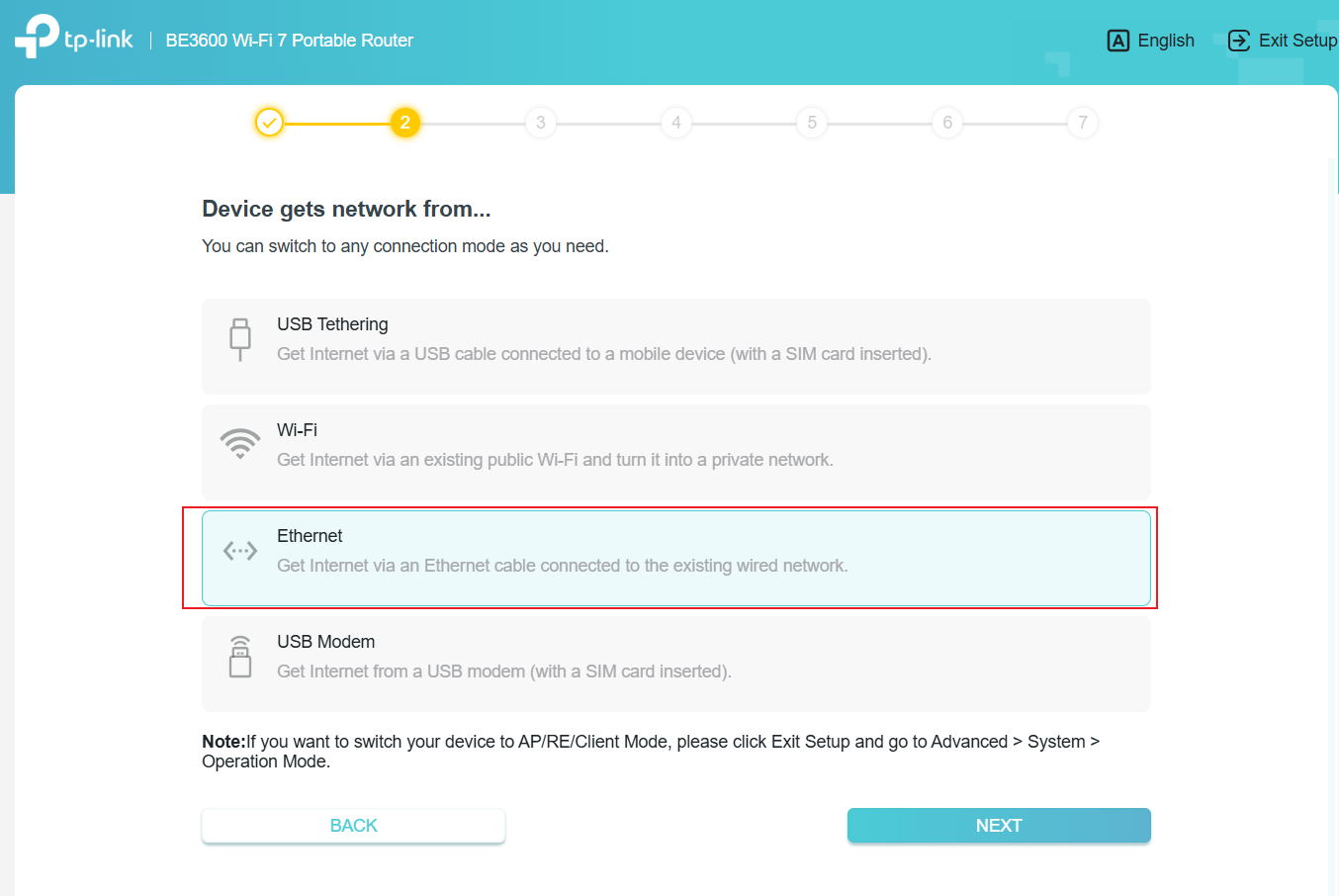
Step 4. After logging in, configure your time zone and set Ethernet as the internet source. Then click NEXT.
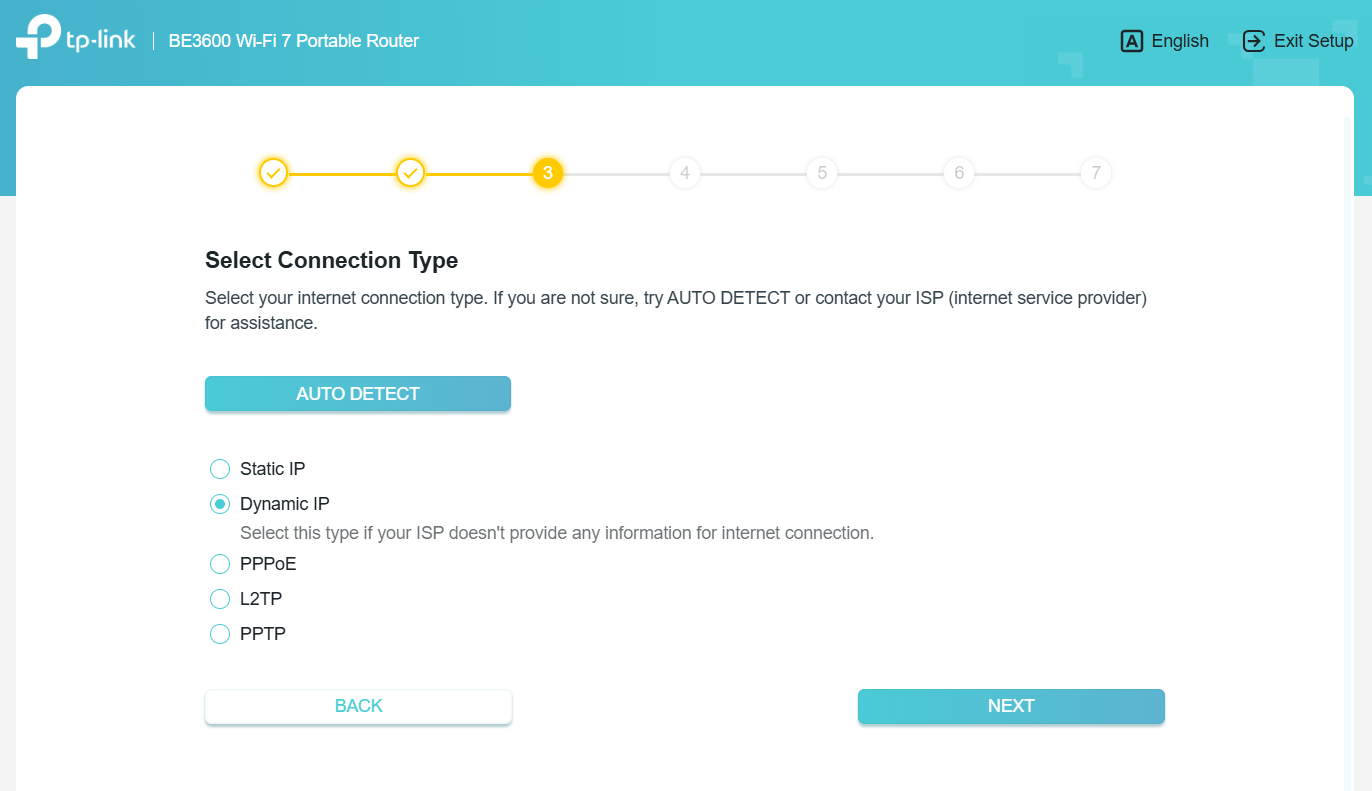
Step 5. Choose the appropriate connection type and input ISP-provided connection parameters (if required). Verify settings before clicking NEXT.
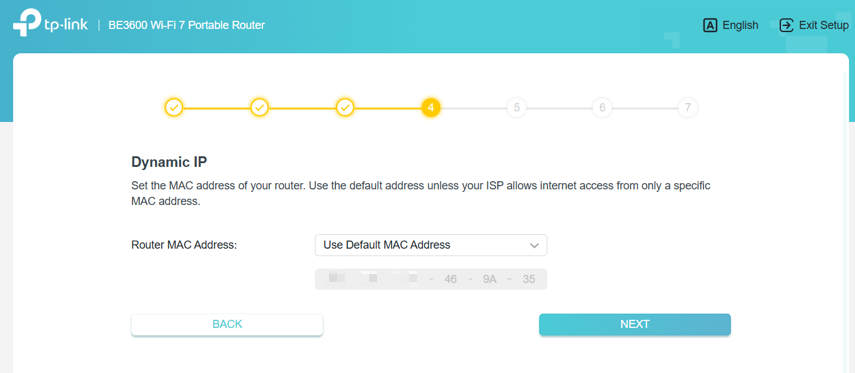
Step 6. Select Use Default MAC Address (recommended for most configurations). And click NEXT.
Step 7. Then complete the setup by following the on-screen instructions.
QA
Q1: Do the TP-Link Travel Routers support Multi-WAN?
A1: Some models do support multiple WAN Internet connections working simultaneously and adjust the priority between them. When there are 2 or more network sources, the preferred source network will automatically switch to the backup network source when the preferred one is disconnected. You can access the web management page, then go to Advanced > Network > Internet to find this option, if it's supported.
To get to know more details of each function and configuration, please go to the Download Center to download the manual for your product.
Is this faq useful?
Your feedback helps improve this site.

TP-Link Community
Still need help? Search for answers, ask questions, and get help from TP-Link experts and other users around the world.