
Notifications: How to Set Up and Manage Tapo & Kasa Alerts in the Tapo App
The Tapo app provides flexible notification controls for your Tapo and Kasa devices. You can customize system alerts, device notifications, camera and doorbell event notifications, notification schedules, and Do Not Disturb settings. This guide also explains how to view, manage, and troubleshoot notifications on your mobile device.
Key Takeaways
- Tapo notification settings are managed in the Tapo app under Me > Notifications, where you can control alerts for all connected smart devices.
- The Do Not Disturb feature lets you schedule quiet hours, with the option to add device exceptions for critical alerts.
- Enable Activity Notifications and choose detection types for supported Tapo and Kasa cameras and doorbells.
- View, mark as read, or delete notifications directly from the notification center in the Tapo app.
- Customize notification sounds through your phone settings and follow troubleshooting steps if notifications are delayed or not received.
Configure Notification Settings for All Smart Devices
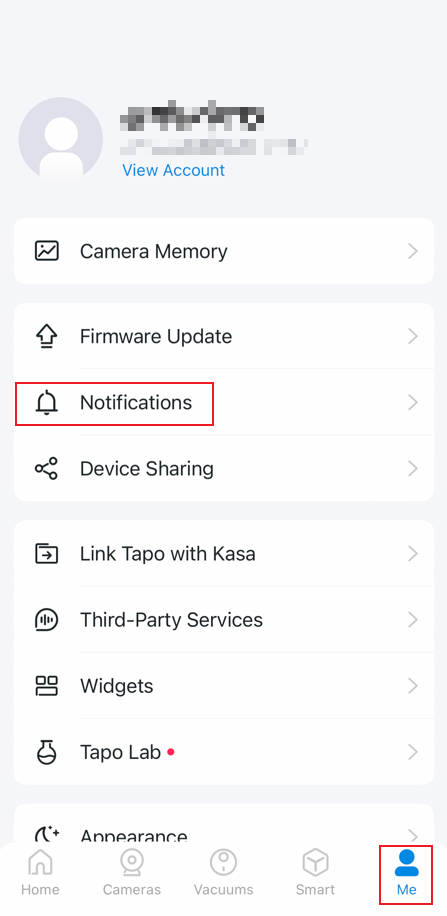
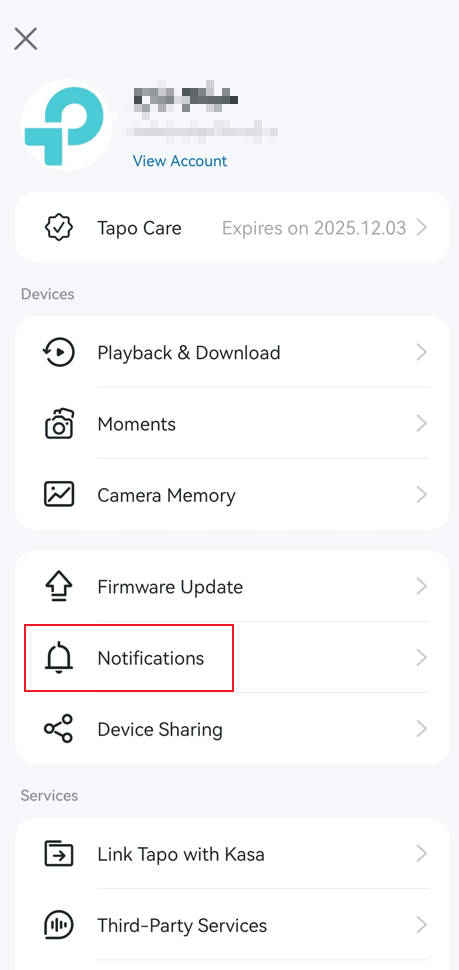
On the Tapo app Me page (tap Me in the bottom right corner or the profile picture in the top left corner), tap Notifications to manage notification Settings.
 or
or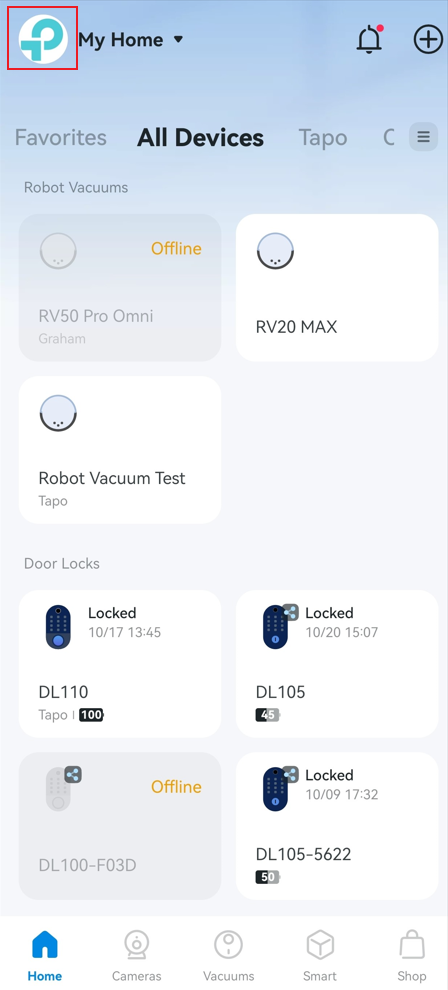
System Notifications
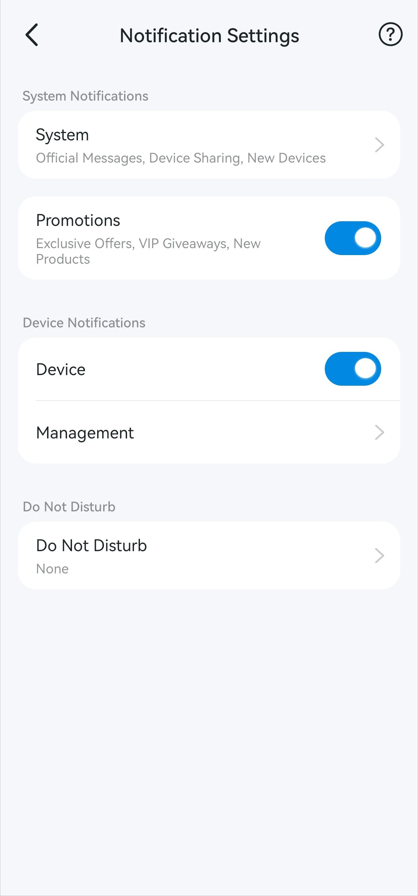
Tap System Notifications to toggle on or off the Device Sharing, Firmware Update, and New Device Found options to decide whether to receive these notifications on your phone.
Promotions
Toggle Promotions on or off to decide whether to receive exclusive offers, VIP giveaways, and new product notifications.
Device Notifications
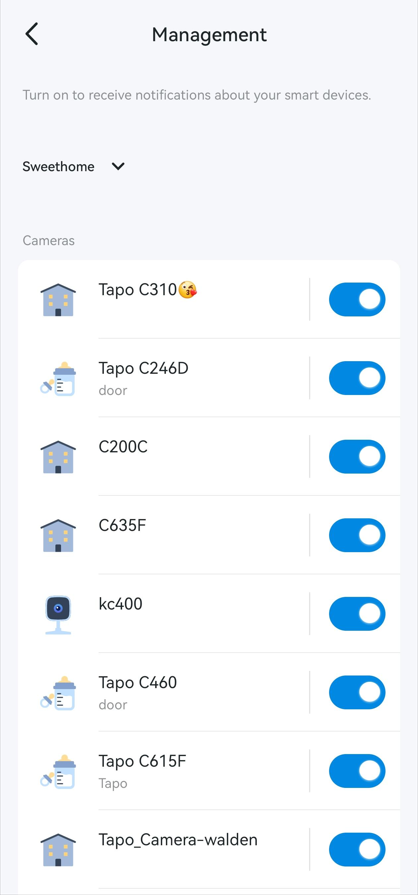
Enable Device Notifications, then tap Management to manage notifications for individual devices. Turn the switch next to each device on or off based on your preference.
Do Not Disturb
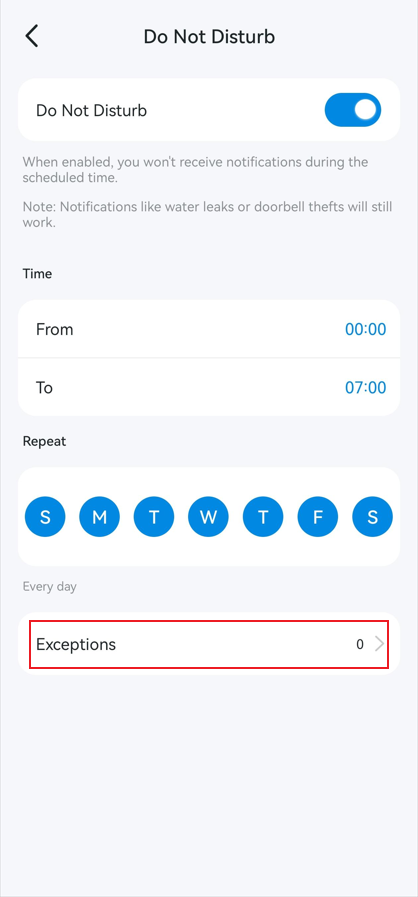
Tap Do Not Disturb to set a schedule during which notifications will be muted. To allow notifications from specific devices during this period, tap Exceptions > Add devices.
Note: Critical alerts, such as water leak and doorbell anti-theft notifications, will still be delivered during Do Not Disturb hours.
Configure Activity Notification Settings for Cameras and Doorbells
To receive push notifications when your Tapo or Kasa camera/doorbell detects an event, follow these steps:
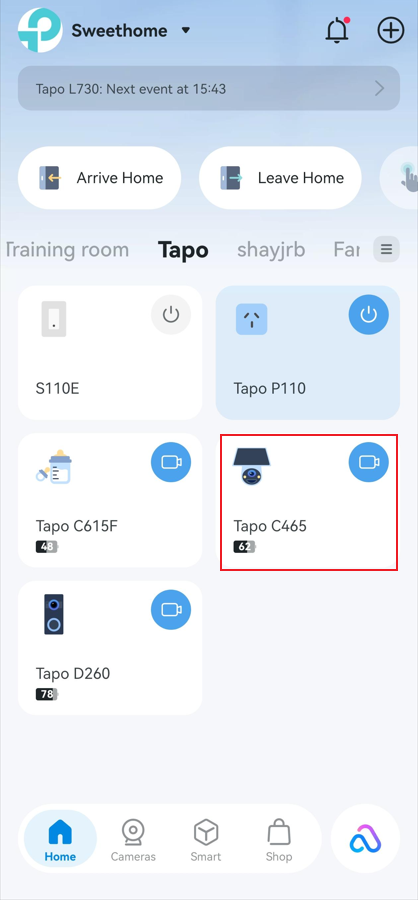
Step 1. On the Tapo app Home page, tap your camera or doorbell card to enter Live View.
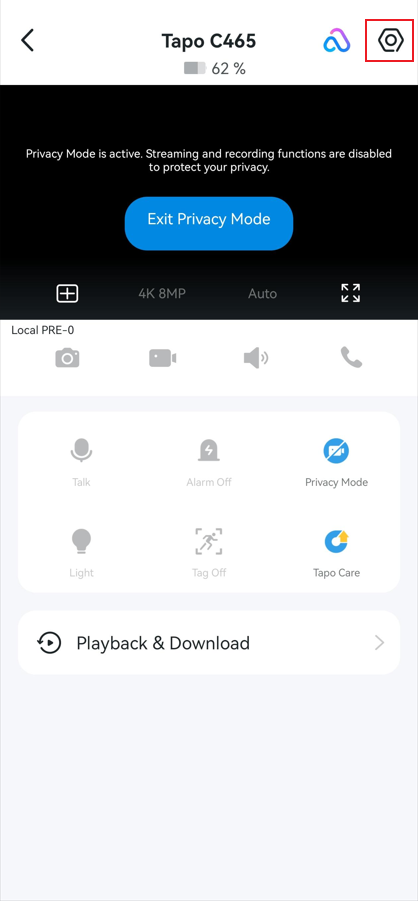
Step 2. Tap the gear icon in the top right corner to enter the Device Settings.
Step 3. Click on Notifications.
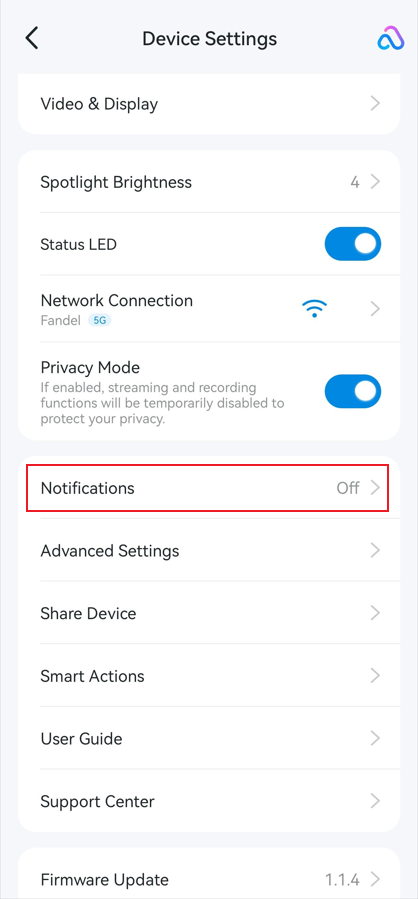
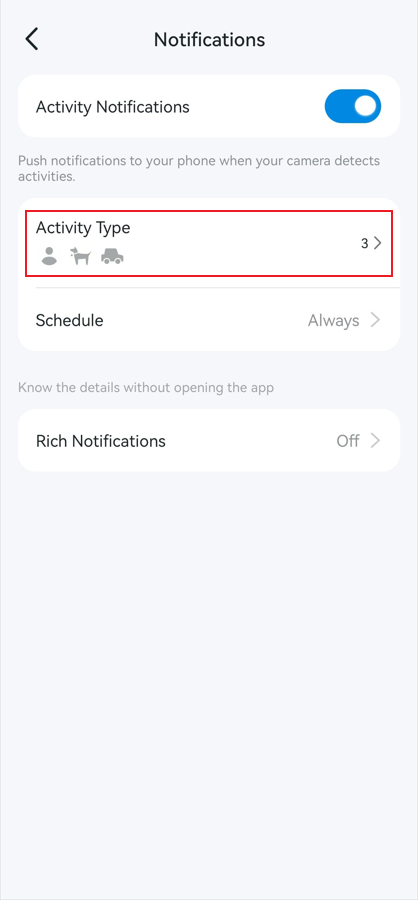
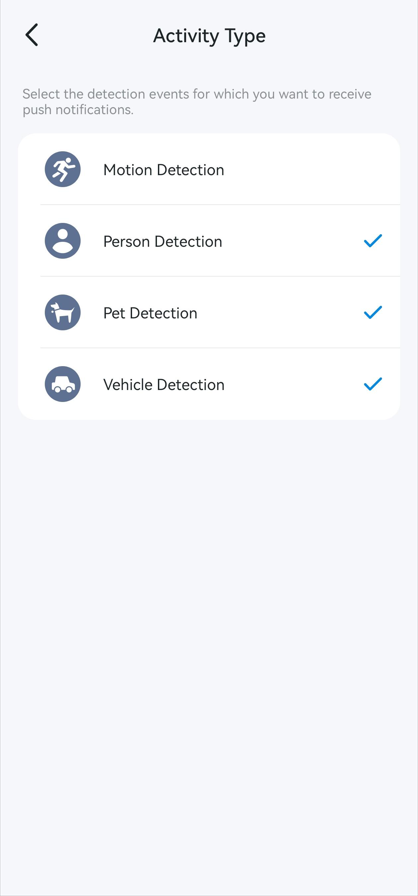
Step 4. Enable Activity Notifications and Rich Notifications (Tapo Care Required) as needed. Tap Activity Type to select the detection types for which you want to receive push notifications.
Note: Some models do not support Activity Type. On these models, all detected events will generate notifications.
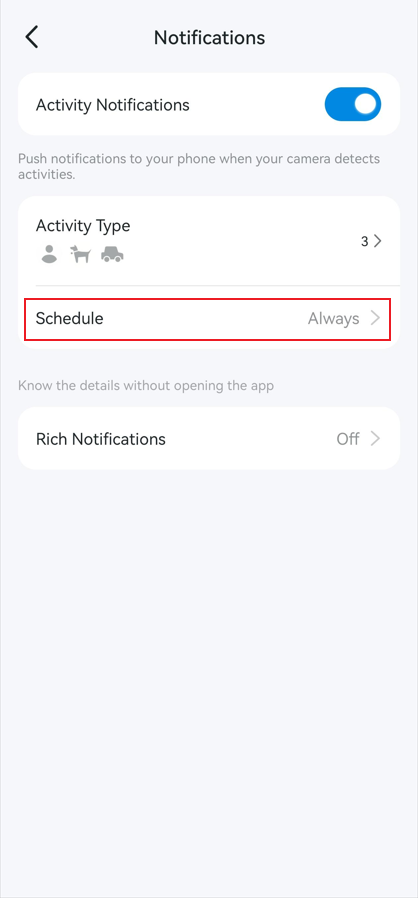
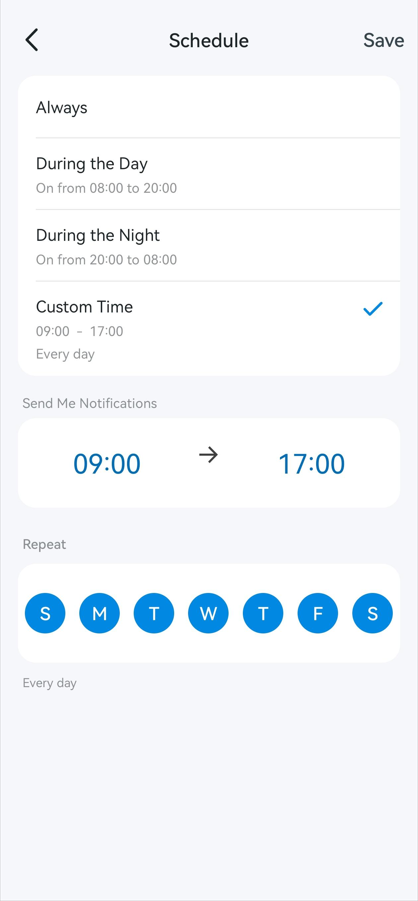
Step 5. Configure the notification schedule. If you select Custom Time, you can customize the time period for receiving push notifications as you prefer.
View and Manage Notifications
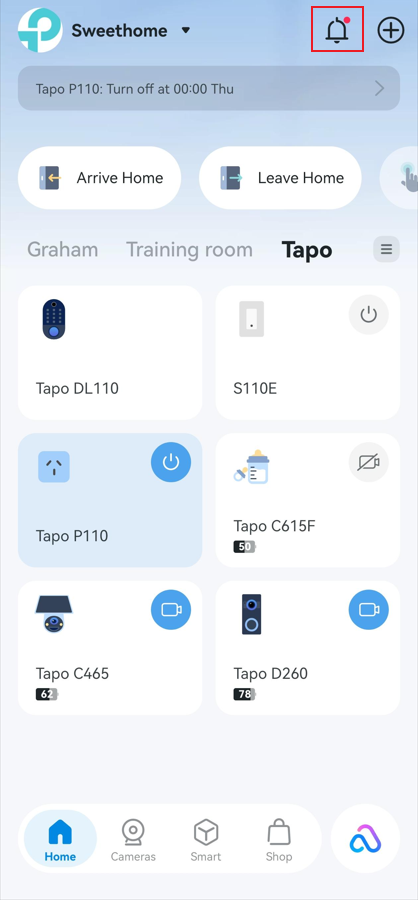
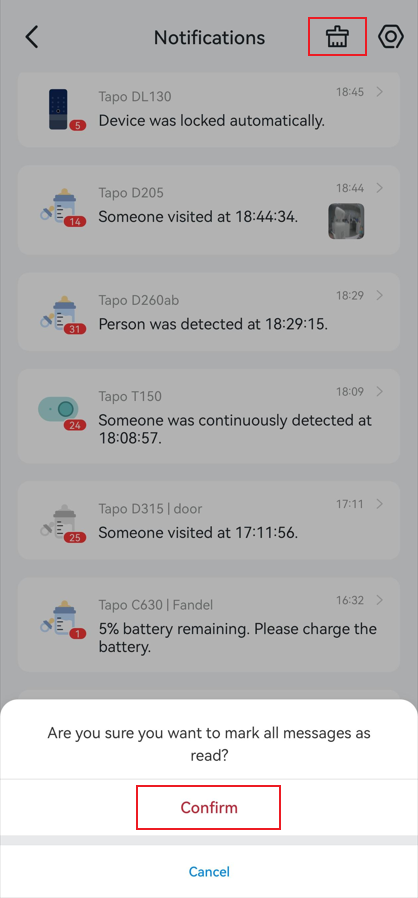
On the Tapo app Home page, tap the bell icon in the top-right corner to view notifications. To mark all notifications as read, tap the delete icon in the top-right corner, then tap Confirm.
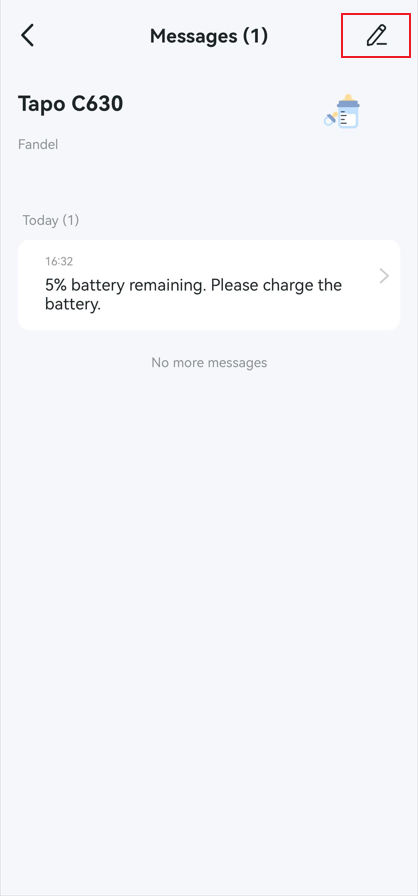
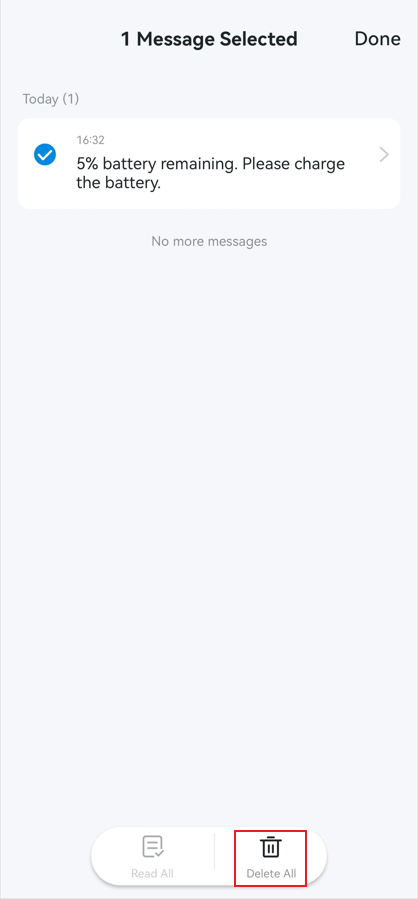
To manage notifications for a specific device:
- Tap the device to view its notifications.
- Tap the edit icon in the top-right corner.
- Tap Delete All to remove all notifications on the current page, or select specific notifications and tap Delete.
Q&A
Q1: How to change the notification sound for the Tapo app.
If you'd like to change the notification sound for the Tapo app, follow the instructions for your device below.
For Android Devices:
- Go to Settings > Apps (or Manage Apps) on your phone.
- Find and select Tapo.
- Tap Notifications.
- Configure notification preferences, including the notification sound.
Note: The exact menu path may vary by device manufacturer. If you cannot find these settings, contact your phone manufacturer's support team.
For iOS Devices:
- Go to Settings > Sounds & Haptics > Default Alerts.
- Select the notification sound you want to use.
Note: iOS does not allow apps to use custom notification sounds beyond the system-provided options.
Q2: What should I do if I am not receiving notifications?
If notifications are enabled in the Tapo app but you are not receiving on your phone, please refer to: How to Troubleshoot Tapo and Kasa Notifications Not Working or Delayed
To learn more about each function and configuration, please visit the Download Center to download the manual for your product.
Looking For More
Is this faq useful?
Your feedback helps improve this site.



TP-Link Community
Still need help? Search for answers, ask questions, and get help from TP-Link experts and other users around the world.