
How to Switch Wi-Fi for Tapo Camera in the Tapo App
Need to connect your Tapo camera to a stronger Wi-Fi network? The Tapo app lets you change the camera's Wi-Fi connection without resetting or reconfiguring the device, making it especially convenient for cameras installed in hard-to-reach locations. Follow the steps below to switch networks quickly.
Note: This feature isn't available on all camera models and may vary by hardware and firmware version. Before proceeding, make sure your Tapo app and device firmware are up to date and that the camera is online.
Key Takeaways
- Switch your Tapo camera to a new Wi-Fi network directly in the Tapo app.
- No device reset or reconfiguration is required during the Wi-Fi switch process.
- Ensure the camera is online and both the Tapo app and camera firmware are up to date before starting.
- If the Wi-Fi switch process fails or is interrupted, the camera remains connected to the previous Wi-Fi network.
- After switching successfully, the camera will not automatically reconnect to the previous Wi-Fi if the new network becomes unstable or disconnects.
How to Switch Wi-Fi via Tapo App
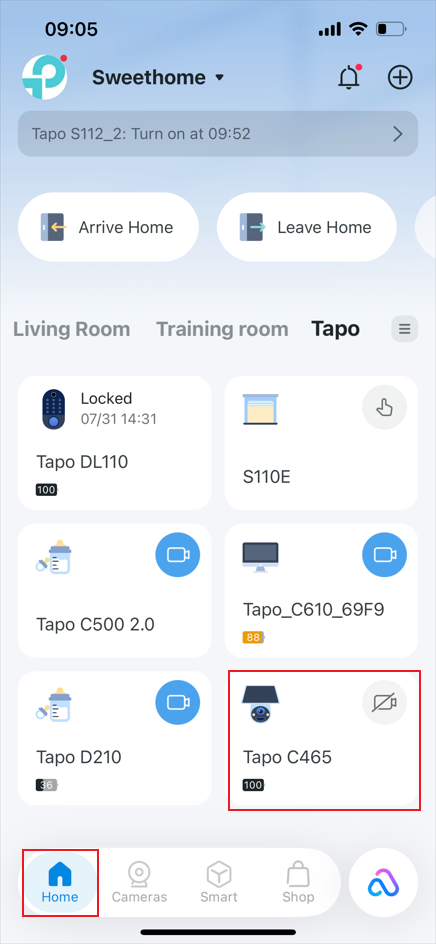
Step 1. Open the Tapo app and tap your camera on the Home page to enter the Live View.
Step 2. Tap the Settings (gear) icon in the upper-right corner to enter Device Settings.
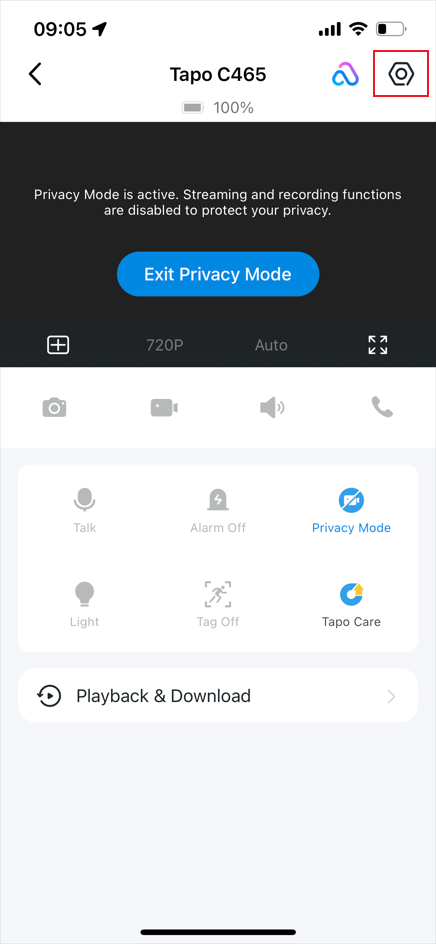
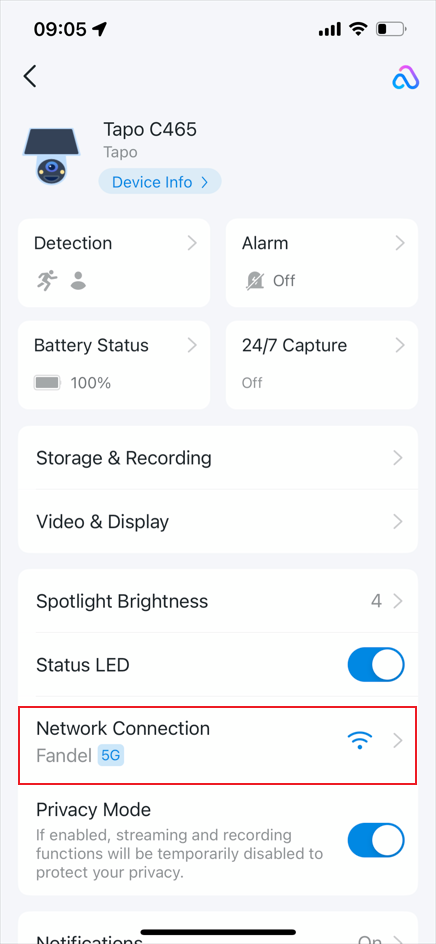
Step 3. Select Network Connection > Switch Wi-Fi.
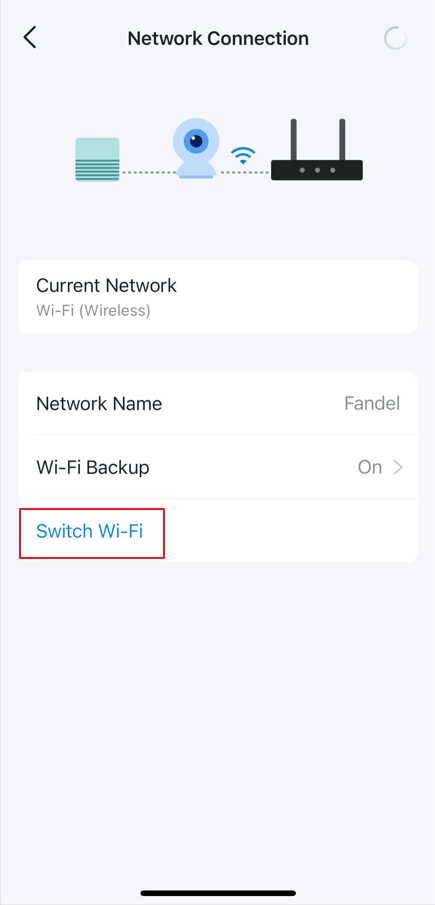
Step 4. Choose the new Wi-Fi network, enter the password, verify the Wi-Fi information, then tap Next.
If your Wi-Fi network is not listed, see Scenario 3 in Troubleshooting Guide: Tapo Camera Not Connecting to Wi-Fi.
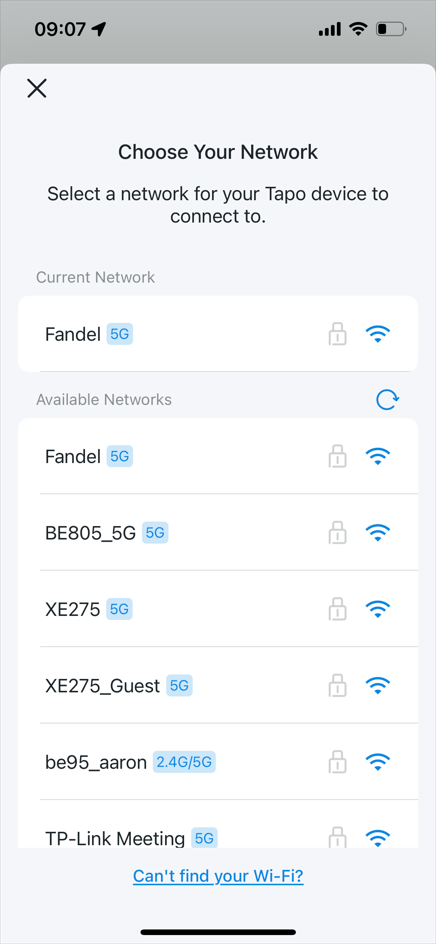
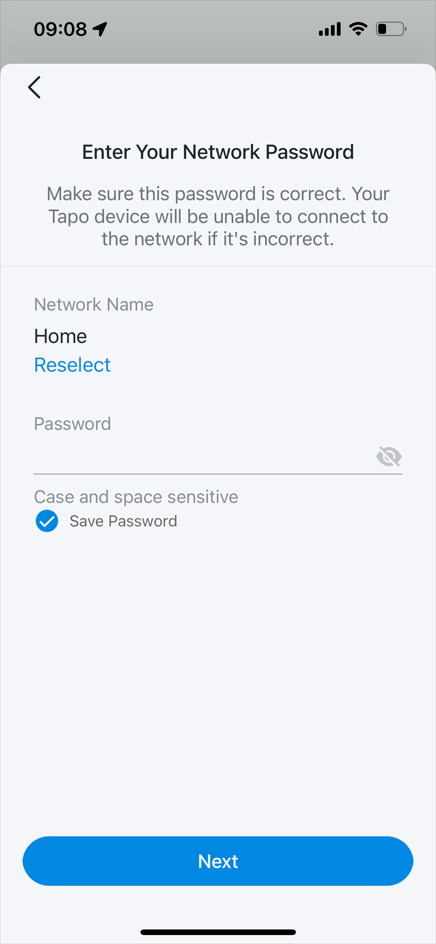
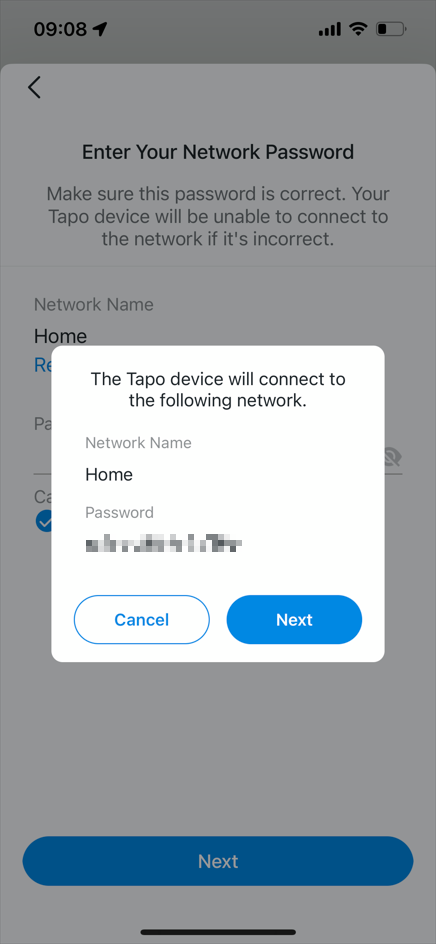
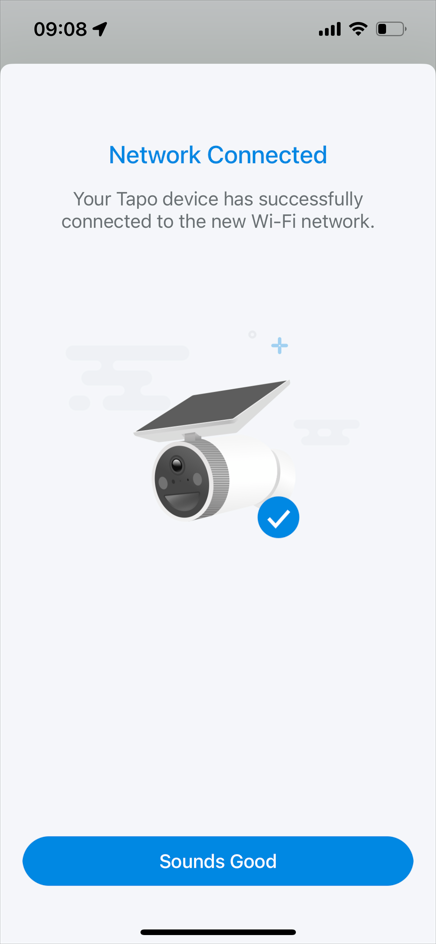
Step 5. Wait for the camera to connect to the new Wi-Fi network.
If the connection fails, refer to Scenario 4 in Troubleshooting Guide: Tapo Camera Not Connecting to Wi-Fi.

Q&A
Q1: What happens if the Switch Wi-Fi process is interrupted or fails?
If the Wi-Fi switch process is canceled, interrupted, or fails before completion, the camera will keep its existing Wi-Fi settings and remain connected to the previous Wi-Fi network.
Q2: Will the camera automatically switch back to the previous Wi-Fi network if the new one becomes unstable or disconnected?
Once the camera connects to a new Wi-Fi network, it will continue using that network. It will not automatically switch back to the previous one if the connection becomes weak, unstable, or unavailable.
To help maintain connectivity, we recommend connecting the camera to a Tapo Hub and enabling Wi-Fi Backup.
If you need to use a different Wi-Fi network, you can manually switch the camera's Wi-Fi settings in the Tapo app. If the camera goes offline, refer to Troubleshooting Guide: Tapo Camera, Doorbell, or Smart Device Going Offline.
To learn more about each function and configuration, please visit the Download Center to download the manual for your product.
Citește despre:
A fost util acest FAQ?
Părerea ta ne ajută să îmbunătățim acest site.

TP-Link Community
Still need help? Search for answers, ask questions, and get help from TP-Link experts and other users around the world.