What should I do if Tapo/Kasa notifications are delayed or not working?
 47493
47493Introduction
This FAQ article provides step-by-step instructions for resolving notification issues on Tapo/Kasa cameras and doorbells, including when notifications are not received, delayed, unstable, or missing for doorbell ring calls.
Troubleshooting
Scenario 1. Cannot receive Tapo/Kasa notifications at all
Step 1. Ensure that notification settings are enabled in the Tapo/Kasa app.
Note: If you are unable to receive notifications at a specific time, we recommend setting the Notification Schedule to Always for testing.
Step 2. Ensure that the Notifications setting on your phone is enabled.
- For iOS: Launch Settings > Notifications, ensure Show Previews is on Always, and the Allow Notifications for the Tapo/Kasa App is on.
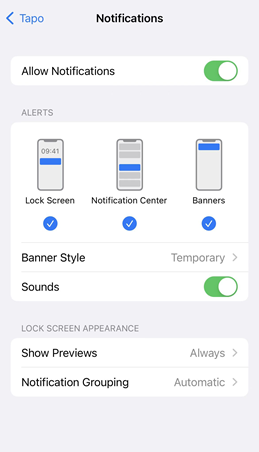
Note: The images in this article show Tapo as an example. The Kasa system settings are the same.
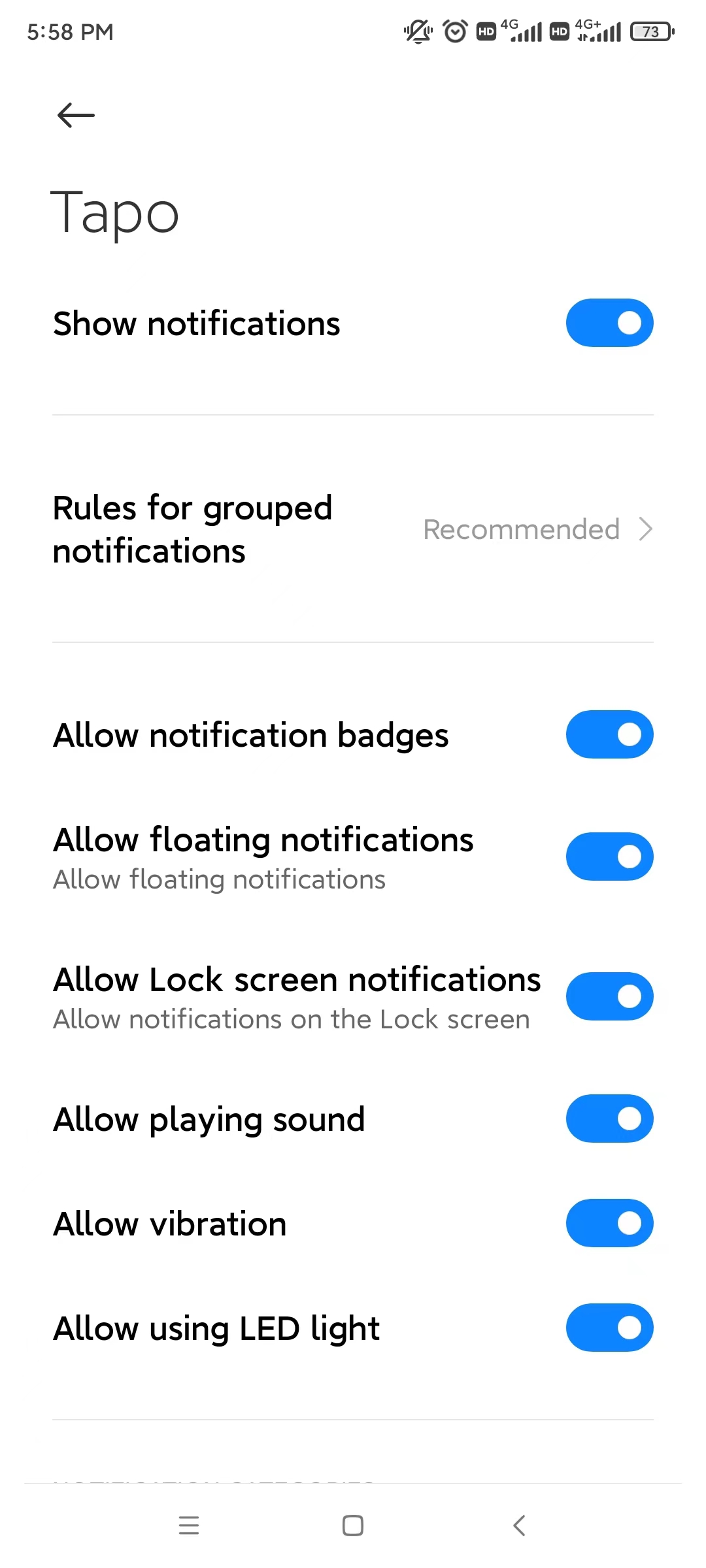
For Android: Launch Settings > Notifications & status bar > App notifications, locate the Tapo/Kasa App and ensure the Show notifications option is on.
Step 3. Turn off Do Not Disturb.
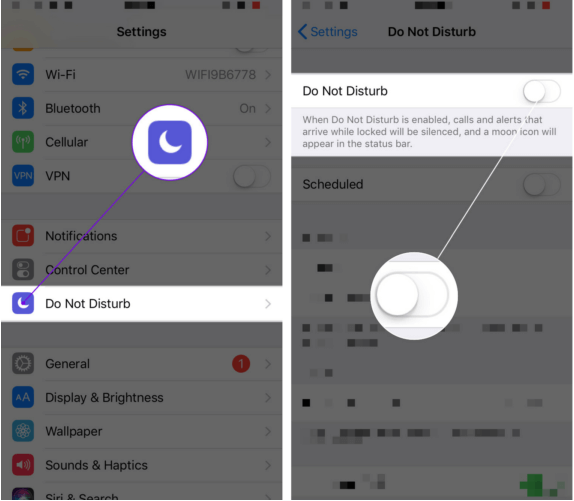
- For iOS: Go to Settings > Do Not Disturb, then tap on the switch next to Do Not Disturb to turn it off.
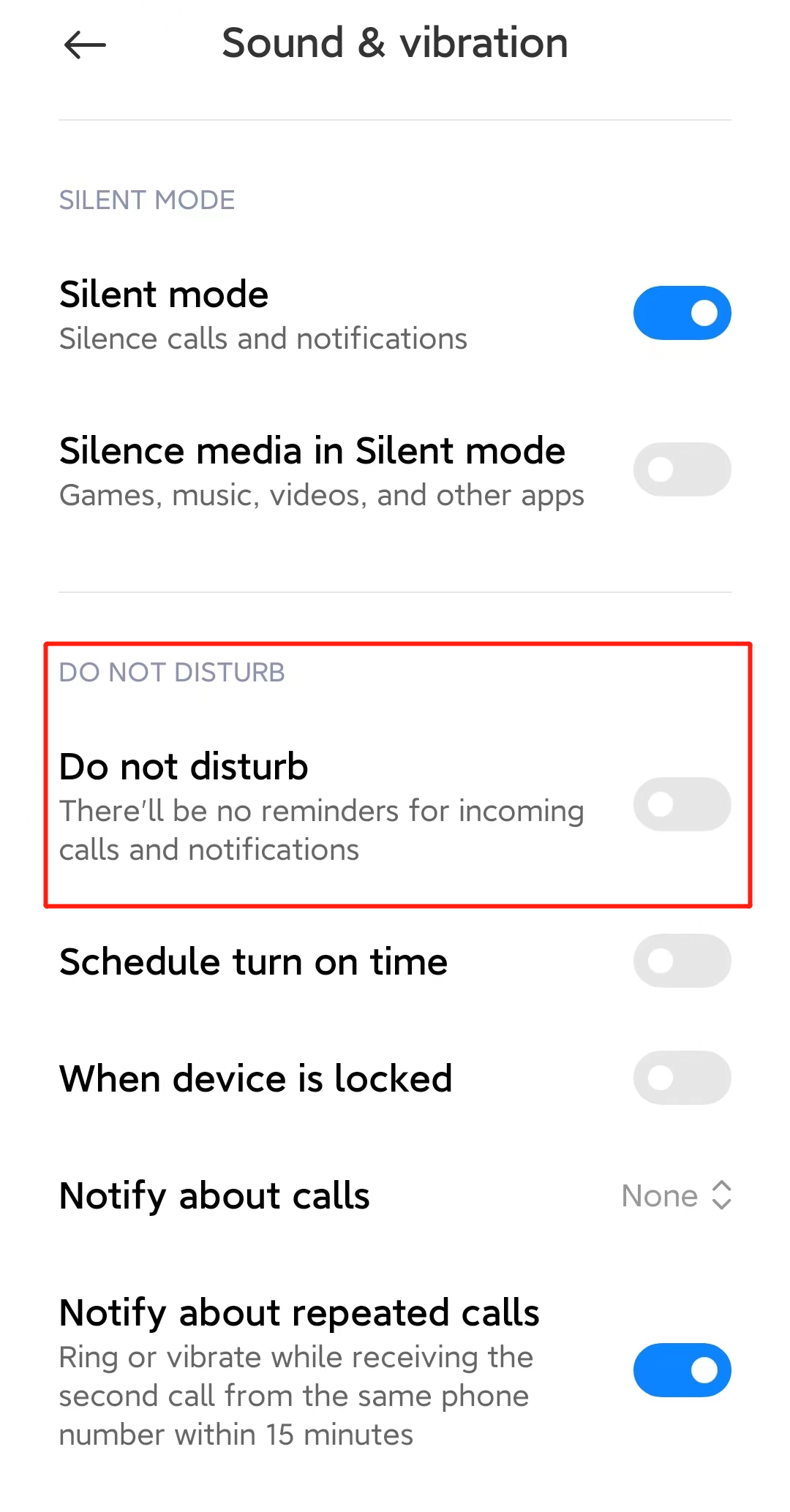
- For Android: Launch Settings > Sound & vibration > Do not disturb, locate the Do not disturb option, and turn it off.
Step 4. Ensure the phone's Wi-Fi & Cellular connections are working correctly.
Step 5. For Android: ensure your phone’s operating system and Google Play services are up to date. Run FCM diagnostics by opening the dialer and entering ##426##. This opens the FCM diagnostics page. Review the status. If it shows “Not connected,” FCM service is unavailable, and you should contact Google Support.
Reference Google’s official troubleshooting guide: Google FCM Android diagnostics FAQ.
Scenario 2. Notifications delayed
Case 1. General Android Devices
Step 1. Allow notification permissions in Settings for Tapo/Kasa.
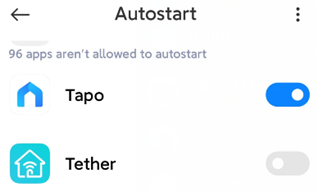
Step 2. Allow Tapo/Kasa to auto‑start in Security/Settings > Autostart.
Step 3. Turn off battery optimization/limitations for the Tapo/Kasa app.
Step 4. Lock Tapo/Kasa in “recent pages” to ensure it runs in the background.
Step 5. If none of these work, reboot the Tapo/Kasa camera to make notifications take effect.
Case 2. Samsung Devices
Step 1. Prioritize notifications of the Tapo/Kasa app.
Open Settings > Apps > Select Tapo/Kasa > Notifications, Toggle “Notification” ON and set as priority.
Step 2. Enable lock screen notifications
Open Settings > Notifications > Notifications (Lock screen), Toggle ON “Show on always‑on display”.
Go to Do Not Disturb > Apps > Tapo/Kasa, ensure “Do Not Disturb” is not applied.
Step 3. Turn off battery limit
Open Settings > Battery > Background usage limits, Add Tapo/Kasa to “Never sleeping apps”.
Step 4. Lock the app
Tap Menu > Check “recent pages”, tap the Lock Icon of Tapo/Kasa, and tap Done.
Case 3. Huawei Devices
Step 1. Disable automatic App‑Launch management
Open Settings > Battery > App Launch > Find Tapo/Kasa, toggle OFF “Manage automatically” and allow background running.
Step 2. Allow lock screen notifications
Open Settings > Apps > Tapo/Kasa > Notifications, allow lock screen display.
Step 3. Lock the app
Tap Menu > Check “recent pages”, pull down Tapo/Kasa page until the lock icon appears.
Case 4. Xiaomi Devices
Step 1. Turn off battery limit
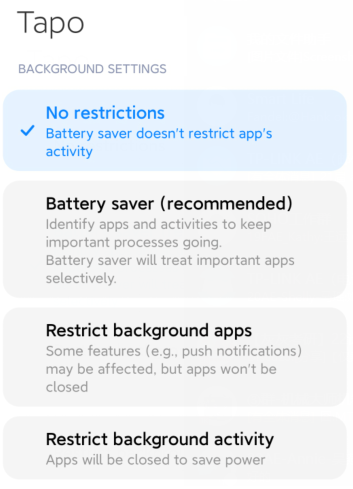
Open Settings > Battery & Performance > Tap Settings icon (top‑right) > Select “App battery saver” > Find Tapo/Kasa, Toggle ON “No restrictions”.
Step 2. Enable auto-start permission
Open Settings > Apps > Permissions > Auto-start> Find Tapo/Kasa, then toggle ON.
Step 3. Lock the app
Tap Menu > Check “recent pages” > Long-press Tapo/Kasa page, tap lock icon.
Case 5. OnePlus Devices
Step 1. Turn off battery limit
Open Settings > Battery > Battery Optimization > Find Tapo/Kasa, then toggle OFF.
Step 2. Enable auto-start permission
Open Settings > Apps > Auto‑Launch > Find Tapo/Kasa, then toggle ON.
Step 3. Lock the app
Tap Menu > Check “recent pages” > Long-press Tapo/Kasa page, then tap the lock icon.
QA
Q1: Why am I still not receiving notifications after completing the troubleshooting steps?
A1: Please check the source of the notification to confirm whether the detection event was triggered correctly. For reference, see Detection is not working on Tapo/Kasa Camera. If the issue persists, contact technical support and provide the app log. Instructions can be found here: How to get the log of Tapo Camera.
Q2: Why doesn’t my doorbell ringcall have its own schedule?
A2: At present, ringcall and ring push notifications follow the same schedule as activity notifications. This means that the notification switches and schedules configured for activity notifications also affect ring notification and ringcall.
A fost util acest FAQ?
Părerea ta ne ajută să îmbunătățim acest site.