
TP-Link Router Skill for Alexa: Step-by-Step Setup for Voice Control
The TP-Link Router Skill for Alexa lets you control and customize your TP-Link Wi-Fi network using simple voice commands through any Alexa-supported device. This guide covers everything you need to get started, including what you need before setup and how to connect your TP-Link ID to the Alexa app in six straightforward steps.
Key Takeaways
- The TP-Link Router Skill for Alexa lets you control and customize your home network using voice commands through any Alexa-supported device.
- To use the skill, you need an Alexa-supported TP-Link product, a TP-Link ID bound to that product, and the Alexa app installed on a mobile device.
- The TP-Link Router Skill is separate from the TP-Link Kasa Skill — select "TP-Link Router" specifically to control TP-Link Wi-Fi products such as routers and Deco systems.
- Setup requires linking your TP-Link ID to your Alexa account through the Skills and Games section of the Alexa app.
Before You Begin: Prerequisites
To use the TP-Link Router Skill, you must have all three of the following:
- An Alexa-supported TP-Link product. Find out if your device supports Alexa by checking the Alexa Compatibility List for TP-Link Wi-Fi Products.
- A TP-Link ID bound to the Alexa-supported TP-Link product. If you don't have one, please refer to the Wireless Router or Deco.
- A mobile device with the Alexa app installed.
With the TP-Link Router Skill for Alexa, you can now control and customize your home network through simple voice commands.
Note: Currently, this feature is only supported in German (DE),English (US),English (CA),English (IN),English (AU),English (UK/IE),Japanese (JP).
How Do I Enable TP-Link Router Skill?
Step 1. Open the Alexa app.
Step 2. Go to Skills & Games.
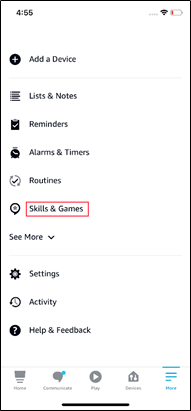
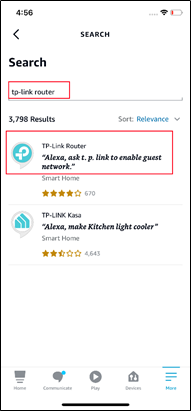
Step 3. Search for and Select the TP-Link Router Skill.
Note: “TP-Link Router” Skill is different from the “TP-Link Kasa” Skill. Please CHOOSE “TP-Link Router” Skill in order to control TP-Link Wi-Fi Products. For more details about these two skills and the differences between them, click What are the Differences between the TP-Link Router Skill and TP-Link Kasa Skill?.
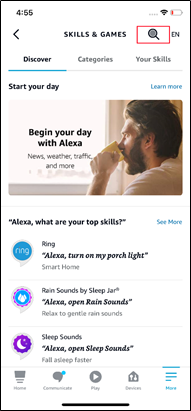
Step 4. Enable the Skill.
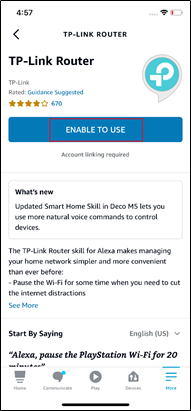
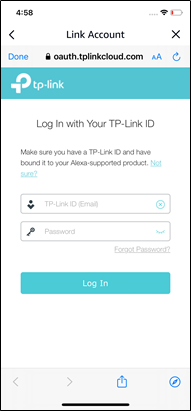
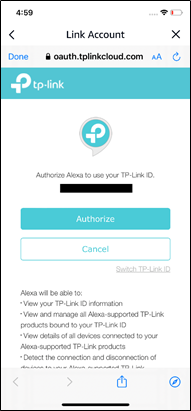
Step 5. Log In with Your TP-Link ID and Authorize.
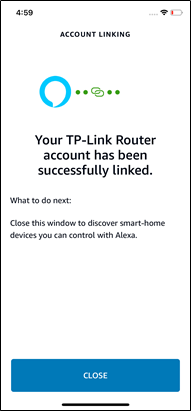
Step 6. Confirm Your Account Is Linked.
Your ID is now linked to Alexa.
You can enjoy using Alexa voice commands to control your TP-Link device directly.
How do I use Amazon Alexa with my TP-Link Alexa-supported products?
If you need to enable the Access Control Skill, please refer to the FAQ How to enable the Access Control Skill in your Alexa App.
A fost util acest FAQ?
Părerea ta ne ajută să îmbunătățim acest site.
-F_large_1560310831908g_normal_1577328413052u.jpg)
_Overview_normal_20211130021244m.png)
