
How to use Encrypt microSD Card Function on Tapo Camera
 36236
36236Introduction
To enhance the security of video recordings stored on the camera's inserted microSD card, we have implemented an Encrypt microSD Card feature. This functionality aims to prevent unauthorized access to the data stored on the microSD card, ensuring that even if the card is lost or the camera is stolen, the sensitive information remains protected from prying eyes.
Configuration
Part 1: Features of the Encrypt microSD Card Function on Tapo Camera
-
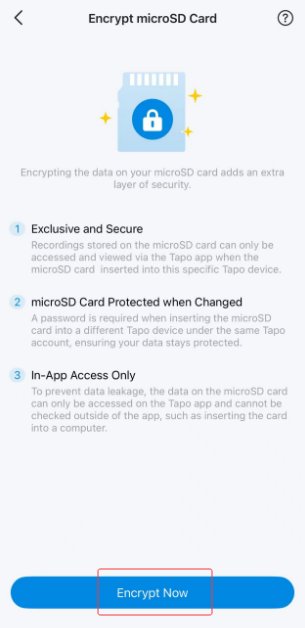
Exclusive and Secure
Recordings stored on the microSD card can only be accessed and viewed via the Tapo app when the microSD card is inserted into the specific Tapo camera.
-
microSD Card Protected when Changed
A password is required if you insert the microSD card into another Tapo device under the same TP-Link account. This adds an extra layer of protection for your data.
Tapo App Access Only
Access to the encrypted microSD card is only available via the Tapo app. If you insert the encrypted microSD card into a computer or another device, the data will be unreadable.
Note:
- Support for this feature varies by model. Refer to the app display for accurate details.
- To enable Encrypt microSD Card, please ensure a microSD card is inserted into the camera.
- A Tapo camera that doesn't support the Encrypt microSD Card feature can not recognize and read the encrypted SD card, either.
Part 2: How to enable and Disable the Encrypt microSD Card feature on Tapo Camera
-
Enabling Encrypt microSD Card
Step 1. Ensure the microSD card is properly inserted into the camera and that storage settings are configured.
How can I store the Tapo camera video recordings on a microSD card?
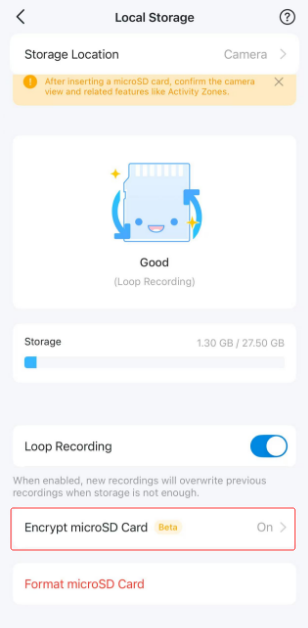
Step 2. Go to the Tapo app > Camera's Device Settings > Storage & Recording > Local Storage page, tap Encrypt microSD Card, and then tap Encrypt Now.
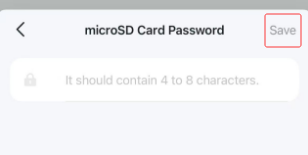
Step 3. Set microSD Card Password (4 to 8 characters), then tap Save to apply the changes.
-
Disabling Encrypt microSD Card
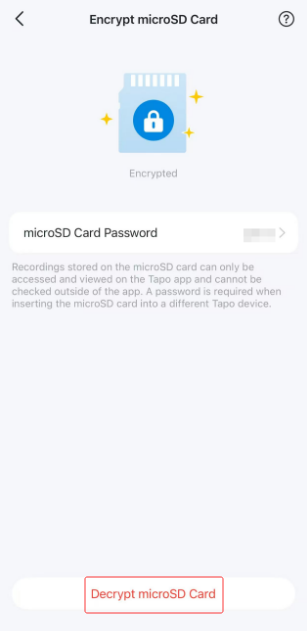
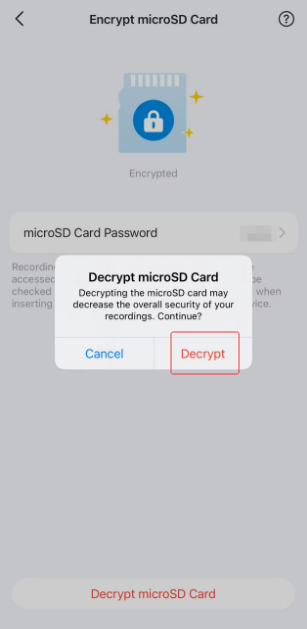
Go to the Tapo app > Camera's Device Settings > Storage & Recording > Local Storage page, tap Encrypt microSD Card, tap Decrypt SD Card, and then click Decrypt on the prompt message.
Q&A
Q1: How can I access video recordings on the encrypted microSD card via a computer?
A1: You can temporarily turn off the Encrypt microSD Card feature using the Tapo app. This will allow you to access the video recordings directly on the microSD card using a computer.
Q2: What if I forget the password for my encrypted microSD card?
A2:
- Method 1: Check the password in the Tapo app
Insert the microSD card into the camera that you have set the password for, open the Tapo app, go to the camera's Device Settings > Storage & Recording > Local Storage > Encrypt microSD Card page, and you will see the password.
- Method 2: Format microSD card
If you format the microSD card after inserting it into a Tapo camera, all data, including the password protection, will be cleared.
Q3: How can I use an encrypted microSD card on other cameras?
A3: Ensure that the new camera supports the Encrypt microSD Card feature. You will need to enter the password to use the microSD card on the new camera.
If the new camera does not support the Encrypt microSD Card feature, turn off this feature on the original camera first.
Note:
The Encrypt microSD Card feature is currently in beta testing. While we've done our best to ensure a seamless experience, there may be some bugs or unexpected behavior.
While using this feature, please keep in mind that:
- The feature could change or be removed in future updates.
- We appreciate your feedback to help us improve this feature for a future full release.
Is this faq useful?
Your feedback helps improve this site.

TP-Link Community
Still need help? Search for answers, ask questions, and get help from TP-Link experts and other users around the world.