
How to Configure MAC Address Clone on a TP-Link Archer Router: Two Scenarios Covered
Some Internet Service Providers (ISPs) register the MAC address of the first device that connects to their modem. When you add a TP-Link Archer router to your network, the modem may not recognize it because the MAC address no longer matches. MAC address clone on your TP-Link Archer router lets you copy the registered address so your modem accepts the new connection.
Key Takeaways
- Some ISPs register the MAC address of the first computer or router connected to the modem, which can prevent a new router from getting Internet access until the MAC address clone is configured.
- TP-Link Archer routers support two MAC clone methods: Use Current Computer MAC Address (clones the connected computer's MAC address) and Use Custom MAC Address (allows manual entry of a specific MAC address).
- MAC address clone settings are found under Advanced > Network > Internet in the TP-Link router's web-based management interface.
- You can confirm that MAC cloning was successful by checking that the Internet MAC address under Advanced > Status matches the address you cloned.
- If replacing an old router, there are two methods: connect the new router through the old one to pull the MAC address from the DHCP client list, or check the old router's WAN MAC address under Advanced > Status and enter it manually on the new router.
Situation 1: No old router, but can get internet when a wired computer connects directly to the modem
Step 1. Disconnect the router, connect the computer to the modem that used to dial up the modem. Make certain the computer has internet access to the modem.
Step 2. Disconnect the computer from the modem, connect the modem to the router's WAN/Internet port, and connect the computer to the router's LAN/Ethernet port.
Step 3. Log in to the router’s web-based interface. For help, please refer to the article "How do I log into the web-based Utility (Management Page) of TP-Link wireless router?". The following steps use the Archer C7 V5 as an example.
Step 4. Go to Advanced > Status and choose Use Current Computer MAC Address.
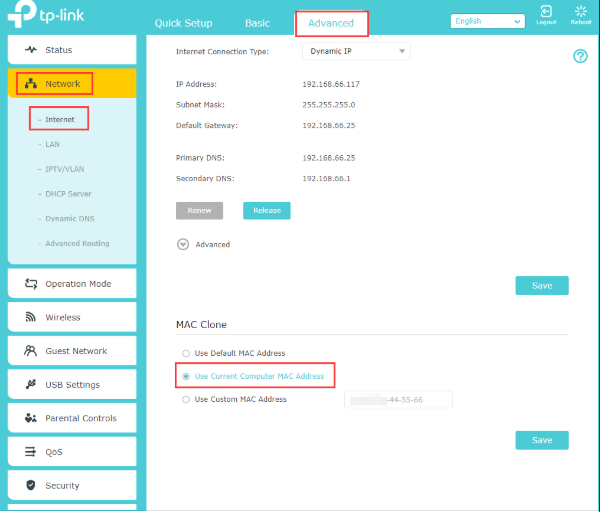
Step 5. Click Save to save the settings.
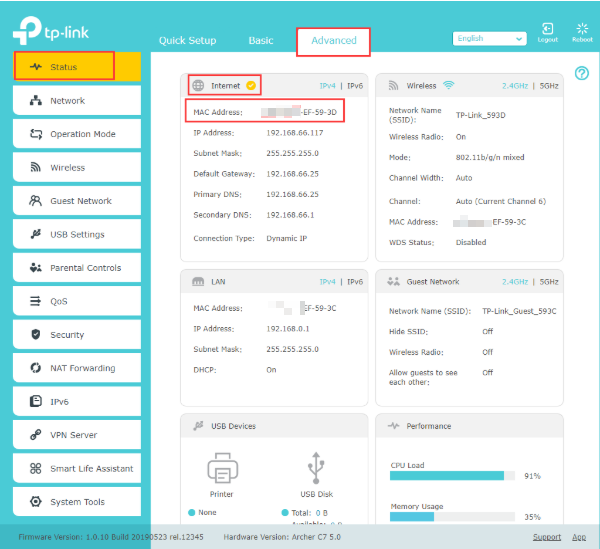
Step 6. If the MAC Clone succeeds, the Internet MAC Address in the Advanced > Status page will be the same as the MAC Address on the computer when it is connected to the modem directly.
How to check the MAC address of your computer
Situation 2: Can get Internet from the old wireless router, but not from the modem or the new router. Here are two methods for your reference
Method 1: Check the MAC Address via Client list
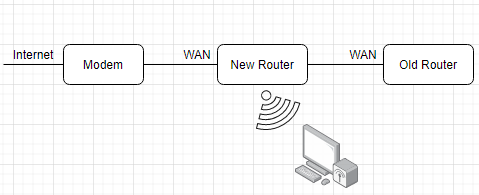
Step 1. Disconnect the old router from the modem, connect the modem to the WAN/Internet port of the new router, and connect the new router to the WAN/Internet port of the old router. Then use a computer connected to the new router via Ethernet cable or Wi-Fi.
Step 2. Log in to the new router’s web-based interface. For help, please refer to the article "How do I log into the web-based Utility (Management Page) of TP-Link wireless router?". The following steps use the Archer C7 V5 as an example.
Step 3. Click Advanced > Network > DHCP Server, then check the old router’s MAC Address on the DHCP Client List.
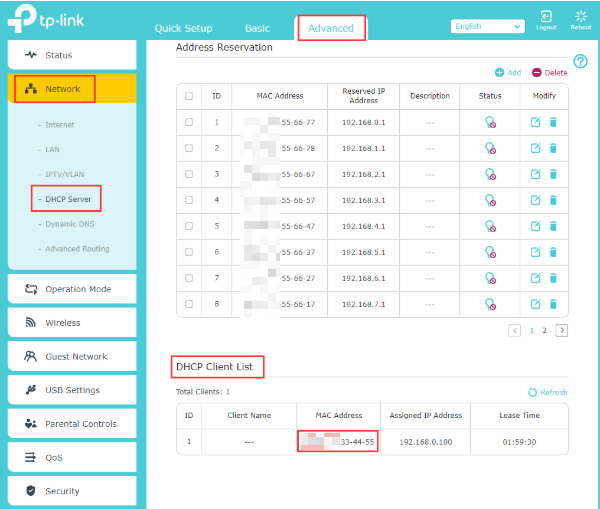
Step 4. Go back to Advanced > Network > Internet, choose Use Custom MAC Address, and type in the MAC Address you checked on the DHCP Client List.
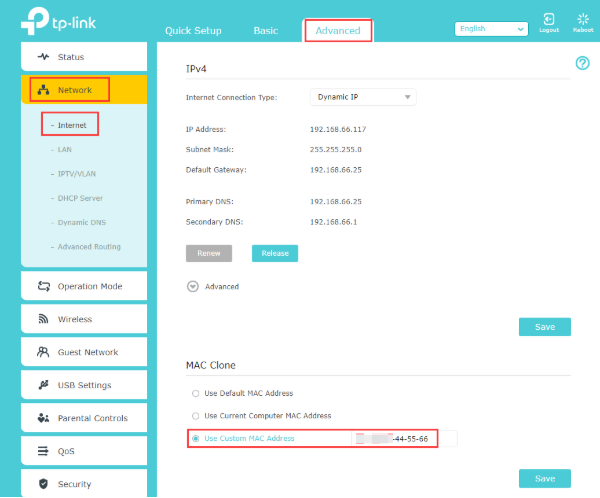
Step 5. Click Save to save the settings.
Step 6. If the MAC Clone succeeds, the Internet MAC Address in the Advanced > Status page will be the same as what you have typed in the Use Custom MAC Address box.
Method 2: Check the MAC Address via Internet Status
Step 1. Disconnect the new router from the modem, then connect the computer to the old router. Make certain the computer has internet access with the old router.
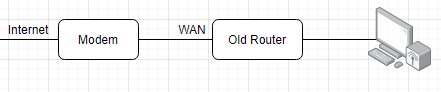
Step 2. Log in to the old router’s web-based interface. To get some help, please refer to the article How to Log In to Your TP-Link Router. The following steps use the Archer C7 V5 as an example.
Note: If your old router is not a TP-Link router, please contact its support team for assistance.
Step 3. Go to Advanced > Status and note the MAC address listed under the Internet section.
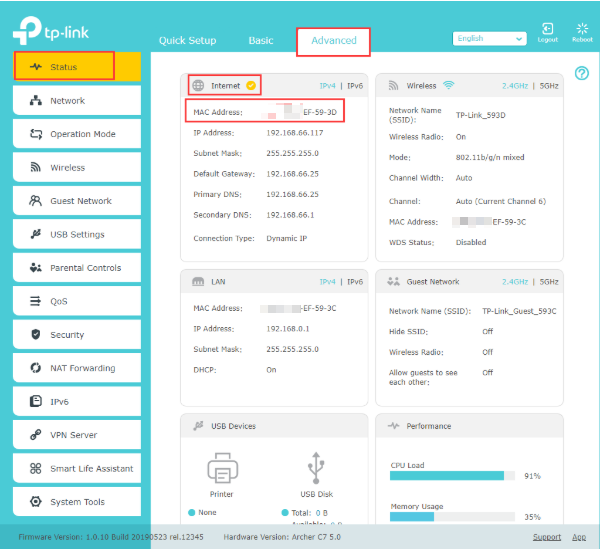
Step 4. Disconnect the old router and reconnect the new router to the modem. Connect your computer to the new router and log in to the web interface.
Step 5. Click Advanced > Network > Internet, choose Use Custom MAC Address, and type in the MAC Address you checked on the old router.
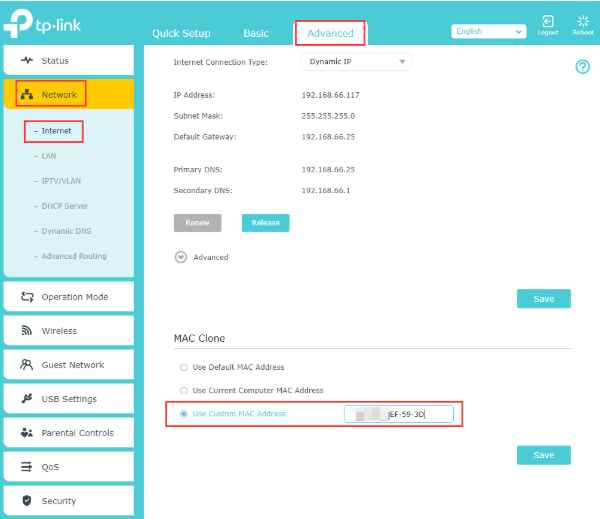
Step 6. Click Save to save the settings.
Step 7. If the MAC Clone succeeds, the Internet MAC Address in the Advanced > Status page will be the same as what you have typed in the Use Custom MAC Address box.
To learn more about each function and configuration, please visit the Download Center to download the manual for your product.
Is this faq useful?
Your feedback helps improve this site.
3.0&4.0-F_normal_1584493102128p.png)

TP-Link Community
Still need help? Search for answers, ask questions, and get help from TP-Link experts and other users around the world.