
How to Block a Device from Your TP-Link Wi-Fi Network
Published: September 24, 2026
-
To block a device from TP-Link Wi-Fi, add it to the Block List in the Tether app (More > Block List on Wi-Fi 6, 6E, and 7 routers) or swipe left on it in the Clients list on older routers.
-
Pausing a child's Parental Controls profile cuts internet temporarily and reverses with one tap, while the Block List keeps a device off the network until you unblock it.
-
Pausing and blocking are free on TP-Link routers and Deco systems and need no HomeShield subscription.
Blocking one device from your TP-Link Wi-Fi takes less than a minute in the Tether or Deco app, and the rest of the house stays online. Maybe it's the tablet that keeps showing up at dinner. Maybe it's a boarder who moved out last month but still connects every night. Or maybe it's a device you've never seen before. Each one calls for a different tool: a quick pause or a proper block. This guide covers both. For the bigger picture on managing kids' internet at home, see our parental controls guide for Philippine homes.
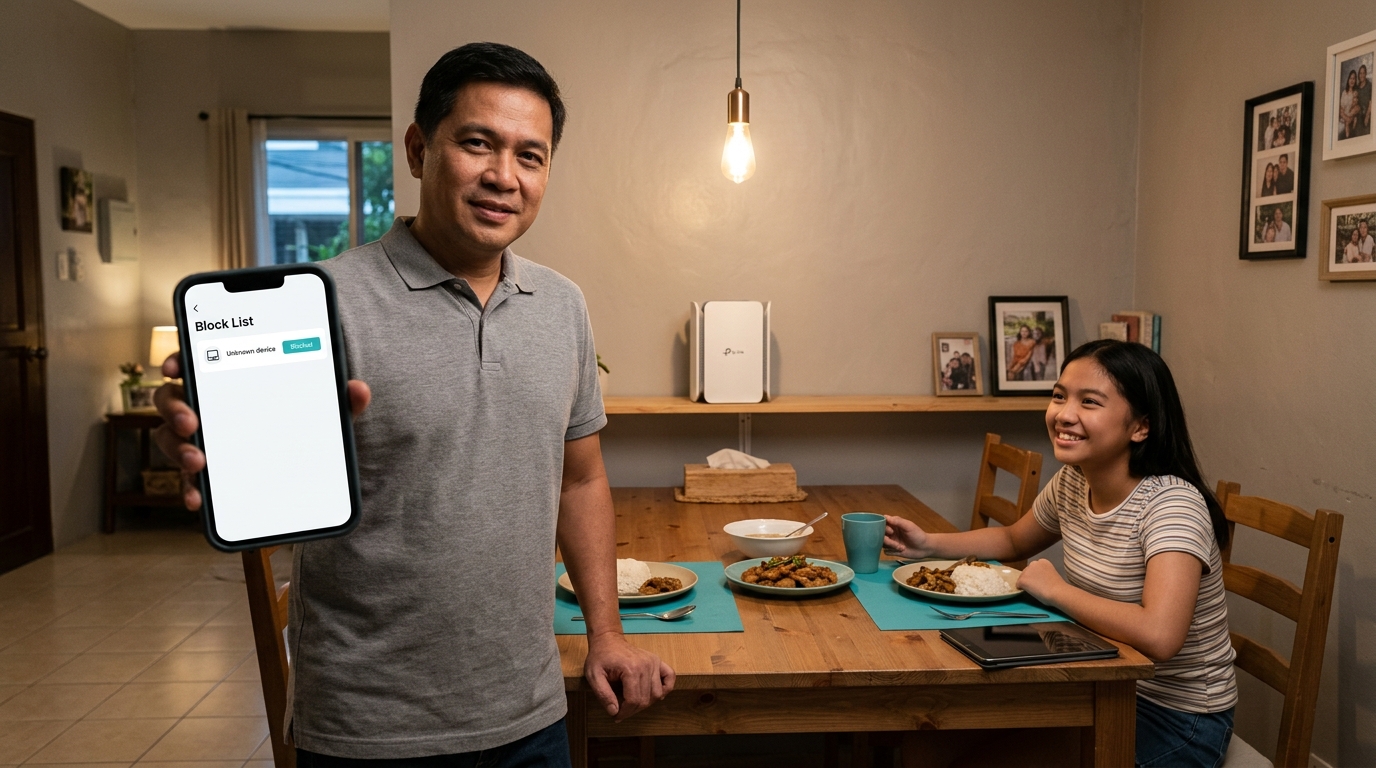
Table of Contents
Why Block One Device Instead of Changing Your Password
Pause vs Block: Which One You Need
How to Block a Device in the Tether App
How to Block a Device in the Deco App
How to Block a Device From the Web Admin Page
How to Pause a Device Temporarily
What a Blocked or Paused Device Sees
Why Block One Device Instead of Changing Your Password
Changing the Wi-Fi password kicks everyone off. Every phone, laptop, smart TV, Tapo camera, and smart plug needs the new password typed in again, and someone always forgets the printer. Blocking works on a single device and leaves everything else alone.
That's why it's the go-to fix for the everyday cases. A kid who needs to get through dinner without a screen. A guest's phone that should drop off after the visit. A kapitbahay who somehow got the password and is streaming at 8 PM when your connection is already stretched. If you're not sure which device is which, first see every device connected to your TP-Link Wi-Fi and match names to real phones. If the list is long simply because the household has grown, check how many devices your router can realistically handle before you start blocking.
Visitors are a separate story. If you'd rather keep guests off your main network altogether, weigh the options in our guide on whether to run a guest network, a kid network, or both.
Pause vs Block: Which One You Need
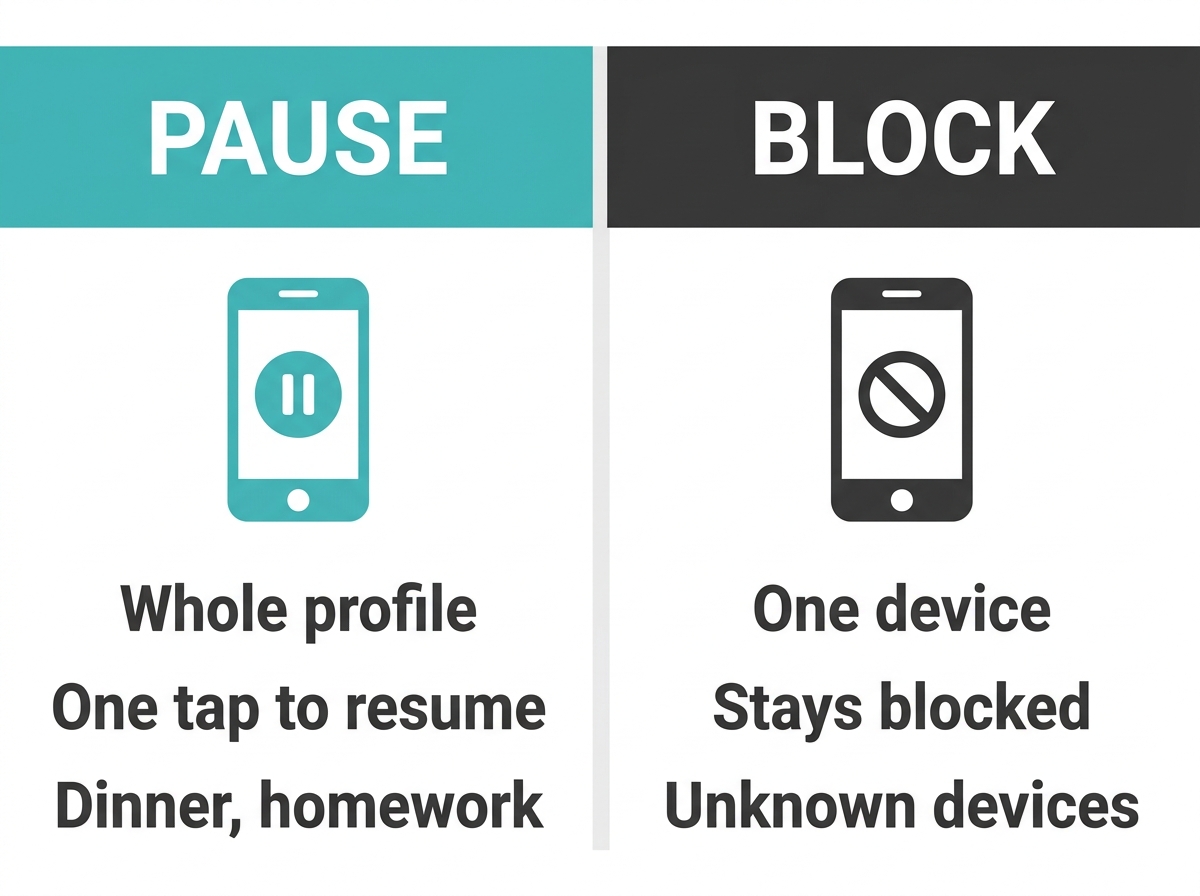
These two sound alike but do different jobs.
|
|
Pause |
Block |
|
Where you find it |
The child's Parental Controls profile (Family tab in Tether, Parental Controls tab in Deco) |
Block List or Clients list in Tether, client list in Deco, Access Control on the web admin page |
|
What it affects |
Every device in that profile |
One device, by its MAC address |
|
How long it lasts |
Until you tap resume |
Until you unblock it |
|
Best for |
Dinner, homework, a quick "phones down" |
Ex-boarders, neighbors, unknown or old devices |
Here's the short version. Reach for Pause when you plan to turn the internet back on later today. Reach for Block when you want the device gone. And if you only want to stop certain websites rather than a whole device, that's a job for content filters, covered in our guide on what a TP-Link router can filter by site and category.
How to Block a Device in the Tether App
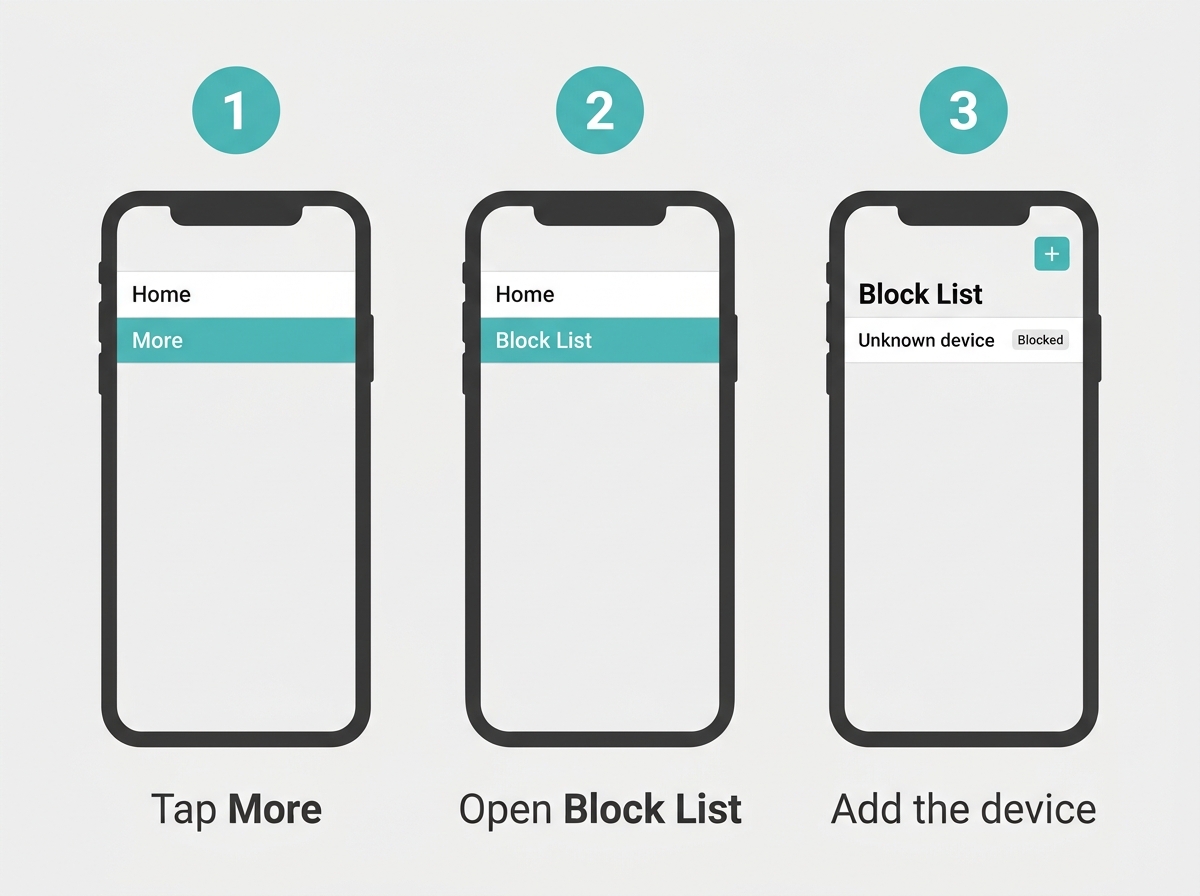
Tether has two blocking methods, depending on your router's age. Open More in the app. If you see Block List there, use Method A. If you don't, use Method B.
Method A: Wi-Fi 6, 6E, and 7 routers (for example, Archer AX72, AXE95, BE800, and BE900)
- Open Tether, sign in with your TP-Link ID, and tap your router under Local Device.
- Tap More, then Block List.
- Tap the + icon.
- Pick the device from your connected clients, or type in its MAC address if it's offline right now.
Method B: older routers (for example, Archer A8, C54, C5400, VR900, and MR600)
- Open Tether and tap Clients.
- Swipe left on the device you want to block.
- The device moves to the Blocked Clients list.
Screenshots for both methods are in TP-Link's official Tether block list guide.
How to Block a Device in the Deco App
-
Open the Deco app and go to your full list of connected clients.
-
Tap the device you want to remove.
-
Choose Block.
The device is added to the Deco Block List, which you can open from the icon at the top right of the full client list. The block covers the whole mesh, so it doesn't matter which Deco unit the device was connected to, upstairs or downstairs.
How to Block a Device from the Web Admin Page
Prefer a laptop? Most TP-Link routers let you block devices from the browser, too.
- Connect to your home Wi-Fi or plug in with an Ethernet cable.
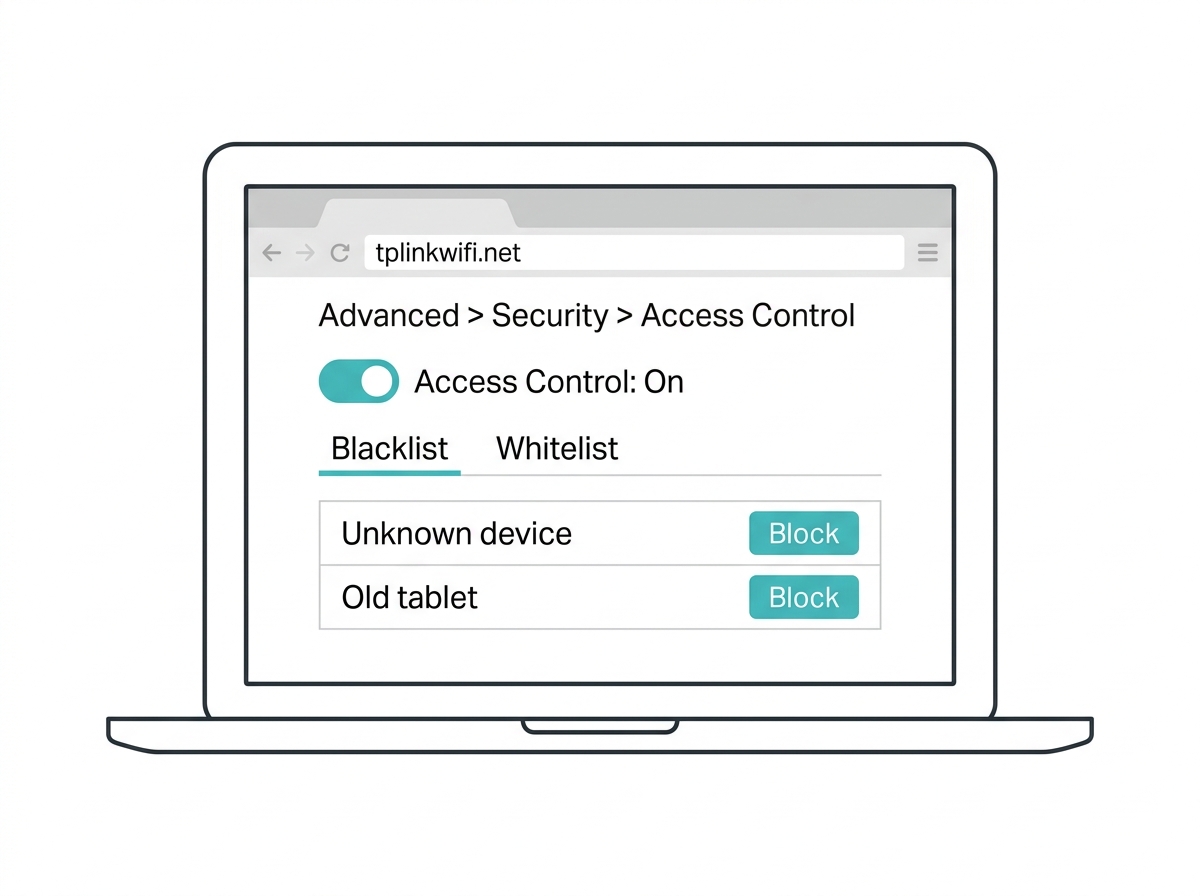
- Open a browser and go to tplinkwifi.net, or type your router's local address. That's usually 192.168.0.1 for routers and 192.168.1.1 for modem routers.
- Log in with the admin password you created when you first set up the router.
- Go to Advanced > Security > Access Control and turn Access Control on.
- Choose Blacklist (called Deny List on newer firmware).
- Select the device from the online devices table, or enter its name and MAC address, then click Block or Add.
Menu names shift a little between firmware versions. For a walkthrough matched to newer interfaces, see TP-Link's Access Control setup guide.
How to Pause a Device Temporarily
Pausing works through Parental Controls profiles, not through the device list.
- Open the Family tab in Tether or the Parental Controls tab in Deco.
- Find your child's profile card.
- Tap the pause button (labeled Block on some app versions). Tap it again to resume.
Every device in that profile goes offline at once, so the phone and the tablet both stop. No profile yet? Take two minutes to create a kid-safe Wi-Fi profile in the Tether app, and the pause button will be ready the next time you need it.
Pausing by hand every single night gets old fast. If that's your routine, set daily screen time limits and bedtimes and let the router handle the cutoff on schedule.
How to Unblock a Device
-
Tether, Wi-Fi 6, 6E, and 7 routers: Go to More > Block List, tap the icon next to the device, and select Unblock.
-
Tether, older routers: Open the Blocked Clients list and swipe left on the device. It moves back to your regular Clients list.
-
Deco app: Open the Block List from the icon at the top right of the full client list, then remove the device.
-
Web admin page: Go back to Access Control and delete the device from the Blacklist or Deny List.
If an unblocked device still won't get online, restart it so it asks the router for a fresh connection.
What a Blocked or Paused Device Sees
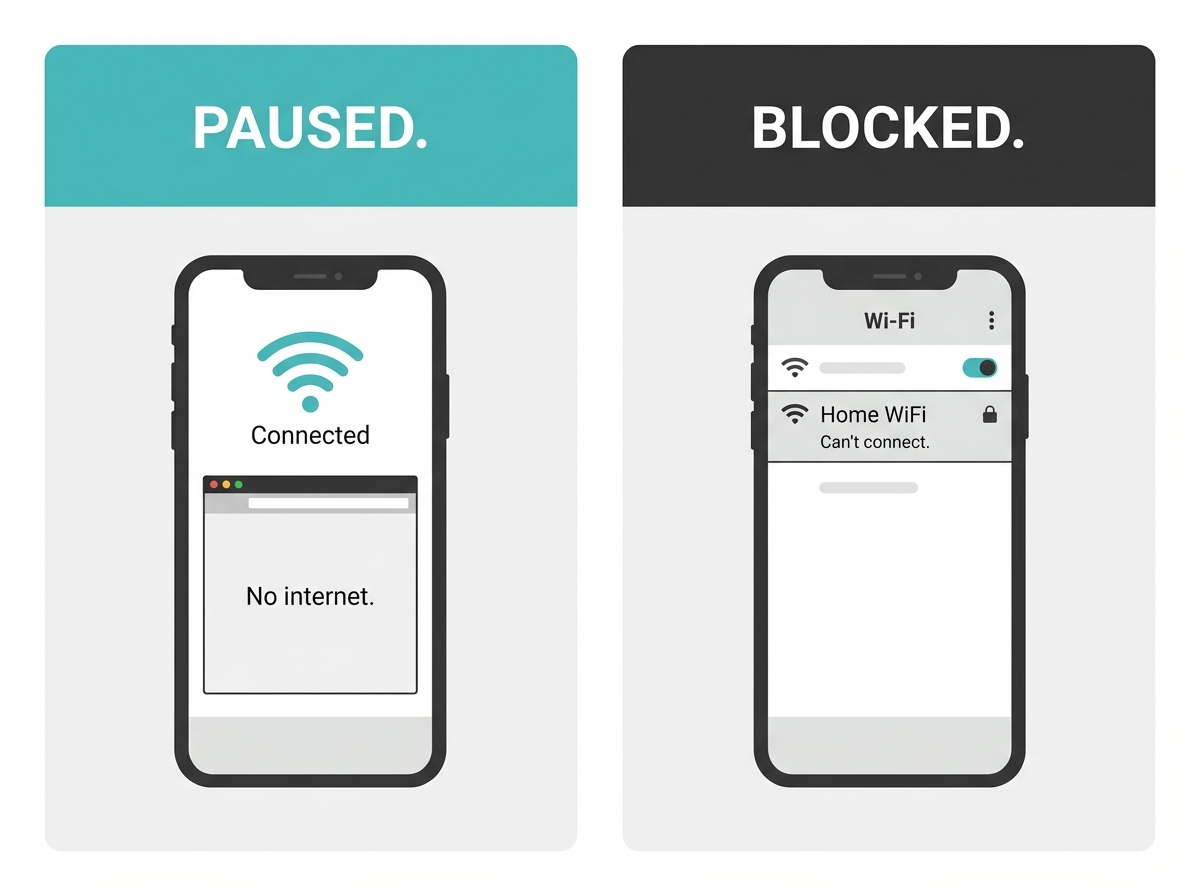
A paused device stays connected to your Wi-Fi. The Wi-Fi icon looks normal, but web pages, streaming apps, and online games won't load. Downloaded videos and offline games still play.
A blocked device on a current TP-Link router or Deco can't get onto your network at all. It sees your Wi-Fi name in the list, tries to connect, and fails or keeps asking for the password, even when the password is right.
Frequently Asked Questions
Can a blocked device get back on by changing its name?
No, renaming does nothing because blocks are tied to the MAC address. The catch is randomized MAC addresses. A phone that forgets your network and rejoins can show up with a brand-new MAC and slip past the Block List, as long as it still knows the password. If the same person keeps coming back, change your Wi-Fi password, or switch Access Control to Allow List mode so only approved devices can join.
Why can a blocked device still connect to my Wi-Fi?
Some older TP-Link routers block internet access instead of the connection itself. On certain models, a blocked device can still join the Wi-Fi but can't reach the internet. The block is working in that case, just in a different way. Newer Wi-Fi 6, 6E, and 7 routers using the Block List stop the device from connecting at all.
Can I block a device that uses an Ethernet cable?
Yes, blocking works on wired devices too. Access Control on the web admin page covers both wired and wireless connections, so a desktop PC or smart TV plugged into a LAN port can be blocked the same way as a phone. On Deco systems, the Block List also applies to devices wired into any Deco unit. Blocking by MAC address is what makes this possible.
Will blocking a device also block it from my guest network?
Check both lists to be safe. The guest network is managed separately in the Tether and Deco apps, and a device that joined through the guest network appears in its own client list. After blocking a device on your main network, open the guest network's client list and confirm the device isn't connected there too. If it is, block it from that list as well.
Is there a limit to how many devices I can block?
Yes, block lists have a cap, and it varies by router model. Most households never reach it. If the router suddenly refuses to add new devices to the Block List or Blacklist, the list is probably full. Clear out entries for devices that are long gone, like a boarder's old phone or a tablet you sold, and then try again.
Do I need a HomeShield subscription to block or pause a device?
No, blocking and pausing are free. The Block List, swipe-to-block, Access Control, and the pause button on a Parental Controls profile all work without any paid plan. The HomeShield Advanced Parental Controls subscription adds scheduling tools like daily time limits and Offtime, but you never need it to cut off a device on the spot.
Will the person know I blocked their device?
No alert comes from the router. A paused device simply stops loading anything, and a blocked device just fails to connect, so from their side it looks like a Wi-Fi problem. With kids, it helps to explain the rule out loud anyway. A quick "Wi-Fi's off until after dinner" heads off the inevitable "Ma, nawala ang internet!" from the next room.
Final Thoughts
Tired of arguing with a tablet at the dinner table? Worried an unknown device is riding your Wi-Fi every night? You don't have to change the password and reconnect the whole house. Pause the profile for the short stuff, block the device for good when it needs to go, and move on with your evening.
If pausing has turned into a nightly habit, automate the cutoff with daily screen time limits so you're not reaching for your phone every 8 PM. For the full family setup, from kid profiles to content filters, follow the complete parental controls setup for your household.
Is your router too old for the Block List? The Archer BE900 Wi-Fi 7 router with one-tap Block List handles blocking right in the Tether app. For multi-level homes, the Deco X20 mesh system with whole-home device blocking blocks devices across every unit. Still comparing? See all TP-Link Wi-Fi routers sold in the Philippines, then order from official TP-Link sellers in the Philippines to keep your warranty intact.