
How Many Devices Can My Router Handle? A Philippines Home Guide
Published: June 1, 2026 | Last Updated June 1, 2026
|
Quick Answer Most home routers in the Philippines can handle 20 to 50 devices comfortably. Your ISP-bundled unit is likely closer to 20, while a mid-range Wi-Fi 6 router handles 50 or more. Between smartphones, laptops, smart TVs, Tapo cameras, and online class or work-from-home setups, the average Philippine home is connecting far more devices than the router under the stairs was ever designed for. The right fix depends on whether your problem is device count, bandwidth, or your home's concrete walls stopping the signal before it arrives. |
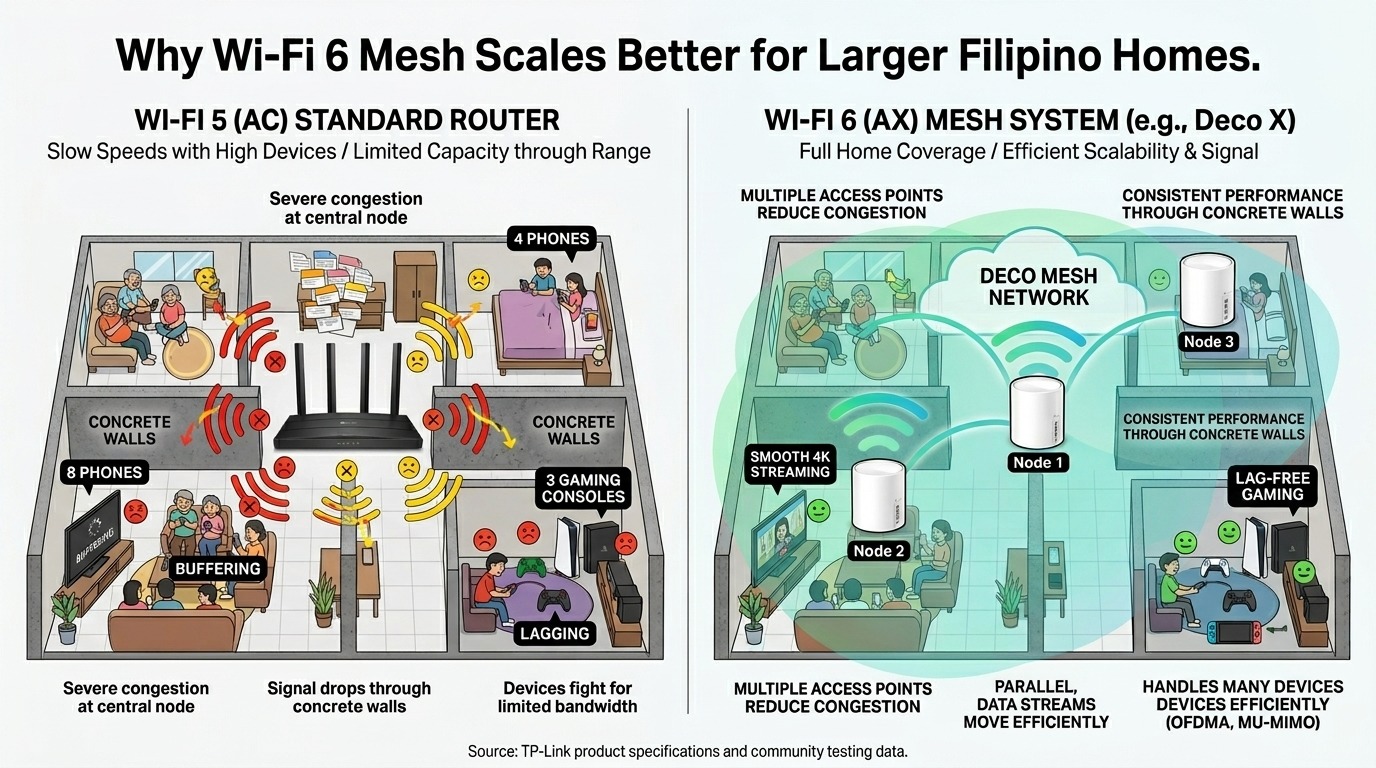
How many Devices can a Philippine Home Router actually handle?
Consumer-grade routers sold in the Philippines, whether you picked one up at a Lazada sale or got it bundled from PLDT, Globe, or Converge, generally support a theoretical maximum of 253 connected devices based on the IPv4 address range they can assign. In practice, the real limit is far lower.
According to TP-Link's own community testing, a standard Wi-Fi 5 router performs best with around 25 simultaneously connected devices. Tri-band routers, like the Archer C4000, can comfortably support up to 50. Wi-Fi 6 and Wi-Fi 7 routers push that ceiling higher still, with flagship models handling 100 or more without meaningful slowdown.
The gap between the theoretical maximum and the practical limit exists because every connected device, whether it is actively streaming or just sitting idle, consumes router memory and processing cycles. When you hit that ceiling, you will notice it before any error message appears: pages load slowly, video calls drop frames, and gaming sessions develop that lag spike right before the boss fight.
|
Router type |
Practical device limit |
Best for |
PH price range |
|---|---|---|---|
|
Entry-level Wi-Fi 5 (AC1200–AC1750) |
15–20 devices |
Small apartments, 1–2 users |
₱1,000–₱2,500 |
|
Mid-range Wi-Fi 5 / Wi-Fi 6 (AX1800–AX3000) |
25–50 devices |
Families of 3–5, WFH setups |
₱2,500–₱5,000 |
|
High-end Wi-Fi 6 / Wi-Fi 6E (AX5400+) |
50–100 devices |
Power users, home offices, gamers |
₱5,000–₱12,000 |
|
Wi-Fi 7 router |
100+ devices |
Smart homes, 4K/8K streaming, high-device households |
₱10,000–₱30,000 |
|
Mesh system (2–3 nodes) |
Up to 100+ devices across nodes |
Multi-story or large concrete homes |
₱5,000–₱25,000 |
Source: TP-Link product specifications and community testing data. Price ranges based on typical Philippine retail pricing as of May 2026.
If you are ready to match a specific router to your PLDT, Globe, or Converge plan, the best router for your fiber ISP plan in the Philippines guide covers the full lineup by plan tier.
Key takeaway: The number on the spec sheet is a ceiling, not a guarantee. The real limit depends on how many devices are active simultaneously, how much bandwidth they are using, and how well the signal reaches them through your home's concrete walls.
What is actually slowing down your Wi-Fi Devices or your Internet Plan?
Device count alone does not tell the full story. Ten idle smartphones connected to your router use almost no bandwidth. Two laptops running simultaneous Zoom calls plus a 4K Netflix stream can overwhelm a 100 Mbps plan, regardless of how good your router is.
The bottleneck in most Philippine homes is not the router hardware; it is the combination of too many high-bandwidth activities happening at once on a connection that cannot support them all. A household on a 50 Mbps plan with five active users will feel congested even with just 10 devices connected, because each concurrent 4K stream alone consumes 15 to 25 Mbps.
The rule of thumb that works in practice: allocate 25 Mbps per heavy user (4K streaming, video calls, or large file transfers) and 5 Mbps per light user (social media, messaging, music). Add those up and compare to your subscribed speed. If your router's device count is within the recommended range for its model but speeds are still slow, your plan, not your router, is the limiting factor.
The Philippine Statistics Authority's 2024 NICTHS survey found that connected households spend an average of PHP 1,069.10 per month on internet, well below what most fiber providers charge for 300 Mbps plans. Many Filipino households are underpaying for speed relative to their actual device load.
Key takeaway: Check your active device load first. If three or four devices are running high-bandwidth tasks simultaneously on a 50 Mbps plan, the plan is the problem, not the router. Upgrade the plan before upgrading the hardware.
How Concrete Walls Cut Your Router's Range in Philippine Homes
Concrete construction is standard in Philippine homes and condos, and it is one of the most significant real-world factors that limit how well a router performs, even if the device count is within spec. Wi-Fi signals at 2.4 GHz lose roughly 10 to 15 dB passing through a single concrete wall; at 5 GHz, the loss is even higher, often enough to halve your speed on the other side.
This is why a router sitting in the living room may deliver 200 Mbps two meters away but only 30 Mbps in the bedroom on the other side of a concrete partition. If you notice that your device count is manageable and your plan speed is adequate, but certain rooms still feel sluggish, signal attenuation from wall materials is almost certainly the real problem.
For single-floor condos or apartments, a range extender placed halfway between the router and the dead zone is usually enough. For two-story concrete homes or bungalows with multiple concrete partitions, a mesh system is the more reliable fix. Mesh nodes communicate with each other over a dedicated backhaul connection, so each node provides full-strength Wi-Fi rather than simply rebroadcasting a weakened signal.
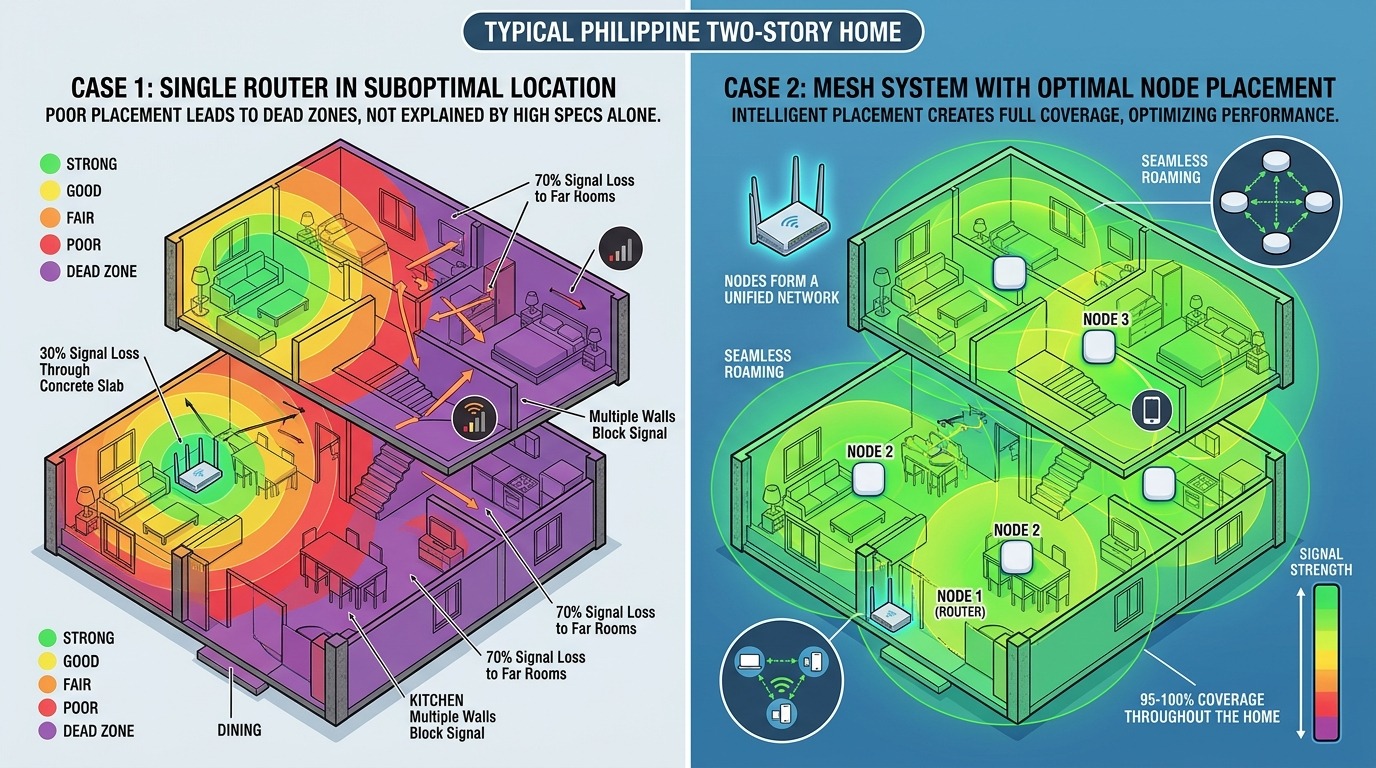
Learn how TP-Link's Deco mesh systems are specifically designed for Philippine concrete home layouts.
Key takeaway: In a Philippine concrete home, wall attenuation is often the real culprit behind slow rooms, not device count or plan speed. Count the concrete walls between your router and the problem room before making any purchasing decision.
Why ISP-Bundled Routers from PLDT, Globe, and Converge often Max Out at 20 Devices
Most Philippine internet providers bundle a free modem-router with fiber subscriptions, and these units are functional but limited. Based on TP-Link's field experience supporting customers across the Philippines, bundled ISP routers typically handle around 20 devices before network quality visibly degrades, and they rarely support the 5 GHz band at full efficiency for older device models.
This matters in the Philippine context because the average Filipino household is larger than the global average, often housing multiple generations under one roof. Parents working from home, children attending online classes, plus shared streaming and smart home devices can push a household well past 20 connected clients during peak hours, which in most Philippine neighborhoods runs from 6 to 10 PM.
If your ISP-provided unit is more than three years old and your household has grown in its device count, that bundled router is almost certainly the weakest link in your home network. Replacing it with a purpose-built Wi-Fi 6 router does not require changing your internet plan, and the performance difference is measurable within minutes of setup.
Key takeaway: A three-year-old ISP-bundled router and a growing household device count are the most common combinations behind unexplained slow Wi-Fi in Philippine homes. The fix is a router upgrade, not an ISP call.
How To Count How Many Devices Are Actually Connected To Your Router Right Now
Most Filipinos underestimate their connected device count because they count screens but forget background devices. A thorough count includes every item that uses your Wi-Fi, whether or not it has a display.
-
Smartphones - every family member's phone, including the spare or backup unit
-
Laptops and tablets - school and work devices, even those only used occasionally
-
Smart TVs and streaming boxes - a single household often has two or three
-
Game consoles - PlayStation, Xbox, Nintendo Switch
-
Smart home devices - Tapo cameras, smart bulbs, smart plugs, and air purifiers with Wi-Fi
-
Printers, scanners, and NAS drives with network connectivity
-
Wearables - smartwatches and fitness trackers that sync over Wi-Fi
-
Appliances - newer refrigerators, washing machines, and air conditioners with smart features
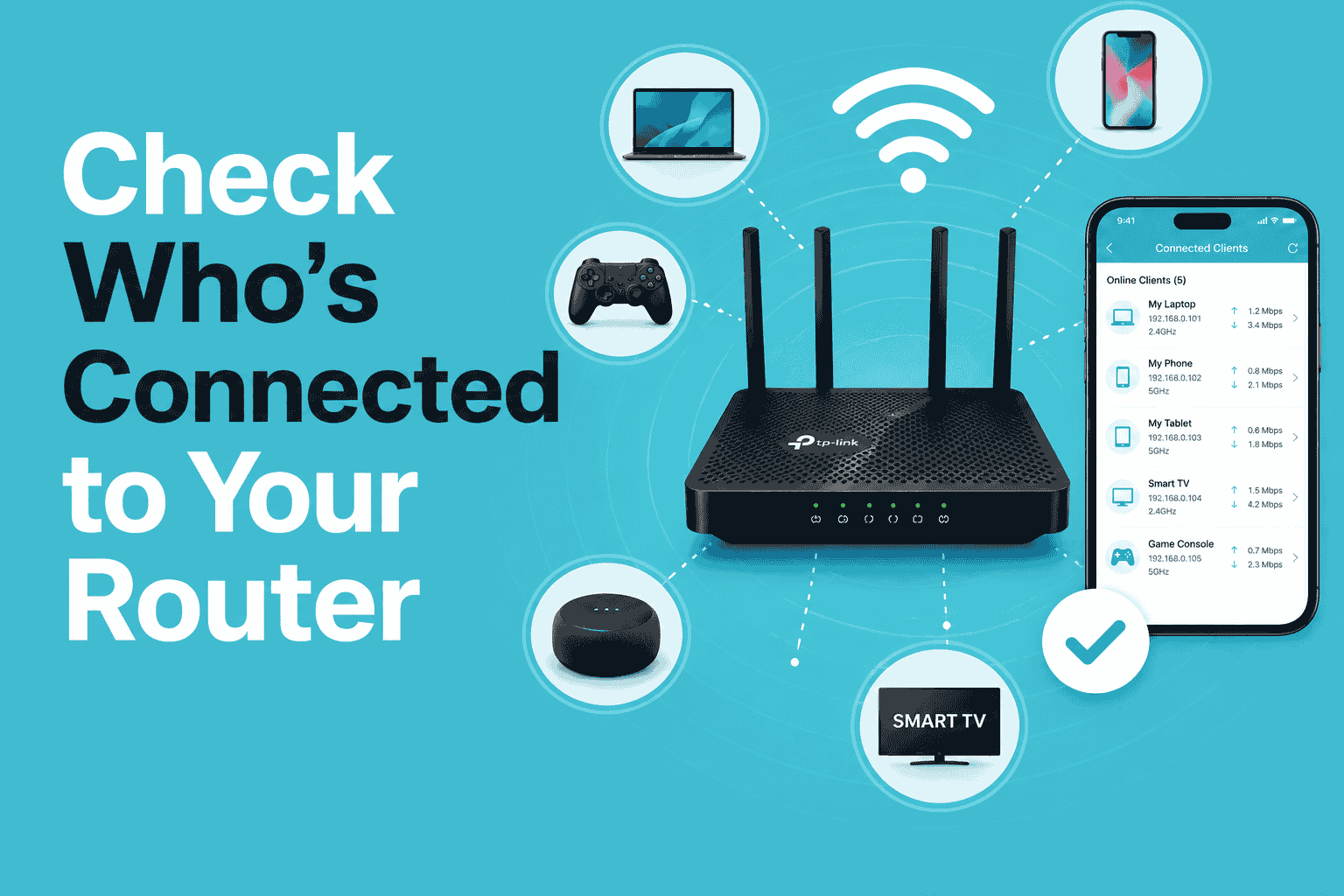
The fastest way to get an accurate count is to log in to your router's admin panel and check the connected devices list. For TP-Link routers, open the Tether app, select your router, and tap "Clients." You will often find 5 to 10 devices on the list that you did not consciously connect, including old phones that are still associated with the network. If you have not accessed your router's admin panel before, managing your TP-Link router walks you through the login process and the settings worth checking while you are there.
Key takeaway: Run the Tether app client check before any other troubleshooting step. Most Filipino households discover 5 to 10 more connected devices than they expected, and that number alone often explains the slowdown.
Four Signs Your Router Needs an Upgrade
Slow speeds during peak hours, devices frequently dropping from the network, a consistent Wi-Fi dead zone in one room despite the router being nearby, and the inability to connect a new device because the router's list is full are the four clearest indicators that your router has hit its limit.
-
Speeds drop between 6 and 10 PM significantly, even when few people are actively using the internet
-
Devices frequently drop off the network and need to be reconnected manually
-
One or two rooms consistently show a poor signal despite being close to the router
-
The router admin panel shows that the connected client list is near its maximum, or new devices cannot join
If your router is more than five years old and does not support Wi-Fi 6 or newer, an upgrade addresses all four issues simultaneously. Wi-Fi 6 routers use OFDMA technology, which allows the router to serve multiple devices in a single transmission cycle rather than serving them one at a time. This is the key reason they handle dense device environments so much better than older standards.
The 12 Wi-Fi Speed Hacks for Philippine Homes guide walks through router placement, channel selection, and upgrade timing in detail.
Key takeaway: Five years old, no Wi-Fi 6, and a household that has grown; those three conditions together are a reliable signal that the router, not the plan, is the problem.
Frequently Asked Questions
Can I connect 50 devices to a standard router in the Philippines?
A mid-range Wi-Fi 5 router sold in the Philippines typically handles around 25 devices comfortably. Reaching 50 requires a tri-band Wi-Fi 5 or a Wi-Fi 6 router. If your household is already approaching 30 to 40 devices, upgrading to Wi-Fi 6 is the more future-proof choice. The number of connected devices in Philippine homes is rising every year as smart appliances become more affordable.
Does connecting more devices slow down my internet speed?
Yes, but not simply because of the device count. Speed slows when multiple devices are actively using bandwidth at the same time. Ten idle devices connected to your router use almost no bandwidth. The practical slowdown you notice usually comes from three or four devices running high-bandwidth tasks simultaneously, such as 4K streaming, video calls, and large file downloads, against a plan that cannot support all of them at once.
Why is my Wi-Fi fast near the router but slow in other rooms?
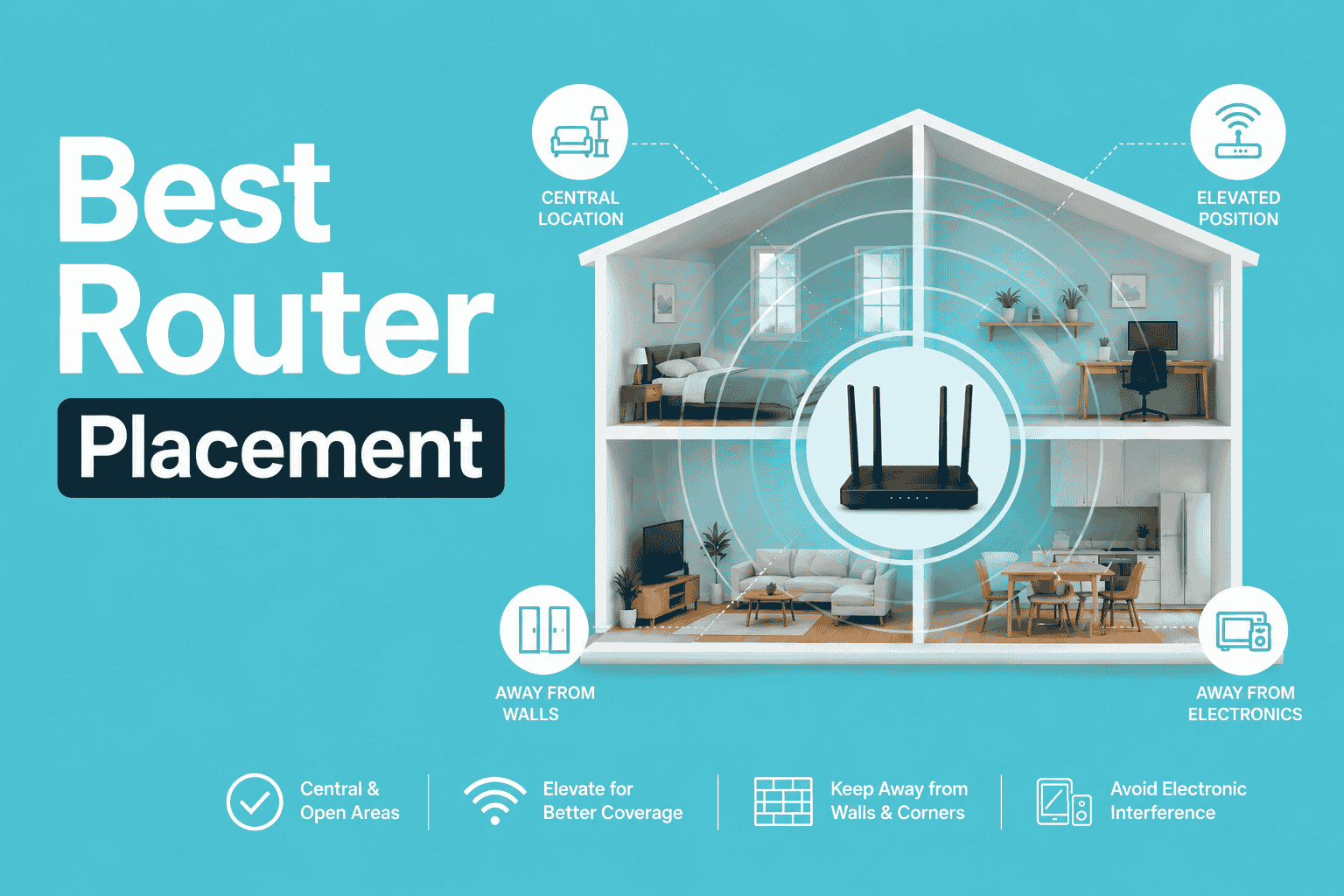
In Philippine homes, concrete walls are the most common cause. Wi-Fi signals, especially on the 5 GHz band, lose significant strength passing through concrete, and a signal already weakened by distance loses even more through a wall. Placing your router centrally, elevating it off the floor, and keeping it away from appliances that cause interference addresses most dead zone problems. For multi-room concrete homes, a mesh system is the most reliable solution.
Does my internet plan speed affect how many devices I can connect?
Your internet plan speed determines how much bandwidth you have to share across all connected devices, not how many devices can physically connect. A 100 Mbps plan divided among 10 active users gives each about 10 Mbps, enough for standard video calls but not 4K streaming. If your device count is manageable but speeds feel slow for everyone, upgrading your plan is the right fix. If only certain rooms have poor speeds, the issue is more likely router placement or signal interference.
Is a mesh Wi-Fi system worth it for a Philippine home?
For two-story concrete homes, multi-room condos, or any household where a dead zone persists despite repositioning the router, a mesh system is worth the investment. Mesh nodes place full-strength Wi-Fi throughout the home rather than rebroadcasting a weakened signal. TP-Link's Deco series starts at accessible price points for the Philippine market and is specifically tested for concrete wall penetration. For a single-room apartment or studio condo, a good router with a range extender is usually sufficient.
How do I check my router's connected device list without a PC?
Open the TP-Link Tether app on your phone, tap your router, and select "Clients." The list shows every device currently connected to your network, including idle or background devices. For non-TP-Link routers, access the admin panel by typing your router's gateway IP address (typically 192.168.1.1 or 192.168.0.1) into your browser while connected to the home Wi-Fi.
The right answer depends on your household, not a single number.
Most Philippine homes with a family of four to six people working and studying from home, streaming in the evenings, and running a handful of smart devices, will find themselves in the 25 to 40 device range during peak hours. A mid-range Wi-Fi 6 router handles that load well and leaves room to grow as more smart appliances enter the home.
What matters more than hitting a device limit is whether your router can serve those devices efficiently without creating bottlenecks and whether your physical home, with its concrete walls and multiple rooms, allows the signal to reach every device at usable strength.
Count your devices, check your current router model's practical limits, and assess whether your home layout is fighting your signal. Those three checks will tell you whether you need a plan upgrade, a router upgrade, or just a better placement for the hardware you already have.
Explore TP-Link Philippines' full range of Wi-Fi routers for every home size and budget.
Disclosure: Device capacity figures are based on TP-Link product specifications and community testing data. Real-world performance varies by household layout, device type, and usage patterns. Always verify current product specifications on the official TP-Link Philippines product page before purchasing.

_20250110065519v.png)