
Parental Controls for Home Wi-Fi in the Philippines
Published: September 24, 2026
Quick Answer
-
TP-Link parental controls run on HomeShield, built into compatible Archer routers and Deco mesh systems and managed from the Tether or Deco app, with four tools: kid profiles, schedules, content filters, and device blocking.
-
Profiles, pausing and blocking devices, website and category filtering, and one every-day bedtime are free permanently, while daily time limits, day-specific schedules, SafeSearch, YouTube Restricted Mode, and app blocking need an Advanced Parental Controls subscription.
-
Router-level parental controls cover only your home Wi-Fi, so they work best alongside the phone's own settings and regular conversations with your kids.
Parental controls on a TP-Link router let Filipino parents decide who gets online, when, and to what, for every child's device at once. You don't have to install anything on each gadget. You set up one profile per child in the Tether or Deco app, add rules, and the router enforces them across the house. This guide explains the four tools, what's free and what's paid, and which of our six in-depth guides to read first. Think of it as your map. The detailed directions live in each linked guide.
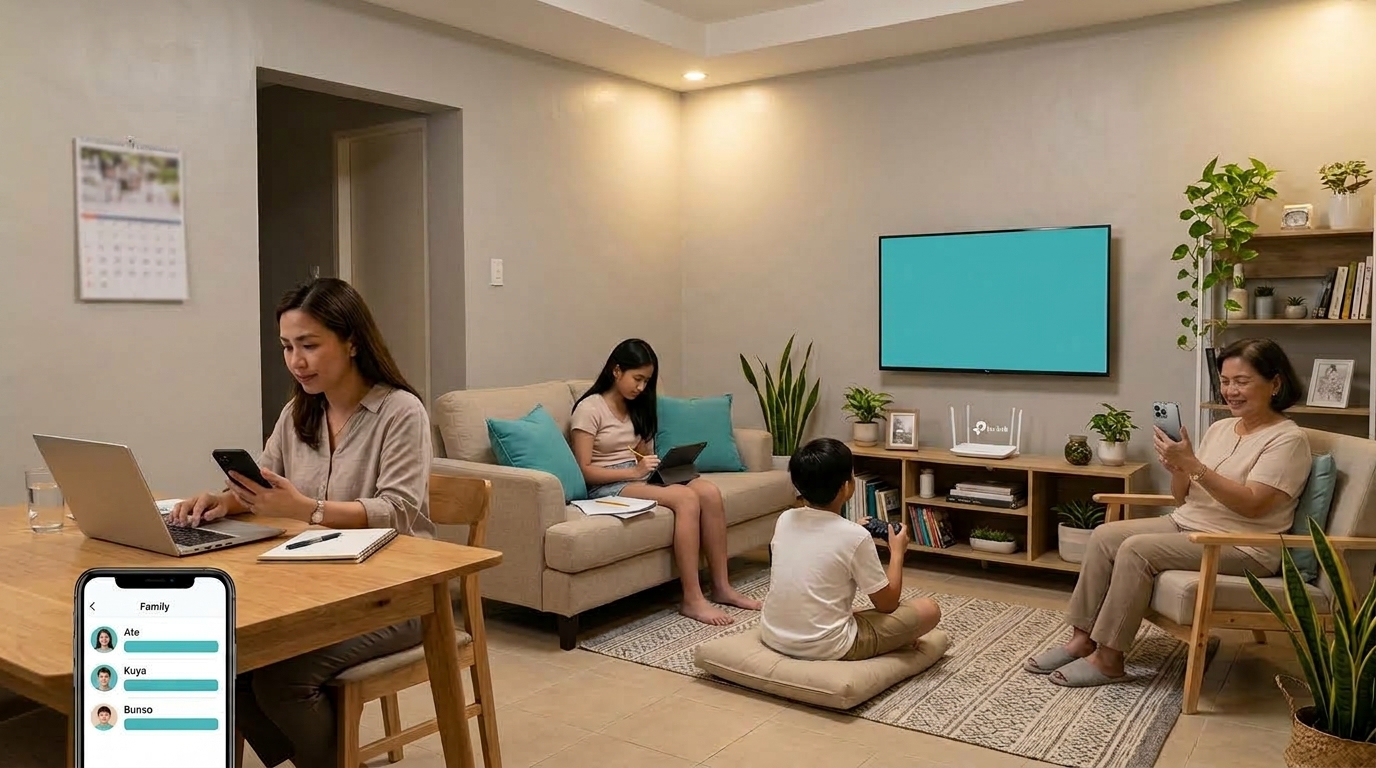
Table of Contents
Why Parental Controls Matter for Filipino Households
The Four Tools in TP-Link Parental Controls
Find the Right Guide for Your Situation
Why Parental Controls Matter for Filipino Households
Home Wi-Fi now runs the Filipino household. It carries schoolwork across the three-term calendar of SY 2026-2027 under DepEd Order No. 009, s. 2026. It carries a parent's WFH calls, video calls with a Tita or Tito working abroad, and every game, show, and scroll in between. A typical home now has several gadgets per child, and most of them want the same bandwidth at 7 to 10 PM, when PLDT, Globe, and Converge networks are at their busiest.
Managing all of that phone by phone doesn't scale. Managing it from the router does. TP-Link builds these controls into HomeShield, its parental controls and security platform. Standalone Archer routers use the Tether app, and Deco mesh systems use the Deco app. If your kids attend online or blended classes, you can go a step further and set up school-hours-only internet for online and blended classes.
Before you start, make sure your model is HomeShield-compatible. You'll find the full list of compatible models on our HomeShield parental controls support page.
The Four Tools in TP-Link Parental Controls
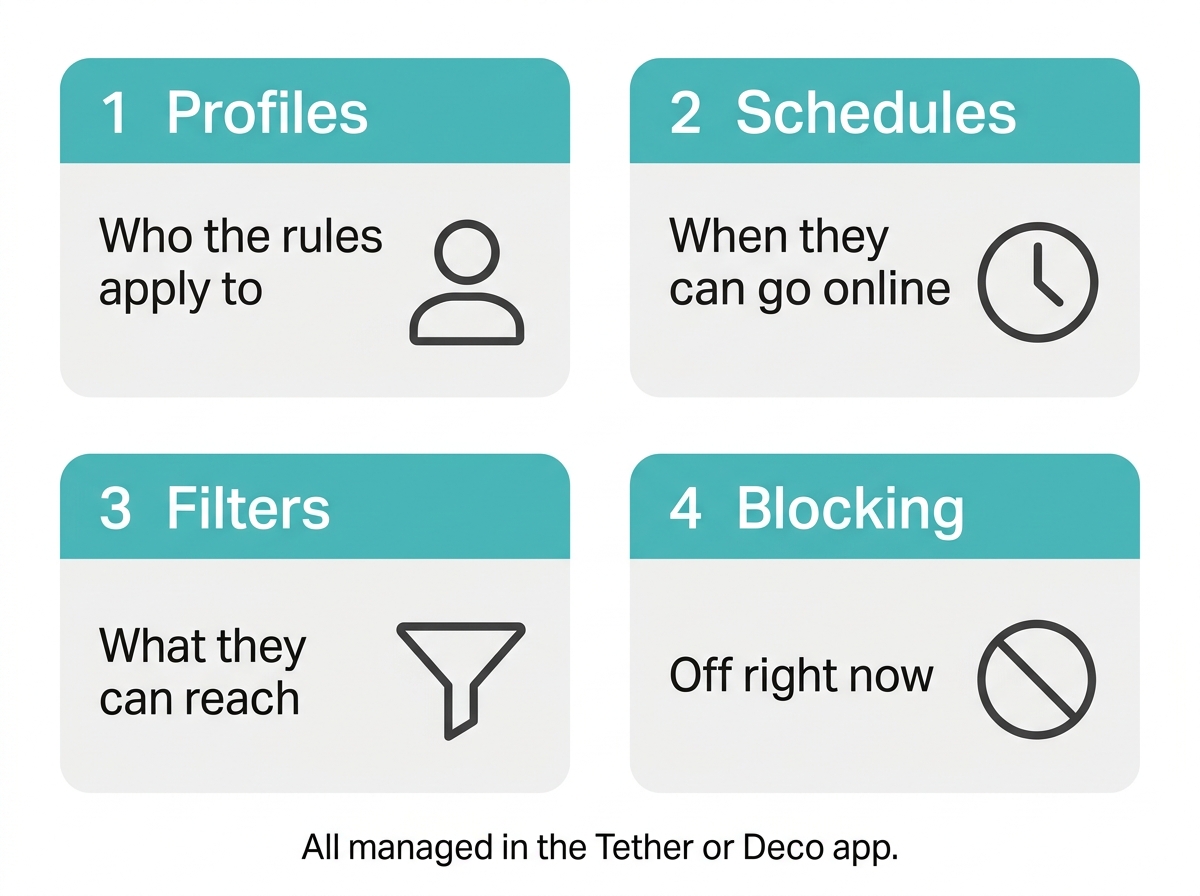
Every rule in HomeShield comes from one of four tools. Learn these, and the rest of the series falls into place.
1. Profiles. A profile is a named set of rules, not a login. You create one per child, attach that child's phone, tablet, laptop, and console, and every rule you add follows those devices. Adults' devices stay out. Profiles are the first thing to build, so set up a Wi-Fi profile for each child before anything else. Some families would rather give kids a whole separate network. The guest network vs kid network trade-offs explain when that makes sense.
2. Schedules. Schedules control when a profile can get online. A free bedtime switches the internet off at the same time every night. The paid tier adds daily hour allowances, different bedtimes for weekdays and weekends, extra no-internet blocks called Offtime, and bonus time you grant from your phone. To build a daily routine, set daily screen time limits on your TP-Link router.
3. Content filters. Filters control what a profile can reach. You can block specific sites and whole categories like adult content and gambling for free, and add SafeSearch, YouTube Restricted Mode, and app blocking on supported models with the paid tier. Before relying on them, learn how to block websites and whole content categories on your TP-Link router and where filtering stops.
4. Device blocking. This is the instant, one-off tool. Pause a profile when dinner starts, or block a device you don't recognize, without changing your Wi-Fi password. When you need a device off the network right now, pause or block any device on your TP-Link Wi-Fi.
Free vs Paid at a Glance
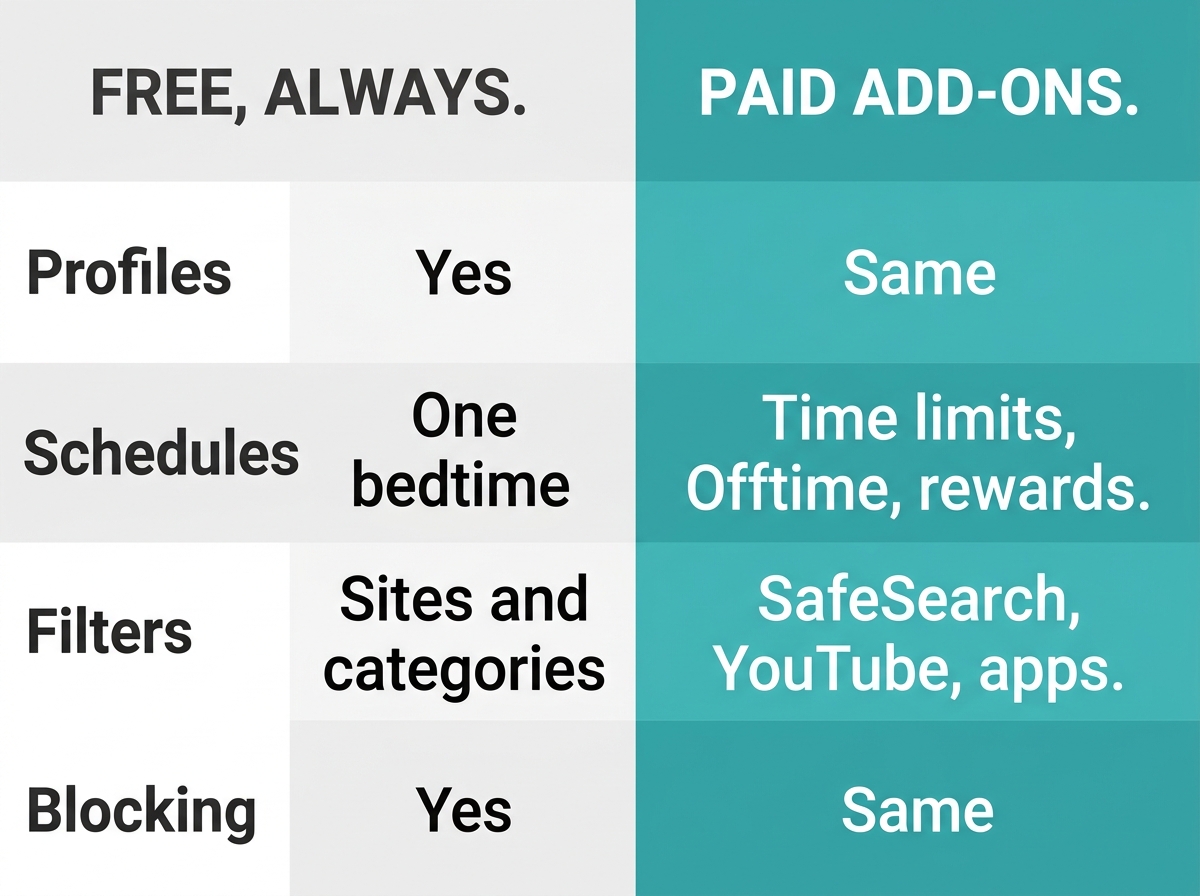
A lot of real control costs nothing. The paid tier is for households that need day-by-day flexibility or app-level and search-level filtering.
|
Tool |
Free (Basic) |
Advanced Parental Controls (Paid) |
|
Profiles |
One profile per child, age presets, device assignment |
Same |
|
Schedules |
One bedtime, same every day |
Bedtime by day, daily time limits, Offtime, reward time, Family Time |
|
Content filters |
Blocked websites, category filtering |
Adds SafeSearch, YouTube Restricted Mode, app blocking and app time limits (supported models) |
|
Device blocking |
Pause a profile, block any device |
Same |
The free tier is permanent, not a trial. For the subscription's trial and in-app pricing, see the screen time guide linked below. For a tour of HomeShield's security side as well as parental controls, visit TP-Link's HomeShield overview page.
Find the Right Guide for Your Situation
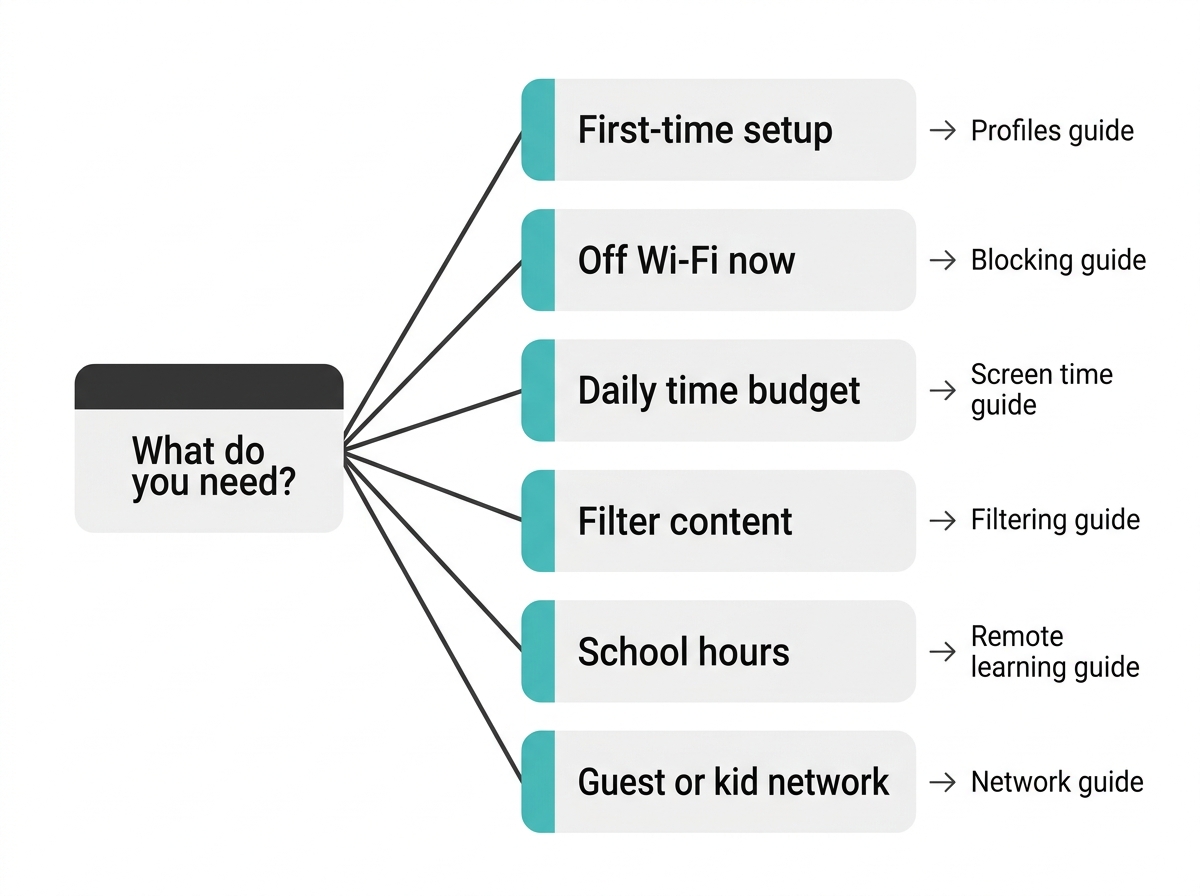
Start with the problem you're trying to solve today.
|
Your Situation |
Read This |
What You'll Learn |
|
"I'm setting this up for the first time, and I have more than one child." |
Building one profile per child and adding every device they use |
|
|
"My kid needs to get off Wi-Fi right now." |
Pausing a profile vs. blocking a device, in the app or on the web admin page |
|
|
"I want a daily screen time budget, not nightly arguments." |
Time limits, bedtimes, Offtime, reward time, and the trial |
|
|
"I want to know what filtering really blocks before I rely on it." |
Website and category blocking, SafeSearch, YouTube, apps, and the gaps |
|
|
"The internet needs to follow a school schedule." |
Setting school-day access around online and blended learning |
|
|
"Should my kids be on the guest network?" |
Why a guest network and a kid profile solve different problems |
What These Tools Can't Do
Every guide in this series comes back to the same honest limits:
- They stop at your home Wi-Fi. Mobile data, school Wi-Fi, and a friend's network are all outside the router's reach.
- They can't read inside encrypted apps. You can block a whole app on supported models, but not filter the chats inside it.
- SafeSearch covers Google only. Other search engines and sites typed in directly aren't filtered by it.
- They don't recognize "educational" content on their own. The router blocks and allows what you tell it to, on the schedule you set. It won't decide by itself that a site is schoolwork.
None of this makes the tools less useful. It makes them one layer. Pair them with the phone's built-in settings and, most of all, regular talks with your kids about what they do online.
Frequently Asked Questions
Do I need to buy a new router to get parental controls?
No, not if your current router is HomeShield-compatible. Many TP-Link Archer routers and Deco mesh systems already include HomeShield parental controls at no extra cost. Check your exact model on TP-Link's support site before shopping. If your router is older and not on the list, upgrading gets you profiles, schedules, and filters in one app, which is usually the simplest path for a busy Filipino household.
Can I set everything up from my phone?
Yes, the Tether and Deco apps handle the whole setup. Profiles, schedules, filters, and device blocking all live in the app, so a computer is never required. Deco systems are managed only through the Deco app, with no web admin page. Standalone Archer routers also have a browser-based admin page, but it's an optional extra, not a requirement.
Is the free tier actually usable, or is it just a trial?
The free tier is a permanent, usable feature set. Profiles, pausing and blocking devices, website blocking, category filtering, and one everyday bedtime stay free for as long as you own the router. The paid Advanced Parental Controls tier adds flexibility on top, like daily time limits and SafeSearch. Many families run on the free tier alone and never need to upgrade.
What if my router doesn't support HomeShield?
You'll likely have simpler parental controls in the router's web admin page. Older and entry-level TP-Link routers often include basic scheduling and website restrictions set from a browser, without the profiles and app features described in this series. Check your model's support page to see exactly what it offers. If you need per-child profiles, a HomeShield-compatible router is the upgrade to look for.
Do parental controls work the same on Archer routers and Deco mesh systems?
Yes, both run the same HomeShield parental controls. The difference is the app and the tab name. Archer routers use the Family tab in the Tether app, and Deco systems use the Parental Controls tab in the Deco app. On Deco, rules follow each child's devices across every Deco unit in the house, which helps in multi-level homes with thick concrete walls.
Can I manage parental controls for more than one home?
Yes, one app can manage several TP-Link networks. The Deco app lets you switch between different Deco networks, and Tether can manage multiple TP-Link devices under your TP-Link ID. This helps families who look after two homes, like a house in the province and a condo in Metro Manila, or an OFW parent checking on the kids from abroad.
Final Thoughts
Tired of guessing who's online past midnight, what they're watching, and whether that unknown device in your list belongs to a neighbor? You don't have to solve all of it tonight. Start with one thing: build your first kid profile in the Tether app. Add a free bedtime. Live with it for a week, then come back to this page and pick the next guide.
Router too old for HomeShield? The Archer BE900 Wi-Fi 7 router with HomeShield parental controls runs every tool in this series from the Tether app. For multi-level homes, the Deco X20 mesh system for whole-home parental controls keeps each child's rules in force from the sala to the top floor. Want to see every option first? Browse the full TP-Link Philippines router lineup, then buy from a verified TP-Link store or online shop in the Philippines so your warranty is honored.