
WiFi Router Security: How to Protect Your Home Network in 10 Steps
Published: August 30, 2024 | Last Updated: July 28, 2026
Your WiFi router is the gateway every device in your home uses to reach the internet, which means an unsecured router exposes far more than just your WiFi password. These 10 steps close the most common security gaps on a home router, in the order that gives you the most protection for the least effort.
Quick Answer
-
Changing default router login credentials and enabling WPA3 (or WPA2 if WPA3 isn't supported) closes the two biggest security gaps on most home routers.
-
Disabling WPS and remote management removes two of the most exploitable entry points attackers use to access home networks.
-
A secured router with a guest network, updated firmware, and active monitoring protects both your personal data and every device connected to it.
Table of Contents
Why WiFi Router Security Matters
10 Steps to Secure Your WiFi Router
Why WiFi Router Security Matters
Whether you're playing online games, working from home, streaming, or managing smart home devices, your router handles all of it. An unsecured router lets unauthorized users piggyback on your connection, slowing it down, and gives attackers a path to intercept sensitive data like passwords and banking details as it passes through your network. Most home routers, including modems and Wi-Fi routers, ship with generic default settings that prioritize easy setup over security, which means the responsibility for locking things down falls on you. The good news: the fixes below take minutes each and don't require networking expertise.
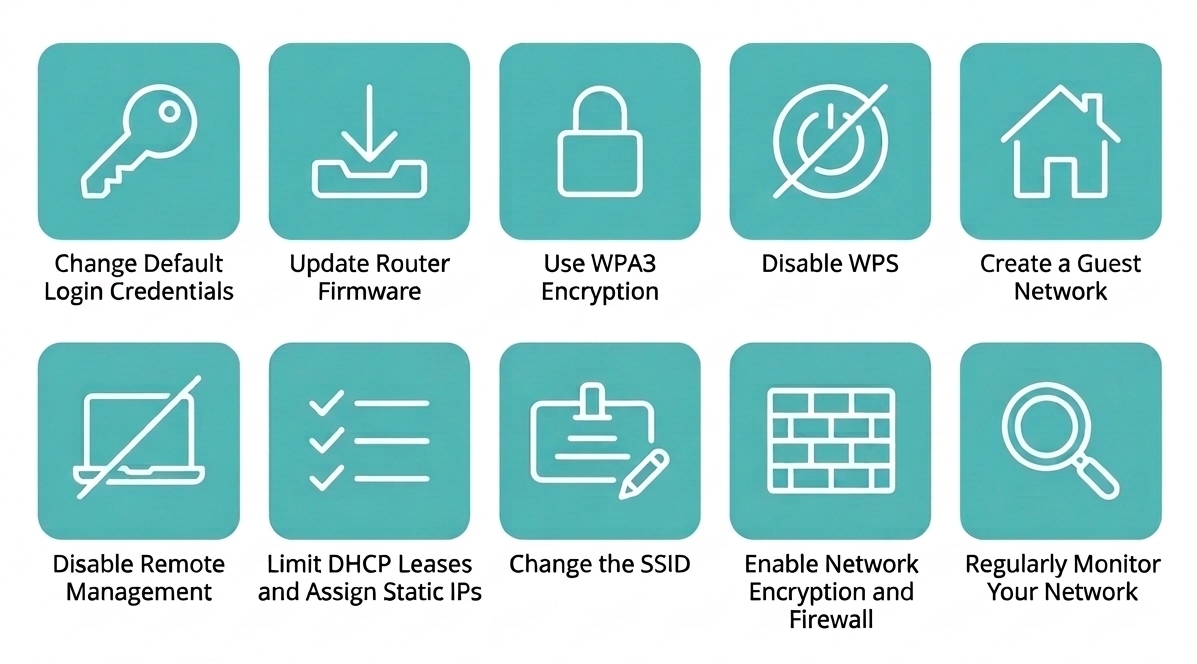
10 Steps to Secure Your WiFi Router
1. Change the Default Router Login Credentials
Most modems and WiFi routers come with default usernames and passwords like "admin" and "password," which are easy for attackers to guess. Changing these is the single highest-impact fix you can make.
-
Log in to your router's admin interface, usually by typing the router's IP address (often 192.168.1.1 or 192.168.0.1) into your browser. If you've never done this before, our router login guide walks through the process in full.
-
Find the option to change the administrator username and password.
-
Create a strong, unique password: at least 12 characters, mixing letters, numbers, and symbols.
What It Means for You: If you've never changed your router's admin login, an attacker on the same network segment could access your router's settings in seconds using default credentials found in a quick search. This one change alone eliminates that risk.
2. Update the Router Firmware
Manufacturers release firmware updates to patch security vulnerabilities and improve performance, but outdated firmware is one of the most overlooked risks on home networks.
-
Check your current firmware version in your router's settings panel.
-
Look for "Firmware Update" or "Software Update."
-
Download and install the latest version following the on-screen instructions.
|
Feature |
Specification |
Practical Benefit |
|
OTA firmware upgrade |
One-click update via the Tether app or web interface |
Removes the need to manually check for updates, closing security gaps automatically |
|
Auto-update scheduling |
Set-and-forget firmware update schedule |
Keeps security patches current even if you forget to check manually |
|
Version history tracking |
Admin interface displays current firmware version |
Lets you quickly confirm whether your router is on the latest, most secure release |
What It Means for You: A router running firmware from several years ago may be missing patches for vulnerabilities that are now publicly documented and easy to exploit. If your router's firmware hasn't been checked in over a year, this is a good moment to do it. If a factory reset ever becomes necessary as part of troubleshooting a persistent issue, our factory reset guide covers that separately.
3. Use WPA3 Encryption
Encryption protects the data traveling over your WiFi network. WPA3 (Wi-Fi Protected Access 3) is the current and most secure encryption standard, and most routers released in the last few years support it.
- In the wireless security settings, navigate to the encryption options.
- Select WPA3 from the list.
- Save your changes.
If your router doesn't support WPA3, WPA2 remains secure and is still an acceptable choice. Avoid WEP entirely: it's an older standard with well-documented weaknesses that make it easy to compromise.
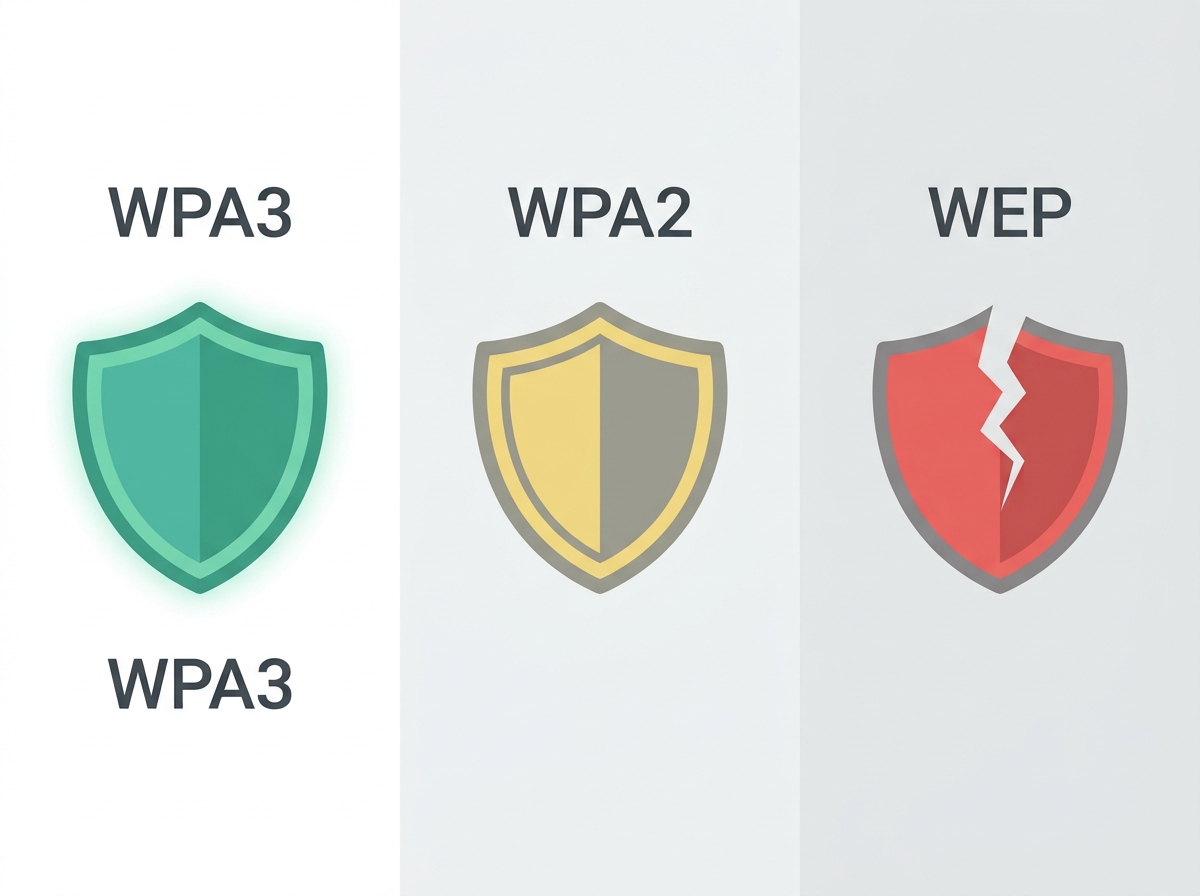
What It Means for You: If you're not sure which encryption your router currently uses, check this setting today. Many older routers still ship configured to a weaker default, and switching to WPA3 or WPA2 takes under a minute once you're in the settings.
4. Disable WPS (WiFi Protected Setup)
WPS makes connecting new devices easier by letting you press a button instead of entering a password, but it comes with known vulnerabilities that attackers can exploit.
- Access your router's wireless settings.
- Find the WPS button option and disable it.
Disabling WPS means manually entering your WiFi password for new devices, but it closes a well-known attack vector.
What It Means for You: WPS vulnerabilities have been public knowledge for years, making WPS-enabled routers an easy target for automated attack tools. The minor inconvenience of typing a password is worth the security gain.
5. Create a Guest Network
If visitors regularly need internet access, a separate guest network keeps your primary network isolated and secure.
- In your router's guest network settings, find "Guest Network."
- Enable it and set a different password than your main network.
- Limit the guest network's access to your main network resources.
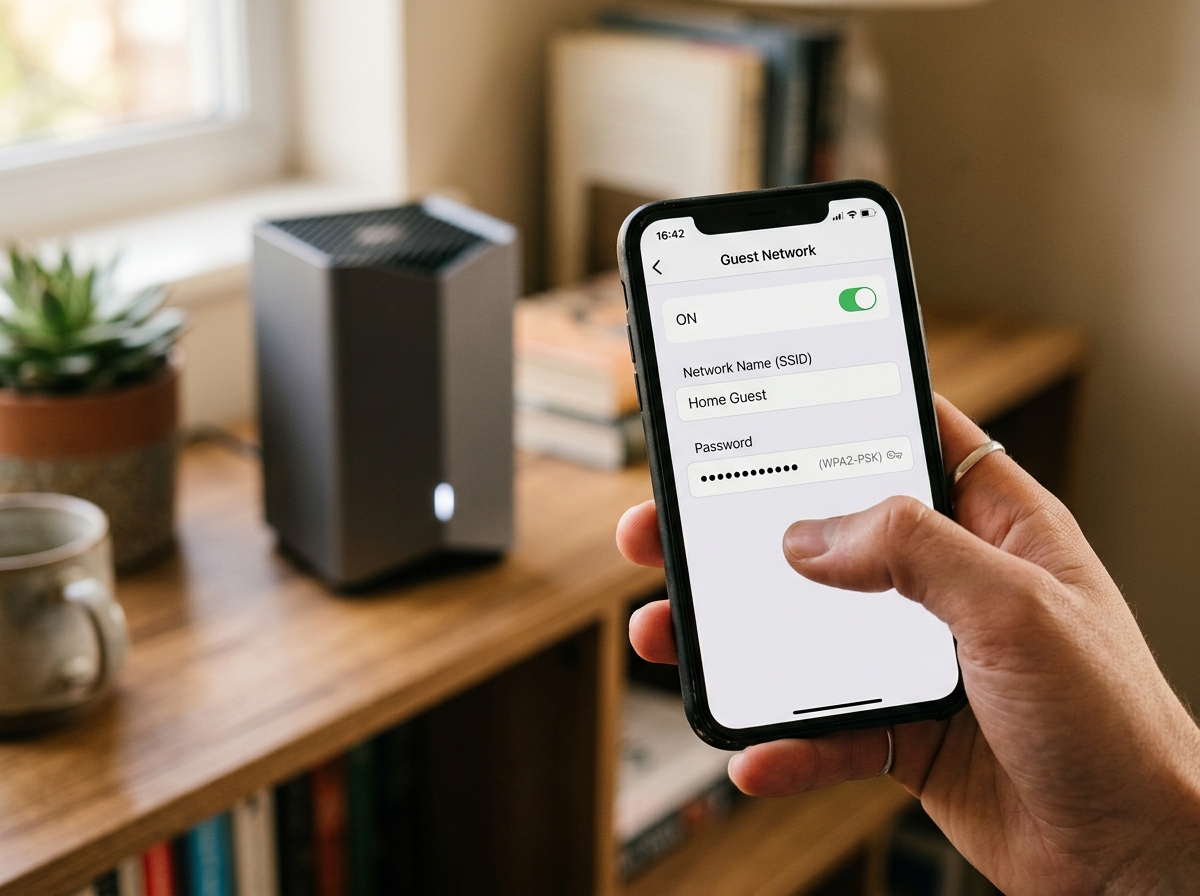
If frequent guests or family members need internet access, a guest network also prevents them from ever seeing your main network's devices or shared files.
What It Means for You: A guest network means visiting friends, family, or contractors get internet access without ever touching your primary network, protecting both your devices and your bandwidth from anything on their phones or laptops.
6. Disable Remote Management
Remote management lets you access your router's settings from anywhere over the internet, but it also gives attackers another way in if left enabled unnecessarily.
- Log into your router's settings page.
- Find "Remote Management" or "Remote Access" and disable it.
If you genuinely need remote access, consider setting up a secure VPN instead, which provides a safer path for managing your router remotely.
What It Means for You: Unless you specifically manage your network while traveling or from a separate location, remote management is a feature you're likely not using, but that still exposes your router to the open internet. Turning it off removes that exposure entirely.
7. Limit DHCP Leases and Assign Static IPs
DHCP automatically assigns IP addresses to devices on your network. Limiting the range or assigning static IPs to key devices adds an extra layer of control.
- In your router's DHCP settings, set a range that covers only the number of devices you typically use.
- Alternatively, manually assign static IP addresses to your most important devices.
What It Means for You: This makes it easier to spot unauthorized devices at a glance, since anything outside your expected IP range or device list stands out immediately during a network check.
8. Change the SSID (Network Name)
Your WiFi network name, or SSID, is visible to anyone searching for networks nearby. A default SSID often reveals your router's brand and model, giving attackers a head start on finding known vulnerabilities.
- Go to your router's wireless settings.
- Change the SSID to something unique that doesn't reveal personal information or the router model.
What It Means for You: A generic default SSID like "TP-Link_1234" tells anyone nearby exactly what hardware you're running, which narrows down which vulnerabilities to try first. A custom name removes that clue entirely.
9. Enable Network Encryption and Firewall
Most routers include a built-in firewall and encryption settings that should always stay active.
- In your security settings, turn on the firewall.
- Confirm network encryption (WPA3 or WPA2) is enabled.
What It Means for You: These settings are usually on by default, but it's worth a quick check, especially after a factory reset or firmware update, since some updates can reset custom settings to default.
10. Regularly Monitor Your Network
Even with every step above in place, ongoing monitoring helps you catch problems early.
- Periodically log into your router's control panel to check for unknown connected devices.
- Review router logs for unusual activity.
If you notice anything suspicious, change your WiFi password and review your security settings immediately.
What It Means for You: A five-minute monthly check of connected devices is often the fastest way to catch an unauthorized user before they cause real damage, especially in shared or multi-tenant living situations common across the Philippines.
Frequently Asked Questions
How often should I change my WiFi password?
Change it immediately if you suspect unauthorized access, and consider a routine update every 6 to 12 months as good practice. Frequent unnecessary changes create more hassle than security benefit for most households. What matters more is password strength and encryption standard than change frequency alone. A strong WPA3 password rarely needs to change unless compromised.
Is WPA2 still safe to use if my router doesn't support WPA3?
Yes, WPA2 remains a secure standard when paired with a strong password and updated firmware. It's WEP you should avoid entirely, since it has well-documented, easily exploited weaknesses. If your router supports WPA3/WPA2-mixed mode, enabling it lets newer devices use WPA3 while older devices fall back to WPA2. Prioritize upgrading only if security is a serious concern for your household.
Should I hide my SSID from broadcasting?
Hiding your SSID adds minor obscurity but isn't a substitute for real security measures like strong passwords and WPA3 encryption. Determined attackers can still detect hidden networks with basic tools. It's an optional extra step, not a priority. Focus on the 10 steps above first, then consider SSID hiding only if you want an additional layer.
Does a guest network really protect my main network?
Yes, a properly configured guest network isolates visitor devices from your primary network, preventing access to your shared files, connected devices, and admin settings. This is especially useful for Airbnb-style setups or households with frequent visitors. Without it, any visitor's compromised phone could potentially expose your entire home network. Enable it once, and it protects every future guest automatically.
What's the risk of leaving default router credentials unchanged?
Default credentials like "admin/admin" are publicly documented for nearly every router brand and model, making unauthorized access trivial for anyone on your network or within WiFi range. This is the most common entry point for home network attacks. Changing it takes under two minutes. Do this first before any other step on this list.
Can I secure my WiFi router without any technical experience?
Yes, every step above is accessible through your router's standard admin interface or the TP-Link Tether app, with no command-line or advanced networking knowledge required. Most steps take under five minutes each. If you get stuck, TP-Link's support FAQs and the Tether app both include guided instructions. Start with changing default credentials and enabling WPA3, since those two alone close the most common gaps.
How do I know if my router has already been compromised?
Watch for unusually slow speeds, unfamiliar devices in your connected device list, or settings you didn't change, like a different SSID or a disabled firewall. If any of these appear, change your password immediately and review every setting above. In persistent or unclear cases, a factory reset followed by reconfiguring all 10 steps from scratch is the most reliable way to start clean.
Do I need a new router to get better security, or can I secure my current one?
Most home routers, even several years old, support the core protections in this guide: strong passwords, firewall, and at least WPA2 encryption. A new router is worth considering mainly if yours doesn't support WPA3 at all and you want the strongest available protection, or if it's no longer receiving firmware updates. Test every step on your current router first before assuming you need new hardware.
Final Thoughts
Securing your WiFi router isn't a one-time task. Protecting your personal data and network from cyberattacks means following these 10 steps and revisiting them periodically as security standards evolve. Regular monitoring and staying current with firmware updates will keep your router and every connected device protected long-term.
Ready to upgrade to a router built for stronger security from the start? TP-Link offers a comprehensive range of WiFi routers designed to make these protections easier to manage. Here are our top picks:
- Archer BE805 Wi-Fi 7 Router: Enables your devices to run at full speed. Enjoy fluent 4K/8K streaming, immersive AR/VR gaming, and lightning-fast downloads, with enhanced security defending against the latest cyber threats.
- Archer BE700 BE15000 Tri-Band: Wi-Fi 7 unleashes the full potential of the 6 GHz band with up to 320 MHz channels and 11.5 Gbps WiFi speeds, for full access to 8K streaming and high-speed downloading.
- Archer AX80 Wi-Fi 6 Router: Up to 6.0 Gbps (4804 Mbps + 1148 Mbps) WiFi for faster browsing, streaming, and downloading, all at the same time, with enhanced security built in.