
Fix WiFi Adapter Problems: TP-Link Philippines Guide
Published: August 30, 2024 · Last Updated: September 15, 2026
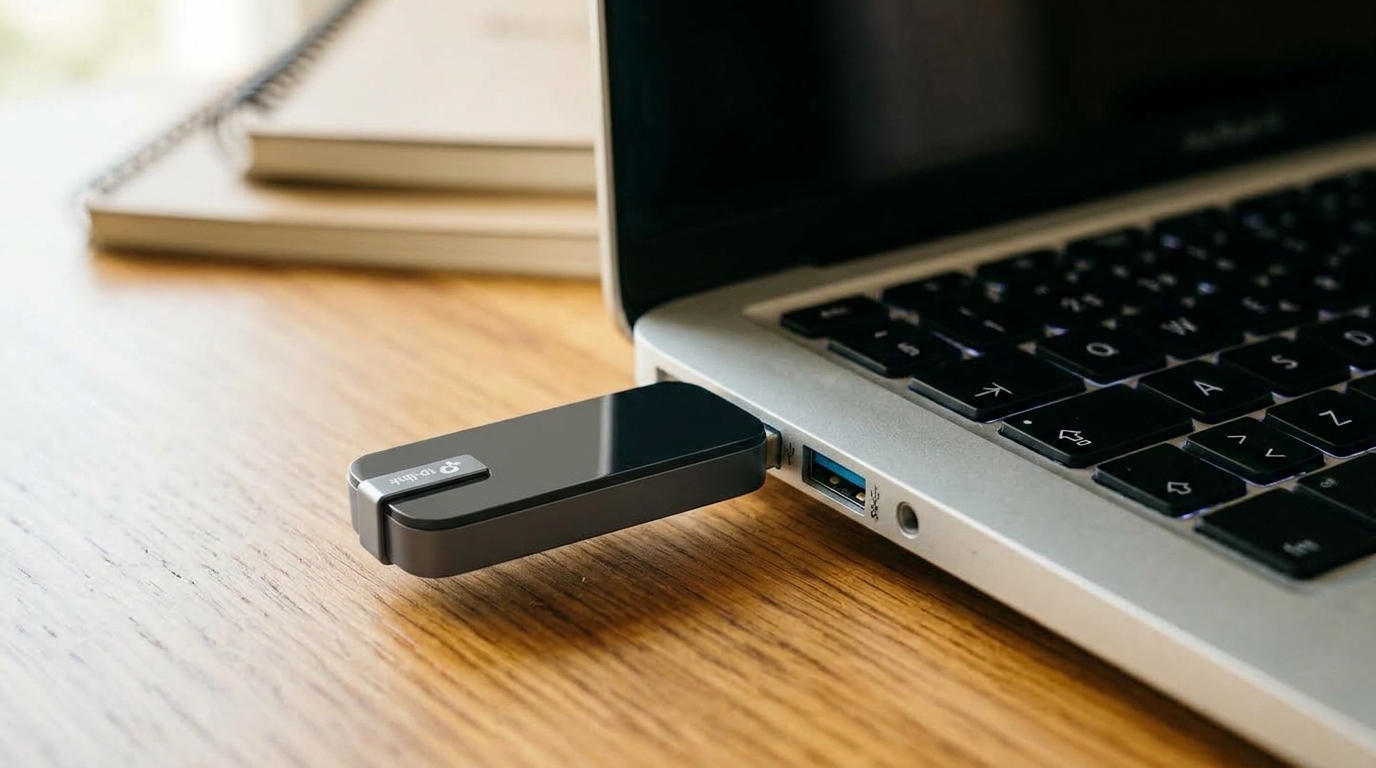
Quick Answer
-
A driver conflict, often after a Windows update, is the single most common cause of WiFi adapter problems.
-
A USB 2.0 port bottlenecks a faster adapter to 480 Mbps regardless of the adapter's rated speed.
-
Most fixes live in Windows Device Manager under the adapter's Properties and Power Management tabs.
Most WiFi adapter problems trace back to one of three causes: a driver conflict, a USB port bottleneck, or a router-side power or reconnect setting, and nearly all of them are fixable in minutes without replacing any hardware.
Table of Contents
WiFi Adapter Troubleshooting Decision Tree
Problem 1: WiFi Adapter Not Detected
Problem 2: Intermittent Connection Drops
Problem 4: WiFi Adapter Keeps Disconnecting
Problem 5: WiFi Adapter Not Connecting to Networks
Problem 6: WiFi Adapter Not Working After a Windows Update
Philippine ISP-Specific WiFi Adapter Issues
How Do I Choose the Right WiFi Adapter
Common 2026 WiFi Adapter Setup Mistakes to Avoid
Which USB WiFi Adapters Does TP-Link Recommend
What Is a WiFi Adapter
A WiFi adapter connects a computer or other device to a wireless network for internet access. Laptops and smartphones often have built-in WiFi adapters, or you can use an external USB adapter or PCIe card for desktops. Your device uses this adapter to stream content, browse, and communicate with other devices on your network.
Key takeaway: Detection failures are the most common WiFi adapter complaint, and most trace back to a driver issue rather than a hardware fault.
WiFi Adapter Troubleshooting Decision Tree
Work through this table in order. Each row resolves the most common causes first before moving to more advanced fixes. Match your symptom to the row and follow the recommended fix.
|
Symptom |
Most Likely Cause |
Recommended Fix |
|
Adapter not detected at all |
Missing or corrupt driver |
Device Manager -> Network Adapters -> Update Driver, or reinstall from the TP-Link support page |
|
Yellow exclamation mark in Device Manager |
Driver conflict or hardware fault |
Right-click -> Uninstall device -> Restart computer -> let Windows reinstall automatically |
|
Connects but drops every few minutes |
Power management is disabling the adapter |
Device Manager -> Adapter Properties -> Power Management -> uncheck "Allow the computer to turn off this device" |
|
Connected, but internet isn't working |
DNS conflict or IP address issue |
Run ipconfig /release, then ipconfig /renew in Command Prompt |
|
Slow speeds even on 5 GHz |
Outdated driver or wrong band setting |
Update driver from TP-Link support, then set Preferred Band to 5 GHz under Adapter Advanced Properties |
|
Adapter disconnects after Windows update |
Driver version mismatch post-update |
Device Manager -> Driver tab -> Roll Back Driver, or download the latest driver from tp-link.com/ph/support |
|
Unknown Device shown in Device Manager |
Driver not installed at all |
Download the driver installer from TP-Link support, run it manually, then restart |
|
Connects to 2.4 GHz but not 5 GHz |
Adapter doesn't support 5 GHz, or is in the wrong mode |
Check adapter model specs. Archer T4U and T3U support 5 GHz; TL-WN722N is 2.4 GHz only |
Key takeaway: Work top to bottom. Most driver issues are resolved in the first row or two, before you ever reach a hardware question.
Problem 1: WiFi Adapter Not Detected
-
If you're using an external USB adapter, ensure it's securely connected. Try a different USB port or hub. Internal adapters should be checked for proper seating on the motherboard.
-
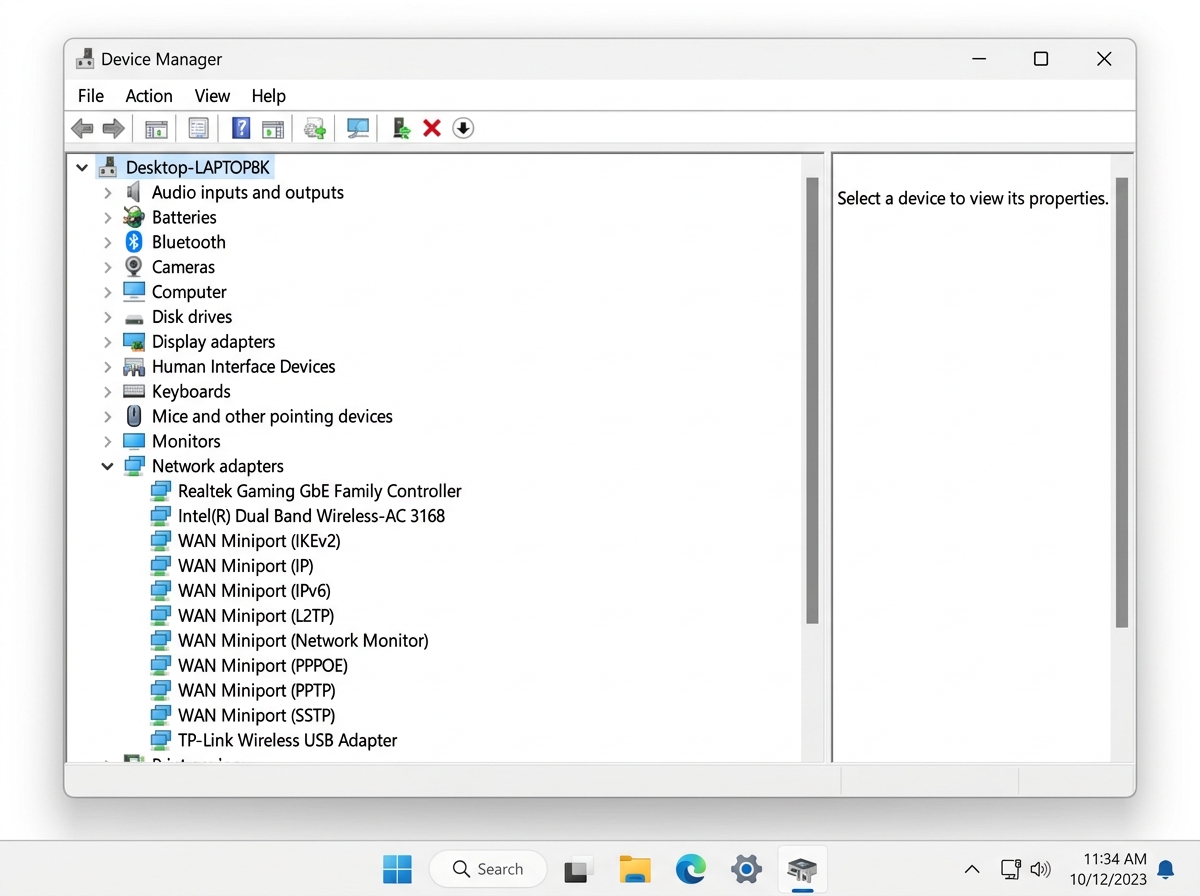
Press Win + X and select Device Manager. Look under Network Adapters for a missing listing or a yellow exclamation mark; both signal a driver issue.
-
Right-click the adapter, select Update driver, then Search automatically. If that finds nothing, download the driver manually from tp-link.com/ph/support. On Windows 11, downloading directly from the support page is generally more reliable than Windows Update, which may install a generic driver package.
-
If updating doesn't work, uninstall the adapter from Device Manager, restart, and let Windows reinstall it automatically.
Problem 2: Intermittent Connection Drops
-
Other devices, microwaves, cordless phones, or neighboring WiFi networks can disrupt your signal. Move your computer or router toward a central, interference-free location.
-
If multiple networks share your channel, congestion builds up. Log in to your router and switch to a less congested WiFi channel.
-
In Device Manager, uncheck "Allow the computer to turn off this device" under Power Management. On Windows 11, this setting lives under Device Manager -> Properties -> Power Management.
-
Keep your router's firmware updated; firmware updates often resolve stability issues directly.
Problem 3: Slow WiFi Speeds
-
Stay within range of your router. Avoid corners, furniture, and large metal objects that block the signal.
-
Update outdated drivers using the steps above.
-
Select 5 GHz if supported. It's faster and less crowded than 2.4 GHz, though its range is shorter. Streaming and gaming benefit from increasing QoS priority for those devices.
-
If your signal is weak due to distance, using a WiFi extender or mesh network system can eliminate dead zones and maintain consistent speeds.
Problem 4: WiFi Adapter Keeps Disconnecting
-
Go to Control Panel -> Power Options -> High Performance, then Change Advanced Power Settings -> Wireless Adapter Settings -> Maximum Performance. On Windows 11, this is under System -> Power & Battery -> Power Mode -> Best Performance.
-
In Device Manager, adjust Roaming Aggressiveness or Preferred Band under the Advanced tab.
-
Check for physical interference from nearby devices.
-
Reset your router to refresh the connection.
Problem 5: WiFi Adapter Not Connecting to Networks
-
In network settings, find the problem network, select Forget, then reconnect with the password re-entered.
-
Confirm your router's security settings and adapter's security settings match; a WPA3 router won't connect to a WPA2-only adapter.
-
Update your adapter drivers as described above.
-
Confirm your router's SSID is broadcasting and its network mode (e.g., 802.11ac) is compatible with your adapter.
-
Verify your computer is set to obtain an IP address automatically, unless specific settings are required.
Problem 6: WiFi Adapter Not Working After a Windows Update
This is a frequently reported issue among TP-Link Archer T4U and T3U users in the Philippines following major Windows 10 and Windows 11 updates.
- In Device Manager, under the Driver tab, click Roll Back Driver to revert to the previous version.
- Uninstall the adapter, restart, and let Windows reinstall the driver.
- Check tp-link.com/ph/support for a driver compatible with the latest Windows 11 update. Using the support-page driver is generally more reliable than Windows Update's auto-detected one, which can install a generic driver package without TP-Link-specific optimizations.
- If nothing else works, use System Restore to revert to a point before the problematic update.
Key takeaway: Post-Windows-update disconnects are almost always a driver mismatch, not a defective adapter; roll back or reinstall before considering a replacement.
Philippine ISP-Specific WiFi Adapter Issues
These issue patterns are distinct from standard adapter troubleshooting because they involve the handoff between the ISP's fiber equipment and your home network, common across PLDT, Globe, and Converge connections.
PLDT Fibr PPPoE handoff issues. PLDT Fibr uses PPPoE authentication. When an adapter loses and re-establishes its connection, the handoff to a new PPPoE session can take a noticeable moment, which can look like a prolonged reconnection delay rather than a true adapter failure.
- Recommended fix: In the router's admin panel, set Reconnect Mode to Always On, and set the MTU to 1492, the standard value for PLDT PPPoE connections.
- If internet access doesn't restore after a drop, run ipconfig /release, then ipconfig /renew to force an IP and DNS refresh.
Globe At Home fiber: channel congestion in dense urban areas. Metro Manila, Cebu, and Davao deployments can show high 2.4 GHz congestion in dense apartments and condos, where many neighboring networks share the same limited channel space.
- Consider switching exclusively to 5 GHz in these environments: Device Manager -> Adapter Properties -> Advanced -> Preferred Band: 5 GHz Band, Band Preference: Prefer 5 GHz.
- If 5 GHz drops frequently, set Roaming Aggressiveness to Lowest to prevent switching to a weaker 2.4 GHz signal during brief fluctuations.
Converge FiberX gigabit speed matching. Converge FiberX now offers up to 1 Gbps in most service areas. A WiFi 5 (AC) adapter physically cannot exceed 867 Mbps on 5 GHz. If you're on a Converge 500 Mbps or 1 Gbps plan and seeing well under 400 Mbps through your adapter, that's most likely a hardware bottleneck, not an ISP issue.
- Recommended fix for Converge 500 Mbps+ subscribers: upgrade to a WiFi 6 (AX-series) adapter to match your plan tier, such as the Archer TX20U, rated AX1800 (up to 1201 Mbps on 5 GHz). The older Archer T4U tops out at AC1300 (867 Mbps on 5 GHz), fine for plans up to 300 Mbps but a bottleneck on higher tiers.
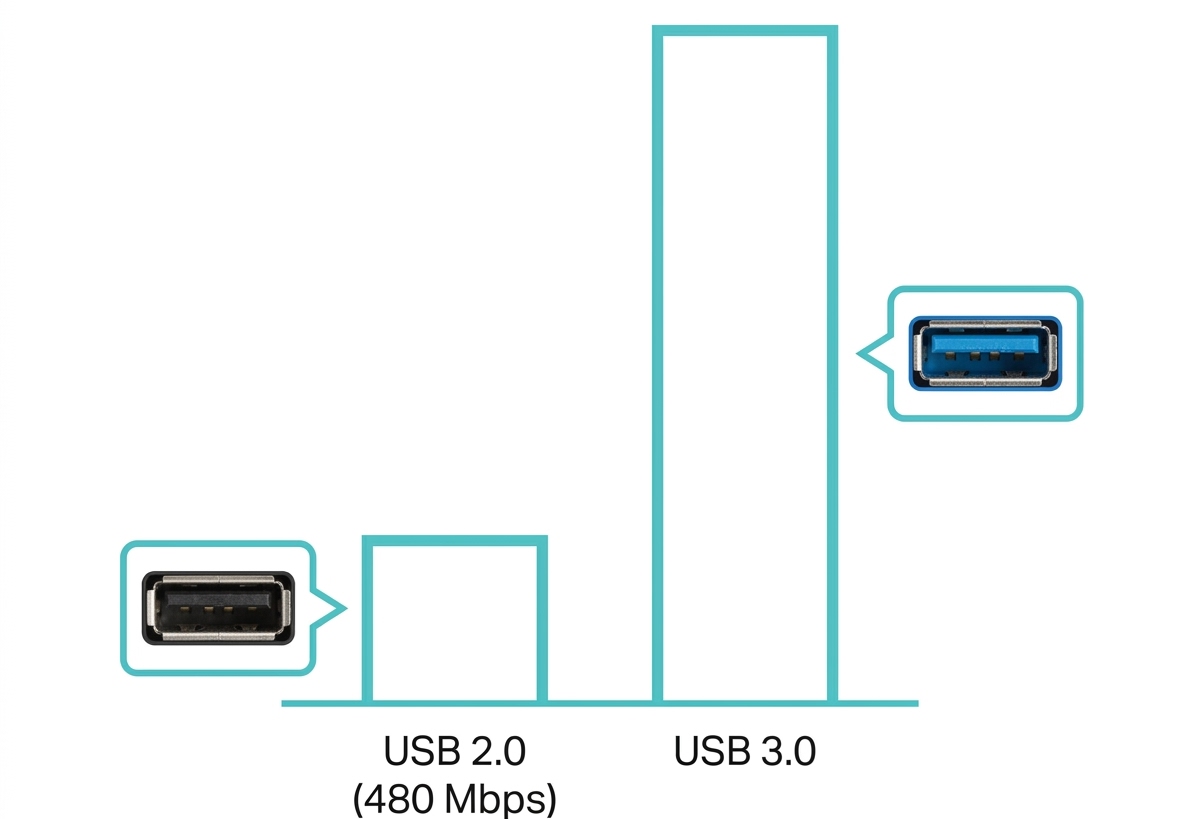
- For wired-equivalent speeds over WiFi: connect via USB 3.0, not USB 2.0, which caps at 480 Mbps and will bottleneck AC or AX adapters, and set your router's 5 GHz channel width to 80 MHz.
Key takeaway: If your adapter is rated correctly for your plan speed but you're still seeing a bottleneck, check your USB port version before assuming the adapter is defective.
How Do I Choose the Right WiFi Adapter
Match the adapter to your device and your needs. Confirm compatibility with your operating system, including Windows 11 and macOS Sequoia, and check support for current WiFi standards like WiFi 5 or WiFi 6 for faster speeds. External antennas help with signal strength.
USB adapters are the easiest plug-and-play option; PCIe adapters suit high-performance tasks like gaming. Confirm dual-band (2.4 GHz and 5 GHz) support for more stable connections, and match the adapter's speed rating to your router's capability. For a full model comparison, see USB WiFi adapters in the Philippines.
Common 2026 WiFi Adapter Setup Mistakes to Avoid
These setup errors account for the majority of adapter complaints; check for them before escalating to hardware replacement.
- USB 2.0 instead of USB 3.0. USB 2.0 caps at 480 Mbps, physically limiting a WiFi 6 or AC1300 adapter below its rated maximum. Always use a USB 3.0 port (usually marked with a blue insert or "SS" label).
- Disabling USB Selective Suspend globally instead of adapter-specific power management. The correct fix for disconnects is under Device Manager -> Adapter Properties -> Power Management, not the global USB setting, which affects all USB devices unnecessarily.
- Using a WiFi 6E adapter on a WiFi 5 router. The adapter still works, but the 6 GHz band, WiFi 6E's key feature, isn't available on a WiFi 5 router. You'll get WiFi 5 speeds, not a WiFi 6E boost.
- Letting Windows Update replace a working TP-Link driver with a generic one. After major Windows 11 updates, check Device Manager; if the driver publisher no longer shows "TP-Link" or "TP-LINK Technologies," reinstall from tp-link.com/ph/support.
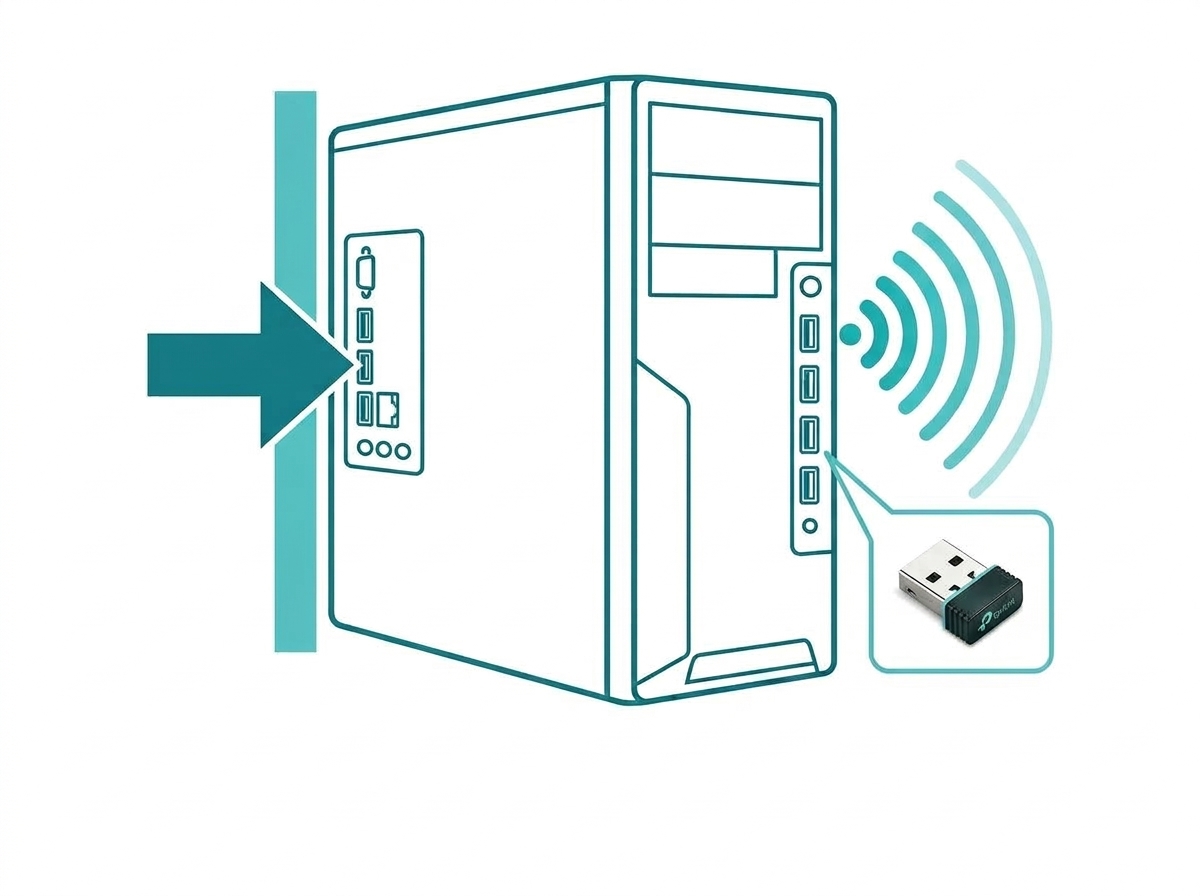
- Placing the adapter behind the desktop tower or monitor. Rear-mounted USB ports get blocked by the chassis. Front-panel ports or a USB extension cable on the desk improves reception significantly.
- Not setting a static IP when MAC address filtering is enabled. If DHCP assigns a different IP on each reconnect while MAC filtering is on, the adapter can reconnect to a blocked IP. Set a static IP matching your router's accepted MAC filter range.
Which USB WiFi Adapters Does TP-Link Recommend
|
Model |
Speed |
Best for |
|
Up to 1300 Mbps (400 Mbps 2.4 GHz / 867 Mbps 5 GHz) |
General use on 802.11ac networks |
|
|
AC1300, same speed profile as T4U |
Portability, MU-MIMO support |
|
|
Up to 150 Mbps |
Basic streaming and calls, budget setups |
|
|
AX1800 (574 Mbps 2.4 GHz / 1201 Mbps 5 GHz) |
Gigabit-tier plans, WiFi 6 routers |
Frequently Asked Questions
Do I need a WiFi adapter if my device already has built-in WiFi? Not necessarily. If your built-in WiFi is outdated or unreliable, an external adapter can improve your connection quality without replacing the whole device. Check your device's WiFi standard first; a WiFi 4 or 5 built-in chip is the most common reason people add a faster external adapter.
What should I look for when buying a WiFi adapter? Check compatibility with your device, support for current WiFi standards (WiFi 5, WiFi 6, or WiFi 6E), speed ratings, and whether you need a USB or PCIe form factor. Matching the adapter's rated speed to your actual internet plan avoids paying for headroom you can't use.
Can I use a WiFi adapter on a gaming console? Many consoles support WiFi adapters, especially when the built-in WiFi is weak. Always check your specific console's compatibility list first, since console manufacturers maintain their own approved hardware lists.
Can a WiFi adapter be used on multiple devices? A USB adapter can move between devices, but only one at a time. PCIe adapters install inside a single computer and aren't easily transferable, so plan for a dedicated adapter per desktop.
Why does my TP-Link adapter keep disconnecting from PLDT Fibr? The most common cause is Windows power management disabling the adapter to save energy. Uncheck "Allow the computer to turn off this device" under Power Management, and on PLDT Fibr specifically, set your router's Reconnect Mode to Always On to avoid PPPoE re-authentication delays.
Is the Archer T4U AC1300 compatible with Windows 11? Yes. Download the driver directly from tp-link.com/ph/support rather than relying on Windows Update, which may install a generic driver lacking TP-Link's chipset-specific stability patches, particularly on the 5 GHz band.
Why is my USB WiFi adapter slower than my phone's WiFi? Most likely, your adapter is on a USB 2.0 port (480 Mbps max) or connecting on the 2.4 GHz band only. Check: (1) use a USB 3.0 port, (2) confirm a 5 GHz connection in Device Manager -> Advanced Properties, (3) update the driver from tp-link.com/ph/support. A phone with built-in WiFi 6 on 5 GHz will naturally outperform an older 2.4 GHz USB adapter.
Final Thoughts
Adapter acting up? Start with the decision tree above. Most WiFi adapter problems - non-detection, frequent disconnects, slow speeds - trace back to a driver conflict or a USB port limitation rather than a defective device. TP-Link offers a range of WiFi adapters designed to enhance connectivity and prevent slow speeds across Philippine ISP networks.