
Common WiFi Problems and Fixes for Philippine Homes
Published: March 5, 2024 | Last Updated: July 28, 2026

Most WiFi problems in Philippine households come down to a handful of repeatable causes: distance from the router, too many connected devices, outdated firmware, or interference from concrete walls and neighboring networks. Once you identify which one applies to you, the fix is usually quick.
Quick Answer
- Slow speeds and dropped connections are almost always caused by router distance, device overload, or outdated firmware, not your ISP plan.
- A quick router reboot, repositioning, or channel switch resolves most everyday WiFi complaints without new hardware.
- Persistent weak signal or dead zones in a Philippine home with concrete walls usually require a mesh system or extender, not just a better router position.
Table of Contents
What Is Causing My WiFi Connection Issues
Common WiFi Connectivity Problems and Fixes
What Is Causing My WiFi Connection Issues
Wi-Fi technology lets you access the internet wirelessly from anywhere within range of your WiFi router. Still, that convenience comes with a tradeoff: signal strength, bandwidth, and security all depend on factors most people never think about until something breaks. Before jumping to fixes, narrow down whether the problem is your device, your local network, or your internet connection itself.
Is It Your Phone?
If one device can't connect to the internet, check whether it's actually joined to the WiFi network first. Try a different device on the same network. If that device connects fine, the problem is isolated to your phone, not your router.
Is It Your Network?
If no device can connect to your home network specifically, test with a different network. Try your phone's hotspot, or a pocket WiFi if you have one with a data connection. Public WiFi or a neighbor's connection also works as a quick test.
Is It Your Internet Connection?
If your phone connects fine to other networks but not to your home network at all, the problem is most likely your home internet connection itself, not your device or WiFi settings.
What It Means for You: This three-step check takes under two minutes and immediately tells you whether to troubleshoot your phone, your router, or call your ISP, saving you from restarting the wrong thing first.
Common WiFi Connectivity Problems and Fixes
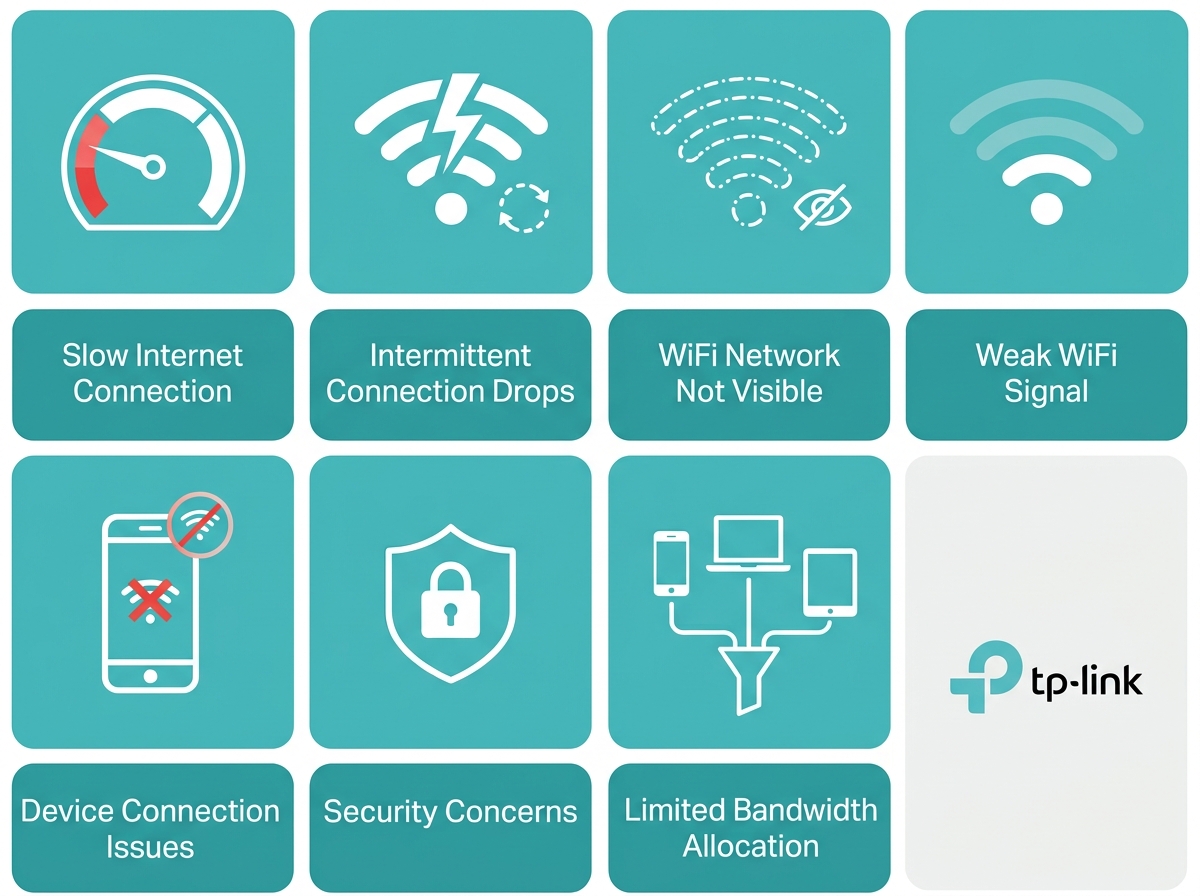
Slow Internet Connection
A slow connection is the most common complaint, and in the Philippines it's frequently made worse by concrete walls, peak-hour congestion between 7 PM and 10 PM, and older single-band routers. Contributing factors include:
- Distance from the router - the farther you are, the weaker the signal and the slower the speed.
- Interference from other devices - microwaves, cordless phones, and Bluetooth devices operating on the 2.4GHz band can degrade performance.
- Outdated router firmware - firmware updates often include real performance and stability improvements, not just security patches.
|
Feature |
Specification |
Practical Benefit |
|
Dual-band Wi-Fi (2.4GHz + 5GHz) |
Two separate frequency bands operating simultaneously |
Lets you split older devices onto 2.4GHz and newer devices onto the faster, less congested 5GHz band |
|
Firmware auto-update |
Scheduled OTA firmware upgrades via the router's app or web interface |
Keeps performance and security patches current without manual checking |
|
Beamforming |
Concentrates signal strength toward connected devices |
Improves speed and reliability at greater distances without repositioning the router |
To improve WiFi speed, consider:
- Repositioning the router - place it centrally, elevated, and away from thick walls or metal cabinets.
- Upgrading to a dual-band router - a modern dual-band router separates traffic across 2.4GHz and 5GHz bands for faster, more reliable connections. (See legacy note below; the currently available equivalent is the Archer AX55, an AX3000 dual-band Wi-Fi 6 router.)
- Updating router firmware: check for updates regularly via the Tether app or web interface.
What It Means for You: In a typical Philippine condo or townhouse with concrete interior walls, moving your router from a bedroom to a central hallway or living area can noticeably improve speed to every room, often more than any single hardware upgrade.
Intermittent Connection Drops
Drops that come and go are often more frustrating than consistently slow speeds. Common causes include:
- Signal interference - neighboring WiFi networks (common in dense apartment buildings) and physical obstacles.
- Overloaded network - too many devices connected at once.
- Router or modem issues - hardware or software faults in either device; if you're unsure which one is actually failing, our modem vs. router breakdown explains how to tell them apart before troubleshooting further.
To reduce drops, try:
- Switching WiFi channels - especially useful in apartment buildings where dozens of networks compete on the same default channel.
- Limiting connected devices - disconnect idle devices, or upgrade to a router built for higher device density.
- Resetting the router or modem - a simple reboot resolves many temporary glitches.
What It Means for You: If you live in a condo building with dozens of overlapping WiFi networks, switching from a crowded 2.4GHz channel to 5GHz (or letting your router's Smart Connect feature choose automatically) often fixes drops that repositioning alone can't.
WiFi Network Not Visible
If your network disappears from the list of available connections, the cause is usually one of the following:
- Router configuration issues - incorrect settings can stop the network from broadcasting.
- Hidden SSID - some users hide their network name for added security, which makes it invisible by design.
- Router hardware failure - a faulty antenna or transmitter can stop broadcast entirely.
To restore visibility:
- Enable SSID broadcast - check your router's wireless settings to confirm broadcast is turned on.
- Reboot the router - resolves most temporary visibility issues.
- Factory reset as a last resort - if nothing else works, a factory reset clears misconfigurations, but it also erases your current settings and requires reconfiguring everything afterward.
What It Means for You: Try the SSID broadcast check and a reboot before resetting anything. A factory reset should be your last option since you'll need to redo your WiFi name, password, and any custom settings from scratch.
Weak WiFi Signal
A weak signal degrades speed and reliability even when your internet plan is otherwise fast enough. This is also one of the common reasons for most USB WiFi adapter issues, though adapter-side troubleshooting is covered separately. Contributing factors:
- Distance from the router - reduced speed and connectivity the farther you are.
- Physical obstructions - concrete walls, floors, and other barriers are especially common in Philippine homes and significantly weaken 5GHz signals in particular.
- Interference from other wireless devices: other devices sharing the same frequency band.
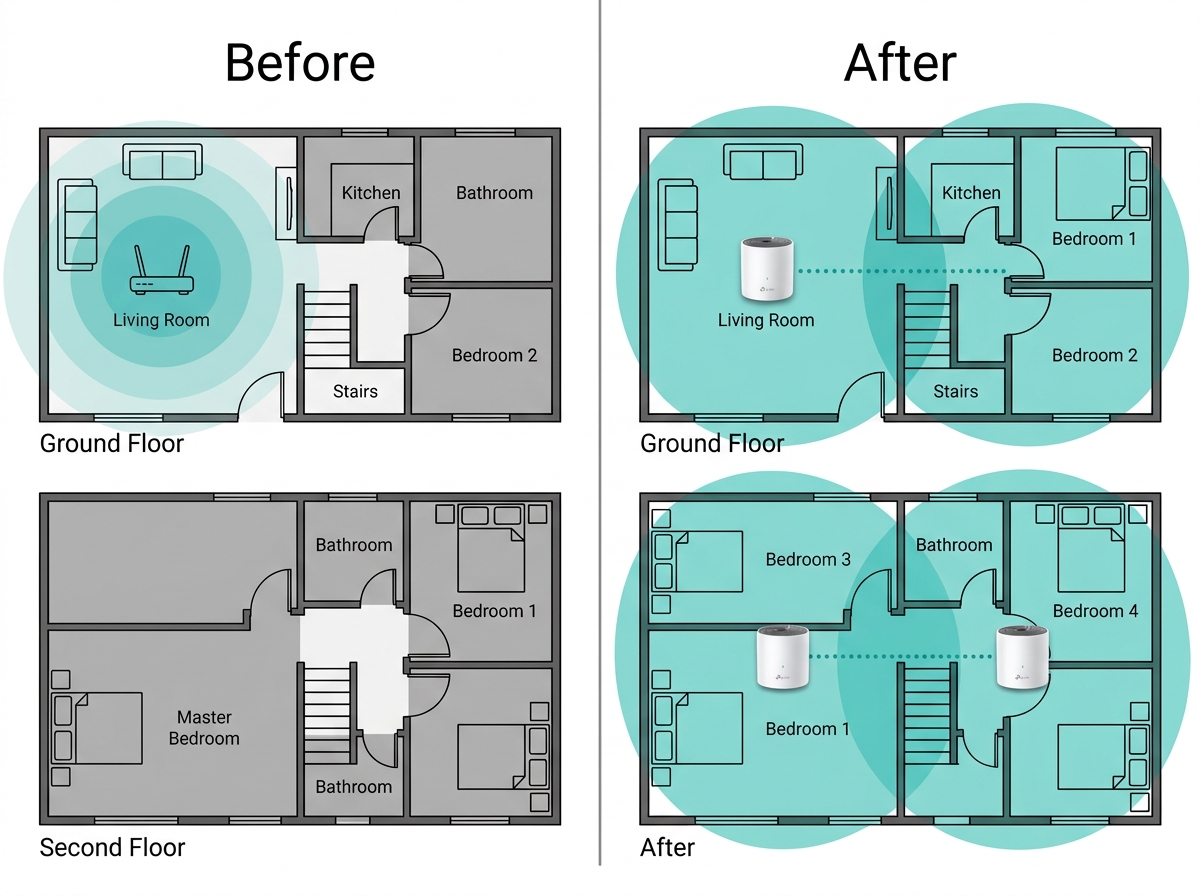
To strengthen a weak signal, consider:
- Installing WiFi extenders or repeaters - WiFi extenders amplify and retransmit your signal to cover dead zones.
- Using a mesh WiFi system - mesh systems use multiple coordinated access points for seamless whole-home coverage, which tends to outperform a single extender in multi-floor homes with thick walls.
- Positioning the router strategically - central, elevated, and away from obstructions.
What It Means for You: In a two-story home with concrete floors, a single router rarely reaches the far end of the second floor. A two-unit mesh system typically solves this more reliably than a single extender, since mesh units share one network name and hand off devices seamlessly as you move between floors.
Device Connection Issues
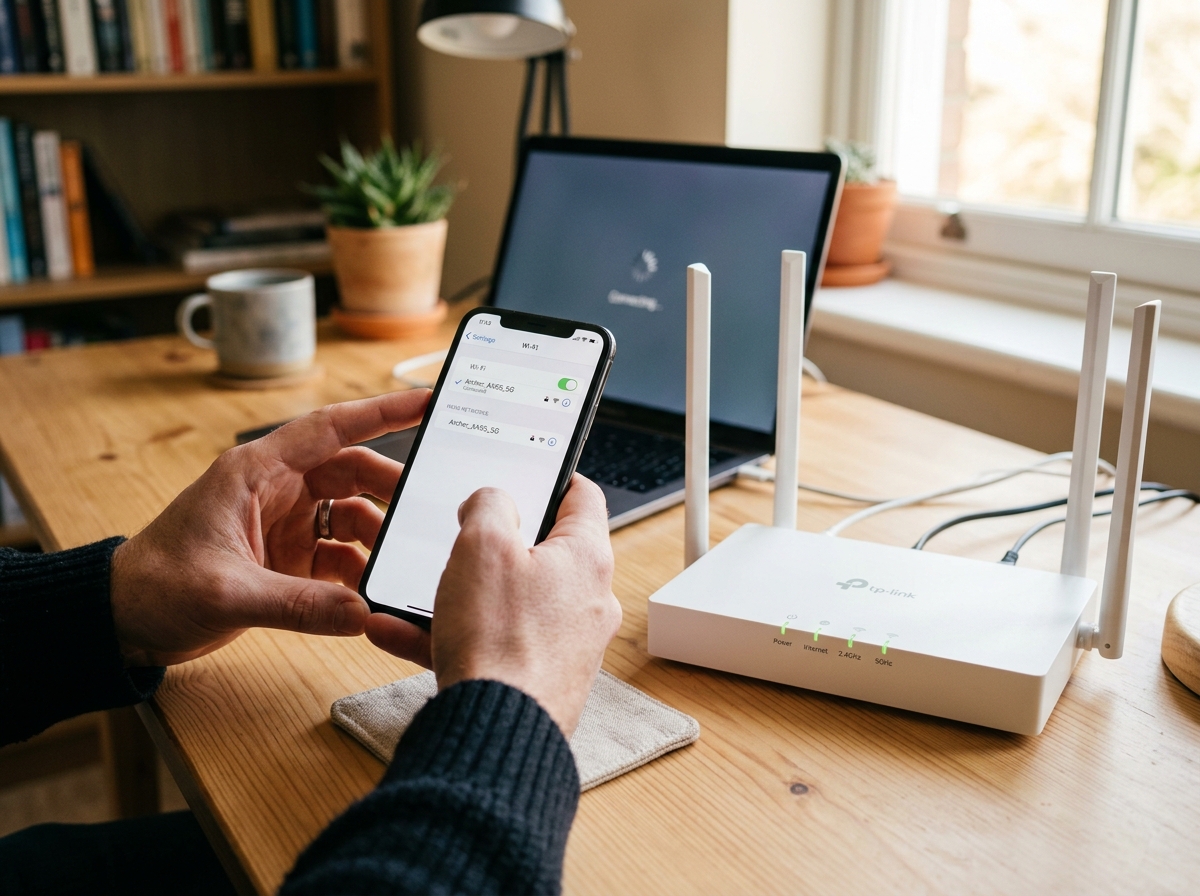
To resolve these:
- Incorrect network password - entering the wrong WiFi password blocks the connection outright.
- Device compatibility issues - some older devices don't support newer WiFi standards or encryption methods.
- IP address conflicts - duplicate IP addresses on the same network cause instability.
To resolve these:
- Double-check the network password - confirm the correct WiFi password is entered exactly, including capitalization.
- Update device drivers - outdated drivers are a frequent cause of connection failures on laptops and desktops; if this is a recurring issue specifically with a USB WiFi adapter, our adapter troubleshooting guide covers driver fixes in depth.
- Assign static IP addresses - prevents conflicts on networks with many connected devices.
What It Means for You: If only one device keeps failing to connect while everything else works fine, the fastest fix is usually the password or the driver, not the router itself.
Security Concerns
An unsecured WiFi network exposes your household to unauthorized access and data interception. Common concerns include weak passwords, missing encryption, and unauthorized access from outside your household.
Securing your Wi-Fi network properly, including choosing strong passwords, enabling WPA2 or WPA3 encryption, and setting up a guest network, involves more steps than fit here. Our full 10-step WiFi security guide walks through each step, including current Wi-Fi security protocols (WPA2 or WPA3).
What It Means for You: If you've never changed your router's default admin password, that's the single highest-impact fix you can make today, and it takes less time than reading this section.
Limited Bandwidth Allocation
When too many devices compete for bandwidth at once, especially common in Philippine households with several people working or studying from home simultaneously, everyone experiences slower speeds. Causes include:
- High number of connected devices - more devices means more demand on limited bandwidth.
- Bandwidth-intensive activities - online gaming and large file downloads consume disproportionate bandwidth.
- Inefficient traffic management - routers without Quality of Service (QoS) settings can't prioritize traffic effectively.
|
Feature |
Specification |
Practical Benefit |
|
Quality of Service (QoS) |
Prioritizes traffic by device or application |
Keeps video calls and work traffic smooth even while others stream or download |
|
Higher-speed internet plan |
Understanding your internet speed needs helps match your plan to your household size |
Reduces bandwidth competition at the source rather than just managing symptoms |
|
Multi-device WiFi capacity |
Routers built for higher simultaneous device counts |
Prevents slowdowns in households with many phones, laptops, and smart devices online at once |
To address this, consider:
- Enabling QoS settings - prioritize video calls or work traffic over background downloads.
- Upgrading to a higher-speed plan - if your current internet plan doesn't meet your household's actual demand.
- Setting usage policies - especially useful in shared households during peak WFH or online class hours.
What It Means for You: For a household of four or more with overlapping work-from-home and online class schedules, QoS settings usually solve congestion faster and more cheaply than upgrading your internet plan.
Frequently Asked Questions
Why is my WiFi connection slow?
Congestion, device interference, aging hardware, or a weak signal all slow down WiFi. Moving closer to the router, reducing nearby electronic interference, or upgrading to a current dual-band router are the fastest fixes. A faster internet plan only helps if your existing speed is actually the bottleneck, not your WiFi coverage. Test both before spending on an upgrade.
What should I do if I can't connect to WiFi at all?
Confirm WiFi is turned on and the password is correct first. Restart your router and your device's network settings next. If neither works and the problem is isolated to one device, especially with a USB adapter, driver issues are the likely cause. This resolves the majority of total connection failures within minutes.
Why are WiFi speeds inconsistent across my devices?
Different devices often have different WiFi speed results due to age, drivers, or hardware limits, not your network. Update software and drivers on all devices, then test each one individually to isolate the underachiever. Older phones and laptops on outdated WiFi standards will always lag behind newer devices on the same network.
Is my modem or my router causing the problem?
Your modem connects your home to the internet; your router creates and manages your WiFi network. A modem problem affects internet access entirely, even on wired connections, while a router problem usually only affects WiFi. Our modem vs. router guide explains how to tell them apart. Knowing which device is at fault saves you from resetting the wrong one.
Should I reset my router to fix connection problems?
A reboot (turning it off and on) solves most temporary issues and should always be your first step. A full factory reset should be a last resort, since it erases your custom settings. Our factory reset guide covers when a reset is actually necessary and what to reconfigure afterward. Don't reset unless a reboot has already failed to fix the issue.
Do I need a new router, or can I fix my current one?
Most WiFi problems are fixable through repositioning, firmware updates, or reducing device load, not new hardware. A new router is worth considering only if yours is several years old, single-band, or no longer receives firmware updates. Test the free fixes first; they solve the majority of everyday complaints without spending anything.
Why does my WiFi work in some rooms but not others?
This is a coverage problem, usually caused by concrete walls, distance, or floor separation common in Philippine homes. A single router rarely covers a multi-floor or thick-walled property evenly. A mesh system or a well-placed extender typically resolves this more reliably than repositioning alone. Test signal strength in the affected room before buying additional hardware.
Will switching to 5GHz fix my slow speeds?
5GHz is faster over short distances but weaker through walls than 2.4GHz, so switching helps only if you're relatively close to the router. If the affected room is far away or behind concrete walls, 2.4GHz or a mesh extension will perform better. Most modern routers auto-select the best band per device through Smart Connect. Manually switching bands is rarely necessary unless you're troubleshooting a specific device.
How often should I update my router's firmware?
Check for updates at least every few months, or enable auto-update if your router supports it. Firmware updates often patch security vulnerabilities and improve stability, not just add features. Skipping updates for a year or more is a common, overlooked cause of slow or unstable WiFi. Auto-update removes the need to check manually altogether.
Final Thoughts
Most WiFi problems in Philippine households trace back to one of a few root causes: distance, device overload, outdated firmware, or physical obstructions like concrete walls. Once you've identified which one applies to you, the fix is usually fast and often free.
For persistent issues that repositioning and reboots can't solve, a current dual-band or mesh WiFi system, backed by regular firmware updates, resolves the majority of ongoing connectivity complaints in typical Philippine homes. TP-Link extenders and mesh systems are built specifically for the coverage challenges of concrete, multi-floor homes.
Ready to stop troubleshooting and start upgrading? Explore TP-Link's full lineup of WiFi routers and whole-home mesh solutions built for Philippine homes, from concrete-wall coverage to multi-device households. Compare models and current promos to find the right fit for your space.