
How to Set Up the Tapo Smart Door Lock
Get started with your new smart door lock on Tapo APP. Please do the steps after you have installed your door lock. If you need to install the door lock, please refer to this FAQ: https://www.tp-link.com/support/faq/4052/
Step 1: Download the Tapo APP
Go to Google Play or App Store or scan the QR code to download the Tapo app and log in.

Step 2: Select control mode for your door lock.
The Tapo Door Lock operates in two modes: Local Mode (via Bluetooth) and Remote Mode (via Wi-Fi + Internet). Local control is achieved through a Bluetooth connection, which means you can only control the lock through the Tapo APP when you are in proximity to the lock. Remote control, on the other hand, allows you to manage your lock over the internet.
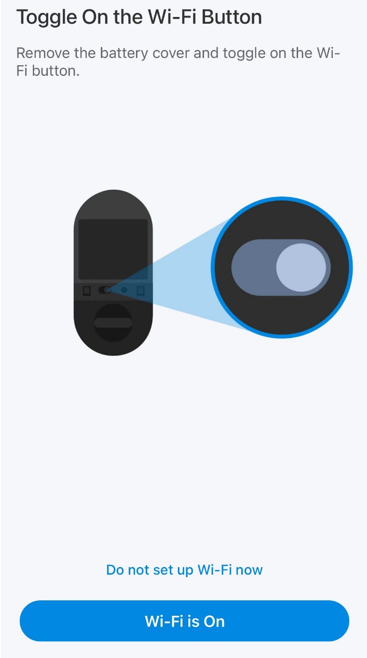
Note: The default operating mode is Remote Mode. If you do not wish to manage your device over the internet, please remove the battery cover, and turn off the Wi-Fi button.

Step 3: Setup the door lock in Tapo APP.
Remote Mode setup process
Follow the APP instructions to complete the setup.
Note: The location permission is needed to find and connect to your door lock during the setup. Grant the location permission when prompted and you can disable it after the setup.
1. Tap the + button in the Tapo app and select "Add Device". Tap the model you need to configure in Door Locks category.

2. Enter Setup Mode/Reset the Door Lock.
Remove the battery cover, press and hold the reset button for 5 seconds until you hear the voice promote of “ready for setup”. Make sure that the LED status is flashing green and red now.
If you need to factory reset the door lock, please long press the reset button for at least 10 seconds.

3. Tap Next to connect your device via Bluetooth.
Make sure your door lock is in setup mode during Bluetooth connection. If you failed to connect to your device, please confirm if the LED is still in flashing red and green. If not, please reset the device and do it again.
This step takes about 30 seconds. Please be patient.
4. Connect to the Wi-Fi network.
Connect the door lock to your home Wi-Fi network and enter the password. This step only shows when you set the door lock in remote mode.

5. When the pairing is complete, give your door lock a unique name and set a location for easy identification.

6. Calibrate the Door Sensor(Only for the door lock with a door sensor).
Make sure the Door Sensor is installed correctly, and follow the instructions to finish the calibration, or skip this step.
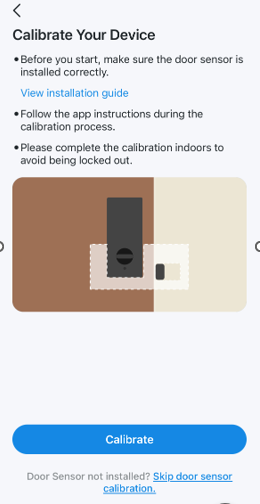
7. Calibrate your lock.
Close and lock the door, then tap Start Calibrating to calibrate the lock for better performance.

8. Register your Palm Vein (Optional).
If your Tapo Door Lock doesn't support the Palm Vein function, you won’t see this step.
Maintain about 4 inches (10 cm) between your hand and the device, around 2 inches (5 cm) for children, and up to 6 inches (15 cm) for larger hands.
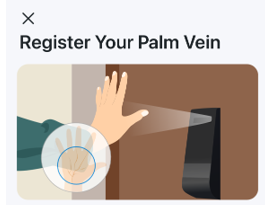
9. Create a new digit code as your passcode.
Note: Please remember your passcode as it won’t show again after you set it up.

10. Register your fingerprint (Optional).
It’s recommended to use your thumb, index or middle finger to register your fingerprint. Make sure your finger doesn’t have excessive water, oil or dirt on it. Tap “Start Registration” to begin setup, or tap “Maybe later” to skip this step.

Local Mode setup process
Follow the APP instructions to complete the setup.
Note: The location permission is needed to find and connect to your door lock during the setup. Grant the location permission when prompted and you can disable it after the setup.
1. Tap the + button in the Tapo app and select "Add Device". Tap the model you need to configure in Door Locks category.

2. Enter Setup Mode/Reset the Door Lock.
Remove the battery cover, press and hold the reset button for 5 seconds until you hear the voice promote of “ready for setup”. Make sure that the LED status is flashing green and red now.
If you need to factory reset the door lock, please long press the reset button for at least 10 seconds.

3. Tap Next to connect your device via Bluetooth.
Make sure your door lock is in setup mode during Bluetooth connection. If you failed to connect to your device, please confirm if the LED is still in flashing red and green. If not, please reset the device and do it again.
This step takes about 30 seconds. Please be patient.
4. Set up the door lock locally.
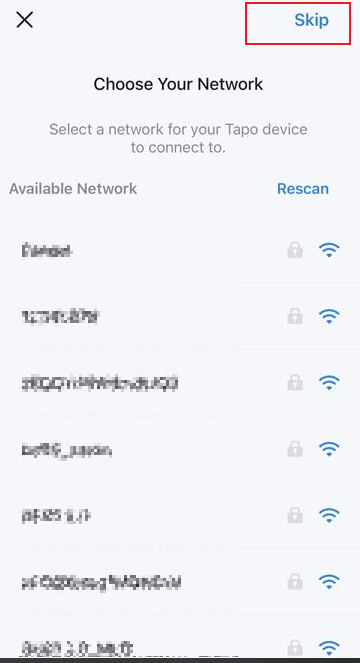
- Device with a physical Wi-Fi button: Tap “Do not set up Wi-Fi now” to use the device locally via Bluetooth. Or you can turn on the Wi-Fi button and continue with step 3.1. This step will only show when your door lock is in local mode.
- Device without a physical Wi-Fi button (Tapo DL130): Tap the Skip button to continue setup via Bluetooth.
5. When the pairing is complete, give your door lock a unique name and set a location for easy identification.

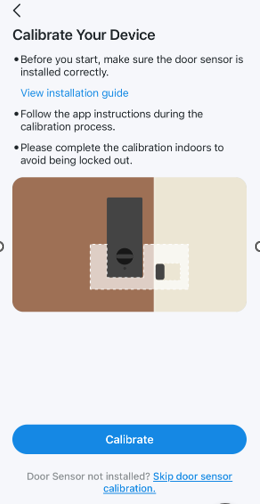
6. Calibrate the Door Sensor(Only for the door lock with a door sensor).
Make sure the Door Sensor is installed correctly, and follow the instructions to finish the calibration, or skip this step.
7. Calibrate your lock.
Close and lock the door, then tap Start Calibrating to calibrate the lock for better performance.

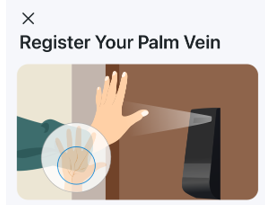
8. Register your Palm Vein (Optional).
If your Tapo Door Lock doesn't support the Palm Vein function, you won’t see this step.
Maintain about 4 inches (10 cm) between your hand and the device, around 2 inches (5 cm) for children, and up to 6 inches (15 cm) for larger hands.
9. Create a new digit code as your passcode.
Note: Please remember your passcode as it won’t show again after you set it up.

10. Register your fingerprint (Optional).
It’s recommended to use your thumb, index or middle finger to register your fingerprint. Make sure your finger doesn’t have excessive water, oil or dirt on it. Tap “Start Registration” to begin setup, or tap “Maybe later” to skip this step.

Looking For More
¿Es útil esta pregunta frecuente?
Sus comentarios nos ayudan a mejorar este sitio.


TP-Link Community
Still need help? Search for answers, ask questions, and get help from TP-Link experts and other users around the world.