
How to Use the Kasa App Grouping Feature to Control Multiple Devices
The Kasa app grouping feature lets you combine smart plugs, switches, and bulbs into a single group and control all devices in that group with one tap. This page covers how the grouping feature works, how to add a group, and how to delete a group in your Kasa smart home setup.
Key Takeaways
- A Kasa group is a collection of devices that can be controlled together with a single tap from the home screen.
- Users can group smart plugs, smart switches, and smart bulbs together in the Kasa app.
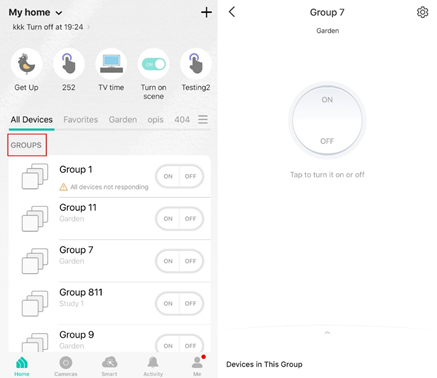
- Groups appear in a dedicated "GROUPS" category in the device list.
- If a group contains color bulbs, the color picker and all bulb-related controls are available for the entire group simultaneously.
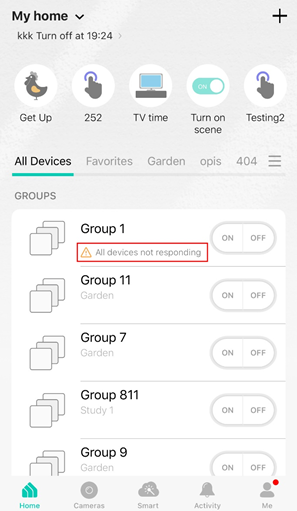
- An orange triangle next to a group name indicates one or more devices in the group are offline. Devices still online can be controlled normally.
- Up to 50 groups can be added in the Kasa app.
Kasa Grouping Feature Description
A group lets you control multiple devices at once. It appears on the Kasa app Home screen just like a regular device and can include smart plugs, switches, and bulbs.
When you group smart bulbs, you’ll see the same controls as for a single bulb, such as the color picker and other lighting features—reducing the need for separate control screens.For example, if you group six smart bulbs and adjust the color picker, all color-capable bulbs will change color smoothly at the same time, while non-color bulbs remain unchanged.
Groups appear under a dedicated Groups section in the device list and are displayed like a standard device, with a name, icon, and on/off control.
How to Create a Group
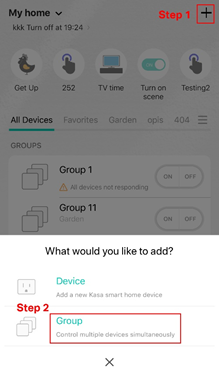
Step 1. From the Kasa app Home page, tap the plus icon in the top right corner. Then select Group from the bottom slider menu.
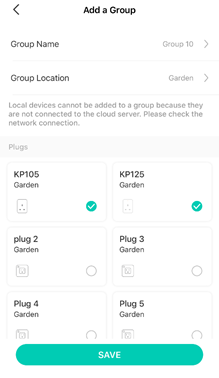
Step 2. Name your group and set its location. Select the smart devices you want to add to the group and tap SAVE.
How to Delete a Group
Method 1: From the Kasa app Home page, long-press an individual group until the delete symbol appears. Tap the minus icon, then confirm to Remove Group.
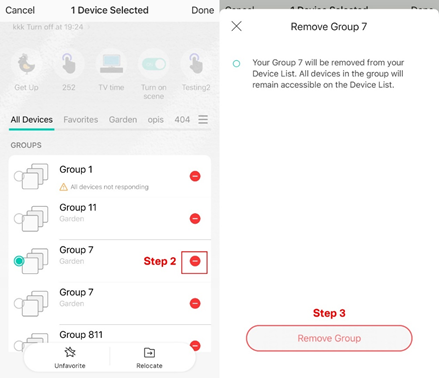
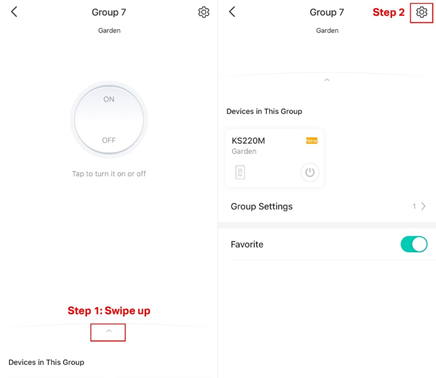
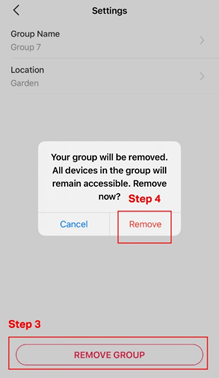
Method 2: From the Kasa app Home page, tap the Group to enter the status page. Then tap the gear icon in the top right corner to enter the Settings. Click on REMOVE GROUP to delete it.
QA
Q1: What does the "orange triangle" next to a group name mean?
It indicates that one or more devices in the group are offline or unreachable. You can still use the group controls, and any commands will apply to the devices that are currently online.
Q2: How many Groups can I create in the Kasa app?
50 groups in total.
To learn more about each function and configuration, please visit the Download Center to download the manual for your product.
Looking For More
¿Es útil esta pregunta frecuente?
Sus comentarios nos ayudan a mejorar este sitio.

TP-Link Community
Still need help? Search for answers, ask questions, and get help from TP-Link experts and other users around the world.