
How to Export Temperature & Humidity History Data from Tapo Sensor
Tapo temperature and humidity sensors not only provide visual data records with the Tapo App but also support history data export, allowing users to further data analysis or local data storage.
Export Temperature & Humidity History Data
The following steps will guide you step by step on how to export the sensor's historical data.
On Tapo Temperature & Tumidity sensor
- Open Tapo App and go to Tapo temperature & humidity sensor’s device page.
- On the History section, click “View All” -> click the download button in the upper right corner.
- Enter the email address where you want to receive the data.
- Select the time interval and range.
- Click Export.

Notes:
1. The data is stored for up to 2 calendar years.
2. Export interval:
-In minutes: 1, 15, 30 minutes
-In hours: 1, 6, 12 hours
-In days: 1 day
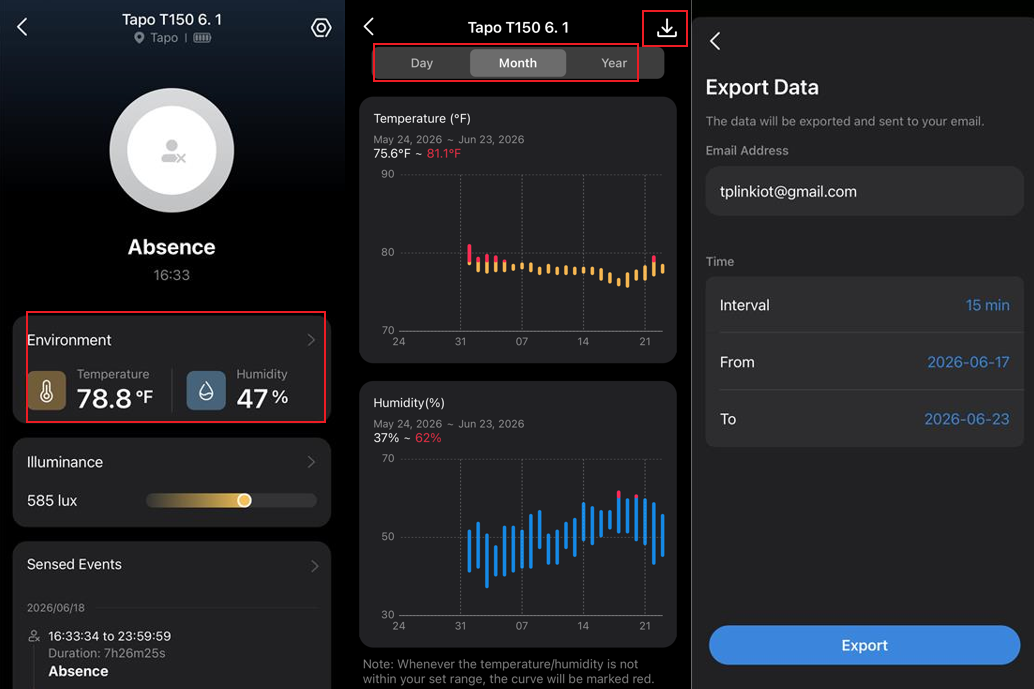
On Tapo Smart Human Presence Sensor
1. Open the Tapo app and go to the sensor's Device Page.
2. Go to the Environment Section.
3. Select the Day/Month/Year and click the download button in the upper right corner.
4. Enter the email address where you want to receive the data, select the time interval and range, then click Export.
5. Done. Now check your inbox to find the exported data!
Q&A
Q1: What Should I Do if I Can’t Receive the Exported Data Email?
- Double-check the email address.
- Check your spam folder.
- Check your device's network quality (for receiving emails), try switching networks, and reload the inbox.
Q2: Why Isn’t My Sensor’s Status on the Tapo App Home Page Updated in Real Time?
The refresh time depends on how you access the sensor:
- Same Wi-Fi network: The sensor status is refreshed about every 10 seconds, so updates may take a few seconds.
- Remote access: The sensor status is updated in real time.
For the Tapo T110, the open/closed status is updated in real time during remote access. However, the last triggered time is refreshed every 30 seconds, so it may take up to 30 seconds to update. This is normal and does not indicate a sensor issue.
Q3: How Long is the Sensor’s Historical Data Retained?
The sensor retains historical data from the most recent 2 calendar years.
Q4: If a Sensor Goes Offline, Will Resetting and Re-pairing It Delete Its Previous Historical Data?
Resetting the sensor itself will not delete its previous historical data.
Pair the sensor with the same hub again. When the “Preconfigured Device” prompt appears, select “Keep” to retain its previous settings and historical data.
Please note:
- Removing the sensor or its associated hub from the Tapo app will delete the sensor’s historical data.
- For H100 and H110, a 5-second soft reset does not delete the sensor’s historical data. A 10-second factory reset will delete the data.
- Resetting the H200 or H500 deletes the connected sensors' historical data.
Deleted historical data cannot be recovered.
Q5: What Should I Do If the Sensor’s Historical Records Are Empty?
Please try these troubleshooting steps.
Q6: What Should I Do If the Sensor’s Historical Data Is Missing for Certain Periods?
Check whether the hub was offline or restarted during the missing period:
- If the hub reconnects without restarting, it can upload the locally cached sensor data collected within approximately 24 hours before reconnection.
- If the hub remains offline for more than about 24 hours, it may lose earlier data.
- If the hub restarts while offline, it will clear its local cache. Data collected while the hub was offline and before the restart cannot be recovered.
Q7: What File Format Will the Sensor’s Historical Data Be Exported as?
It will be exported as a CSV file.
To learn more about each function and configuration, please visit the Download Center to download the manual for your product.
Looking For More
Is this faq useful?
Your feedback helps improve this site.

TP-Link Community
Still need help? Search for answers, ask questions, and get help from TP-Link experts and other users around the world.