
How to Unbind a TP-Link ID from a TP-Link Router or Deco — Three Methods
Unbinding a device means removing the link between a TP-Link ID and that device. You may need to do this when transferring a router or Deco to a new owner or registering it under a different account. After unbinding, the device can be re-registered to a different TP-Link ID. This page covers unbinding methods for both TP-Link routers and Deco.
Key Takeaways
- A TP-Link router can be unbound from a TP-Link ID through the web-based interface, the Tether app, or a factory reset.
- To unbind via the web interface, go to Advanced > TP-Link ID, select the account to remove under Bound Accounts, then click Unbind.
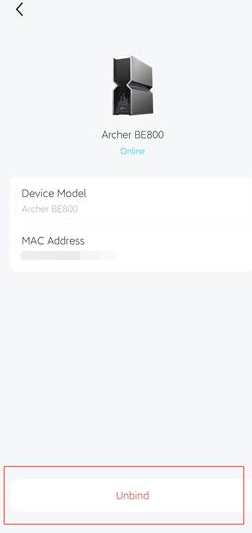
- To unbind via the Tether app, open My Devices, tap the menu icon next to the device, and tap the unbind button.
- A factory reset will also remove the TP-Link ID binding. After the reset, the device can be registered to a new account.
- For Deco, unbinding is done by resetting the Deco and deleting the Deco network.
How to Unbind a TP-Link ID from a Router
There are three ways to unbind a TP-Link ID from a TP-Link router: via the web-based interface, the Tether app, or a factory reset.
Method 1: Unbind via Web-Based Utility
1. Log in to the web-based Utility. Refer to FAQ 87.
2. Go to Advanced > TP-Link ID, and focus on the Bound Accounts section.
3. Check the box(es) of the TP-Link ID(s) you want to remove and click Unbind.

Method 2: Unbind via Tether App
1. Log in to the Tether app.
2. Go to the My Devices page and click on the  button in the end of your local/cloud device.
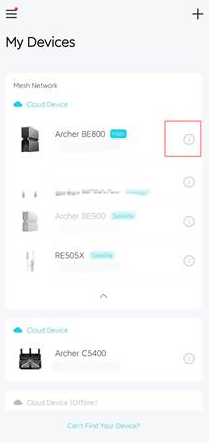
3. Tap the unbind button to remove the TP-Link ID from the device.
Method 3: Unbind via Factory Reset
Performing a factory reset will remove the TP-Link ID binding, allowing the device to be re-registered to a new account. To factory reset the router, please refer to How to reset TP-Link products to factory default settings using the WPS/RESET button.
How to Unbind a TP-Link ID from a Deco
To unbind a TP-Link ID from a Deco, reset the Deco and delete the Deco network. Once both steps are complete, the account will be unbound, and the device can be registered to a new TP-Link ID.
Reset the Deco product and delete the Deco network, then the account will be unbound.
To reset Deco, please refer to How to Reset Deco or Reboot Your TP-Link Deco System.
To delete Deco Network, please refer to How to Delete a Network on the Deco App
To learn more about each function and configuration, please visit the Download Center to download the manual for your product.
Looking For More
Is this faq useful?
Your feedback helps improve this site.

TP-Link Community
Still need help? Search for answers, ask questions, and get help from TP-Link experts and other users around the world.