
No internet connection when the TP-Link 5G/4G Router is working with a SIM card
 257240
Introduction
This guide provides step-by-step troubleshooting instructions for resolving no internet access issues when operating TP-Link 5G/4G routers in 3G/4G Router Mode (also referred to as MBB Mode on certain device models).
Requirements
- The TP-Link 5G/4G Router is operating in 3G/4G Router or MBB Mode.
- Identify the issue with your 5G/4G Router is that the wireless client can connect to the Wi-Fi but cannot access the internet.
Troubleshooting
First, connect the computer to the TP-Link 5G/4G Router wirelessly or wiredly, and open a browser to visit tplinkmodem.net or 192.168.1.1 to log in to the web management page.
Go to Advanced > Status, check that the SIM Card Status is prepared. If it shows No SIM card detected, ensure the SIM card is installed correctly.
Then check the IP Address under the Internet tab. If the IP Address is 0.0.0.0, please refer to Scenario 1. Otherwise, please refer to Scenario 2.
Note: Here, Archer MR600 and Archer NX200 are taken as examples. The actual interface may vary slightly from your product model. For more details, please refer to your router's User Guide.
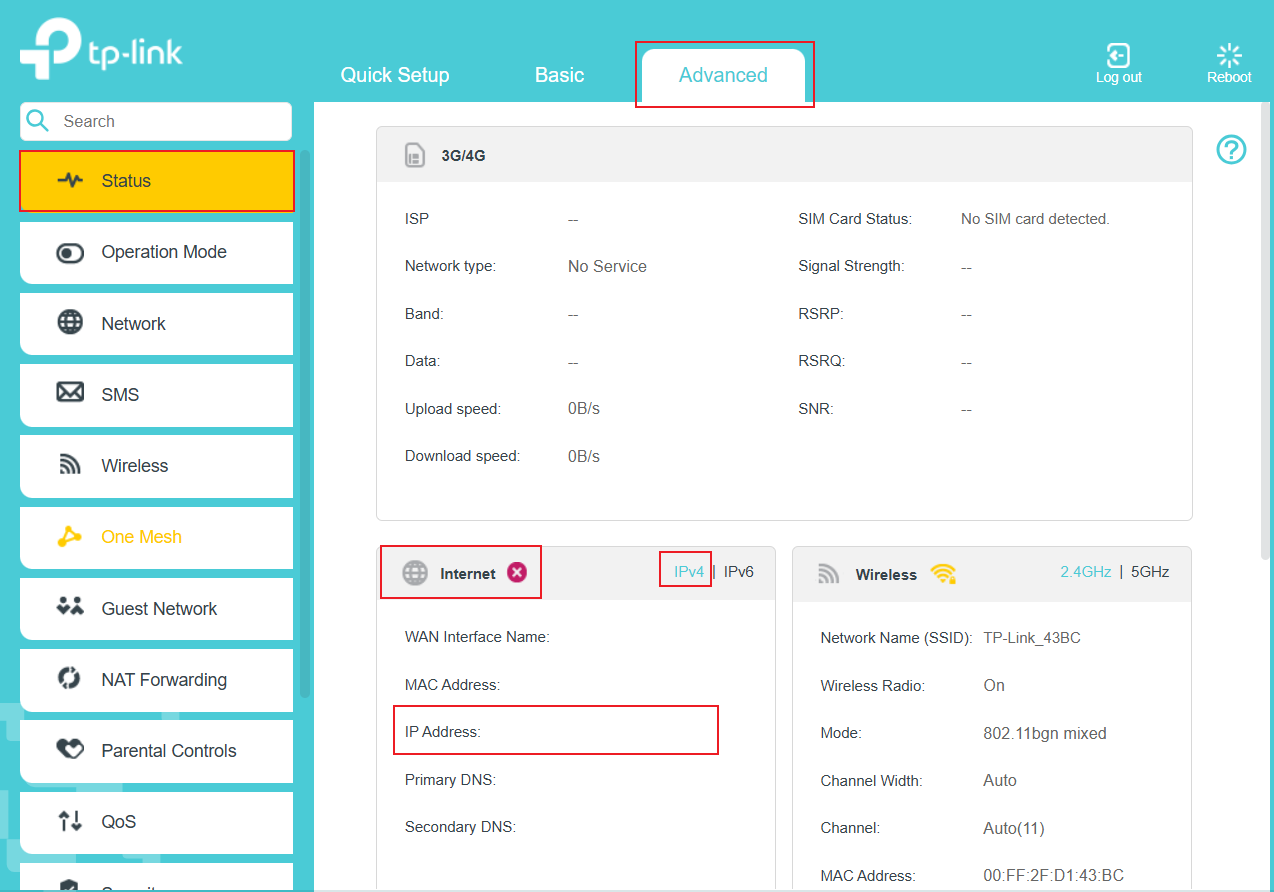
Scenario 1: The Internet IP Address is 0.0.0.0
An Internet IP address of 0.0.0.0 means the router is not yet connected to the Internet. The reason could be that the SIM card’s supported bands don't match this router’s, or that the router's pre-configured APN profile doesn’t match your SIM card, etc.
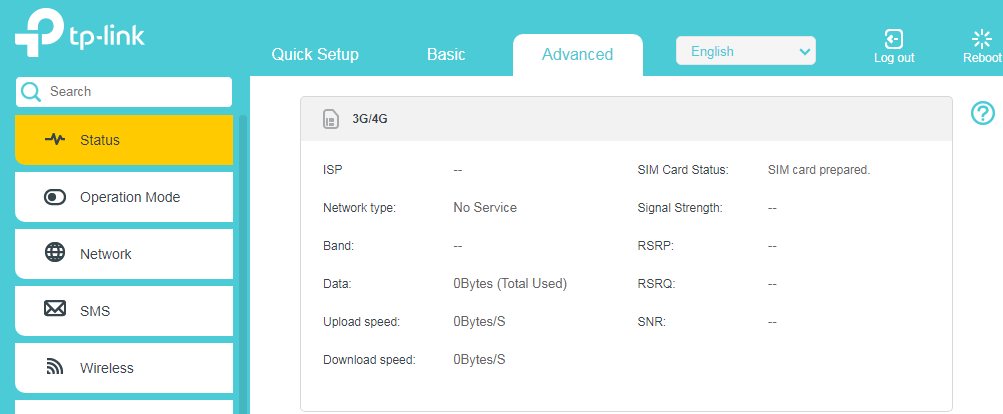
Step 1. Make sure the same SIM card itself works fine on another 5G/4G router or your phone.
Step 2. Contact the SIM card carrier to confirm the Network Type and Band supported by the SIM card, then compare them with the Network Type and Band supported by the TP-Link 5G/4G Router, as displayed under the Specifications tab on the Official website (Use Archer MR600 as an example).
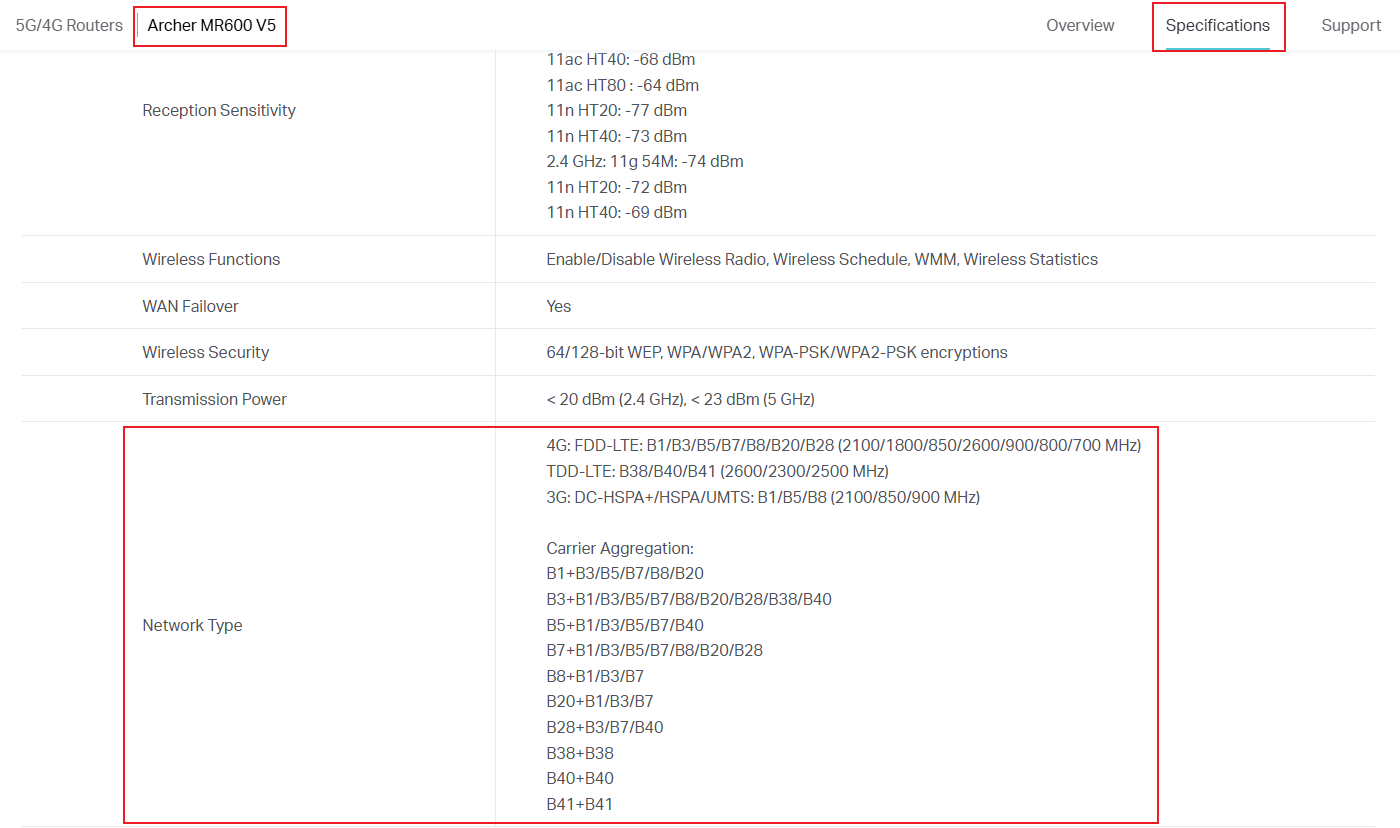
Step 3. Reset the TP-Link 5G/4G Router to factory defaults by holding the reset button for 5-10 seconds while it is powered on.
Note: The duration for pressing and holding varies by model. Please refer to the product's User Guide.
Step 4. Go to Advanced > Network > Mobile WAN (or Advanced > Network > Internet), choose other available profiles in the Profile Name list.
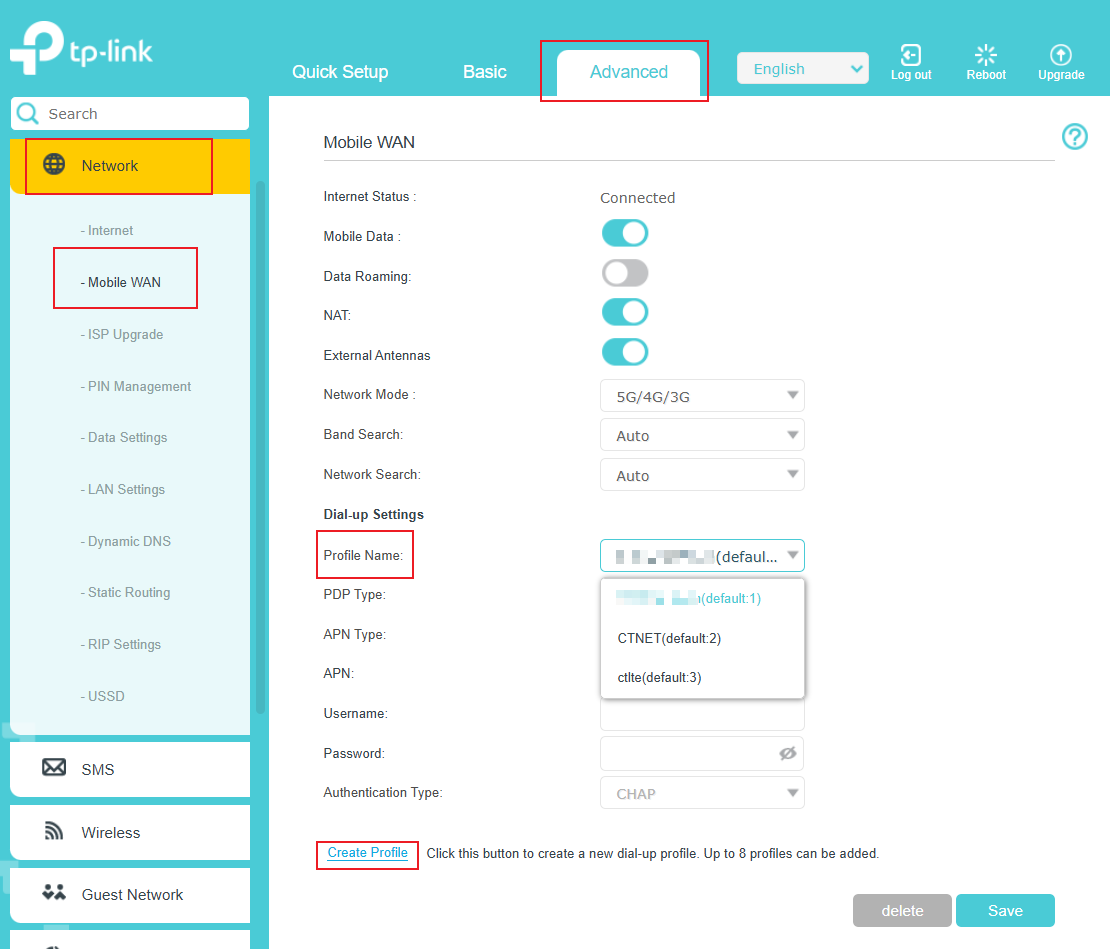
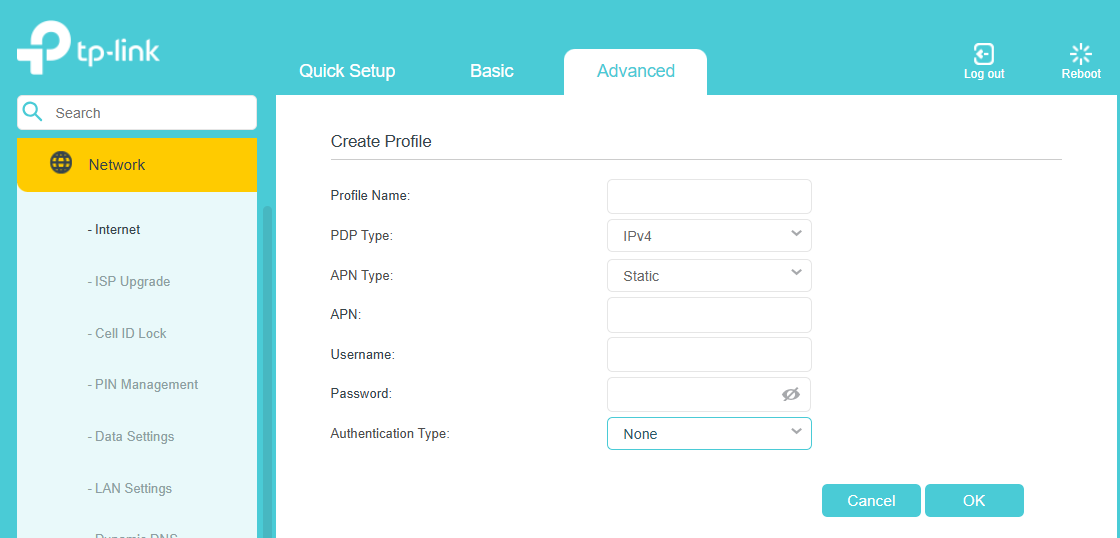
Step 5. If no other profiles are available, click Create Profile to manually create an APN profile by entering the following information. If you are not sure, contact the SIM card carrier to confirm.
Step 6. Upgrade firmware to the latest version.
Scenario 2: The Internet IP Address is not 0.0.0.0
If the IP address is not 0.0.0.0, then the reason you don’t have internet access may be DNS, an unstable 3G/4G network, etc. Please refer to the following instructions for troubleshooting.
Step 1. Ensure that the same SIM card is working properly when it’s inserted in your phone at the same place.
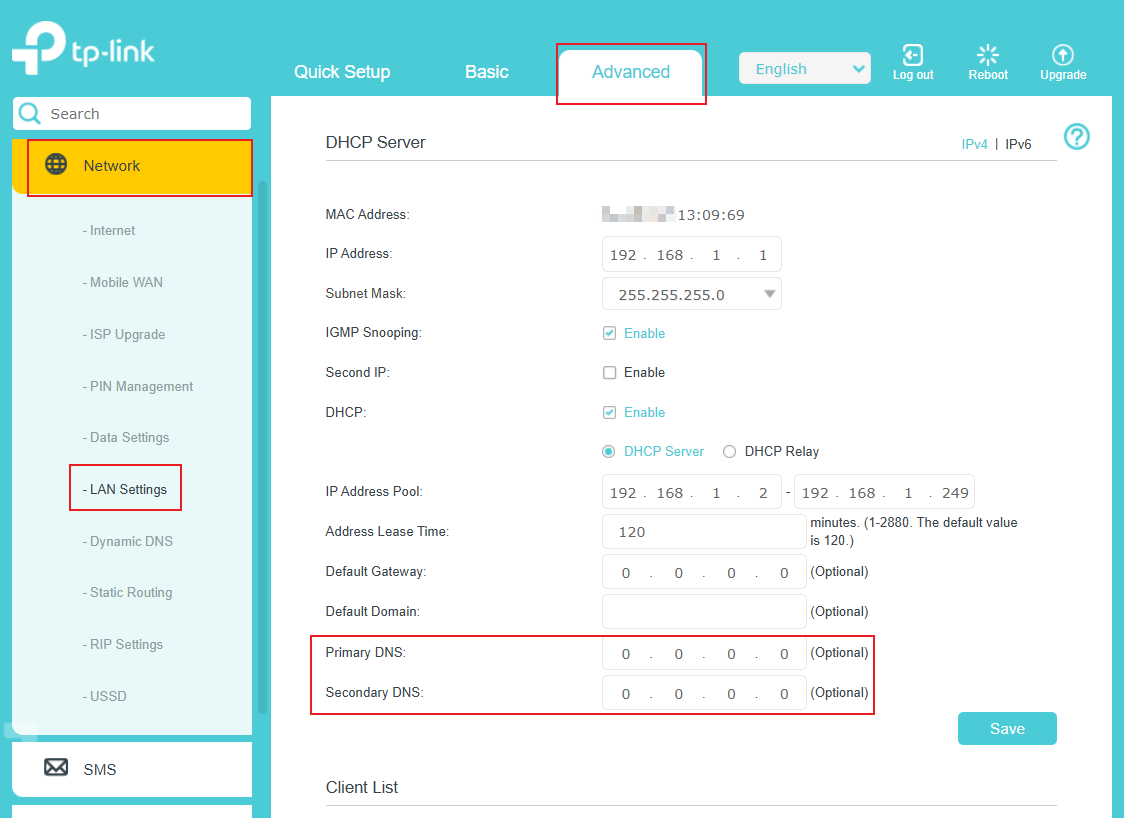
Step 2. Go to Advanced > Network > LAN Settings, change Primary DNS to 8.8.8.8, change the Secondary DNS to 8.8.4.4, then save it.
Step 3. Upgrade the firmware to the latest version.
QA
Q1: What should I do if it prompts that the SIM card is locked when accessing the web management page (shown below)?
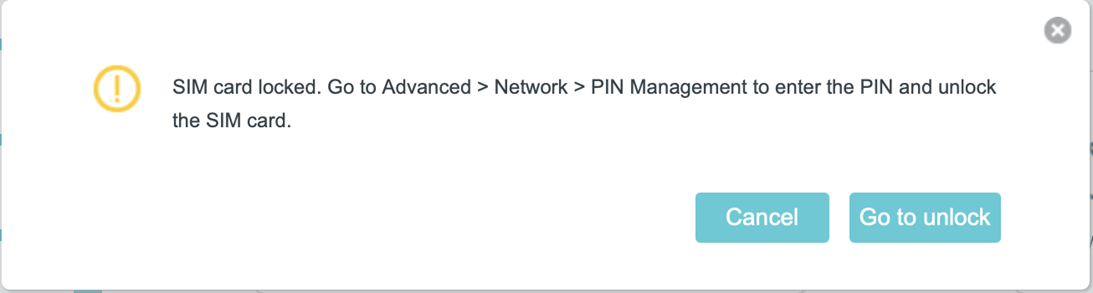
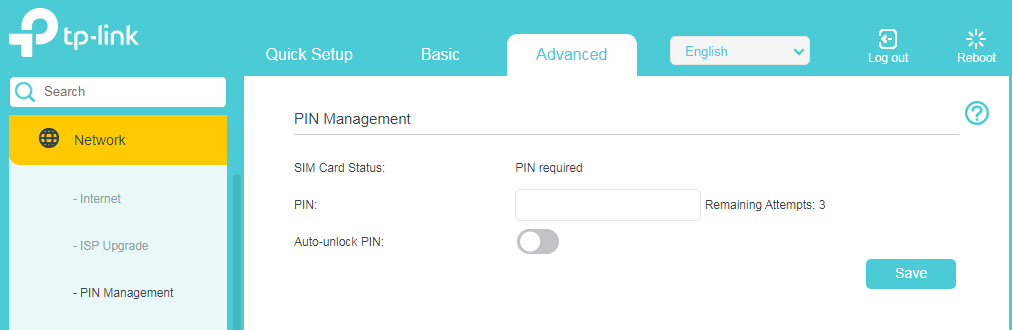
A1: Go to Advanced > Network > PIN Management to enter the PIN code. If you are not sure, contact the SIM card carrier to confirm. Also, the Auto-unlock PIN is recommended to be enabled in case the router cannot access the internet for the same reason next time.
¿Es útil esta pregunta frecuente?
Sus comentarios nos ayudan a mejorar este sitio.
-3.0_1527668493681s.jpg)

