
How to create Smart Action on Kasa app
 205032
Introduction
This FAQ guides you through understanding and utilizing Kasa Smart Actions.
The Smart Actions allow you to use smart devices or Time as a trigger to control other devices or run a scene/smart action task. For example, you might want to turn the lights on a few minutes before you get home from work every weekday.
Requirement
Download the Kasa app by visiting the Google Play Store, App Store, or by scanning the QR code.

Configuration
Scenario 1: Edit based on the template
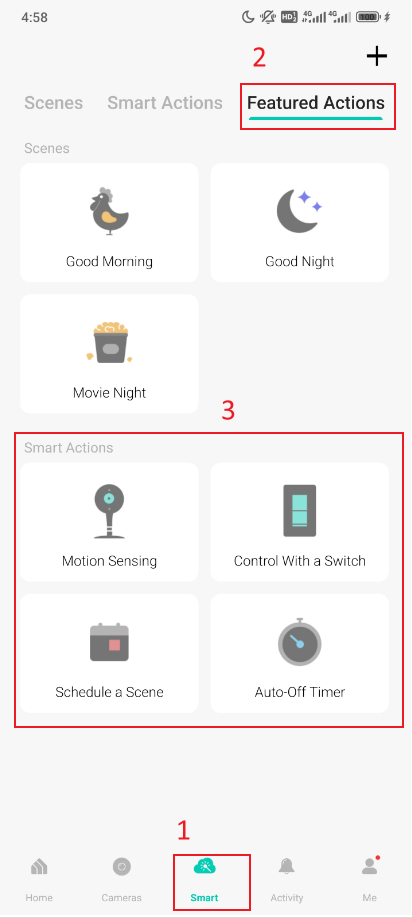
Log in with your Kasa account on the Kasa app, go to Smart > Featured Actions, there are 4 types of Actions for creating.
Scenario 2: Create your own actions
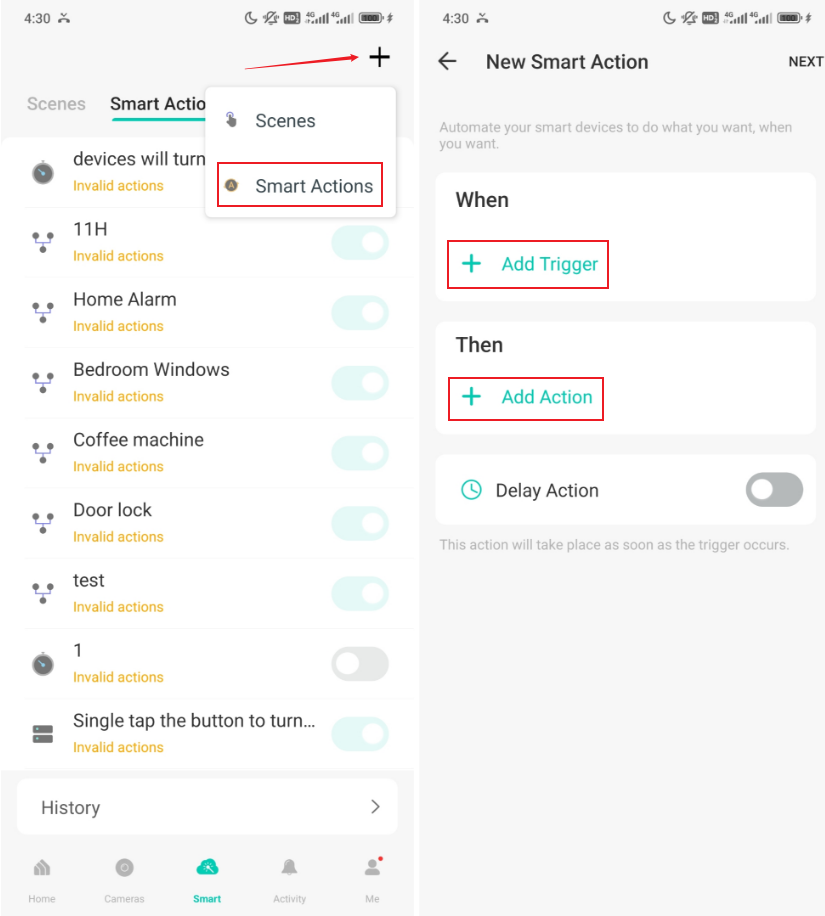
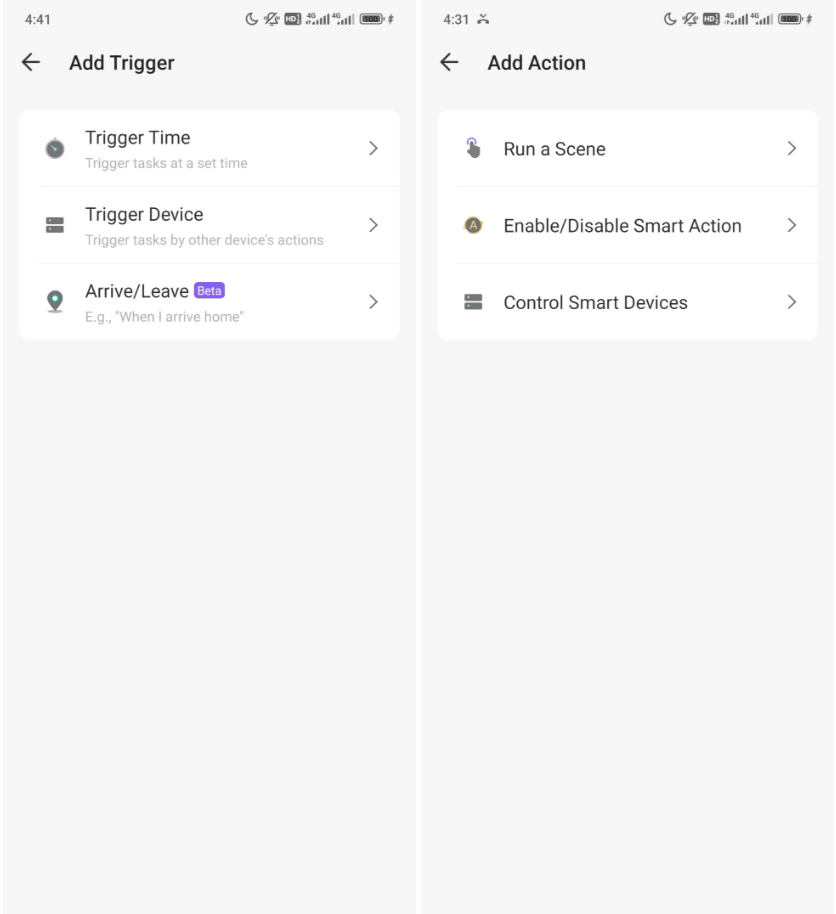
Open Kasa App, go to Smart > Tap “+” at the top right corner > Tap “Smart Actions”, then tap “+” to add triggers (when) and actions(then).
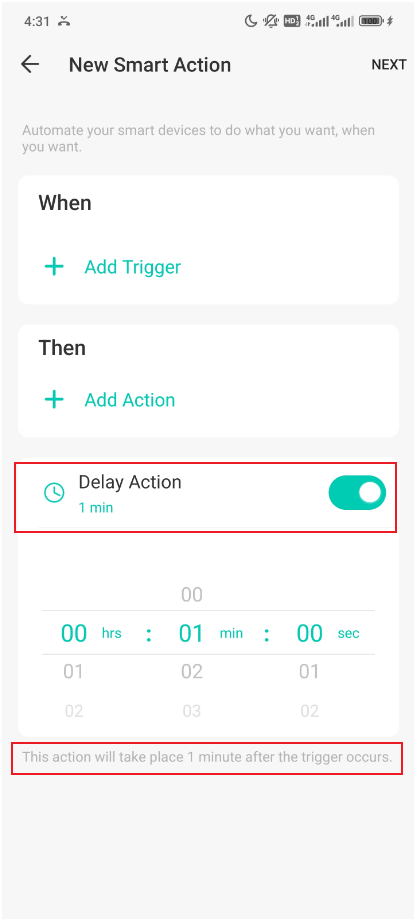
You may also configure a Delay Action. This Action will take place a period of time after the trigger, with the duration being customisable.
QA
Q1: What is Smart Actions?
A1: Smart Actions is a function provided by the Kasa app that enables device interconnections and home automation. We offer four featured Smart Action templates to get you started: 'Motion Sensing', 'Control with a Switch', 'Schedule a Scene', and 'Auto-off Timer'. Beyond these, you can also build your own by choosing from a full list of triggers and actions to suit your specific needs.
Q2: What triggers/ actions can be used in the Smart Action feature?
A2:
- Trigger List
|
Time of Day |
At Sunrise |
Offset(±5h59min) |
|
At Sunset |
Offset(±5h59min) |
|
|
At Specific Time |
00:00 ~ 23:59 |
|
|
Arrive/Leave (Geofencing) |
Arrive
|
When the phone/tablet arrives at a specific area |
|
Leave |
When the phone/tablet leaves a specific area |
|
|
Device Status Change |
Kasa Camera |
Motion Detected |
|
Kasa Smart Plugs |
Turn On |
|
|
Turn Off |
||
|
Kasa Smart Switches |
Turn On |
|
|
Turn Off |
||
|
Kasa Smart Lights |
Turn On |
|
|
Turn Off |
||
|
Room Thermostat KE100, KE110 |
Temperature over -20°C~60°C |
|
|
Temperature below over -20°C~60°C |
||
|
Humidity over 0%-99% |
||
|
Humidity below 1%-100% |
- Action List
|
Run a Scene |
Run the Scene you've set up |
|
|
Enable/Disable Smart Action |
Enable or disable the Smart Action you've set up |
|
|
Control One Device |
Kasa Smart Plugs |
Turn On |
|
Turn Off |
||
|
Kasa Smart Switches |
Turn On |
|
|
Turn Off |
||
|
Kasa Smart Lights |
Turn On |
|
|
Turn Off |
||
|
Kasa Smart DoorBell |
Turn On |
|
|
Turn Off |
||
|
Control Multiple Devices (Group) |
Turn On |
Turn on multiple devices at the same time |
|
Turn Off |
Turn off multiple devices at the same time |
|
Q3: How many Smart Actions can I create?
A3: Up to 64 Smart Actions can be created under one Kasa account.
Q4: How many Smart Actions can be enabled at a time?
A4: Up to 64 Smart Actions can be enabled at the same time.
Q5: What can I do if I cannot find Smart Actions for my SR20 on the latest Kasa APP?
A5: The Smart Actions for the SR20 has been moved to the device settings section on the new Kasa APP (Kasa -> Select SR20 from the home list -> Select Device Settings from device details screen -> Then you should see the option for 'Smart Actions').
Q6: Can one Smart Action be triggered by the execution of another?
A6: To ensure the stability and reliability of your Kasa automation system, a Smart Action cannot be triggered by the execution results of another Automation or Shortcut.
Example:
Automation 1: At 10:00 PM, turn on the Living Room Plug.
Automation 2: When the Living Room Plug is turned on, then turn on the Lane Light.
In this scenario, if the Living Room Plug is turned on by the execution of Automation 1, then Automation 2 will not be triggered.
Is this faq useful?
Your feedback helps improve this site.


_1.30-130x125x125mm-7026500634-02_normal_20250729014822t.png)

TP-Link Community
Still need help? Search for answers, ask questions, and get help from TP-Link experts and other users around the world.