
How to use USB port on TP-Link ISP-customized devices
 4625
4625Introduction
For a TP-Link router with a USB port, you can connect a USB drive to share storage, or use a 3G/4G dongle to turn the TP-Link modem router into a 3G/4G router.
Configuration
Scenario 1: Plug a USB storage device to share resources
Step 1. Plug a USB device into the router's USB port.
Step 2. Log in to the router’s Web UI.
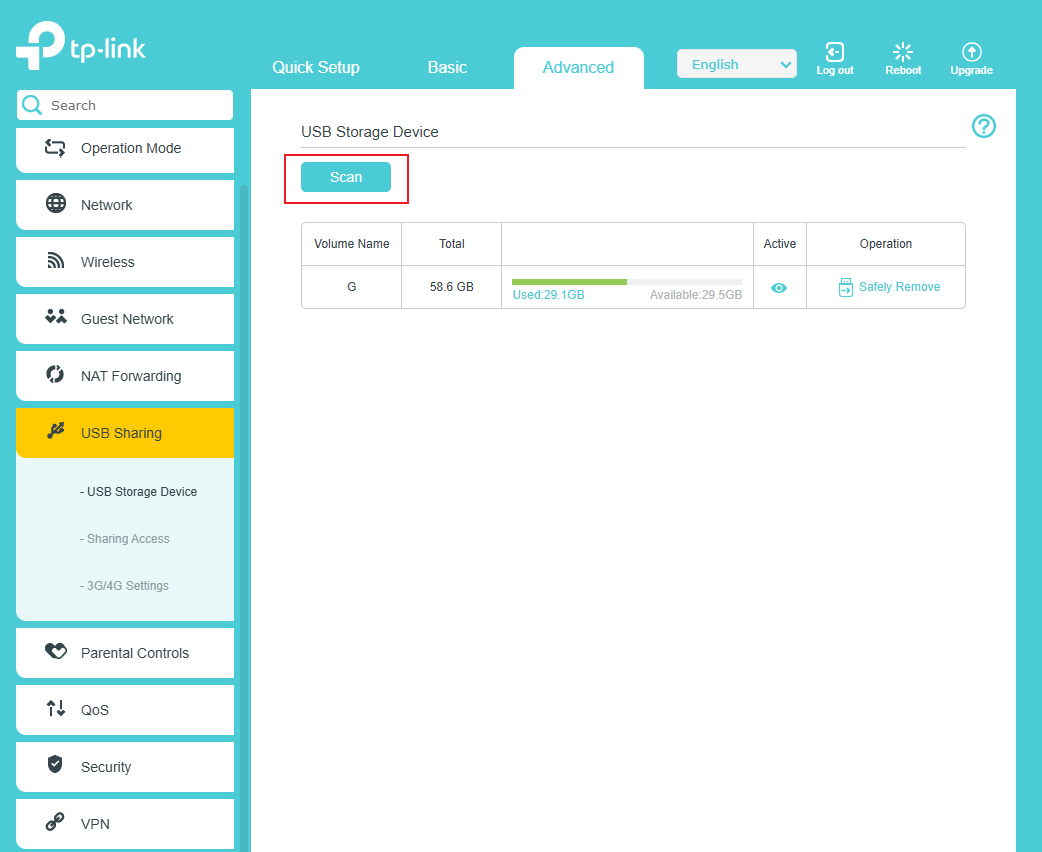
Step 3. Go to the following page and click Scan to detect a USB device.
Step 4. Go to the following page, select the Access Method you need, and Save.
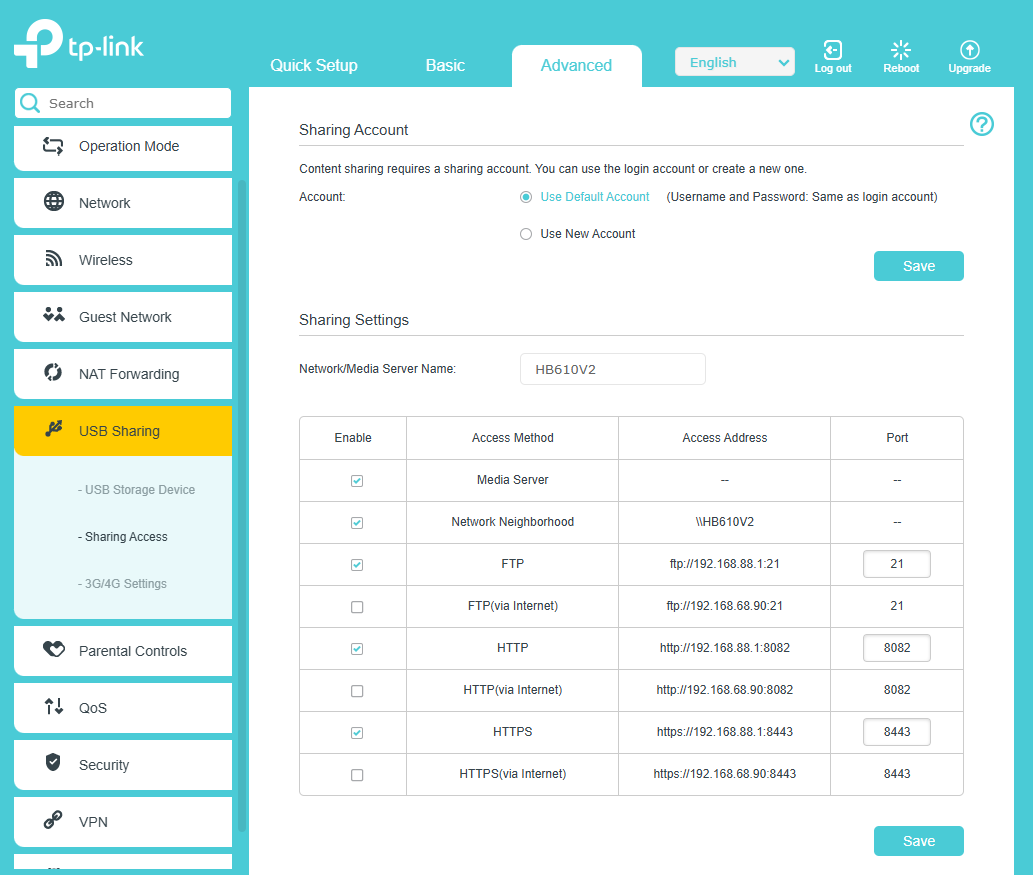
Step 5. Use the appropriate method to share the USB storage.
Scenario 2: Plug a USB storage device to store Voice Mail
Note: Only routers that support VoIP support this feature.
Step 1. Plug a USB device into the router's USB port.
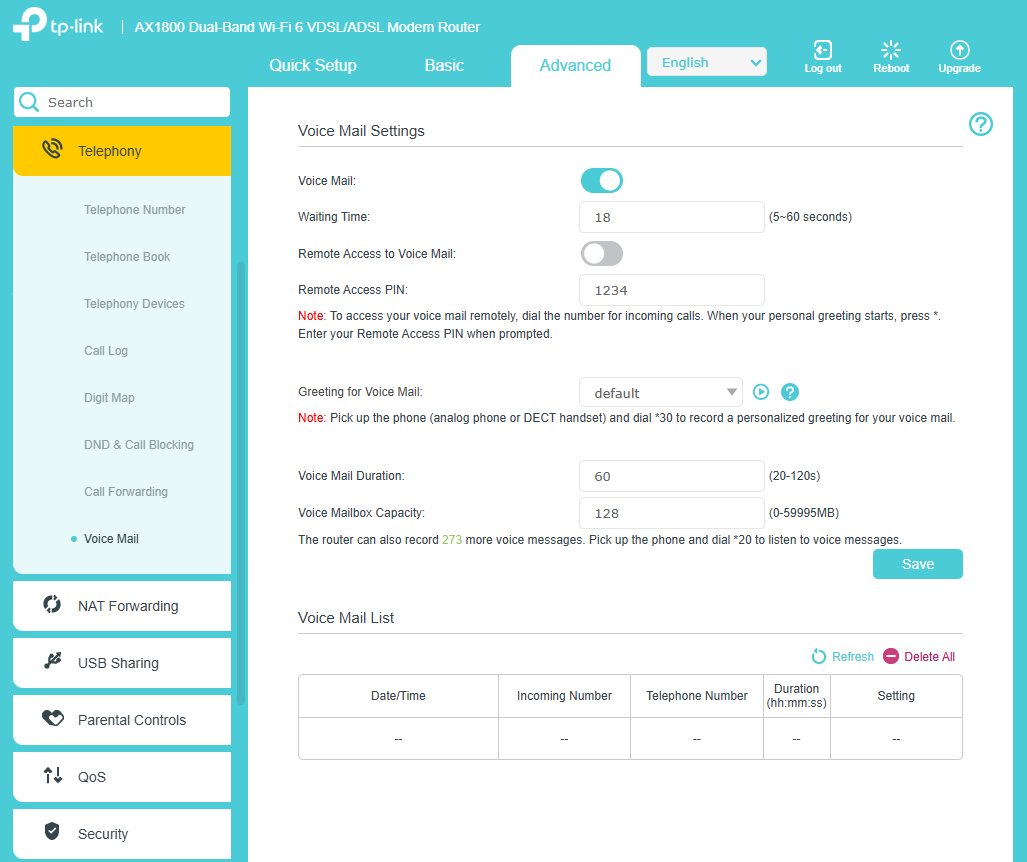
Step 2. Go to the following page, enable the Voice Mail function
Step 3. The router will automatically create a voicemail folder on the USB device.
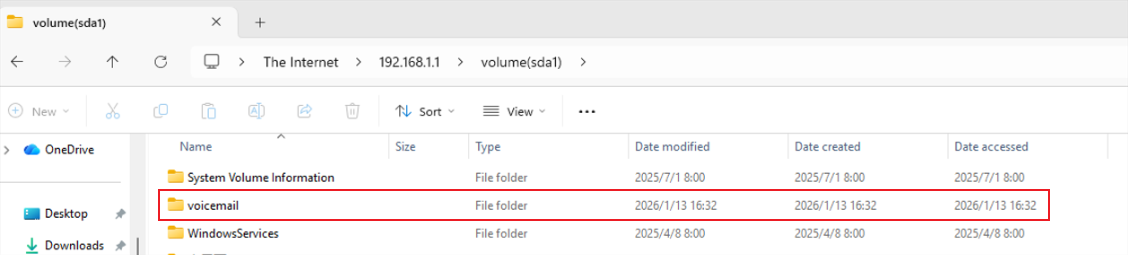
Step 4. The generated voice messages will be stored in the voicemail folder.
Scenario 3: Use a DSL modem router as 3G/4G router
Step 1. Insert the SIM card into the USB dongle, then plug the USB dongle into the router's USB port.
Step 2. Go to the following page, Enable 3G/4G as a backup solution for Internet access.
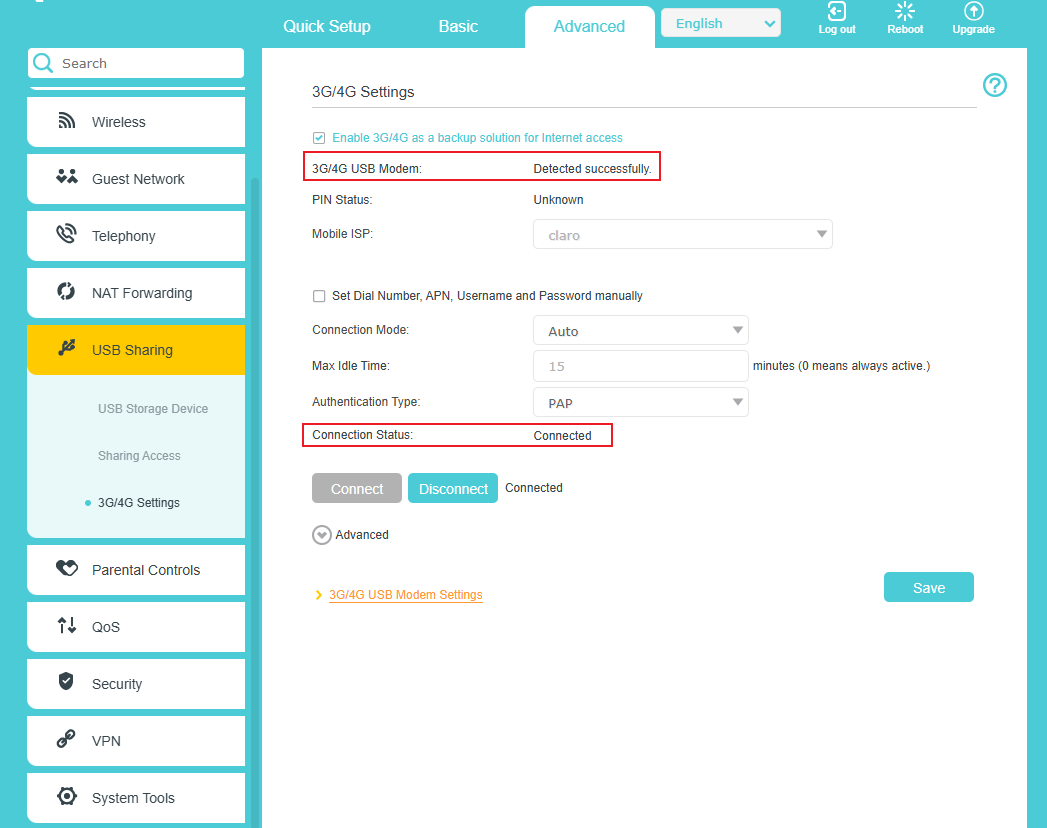
Step 3. The router will use the USB dongle's network connection only when all other access methods are unavailable.
QA
Q1: What types of USB devices does TP-Link ISP-customized Devices support?
A1: The TP-Link ISP-customized devices support USB devices of the following device classes:
- USB Storage device
- USB 3G/4G dongle
- USB Hub
Q2: How many USB devices can TP-Link ISP-customized Devices support connecting simultaneously?
A2: When using a USB hub, you can connect up to four USB storage devices (excluding USB hubs) to the TP-Link ISP-customized devices.
Get to know more details of each function and configuration please go to Download Center to download the manual of your product.
Questa faq è utile?
Your feedback helps improve this site.

-1.0_overview_listpage_normal_20251120072446k.png)
