
What should I do if my TP-Link Mobile Wi-Fi product label with default wireless password is lost or damaged?
 132603
Introduction
Usually, there are two product labels on TP-Link Mobile Wi-Fi devices (we will call them MiFi in the following content): one with the default SSID and wireless password, and the other with the model number, Hardware version, MAC address, and IMEI, etc. However, after using MiFi for a long time, the label with the default SSID and wireless password might be lost or damaged, thus you might not be able to recognize the default password.
If such an issue occurs and you are unable to connect to the default Wi-Fi after factory resetting the MiFi, this article offers solutions to find the current Wi-Fi password.
Troubleshooting
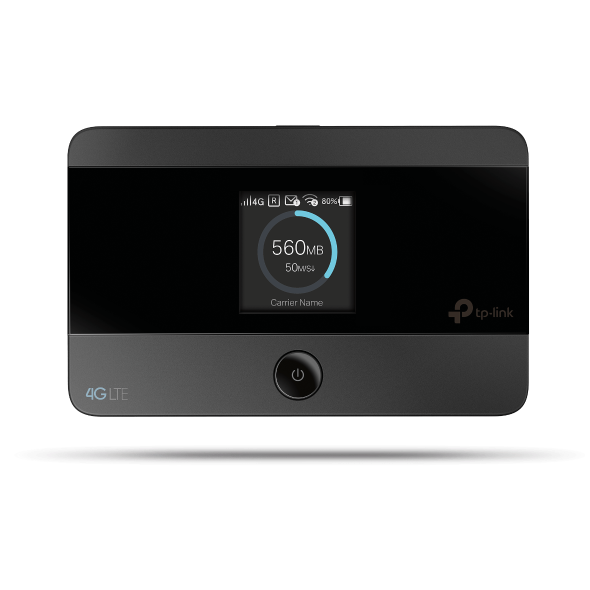
Scenario 1: For MiFi devices with screens, such as M7350, M7450, M7650, and M8550
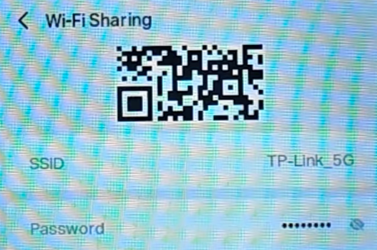
For M8550, to view the SSID and password, press the MENU button, then tap Wi-Fi sharing, then tap the "Hide" icon to display the Wi-Fi password.
For M7350, M7450, and M7650, to view the SSID and password, press the MENU button to switch to the Device Info icon, then press the Power button to enter the screen.
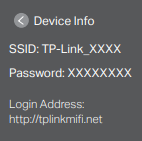
Note: If no password is displayed on the 4G screen, it means “Display password on screen” has been disabled.
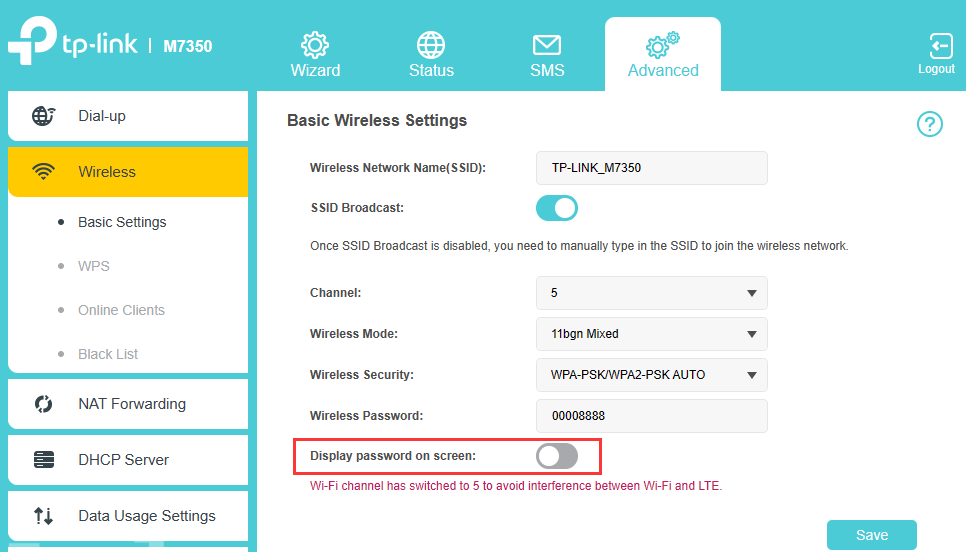
If you can still connect to the MiFi now, you can enable it again.
If you are unable to connect now, please reset the MiFi device to factory defaults: remove the back cover, use a pin to press and hold the reset hole for about 10 seconds until the device reboots automatically. You will see “Restoring” and then “Succeed” on the screen, which means the factory reset really worked.
Scenario 2: For MiFi devices that support RNDIS
Note: Currently, M7200 V4.0, M7010 V3.0, M7005 V1.0, M7000 V3.2 don’t support RNDIS.
Please connect a Windows computer (Windows XP/Vista/7/8/10) to the MiFi device via a USB cable, then log in to the MiFi device’s web interface via http://tplinkmifi.net or http://192.168.0.1, then go to Advanced > Wireless > Basic Settings to look for the current wireless password
For more details about how to use the RNDIS feature, please refer to How to access Internet via USB cable with Mobile Wi-Fi
Scenario 3: For all TP-Link 4G MiFi devices
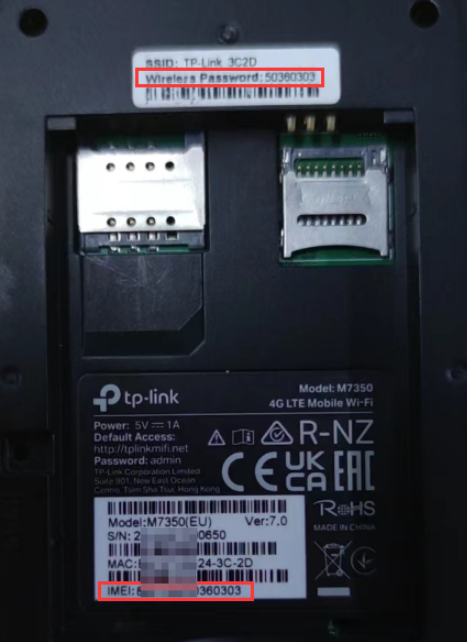
The default wireless password for the TP-Link MiFi device is usually the last 8 digits of the IMEI. Please look for the IMEI on another label inside the device, then try to connect to the default WiFi with those last 8 digits.
Ez a GY.I.K. hasznos volt?
Véleménye segíti az oldal fejlesztését

1.0_1494400765924x.jpg)