
How to change wireless settings on TP-Link DSL Modem Router
 168904
Introduction
This article provides clear, step-by-step instructions for adjusting the TP-Link DSL Modem Router's wireless settings (SSID, password, channel, etc.), helping you secure your network and optimize Wi-Fi performance with verified configurations.
Requirements
- One device that can open web browsers, such as a computer, tablet, or smartphone.
- One device that is installed with the Tether app by visiting the Google Play Store or App Store.
- Power on the TP-Link DSL Modem Router and wait for it to reboot completely.
Configuration
Here takes Archer VR2100v as an example. The actual interface and the function options shown on this FAQ may vary slightly from your product model. For more details, please refer to your router's User Guide.
Scenario 1: Via web management page
Step 1. Connect your computer to the TP-Link DSL Modem Router, then open a browser and visit tplinkmodem.net or 192.168.1.1 to log in to the modem’s web management page.
Step 2. Click Advanced > Wireless > Wireless Settings to open the wireless settings page.
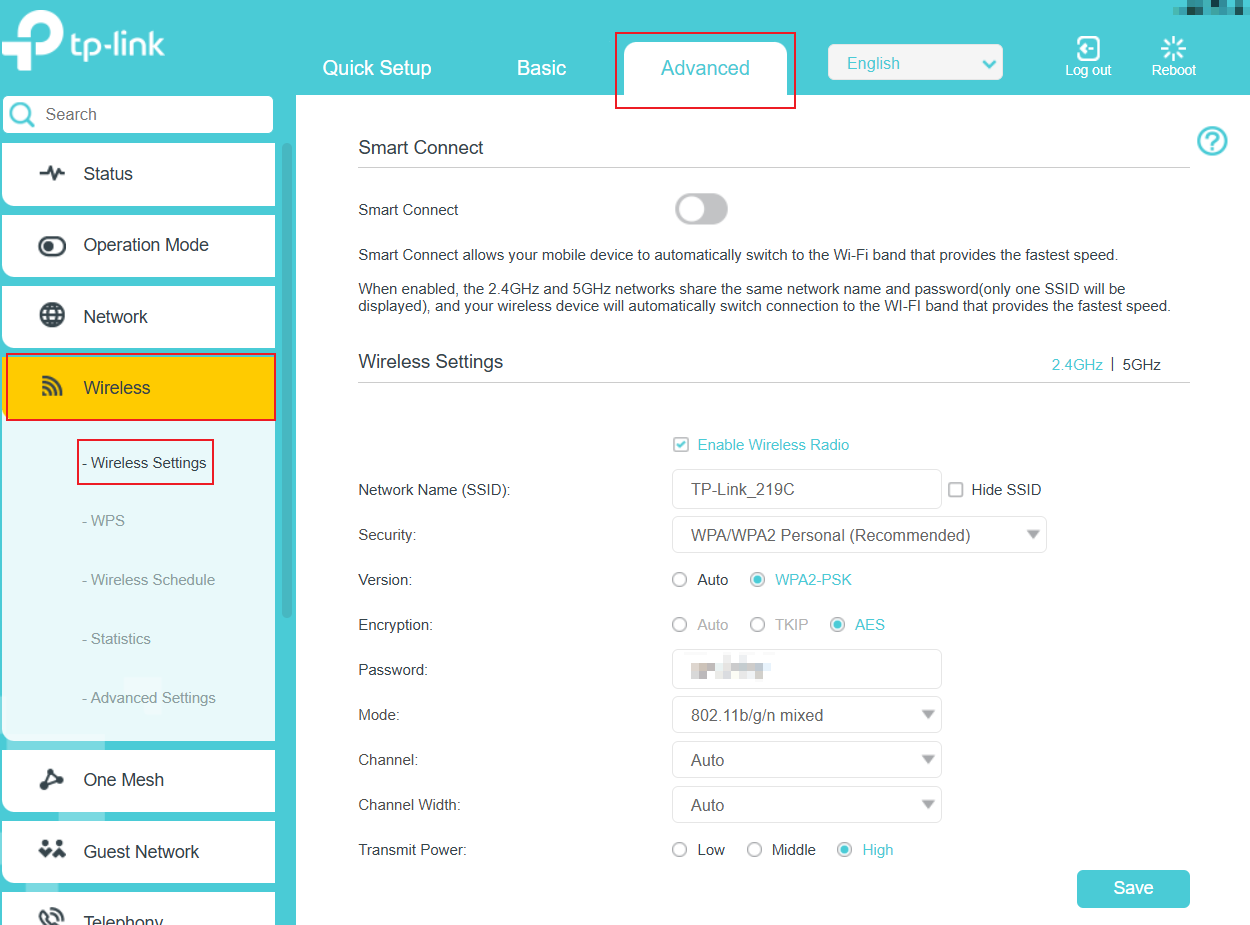
Step 3. Change the settings and click the Save button.
- Smart Connect
When it is enabled, the router’s 2.4GHz and 5GHz networks share the same SSID (network name) and password. And it can balance traffic for faster speeds and seamless switching without manual adjustments.
- Enable Wireless Radio
This option is enabled by default. To disable wireless functionality for a specific Wi-Fi band, simply uncheck the corresponding checkbox.
- Hide SSID
Once it's enabled, this Wi-Fi network name is hidden when you scan for available networks on your wireless device, and you need to manually join the network by entering the network name and password on the device.
- Network Name (SSID) & Password
You can customize the Wi-Fi name and password; the password is case-sensitive. If you use a wireless device to log in to the web management page, it will be disconnected after the new Wi-Fi name and its password are saved.
- Channel & Chanel Width
A wireless channel determines which operating frequency will be in use. It is not necessary to change the channel unless you’re experiencing interference from nearby access points. The Channel Width setting is preset to Auto, allowing the client’s channel width to adjust automatically.
- Security, Version, and Encryption
We recommend setting them as WPA/WPA2 Personal (Recommended) + WPA2-PSK + AES. If you select other options, configure the related parameters as described on the help page.
For other wireless settings, we recommend retaining default configurations unless adjusting specific parameters is operationally necessary. Preset values are engineered to ensure optimal security and network performance in typical usage scenarios.
Scenario 2: Via the Tether app
Step 1. Check the compatibility list to ensure your DSL Modem Router is compatible with the Tether app.
Step 2. Connect your phone/iPad that downloaded the Tether app to the modem's Wi-Fi network.
Step 3. Open the Tether app and log in to the Modem Router with the device password.
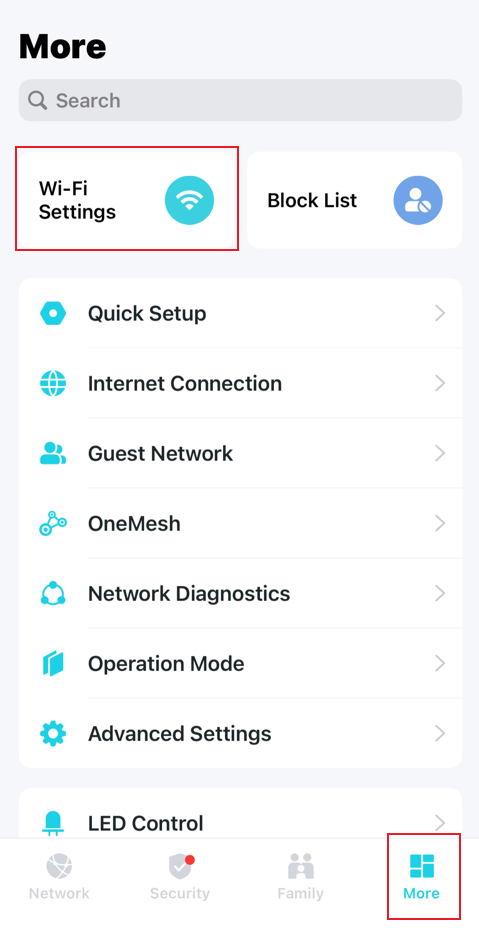
Step 4. Tap More > Wi-Fi Settings, select the network you want to modify. (For some models, you can also find Wi-Fi Settings on the Network page.)
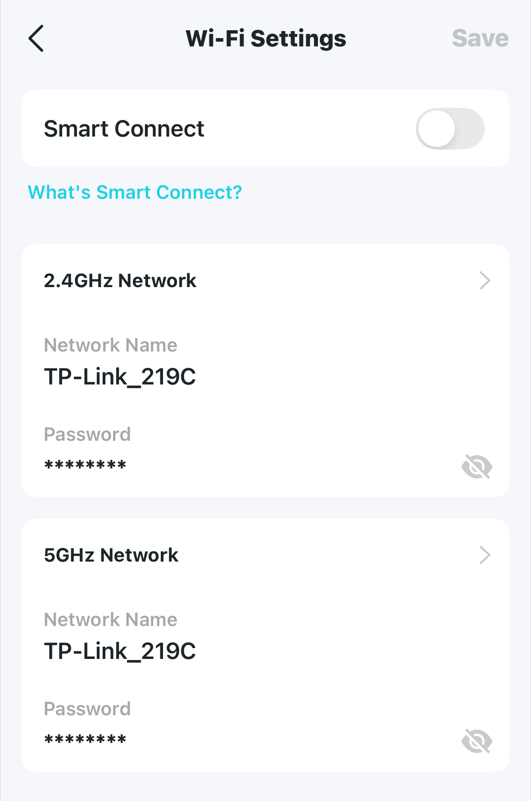
Step 5. Change the settings, and click Save/Done to finish.
Due to system limitations, we can only modify the Wi-Fi settings below.
- Smart Connect
- Network Name and Password
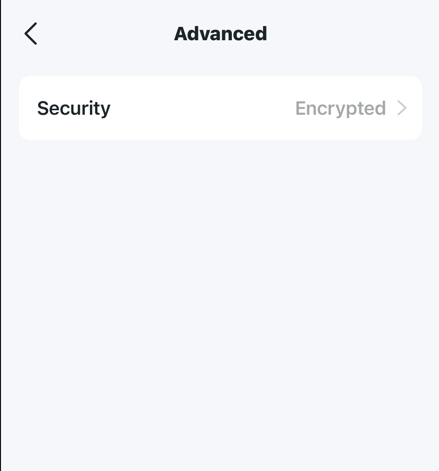
- Security (Select one network, and click Advanced)
QA
Q1: What should I do if I can't find the 2.4 GHz and 5 GHz Wi-Fi settings separately?
A1: It may occur when the Smart Connect is active. Please disable it and give it a try.
Q2: Why does the phone still only detect one single network name even though the Smart Connect is disabled?
A2: After the Smart Connect is disabled, the 2.4GHz Wi-Fi name and 5GHz Wi-Fi name still use the same one, until modifying one of them to a different Wi-Fi name manually.
Q3: What should I do if I cannot find the Wi-Fi network?
A3: First, ascertain whether the issue stems from an inability to detect certain wireless signals or if it is exclusively affecting the Wi-Fi signal of your TP-Link wireless router. Subsequently, apply the appropriate troubleshooting measures based on the identified scenario.
Get to know more details of each function and configuration. Please go to the Download Center to download the manual for your product.
Είναι χρήσιμο αυτό το FAQ;
Τα σχόλιά σας συμβάλλουν στη βελτίωση αυτού του ιστότοπου.

1.0_1500427316516r.jpg)
