
TP-Link Adapter Not Connecting to Wi-Fi: Troubleshooting Guide
If your TP-Link adapter is not working or a device shows "cannot connect to this network," you're in the right place. This guide covers the most common reasons TP-Link adapter isn't working and walks through fixes for each.
Key Takeaways
- The wireless password/Network Security Key is case-sensitive. Entering it incorrectly is one of the most common causes of connection failure.
- When a device prompts for a PIN instead of a password, that PIN is separate from the wireless password. It is typically printed on the back panel of the router or modem.
- If a device cannot join the network at all, Wireless MAC Filtering or Access Control may be enabled on the router. Disabling either setting often resolves the issue.
- Wireless interference from nearby devices such as microwaves, soundbars, or Bluetooth devices can prevent a successful connection. Changing the router's wireless channel is a recommended fix.
- Rebooting your wireless client device (phone, laptop, or adapter) is a recommended first troubleshooting step before escalating to driver or settings changes.
Case 1: Authentication Problem / Password Mismatch
One of the most common reasons a TP-Link adapter is not connecting to Wi-Fi is a password mismatch.
1. Make sure your typed password is correct. You can refer to this FAQ to find the wireless password: How to find or change the wireless password on the TP-Link products
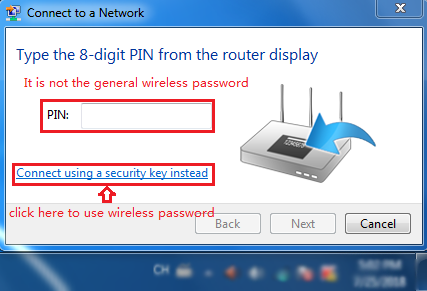
2. Sometimes it will ask you to type in a PIN number when you connect to the wireless network for the first time. This PIN number is different from the Wireless Password/Network Security Key. Usually, you can only find it on the back panel of your wireless router/modem. If you cannot find the PIN or have an incorrect PIN, you may choose “Connecting using a security key instead,” then enter the Network Security Key/Wireless Password.
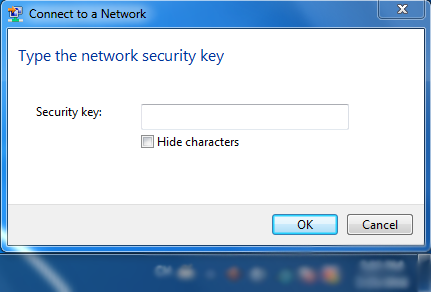
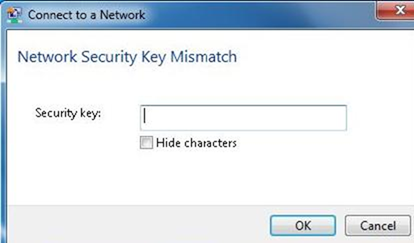
If it continues to say "network security key mismatches," it is suggested that you confirm the wireless password on your wireless router/modem. Please contact your router’s support for help if you don’t know how to confirm the wireless password.
Note: The wireless password/Network Security Key is case-sensitive.
Case 2: Windows Was Unable to Connect / Can't Join This Network
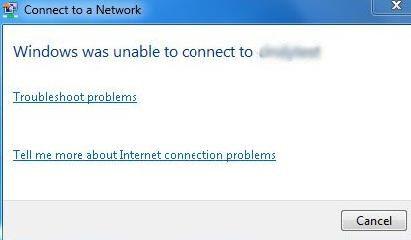
There are various causes of this kind of problem:
1. Weak Wireless Signal
Check the wireless signal strength of your network. If it is weak (1~3 bars), please move closer to the router and try again.
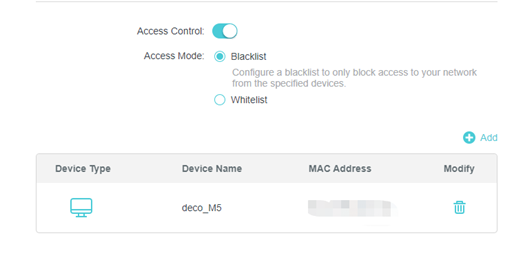
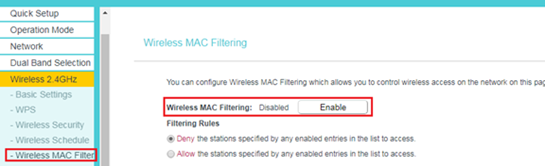
2. Wireless MAC Filtering or Access Control
Check the wireless settings on the router. Make sure Wireless MAC Filtering or Access Control is NOT enabled.
3. Too Much Interference
1) Try to change the wireless Channel of the router to reduce interference from other networks.
For example:
For the 2.4GHz channel, you can change the channel to 1, 6, or 11 to test.
For the 5GHz channel, you can change channels 36, 52, or 149 to test
2) Try to turn off other wireless routers or devices like microwave/soundbar/bluetooth
4. Wireless Client Issues
1) Try to turn off and turn on/reboot your wireless clients to connect to the Wi-Fi.
2) Contact the support of your wireless clients.
5. Incompatible Wireless Settings
You can refer to this FAQ to change the wireless settings: How to change wireless settings on TP-Link Wireless Router
Suggestion:
- Change the wireless name and wireless password
- Change the wireless security encryption
- Change the channel width
- Change the wireless mode
6. Additional Fixes to Try
1) Try to connect via WPS. Press the WPS button on the router and then press the WPS button on the adapter if it has. For more details, you can refer to How to connect to a wireless network while a PIN code is required in Windows 7 (WPS/QSS).
2) Re-install or update the driver for your wireless adapter of the computer. Please contact computer/wireless adapter support for help if you don’t know how to update the driver.
3) Refer to Why cannot I connect to the secured wireless network of the router? for more solutions
Είναι χρήσιμο αυτό το FAQ;
Τα σχόλιά σας συμβάλλουν στη βελτίωση αυτού του ιστότοπου.


