
How to export the log of Deco device
 22418
22418Introduction
This article aims to provide step-by-step instructions for exporting the log of Deco device.
Requirements
- A smartphone or computer that can connect to the Deco device via Wi‑Fi or through its Ethernet port
- TP-Link Deco
Configuration
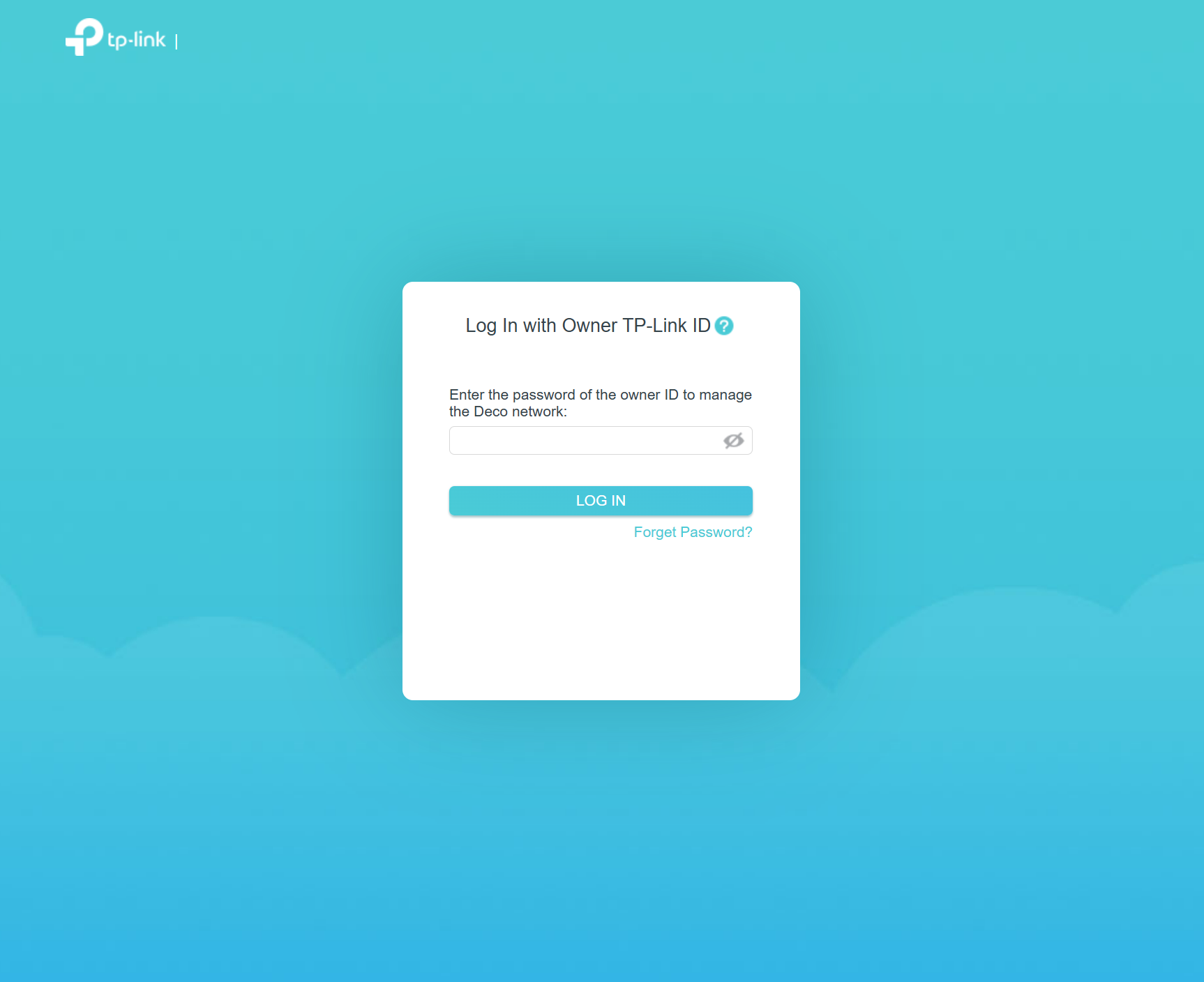
Step 1. Ensure that your smartphone or computer is either wired to the Deco device or wirelessly connected to the Deco’s Wi‑Fi, then open a browser and visit tplinkdeco.net or the default address 192.168.68.1 to access the web management page of the Deco. The login password is the same as your TP-Link account password.
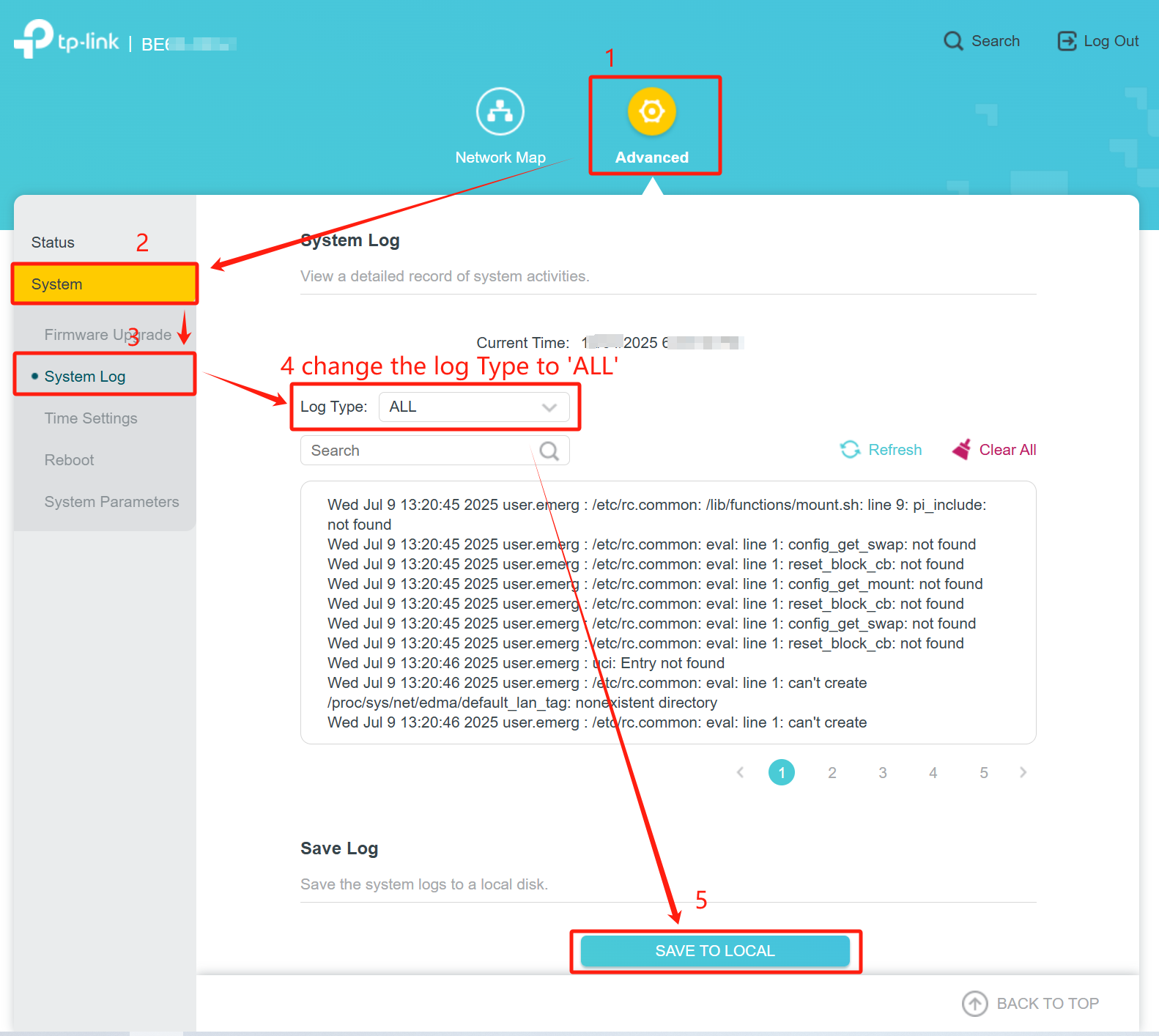
Step 2. After logging in, go to Advanced > System > System Log. Change the Log Type in the middle of the page to ALL, then click SAVE TO LOCAL at the bottom of the page to save the log file.
QA
Q1: What is the login password? Is it the Wi-Fi password?
A1: The login password is your TP-Link account password, not the Wi-Fi password.
Q2: What should I do if I forget my password?
A2: You can refer to the FAQ: https://www.tp-link.com/support/faq/1442/
Q3: How to collect system log of Deco App?
A3: You can refer to the FAQ: https://www.tp-link.com/support/faq/3791/
Get to know more details of each function and configuration please go to Download Center to download the manual of your product.
¿Es útil este artículo?
Tus comentarios nos ayudan a mejorar esta web.
_Overview_normal_20230724014950n.png)
_Overview_normal_20230724014922u.png)
