How to Migrate Devices from VIGI App (Personal Edition) to VIGI Cloud VMS
Contents
Objective
VIGI Cloud VMS supports device migration. You can migrate devices under the current account from personal edition to enterprise edition. This article introduces how to migrate devices from the VIGI app (Personal Edition) to the VIGI Cloud VMS.
Requirements
- VIGI Cloud VMS
Introduction
Devices added via the VIGI app (Personal Edition) will not be displayed in the VIGI Cloud VMS. For convenience and centralized management, you can migrate these devices to the VIGI Cloud VMS.
Configuration
Step 1. Log in to the VIGI Cloud VMS (https://vms.tplinkcloud.com/). Go to the Devices page and click Migrate.
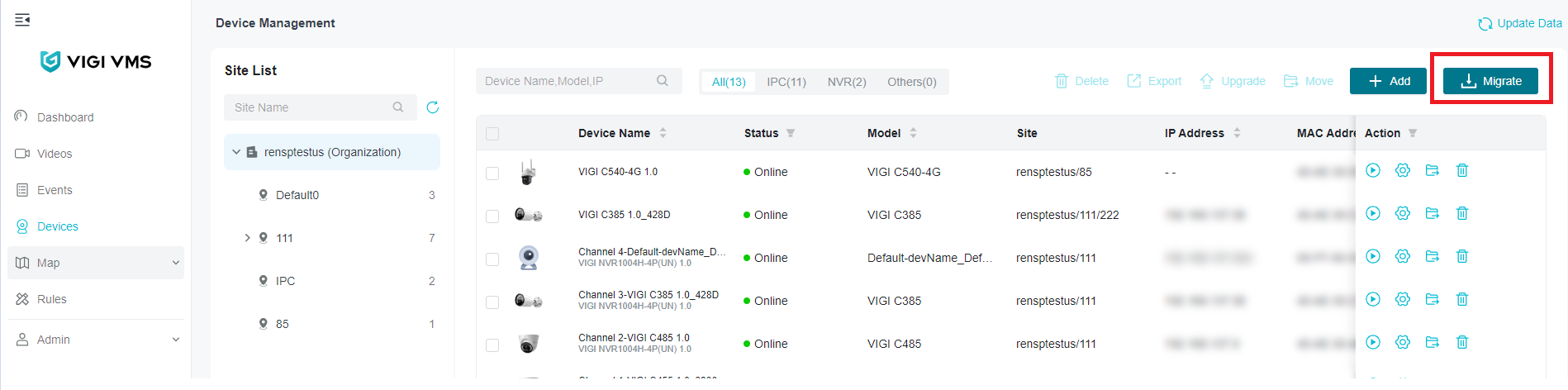
Step 2. In the pop-up window, click Migrate to continue.

Step 3. Select the devices you want to migrate, and click Next.
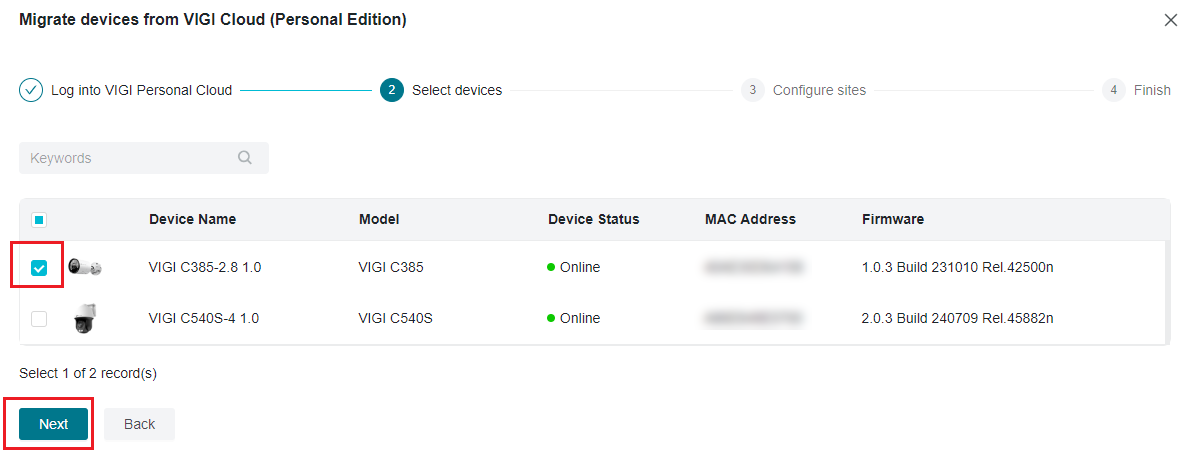
Step 4. Select the site to which you want to migrate the devices, and then click Next.

Step 5. Click Import to start migrating devices to the VIGI Cloud VMS. A migration request email will be sent to your account’s email address,
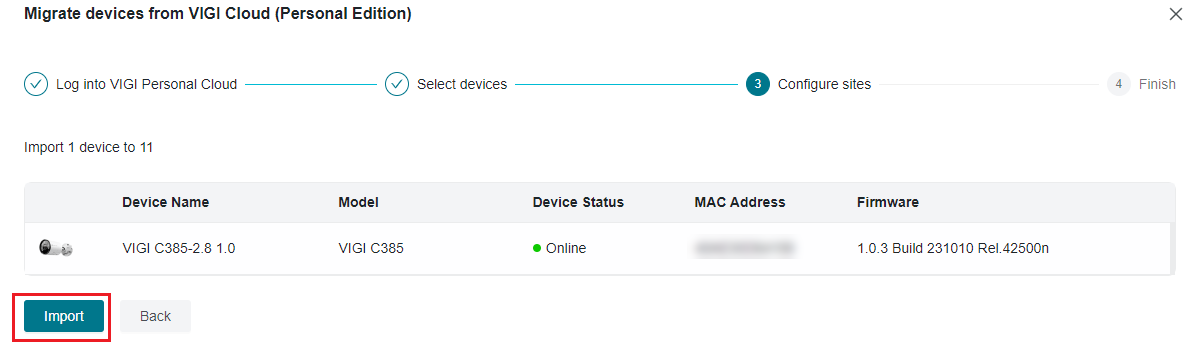

Step 6. Go to the account’s email address, and confirm the migration.

Conclusion
Now that the devices have been migrated to the VIGI Cloud VMS, you can manage the device via the VIGI Cloud VMS.
To learn more about each function and configuration, please visit Support Home to download or check the manual for your product.
Looking For More
Finden Sie diese FAQ hilfreich?
Mit Ihrer Rückmeldung tragen Sie dazu bei, dass wir unsere Webpräsenz verbessern.



TP-Link Community
Still need help? Search for answers, ask questions, and get help from TP-Link experts and other users around the world.
Von United States?
Erhalten Sie Produkte, Events und Leistungen speziell für Ihre Region