
How to Set Up 3G/4G/5G Backup on TP-Link LTE Router Under Wireless Router Mode
Internet Backup ensures your device stays connected to the internet by automatically switching your TP-Link 4G/5G router to a backup network when the primary connection is unavailable, maintaining uninterrupted internet access. This article provides step-by-step instructions for configuring Internet Backup on a 4G/5G Router.
Requirements
- TP-Link 5G/4G router is operating in Wireless Router mode.
- A compatible SIM card is inserted into your TP-Link 5G/4G Router.
Configuration
Scenario 1: For 5G Router
Here we take Archer NX200 as an example. The actual interface may vary slightly from the product model. For more details, please refer to your router's User Guide.
The 5G router interface lacks a single "Backup" toggle. This function is configured by setting the WAN Priority, as detailed below.
Step 1. Ensure both connections are set up:
- Ethernet WAN: Configured in Advanced > Network > Internet > Internet Setup.
- Mobile WAN: Configured in Advanced > Network > Mobile WAN.
Step 2. Go to Advanced > Network > Internet > WAN Priority to adjust the settings according to your requirements:
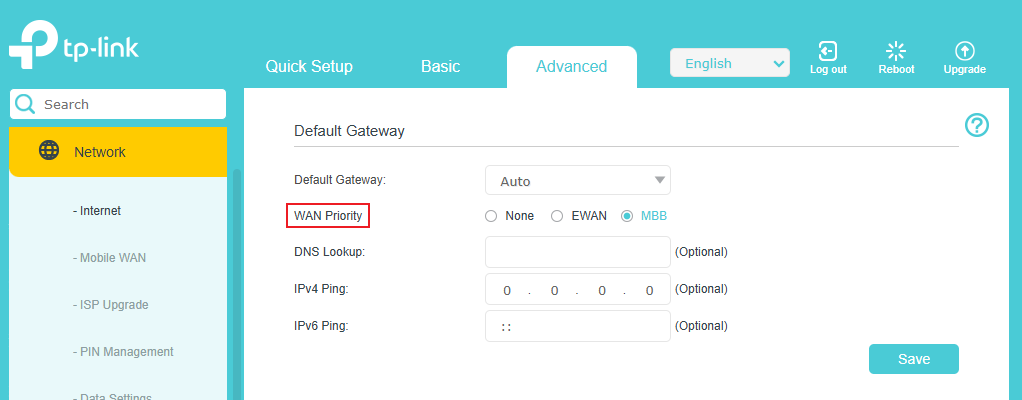
- EWAN: Prioritizes Ethernet Internet.
- MBB: Prioritizes mobile broadband.
- None: The device maintains the first established connection. If that connection fails, it will automatically switch to the other available one.
Step 3. Select the preferred WAN priority and save the settings.
Scenario 2: For 4G Router
Here we take Archer MR600 as an example. The actual interface may vary slightly from the product model. For more details, please refer to your router's User Guide.
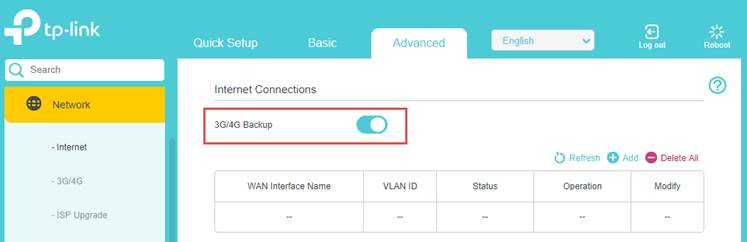
Step 1. Go to Advanced > Network > Internet.
Step 2. Toggle on 3G/4G Backup to enable it.
Get to know more details of each function and configuration please go to Download Center to download the manual of your product.
Looking For More
¿Es útil esta pregunta frecuente?
Sus comentarios nos ayudan a mejorar este sitio.

TP-Link Community
Still need help? Search for answers, ask questions, and get help from TP-Link experts and other users around the world.