
How to configure Wi-Fi Access Control on TP-Link Deco
 115813
Introduction
Wi-Fi Access Control is used to block or allow specific client devices to access your Deco’s Wi-Fi network based on a list of blocked devices (Block List) or a list of allowed devices (Allow List). This article tells steps to configure Wi-Fi Access Control in the Deco app (iOS or Android).
Configuration
Step 1. Open the Deco app, go to the Security tab, and tap the Wi-Fi Access Control module.
Note: The Wi-Fi Access Control Option is only visible when all the Deco units on the network support it.

Step 2. Tap Mode and choose a Wi-Fi access mode.


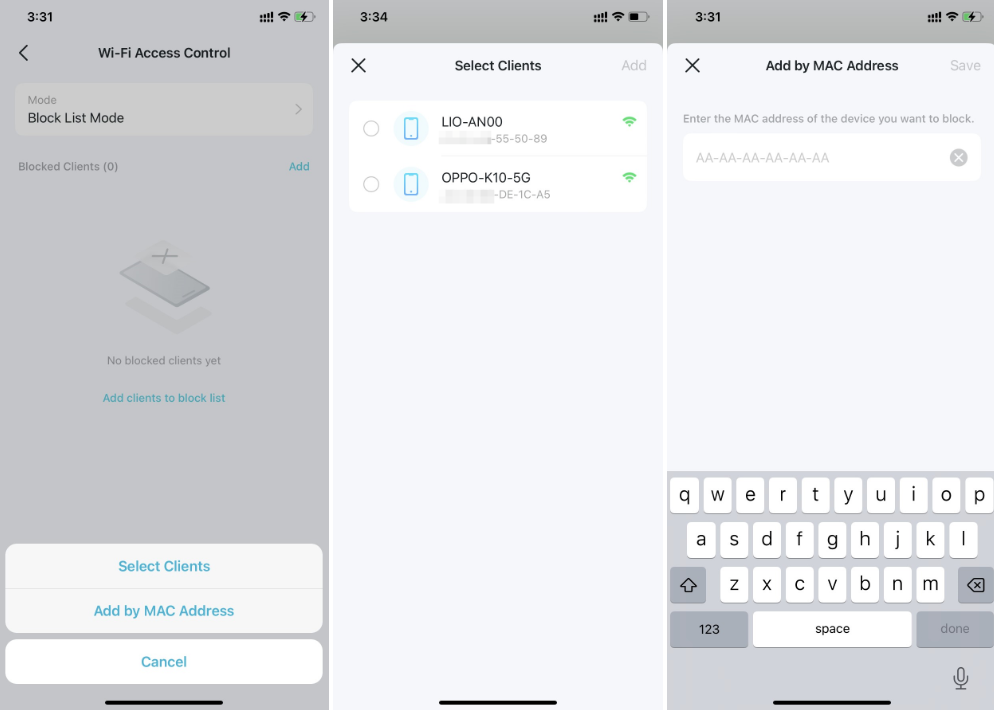
Block List Mode: Add clients to the Block List to prevent them from accessing your Wi-Fi network. You can select clients directly or enter the MAC address of the device you want to block. Then only clients on the Block List are prohibited from connecting to Deco’s Wi-Fi.
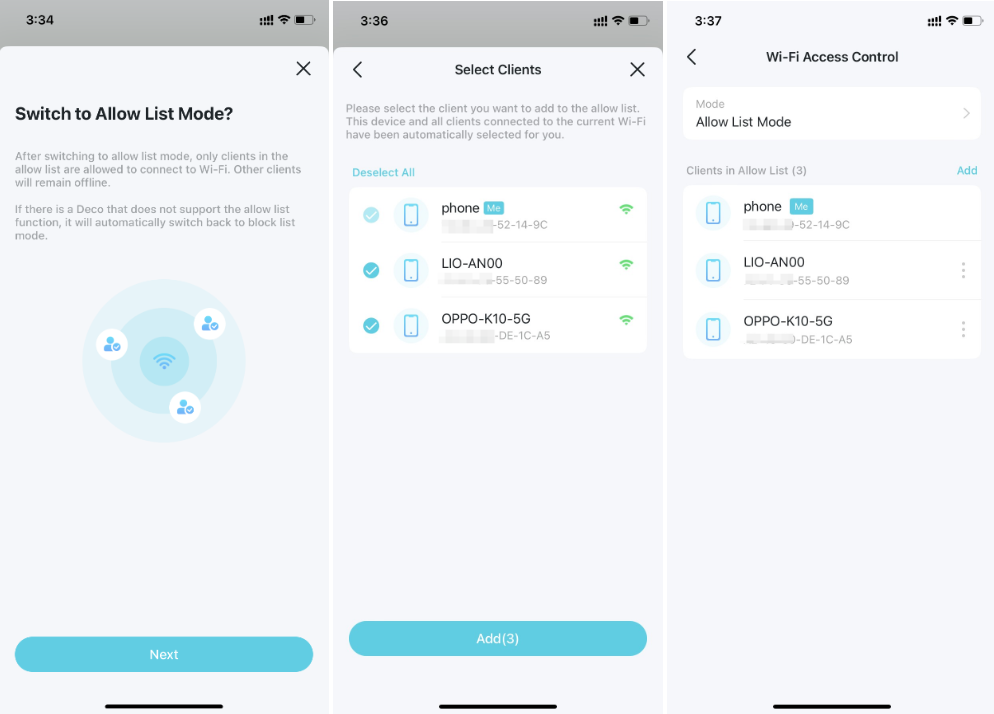
Allow List Mode: Add clients to the Allow List to only allow them access to your Wi-Fi network. Then only devices on the Allow List are allowed to connect (except when Guest Network Exception is enabled).
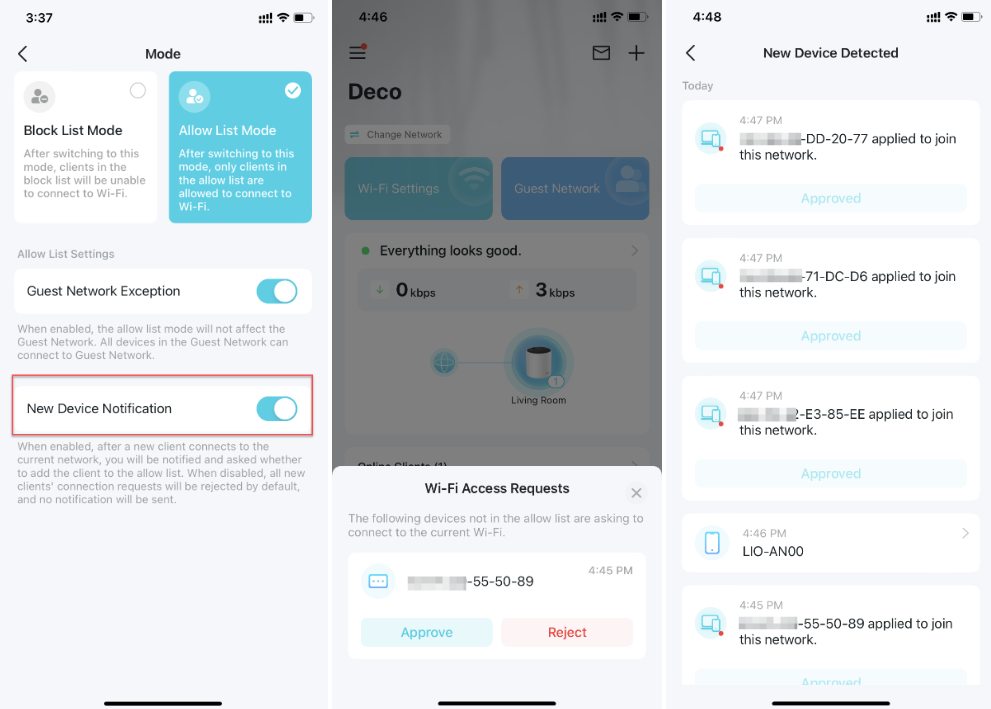
- Guest Network Exception: In Allow List Mode, your guests can still connect to the Guest Network without being affected by the Allow List mode if you enable Guest Network Exception.

- New Device Notification: In Allow List Mode, enable the function to receive inquiry notifications when new devices connect to the network. When disabled, all devices’ connection requests will be rejected by default without receiving notifications.
Tip: You can check all the history notifications about newly detected devices in Messages.
¿Es útil esta pregunta frecuente?
Sus comentarios nos ayudan a mejorar este sitio.

_EU_V1.0_01_normal_20220707060708z.jpg)