
How to configure Wireless MAC address filter on TD-W8950N(D) , TD-W8960N(D/B), TD-W8910G/8920G, TD-W8968 V3V4
 139611
This Article Applies to:
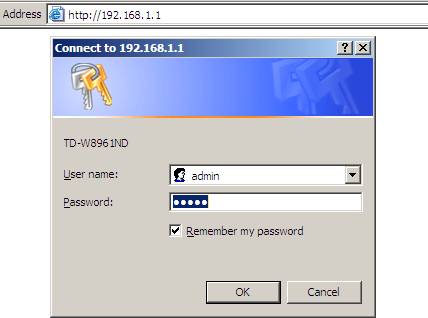
1. Open the web browser and type in http://192.168.1.1 in the address bar and press Enter. The Username and Password are both “admin”.
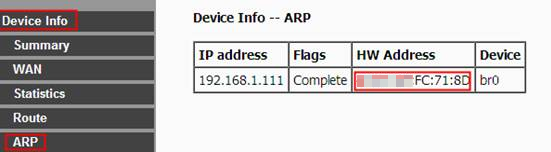
2. Go to Device Info ->ARP page, you can find the MAC address of the PC which is connected to the device.
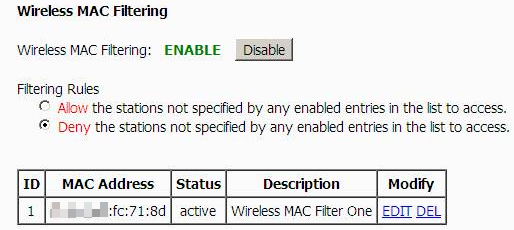
3. Go to Wireless->Wireless MAC Filtering page, select the Filtering Rules Click Add New button.
If your page is like below,select Deny the stations not specified by any enabled entries in the list to access means only the listed MAC Addresses will be able to use the wireless interent;Select Allow the stations not specified by any enabled entries in the list to access means the listed MAC Addresses will NOT be able to access the internet wirelessly.
If your page is like below,Select Allow means only the listed MAC Addresses will be able to use the wireless interent;Select Denymeans the listed MAC Addresses will NOT be able to access the internet wirelessly.
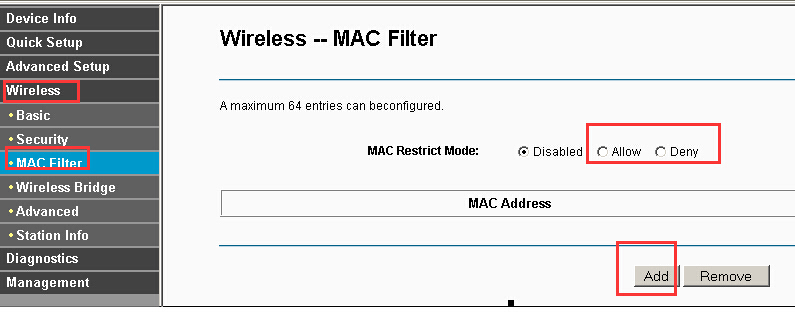
4. Put in the MAC Address you find in Device Info->ARP page and give a Description for the MAC add5ress. The Statusshould be Enable. At last, click the Save button.
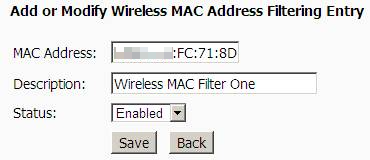
You can add rules one by one in this way.
Get to know more details of each function and configuration please go to Download Center to download the manual of your product.
Is this faq useful?
Your feedback helps improve this site.


TP-Link Community
Still need help? Search for answers, ask questions, and get help from TP-Link experts and other users around the world.