
How to Change a Tapo Device's Name, Icon, Location, and Time Zone
You can customize your Tapo devices by changing their name, icon, location, and, for some device types, time zone. This guide explains where to find these settings in the Tapo app and highlights the differences in time zone support across various Tapo devices.
Key Takeaways
- Cameras, doorbells, door locks, and hubs allow you to edit device details from the Device Info page.
- Cameras, doorbells, and hubs support changing the device time zone directly in the Tapo app.
- Switches, plugs, lights, and sensors allow you to change the device name, icon, and location from the device settings page.
- Switches, plugs, lights, and sensors do not support individual time zone settings.
- To change the time zone on switches, plugs, lights, or sensors, you must reset the device and complete setup again.
Change Device Information
For Tapo Cameras, Doorbells, Door Locks, and Hubs
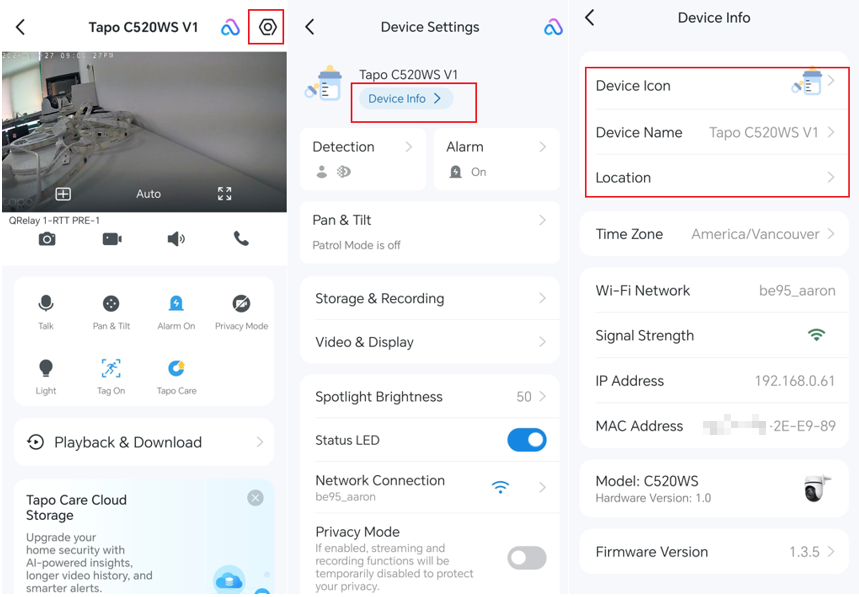
- Open the Tapo app and tap the device card you want to edit.
- Tap the Settings icon in the top right corner.
- Select Device Info.
- Update the Device Icon, Device Name, or Location as needed.
Note: For cameras, doorbells, and hubs, you can also change the device Time Zone on the Device Info page.
For Tapo Switches, Plugs, Lights, and Sensors
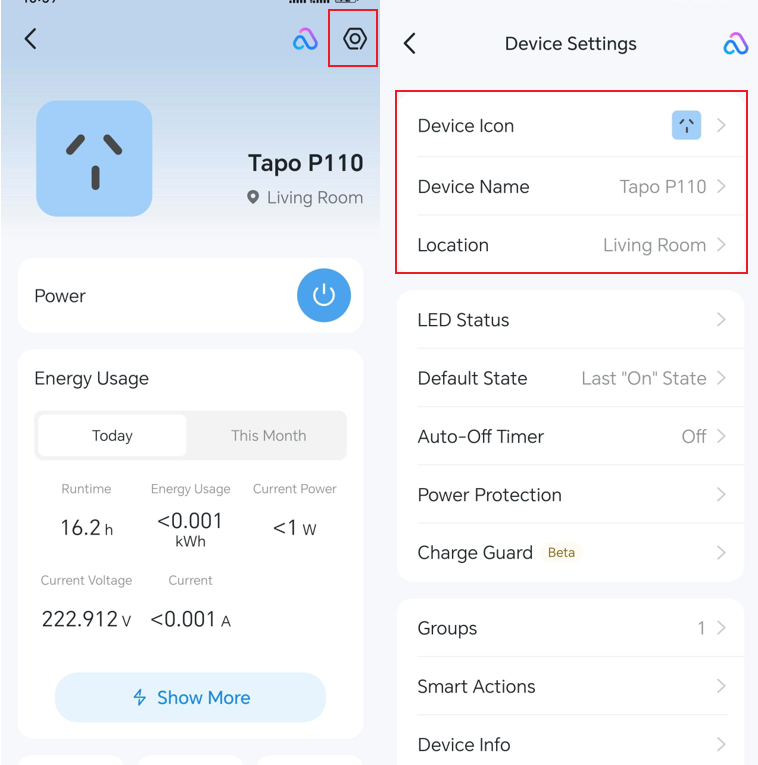
- Open the Tapo app and tap the device card you want to edit.
- Tap the Settings icon in the top right corner.
- Edit the Device Icon, Device Name, or Location directly from the settings page.
Note: These devices do not support individual time zone settings. Their time zone is set during initial configuration, typically matching the time zone of the phone used for setup, and it does not change automatically when you change your phone's time zone or the Tapo app account time zone. To change the time zone of these devices, reset the device and set it up again.
Looking For More
Is this faq useful?
Your feedback helps improve this site.
(1)_normal_20240513182614f.png)



TP-Link Community
Still need help? Search for answers, ask questions, and get help from TP-Link experts and other users around the world.